Tournament Check-In and Scores: Parent Guide
TournamentsGetting started Updated November 2, 2026 4 min read
Many junior tournaments use Match Tennis App as their tournament desk. Before the tournament you sign the waiver online. The first time, this also sets up your free app account; after that you log in with it. On match day you check in and report the score from your phone.
Part 1Open the check-in page
Do this at home before the tournament. Open your tournament on playtennis.usta.com and stay on the Overview tab. Tap the Match Tennis App check-in link. If you don't see it, tap Show more.
-
Step 1: Type the code
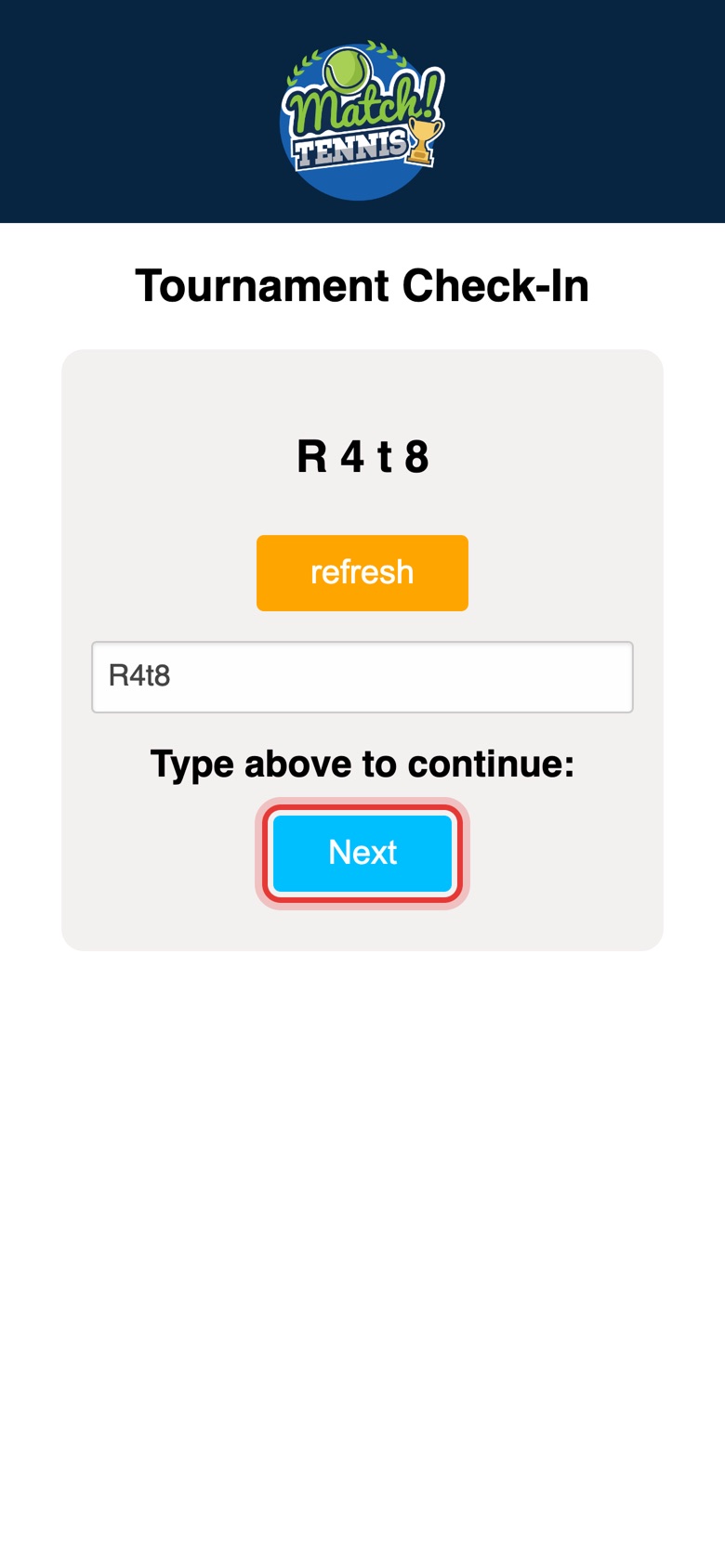
On the Tournament Check-In page, type the code exactly as shown, capitals included, and tap Next.
-
Step 2: Tap Enter Login or Create Account
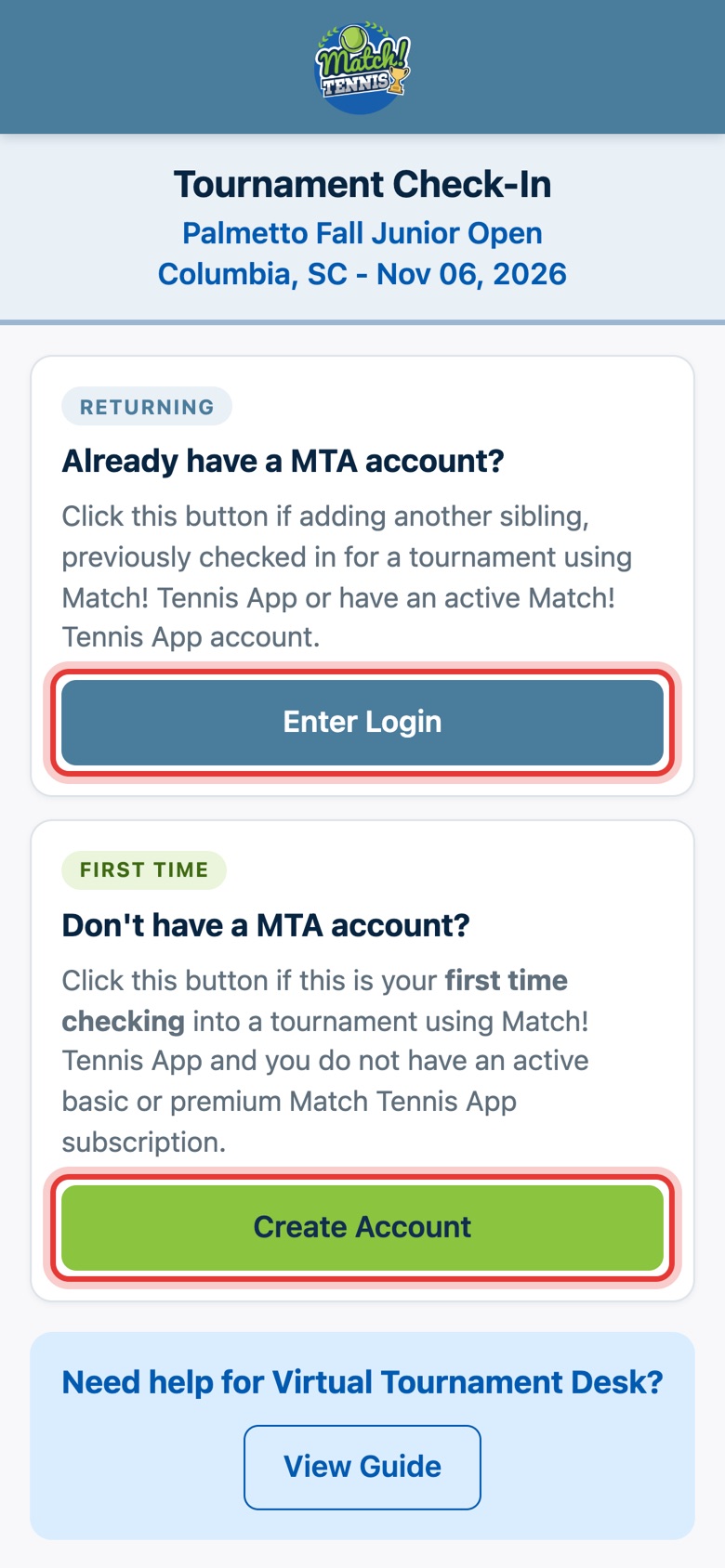
Already checked in a brother or sister, checked in for an earlier tournament, or have a subscription? Tap Enter Login and go to Part 3. First time? Tap Create Account and go to Part 2.
Part 2First time: create an account
Already have an account? Skip to Part 3.
-
Step 3: Set up your account
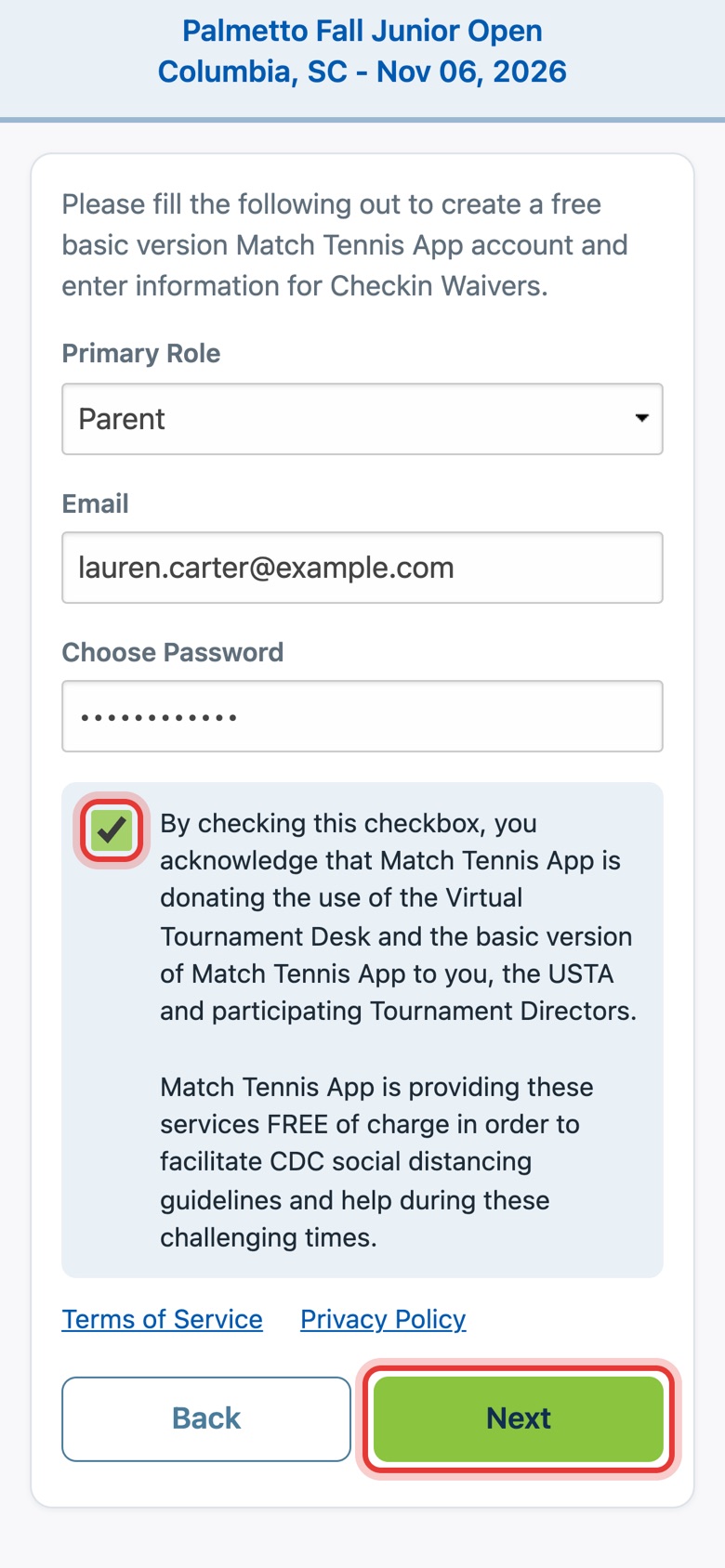
Choose Parent, type your email (it becomes your username) and a password of at least 10 characters. Check the box and tap Next.
-
Step 4: Enter the USTA number
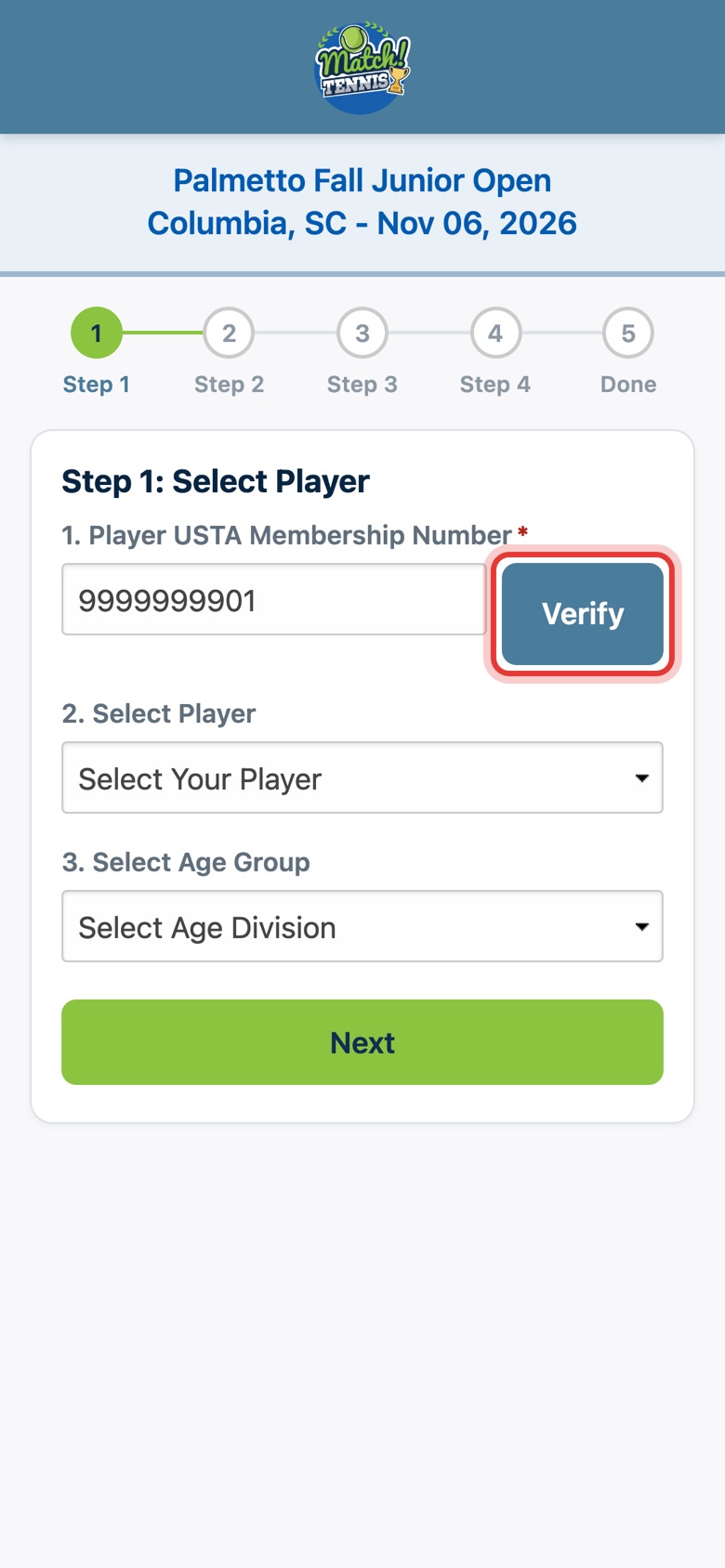
Type your player's USTA membership number and tap Verify. A box asks you to confirm your player's name. Tap OK.
-
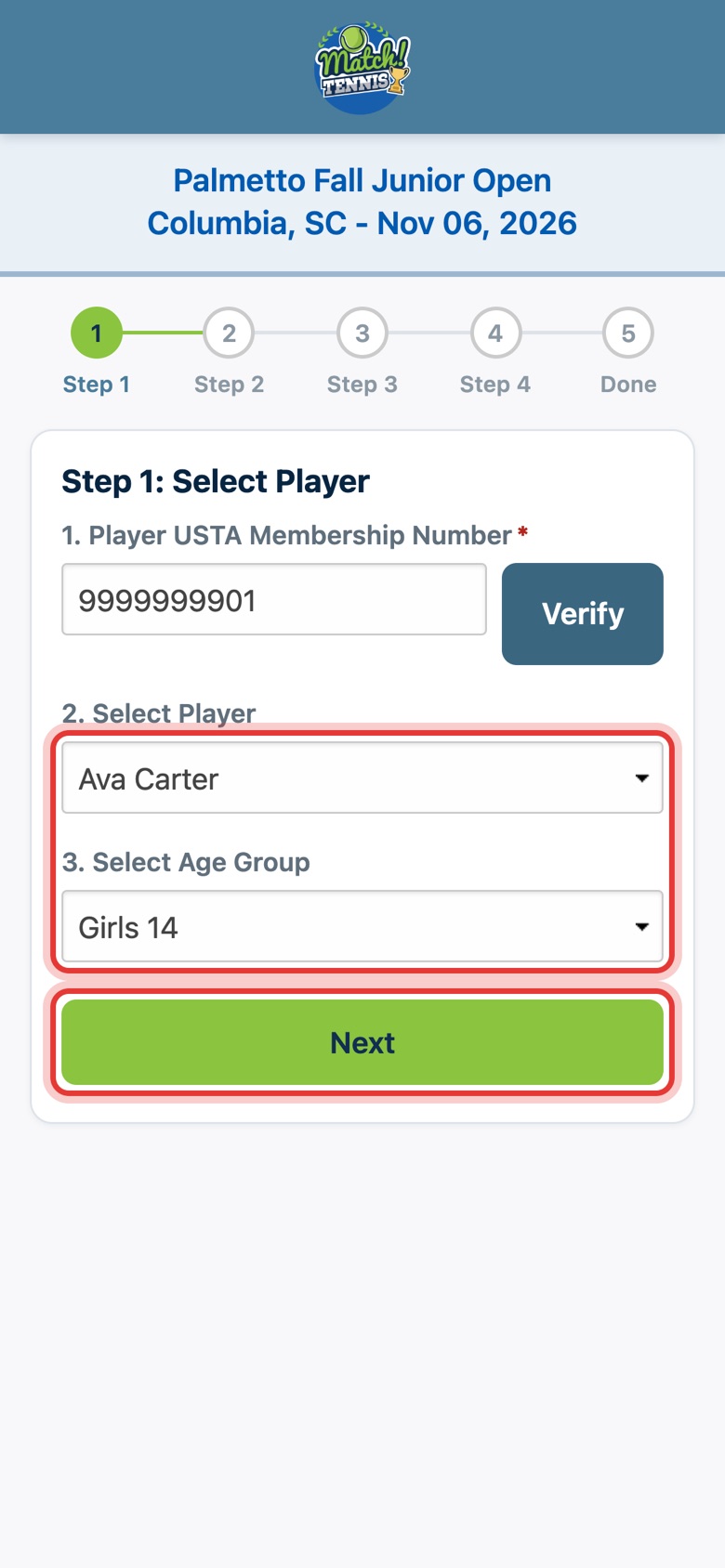
Step 5: Your player is found
Your player and age division fill in for you. Tap Next and go to Part 4. If they don't fill in, pick your player and age group from the lists.
Part 3Already have an account: log in
First time? Skip this part and go on to Part 4.
-
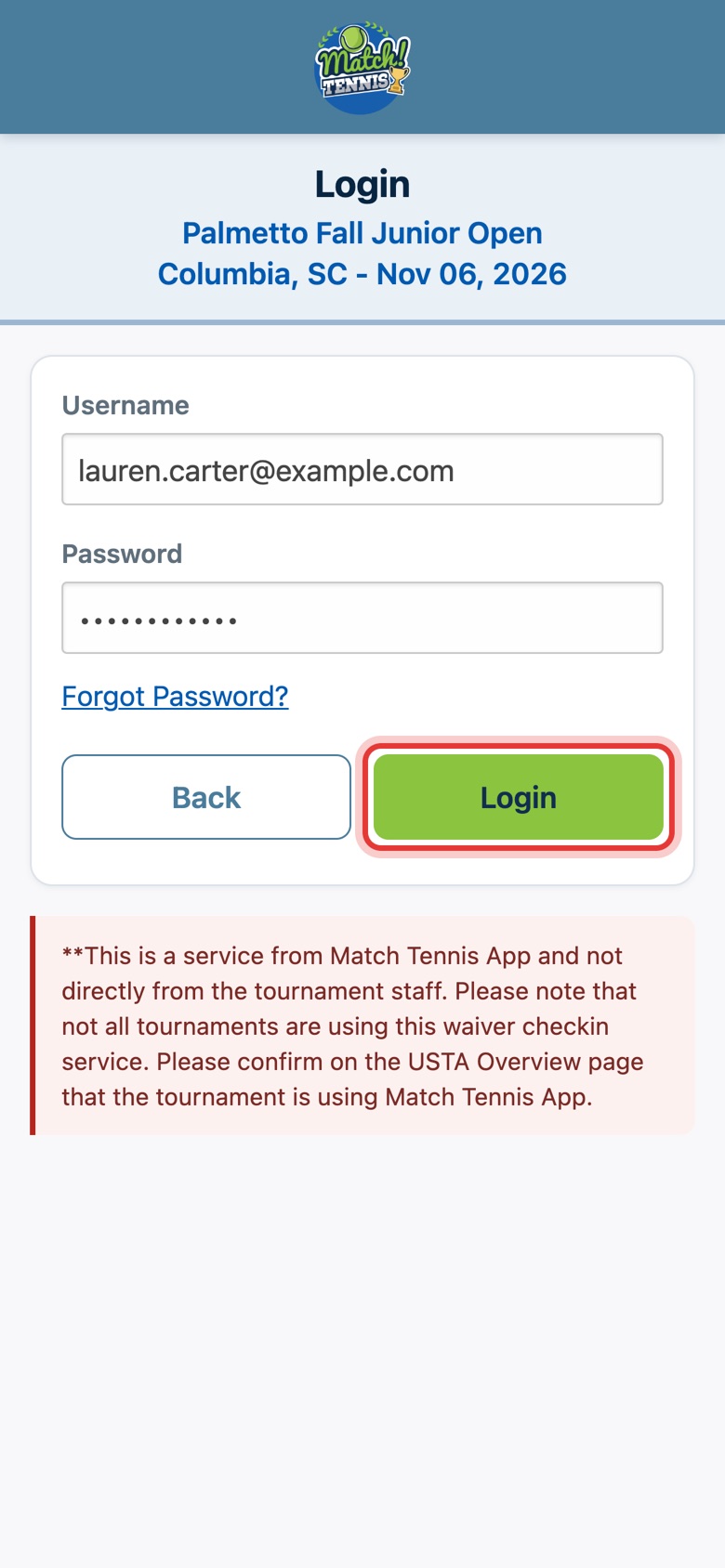
Step 6: Log in
Type the email and password of your Match Tennis App account and tap Login.
-
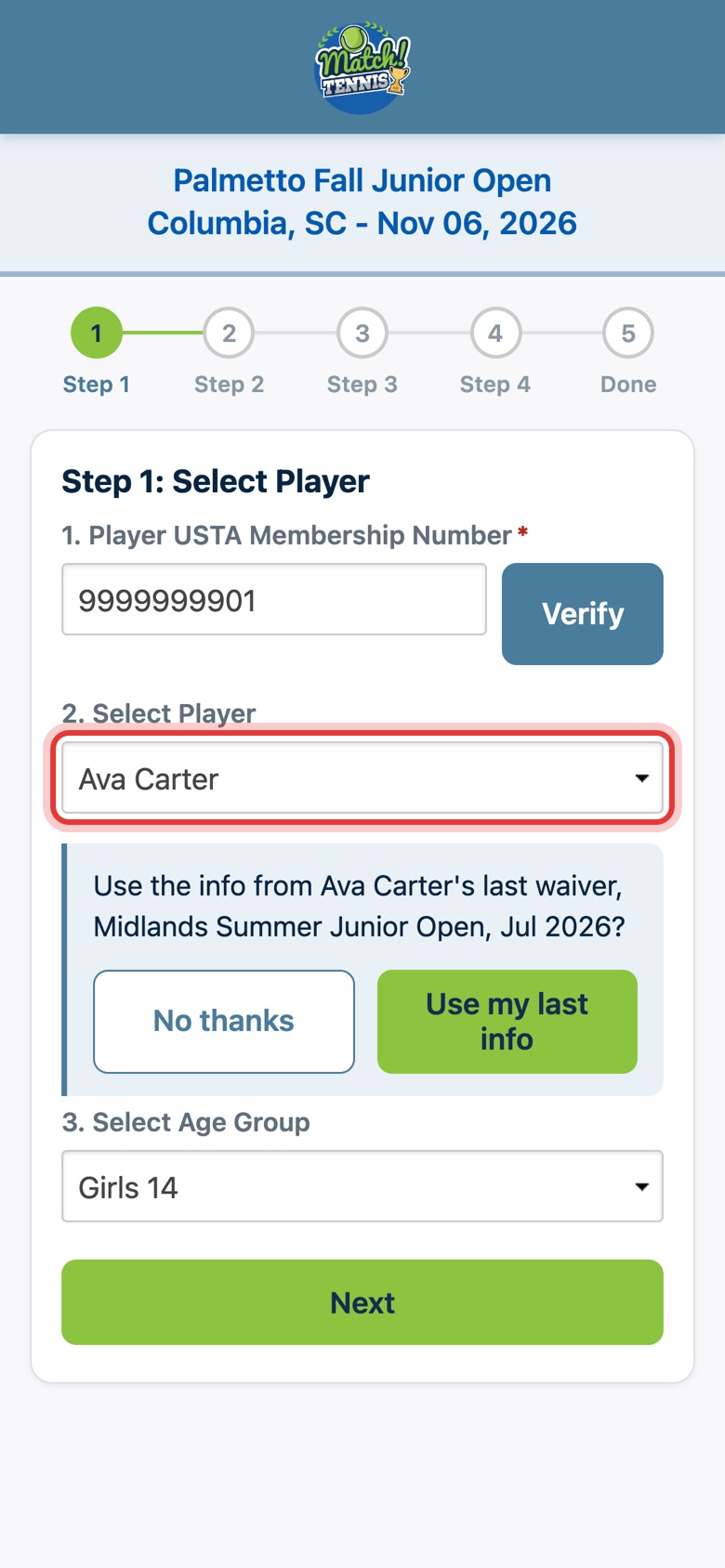
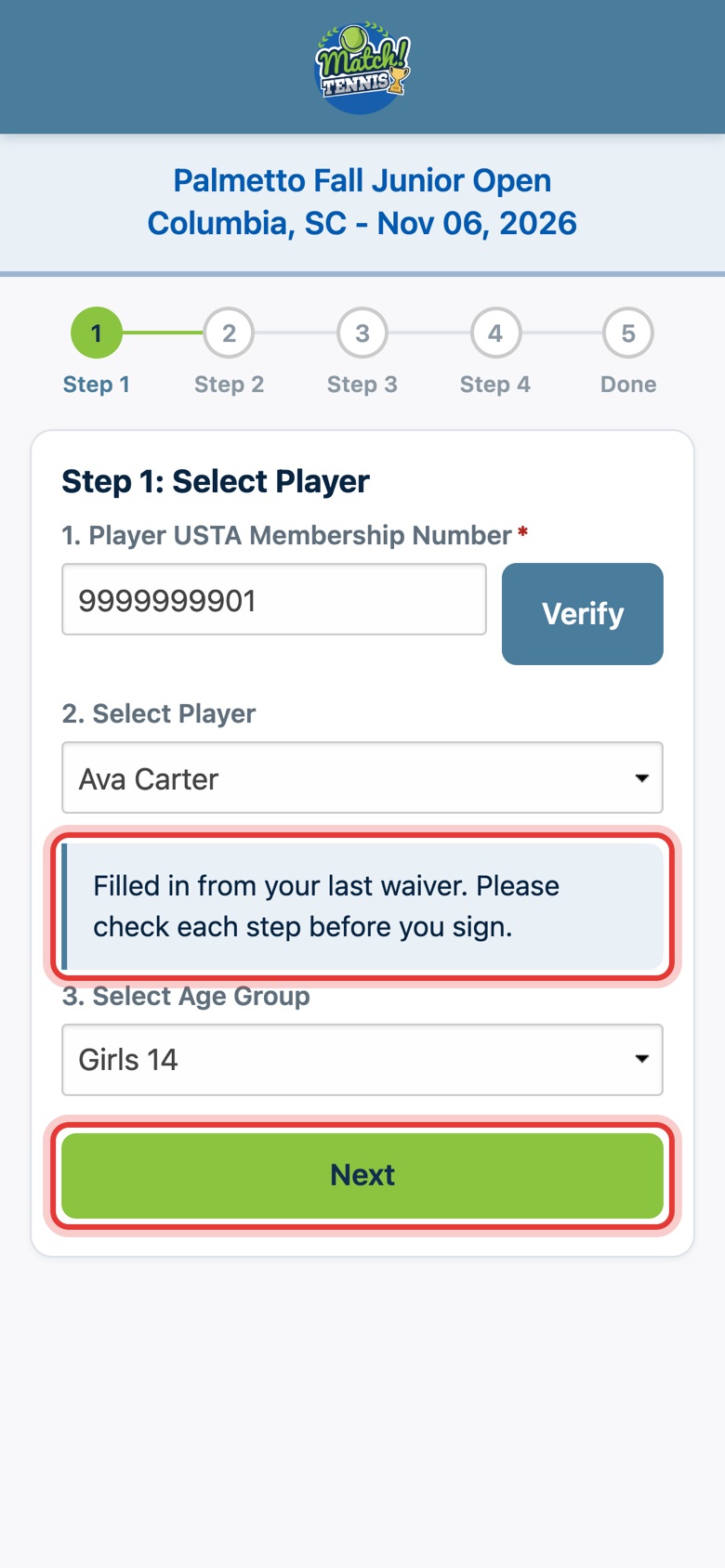
Step 7: Pick your player
Select Player lists the players on your account. Pick the one you are checking in. The USTA number and age group fill in for you.
-
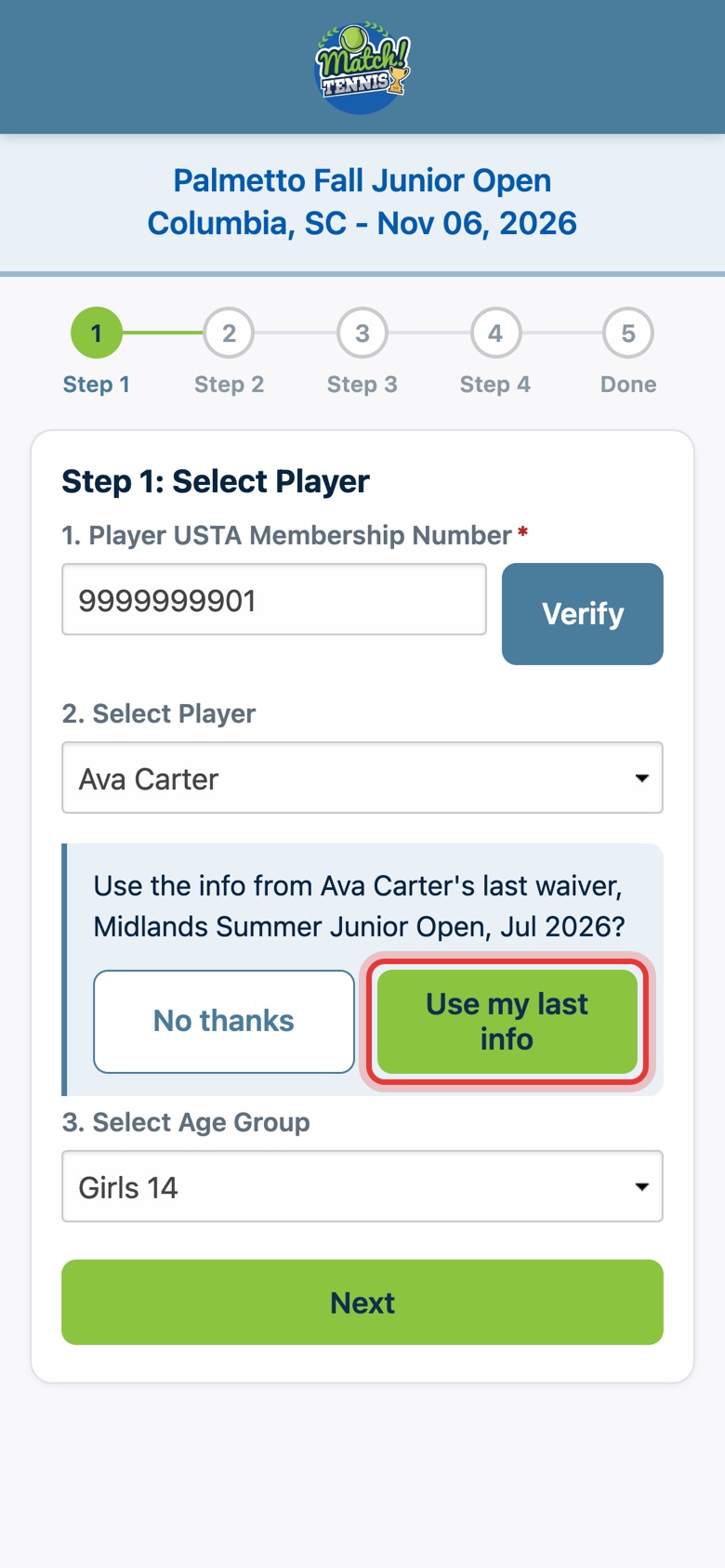
Step 8: Use your last info
To copy your details from your last waiver, tap Use my last info. Tap No thanks to fill them in yourself.
-
Step 9: Tap Next
Your details are filled in. Tap Next, then check each step before you sign.
Part 4Complete the waiver
Both routes continue here. If you logged in, most of it is already filled in: check each step.
-
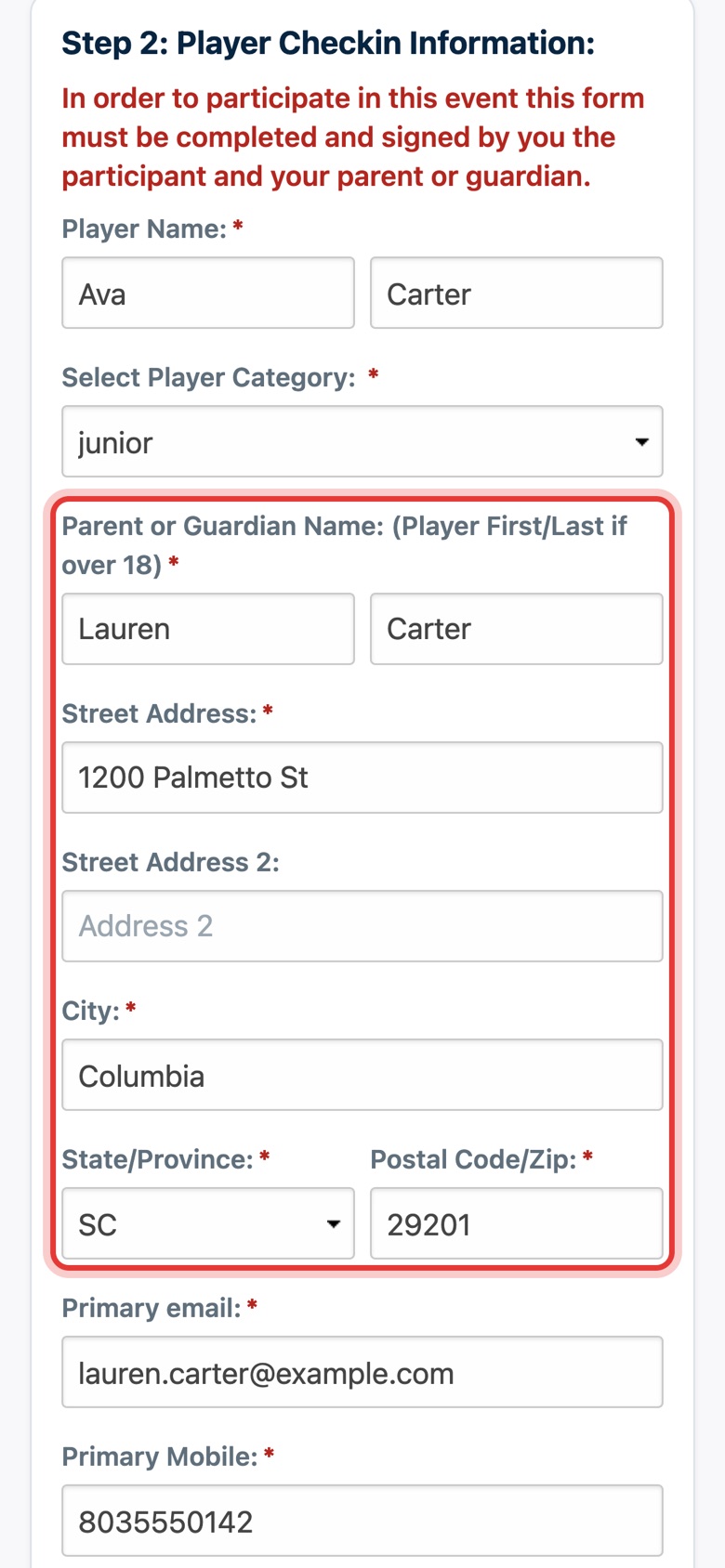
Step 10: Parent and address
Check the player's name and that the category is junior. Type or check your name as parent or guardian and your home address.
-
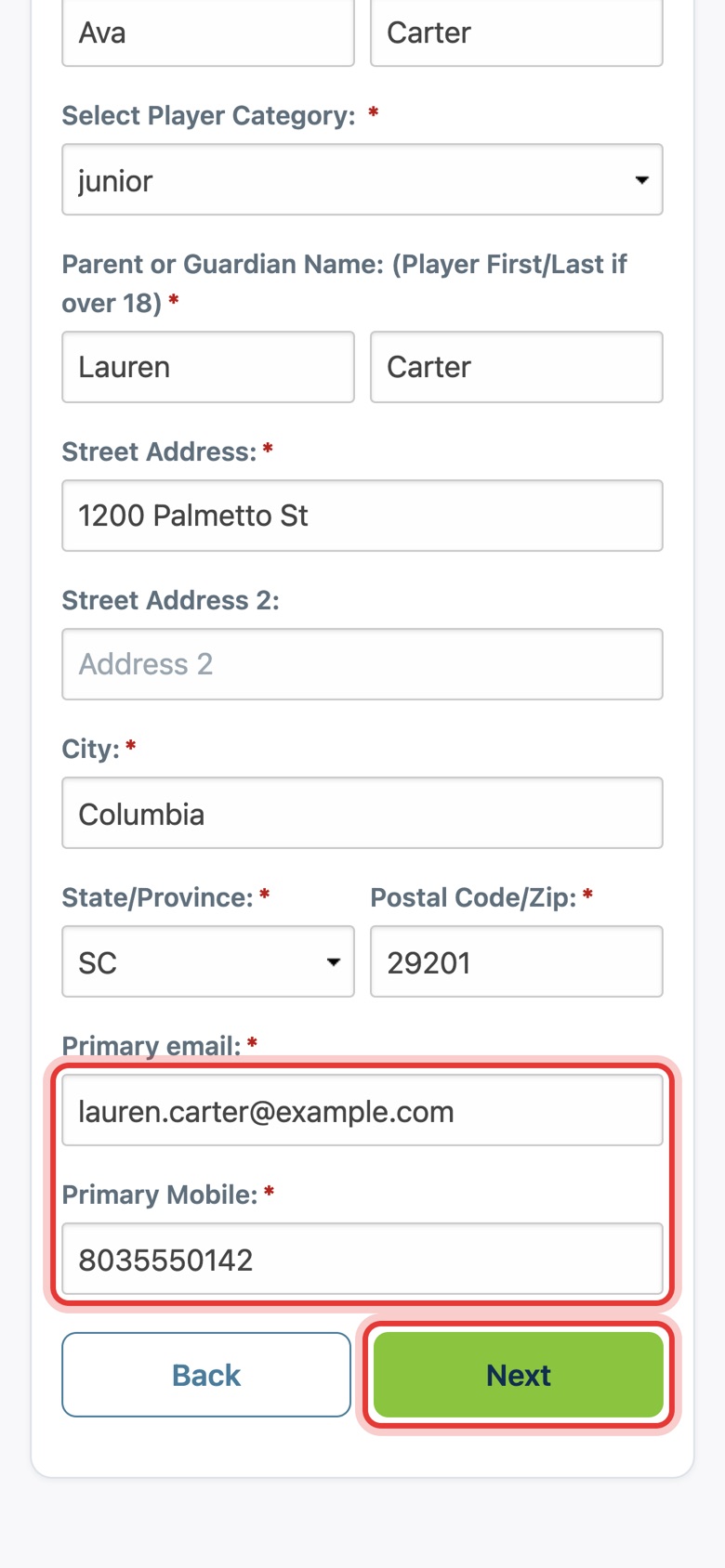
Step 11: Email and mobile number
Check your email and mobile number, then tap Next. Check-in confirmations are texted to this number.
-
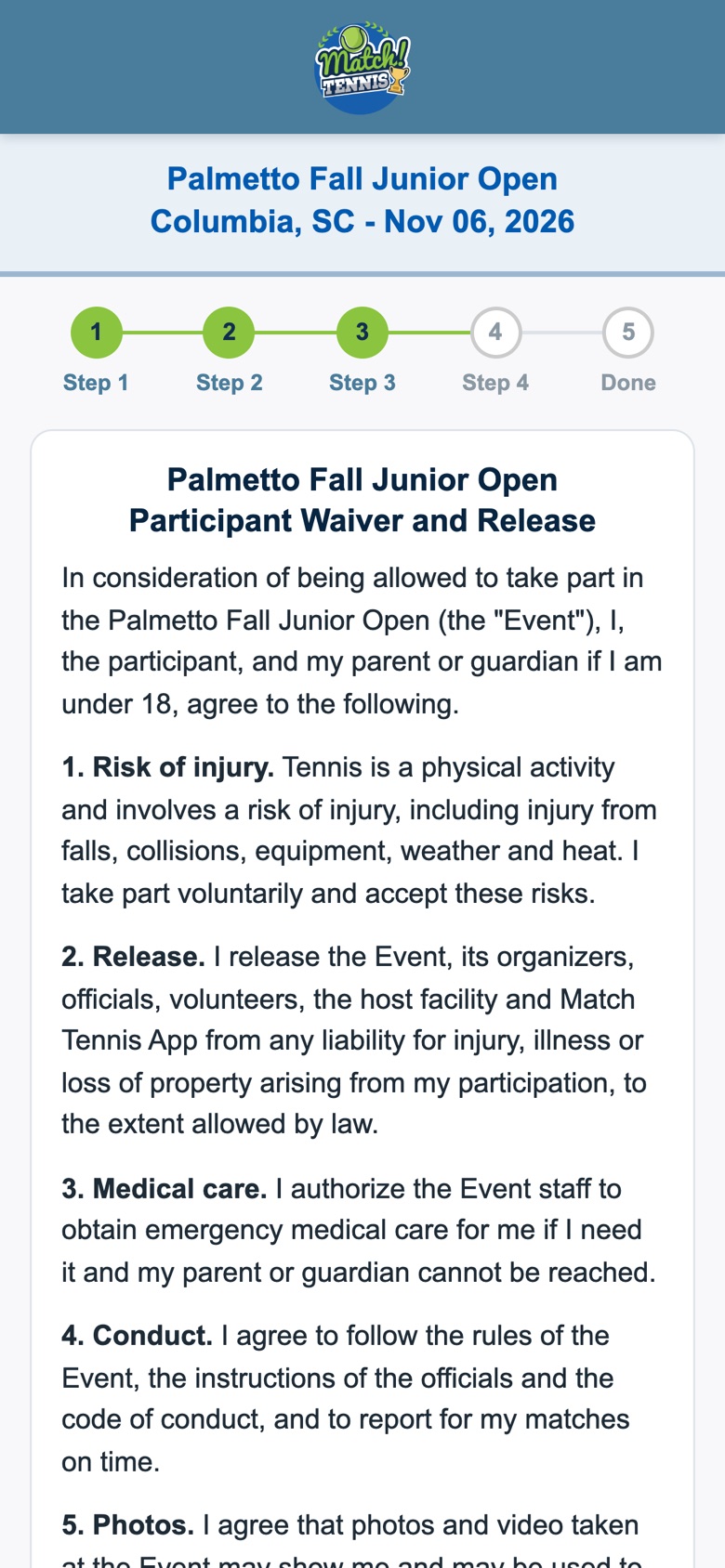
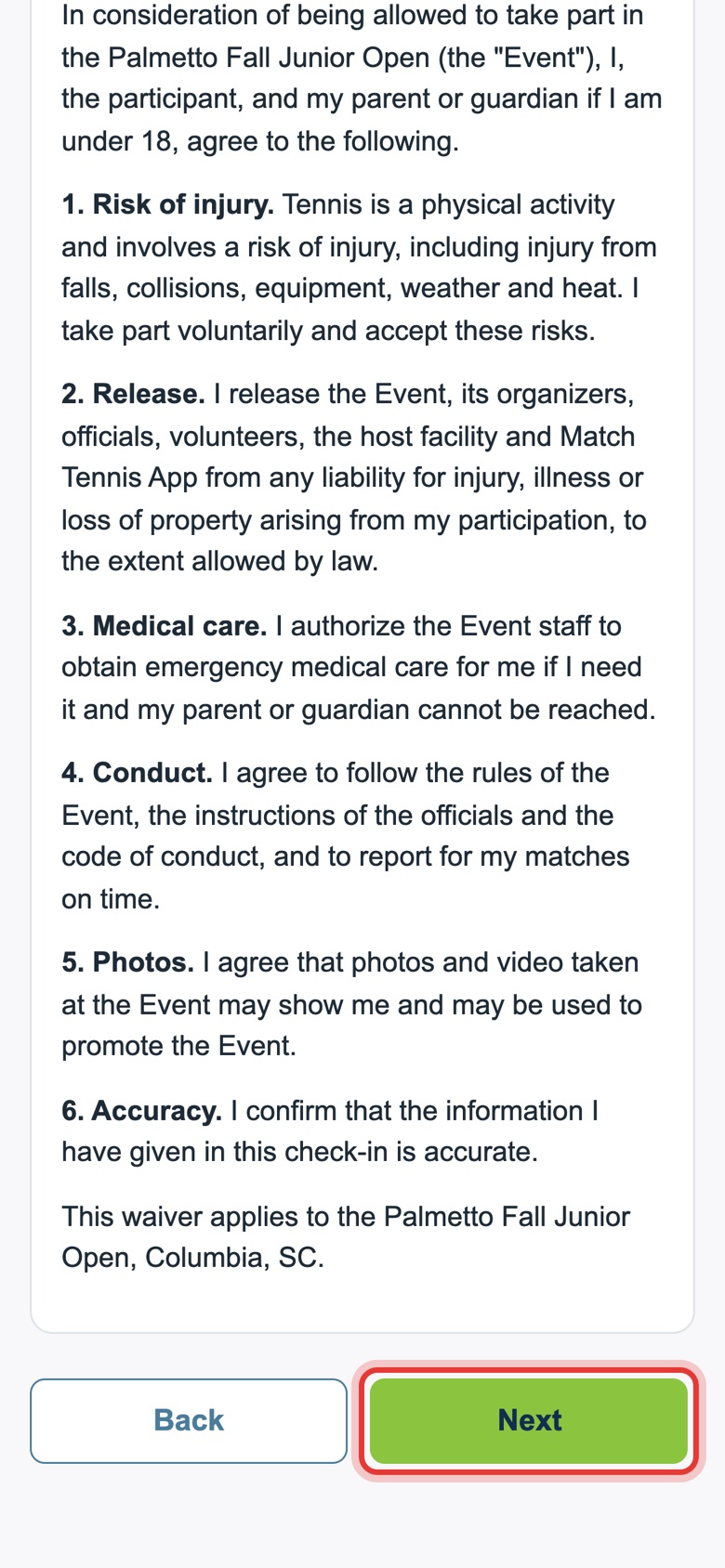
Step 12: Read the waiver
This is the tournament's own waiver. Take a moment to read it.
-
Step 13: Tap Next
Scroll to the bottom of the waiver and tap Next.
-
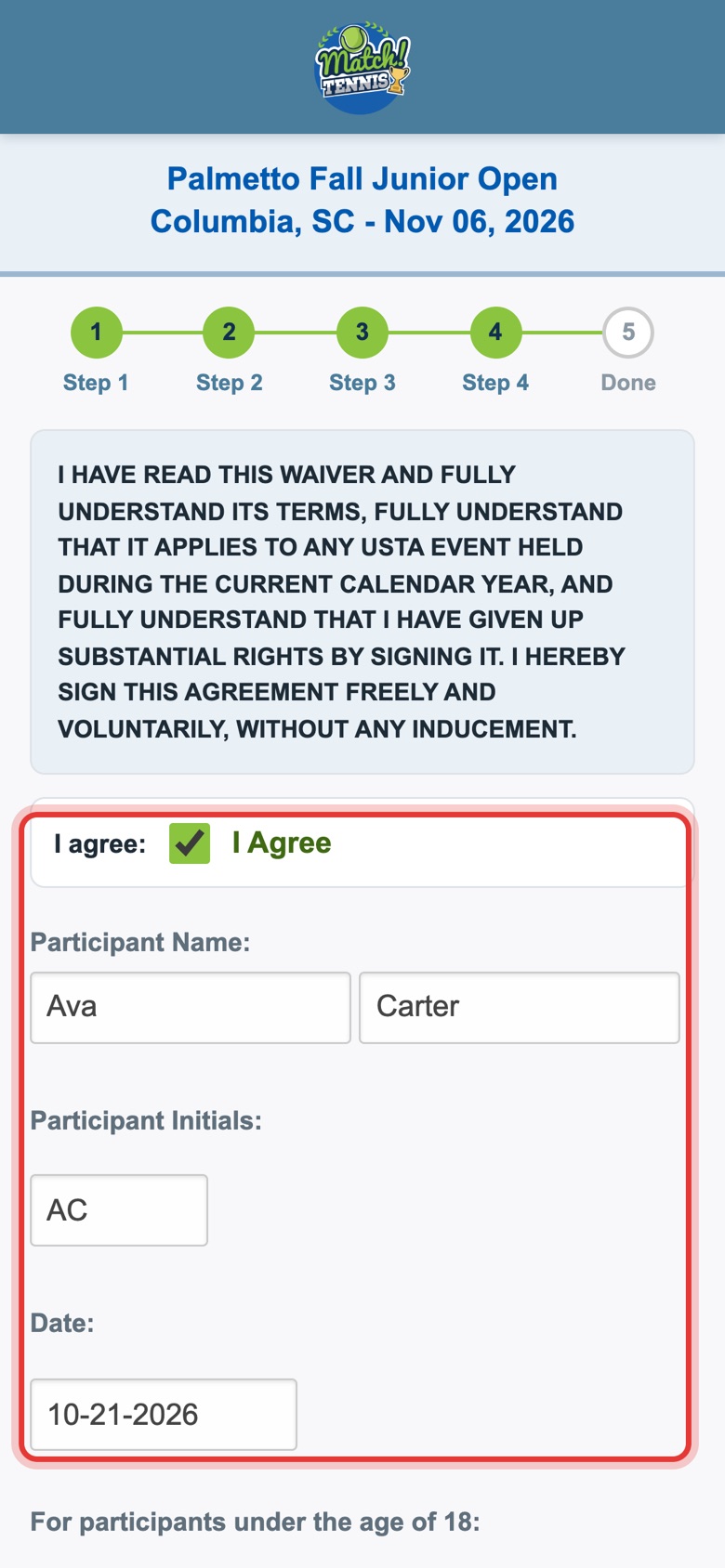
Step 14: Player agrees and initials
Check I agree and type the player's initials. The participant name and today's date fill in for you.
-
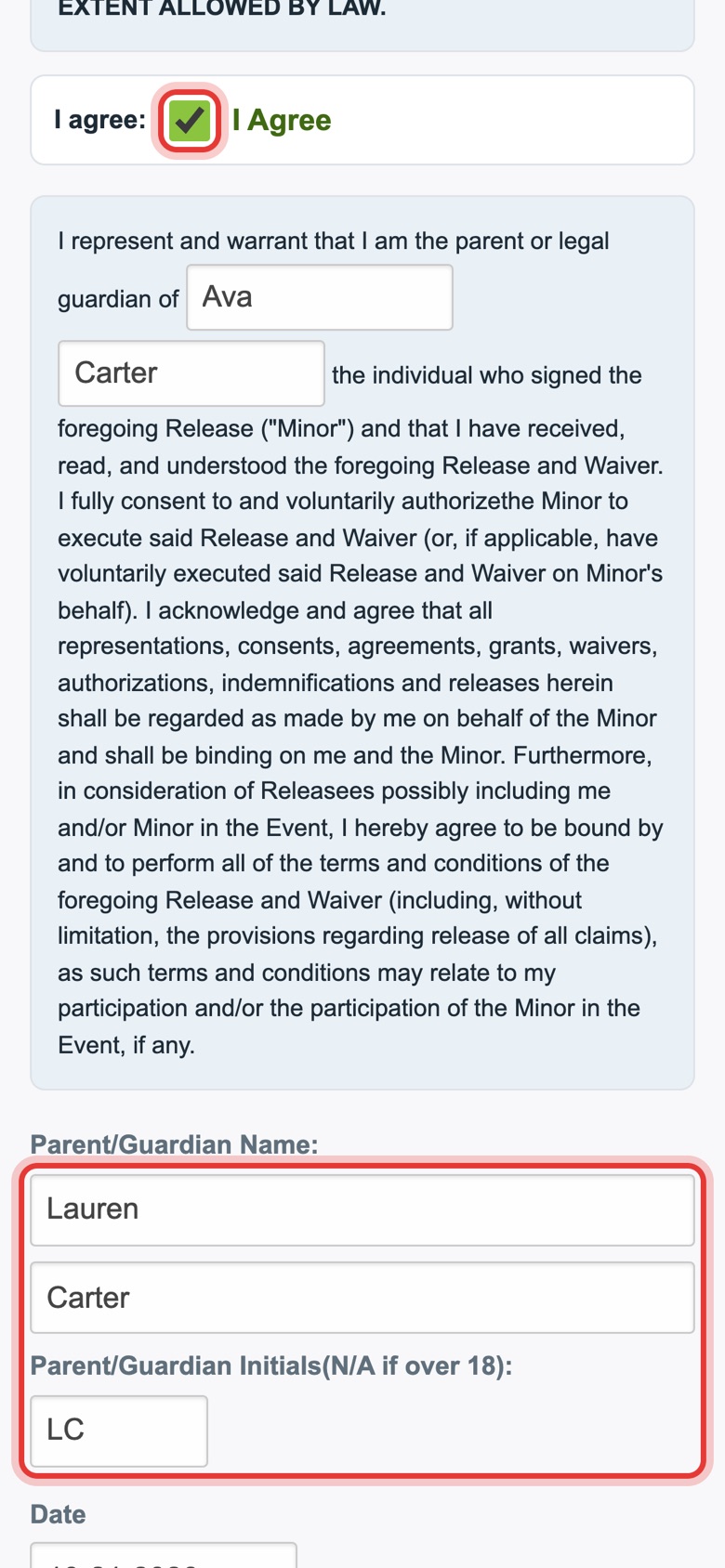
Step 15: Parent agrees and initials
For players under 18, a parent or guardian also checks I agree, checks their name and types their initials.
-
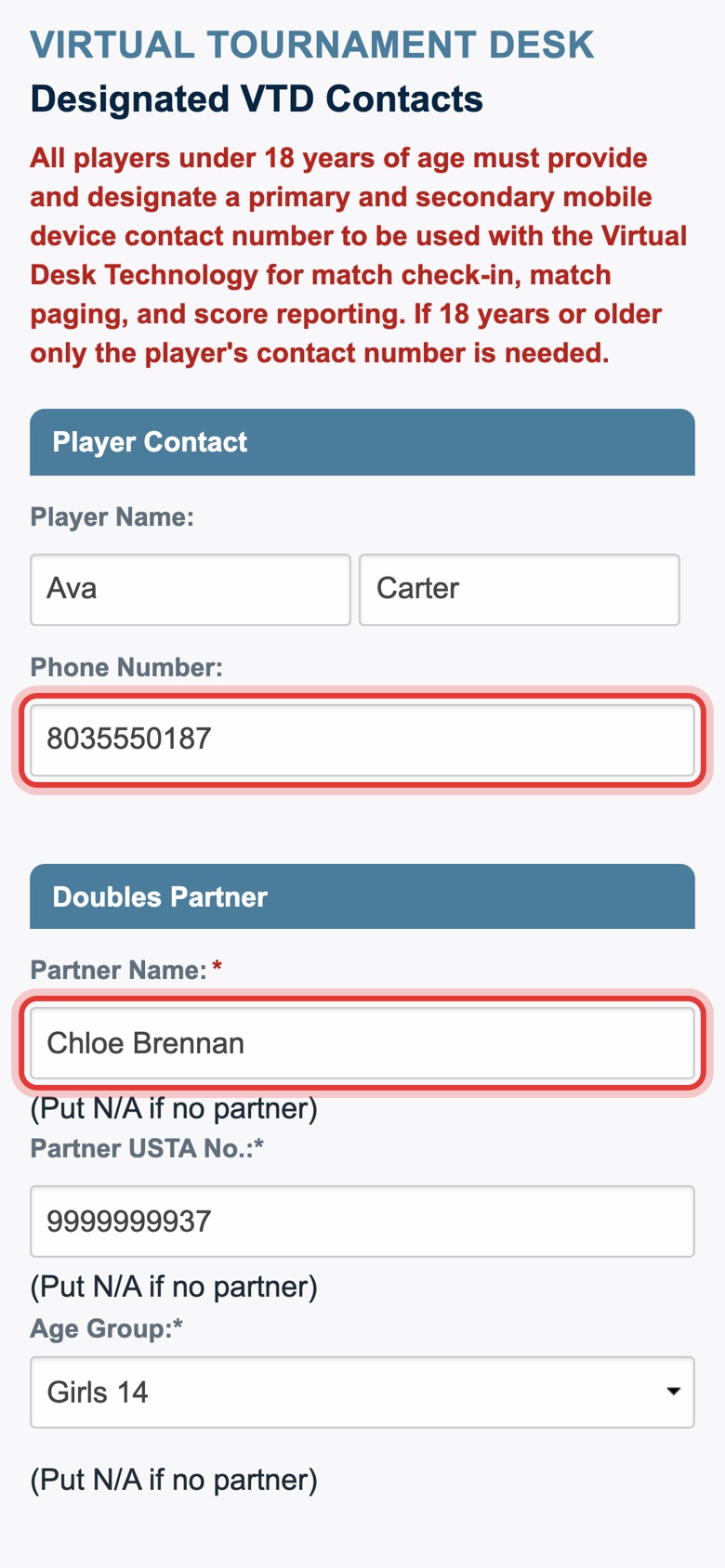
Step 16: Player's phone and doubles partner
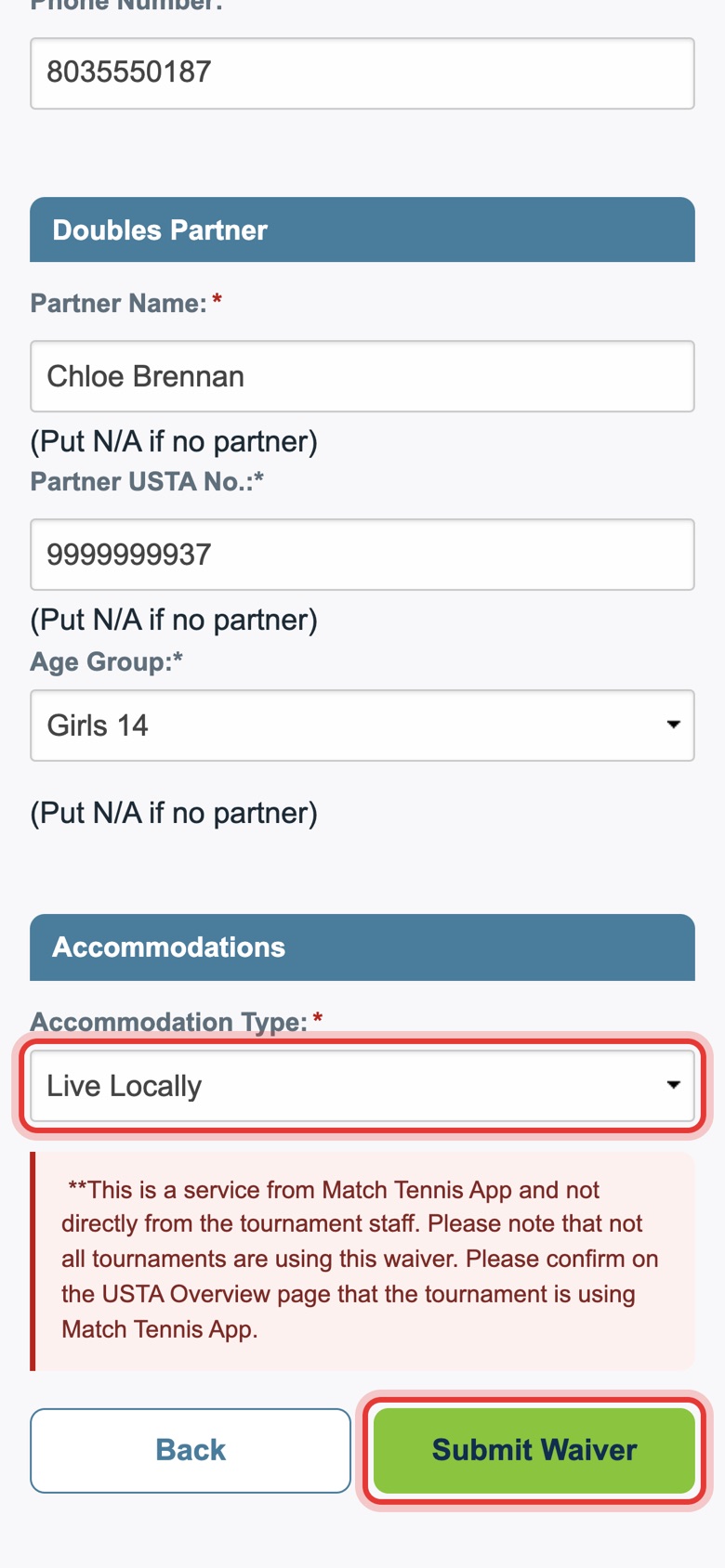
Add or check the player's mobile number. Playing doubles? Add your partner's name, USTA number and age group. If not, type N/A.
-
Step 17: Where you're staying, then submit
Choose where you are staying (for a hotel, add its name and the name on the room), then tap Submit Waiver.
-
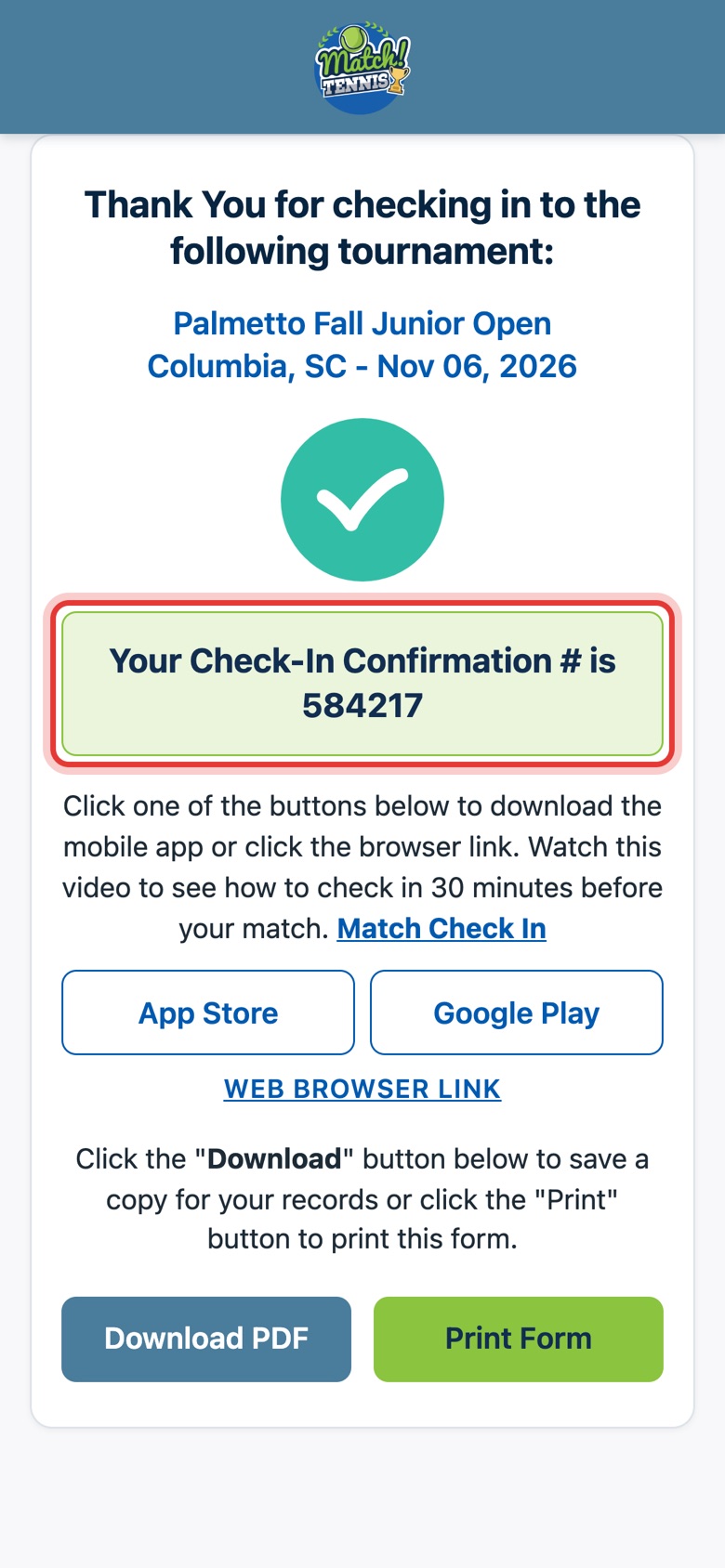
Step 18: Done
Keep your confirmation number. Tap Download PDF or Print Form if you want a copy. The tournament is now on your app calendar and your player is on My Players.
-
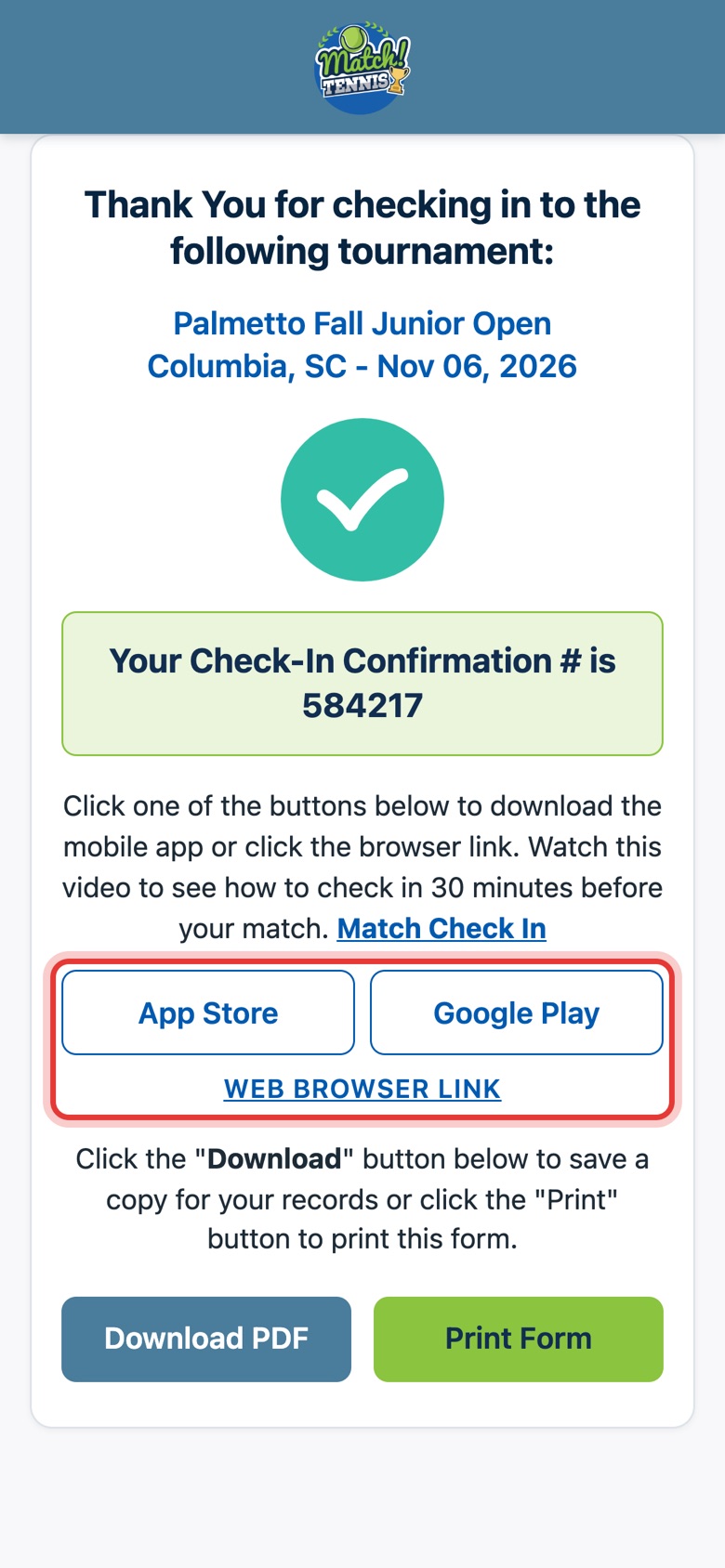
Step 19: Get the app
Don't have the app yet? Tap App Store or Google Play to download Match Tennis Tournament Manager, or search for it in your app store. No phone app? Tap WEB BROWSER LINK to use it in your browser.
Part 5Check in on match day
-
Step 20: Log in to the app
Open Match Tennis Tournament Manager and log in with your email and password.

-
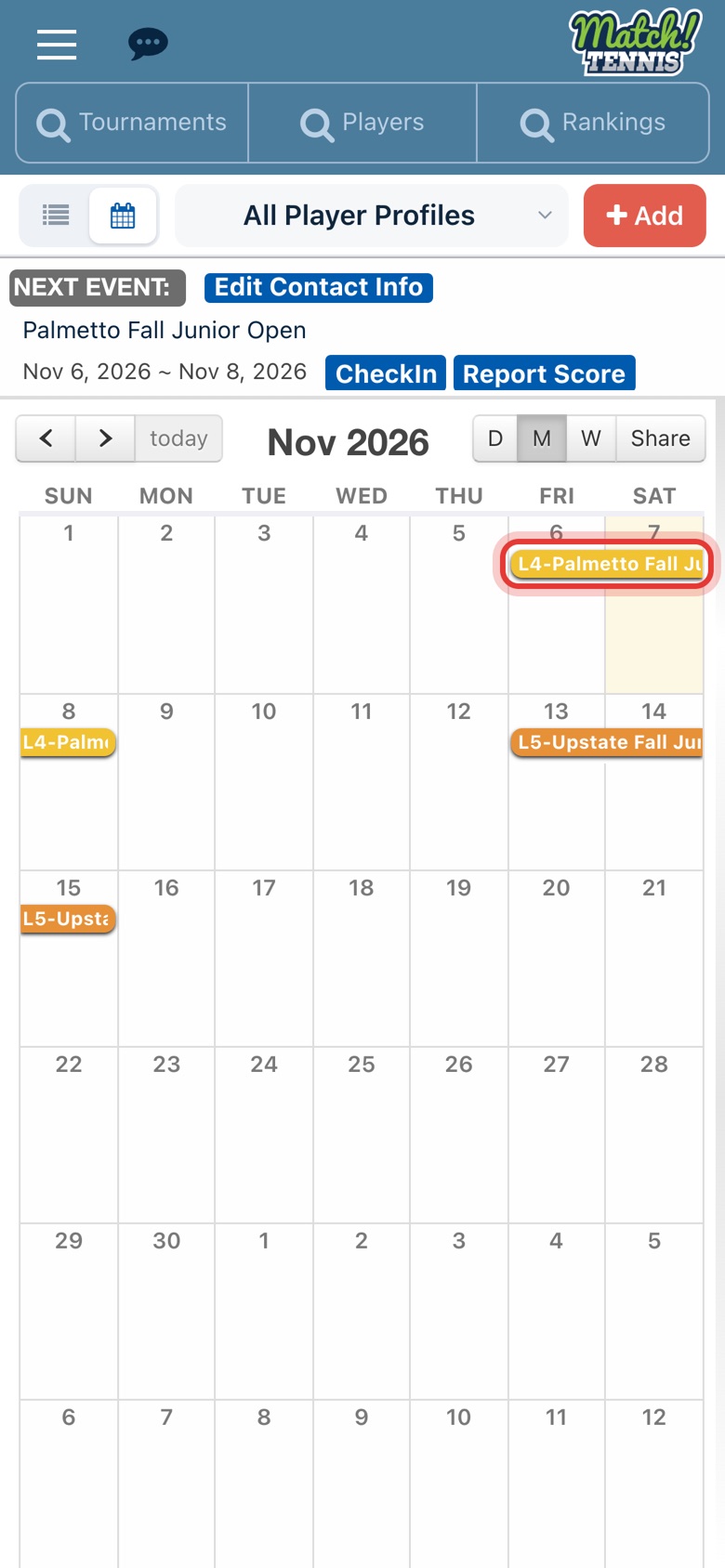
Step 21: Your tournament is on the calendar
Home is your calendar. Tap a tournament on it to see its details.
-
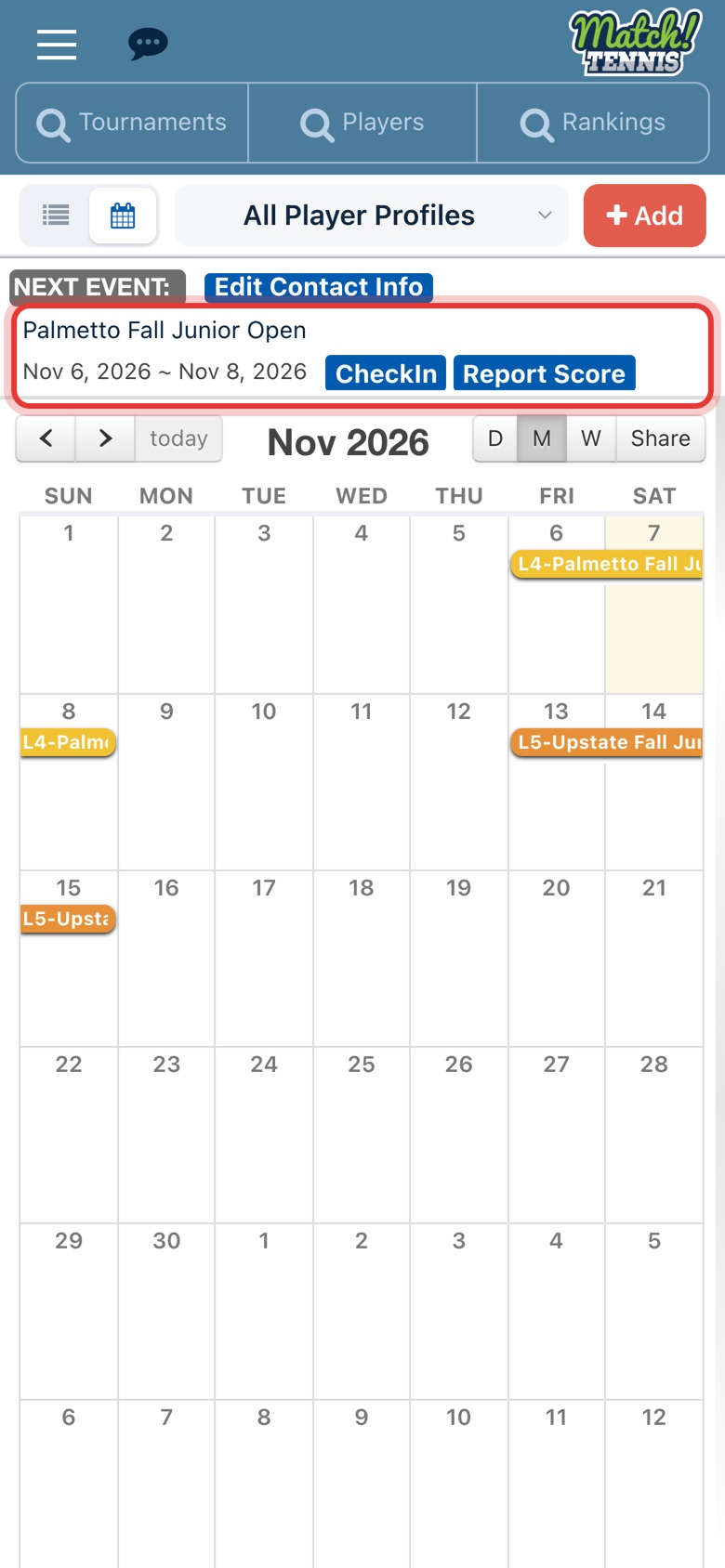
Step 22: Next Event
The top of Home shows your next tournament with CheckIn and Report Score buttons.
-
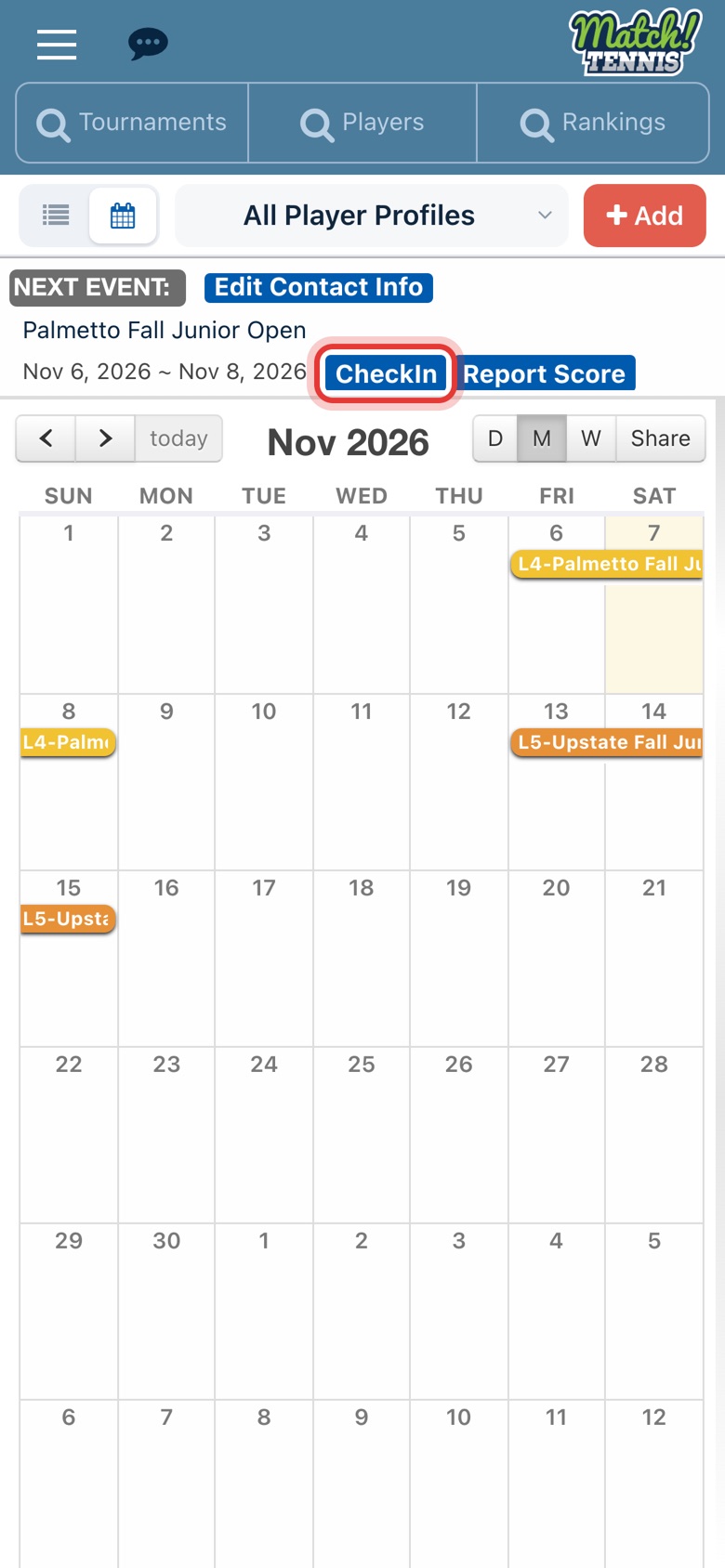
Step 23: Tap CheckIn
On match day, when you're at the site about 30 minutes before the match, tap CheckIn.
-
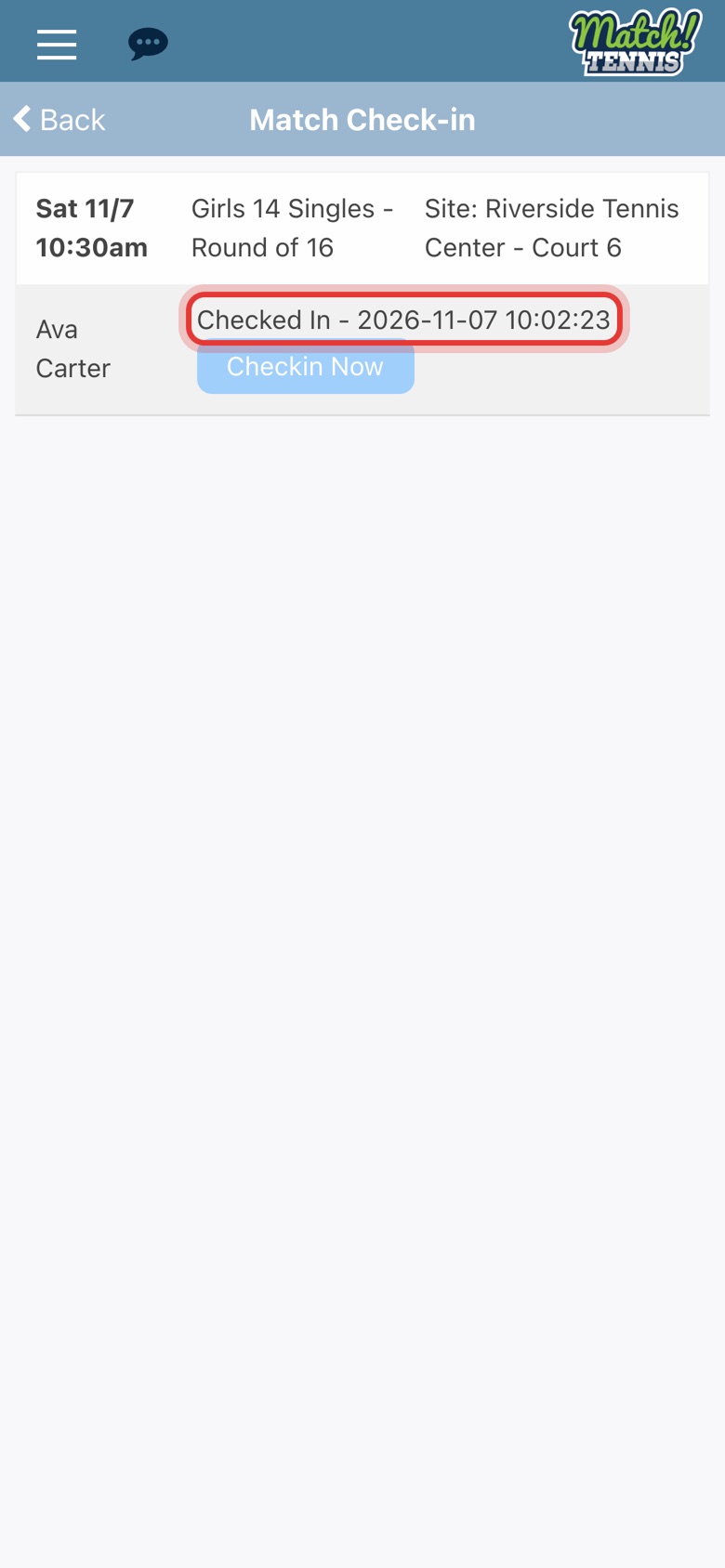
Step 24: Tap Checkin Now
You see your player's match: day, time, event and site. Tap Checkin Now.

-
Step 25: You're checked in
The check-in time shows next to your player and a confirmation text is sent.
Part 6Report the score
-
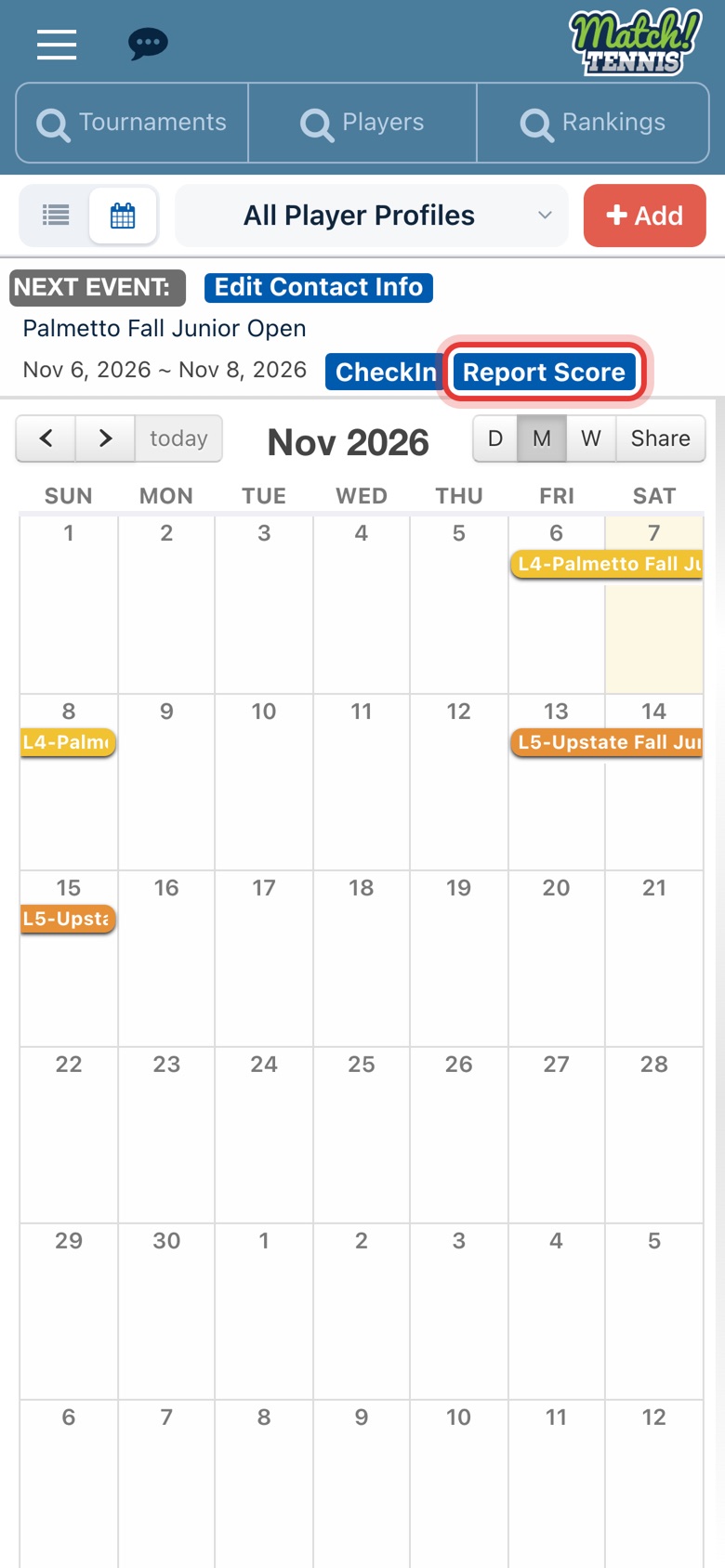
Step 26: Tap Report Score
Right after the match, tap Report Score on the Next Event card.
-
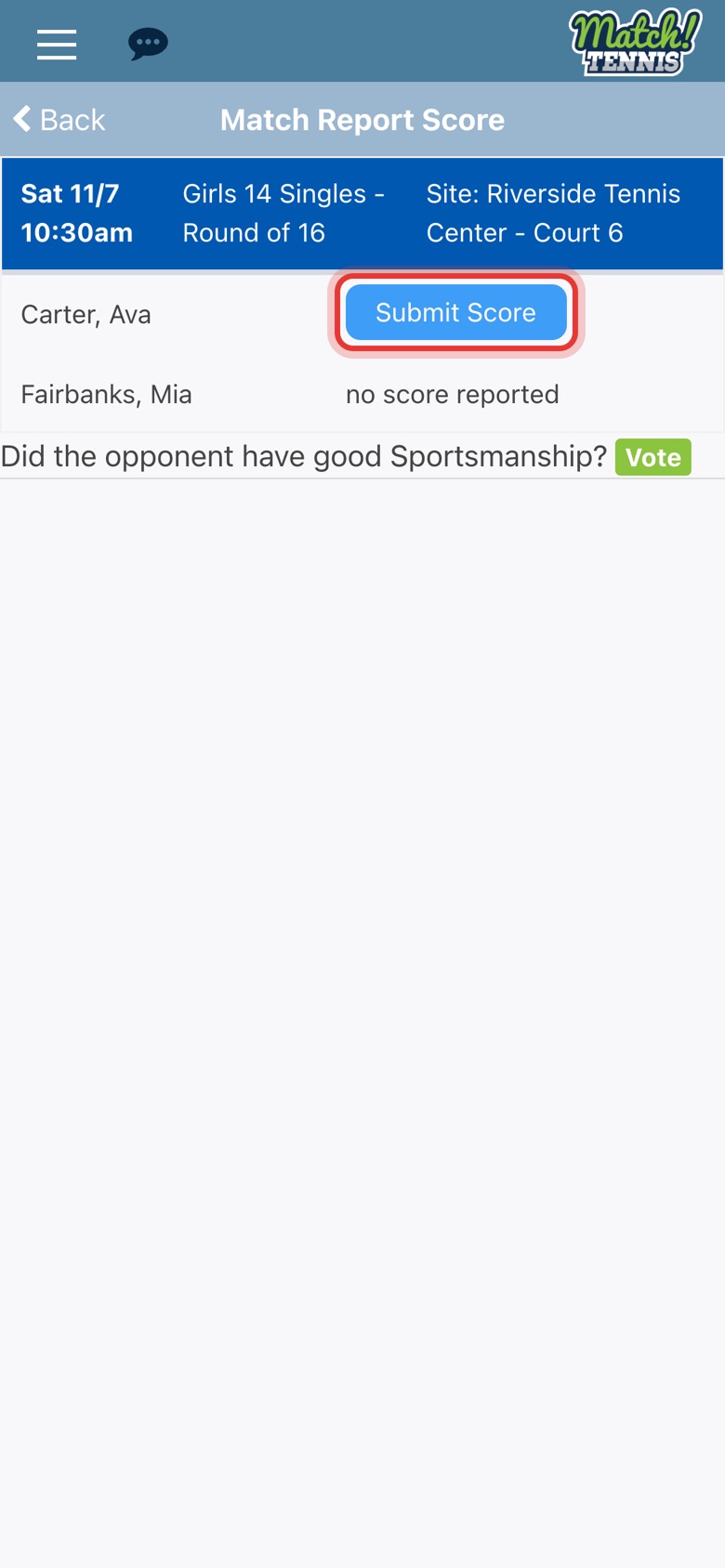
Step 27: Tap Submit Score
Find the match and tap Submit Score next to your player's name.
-
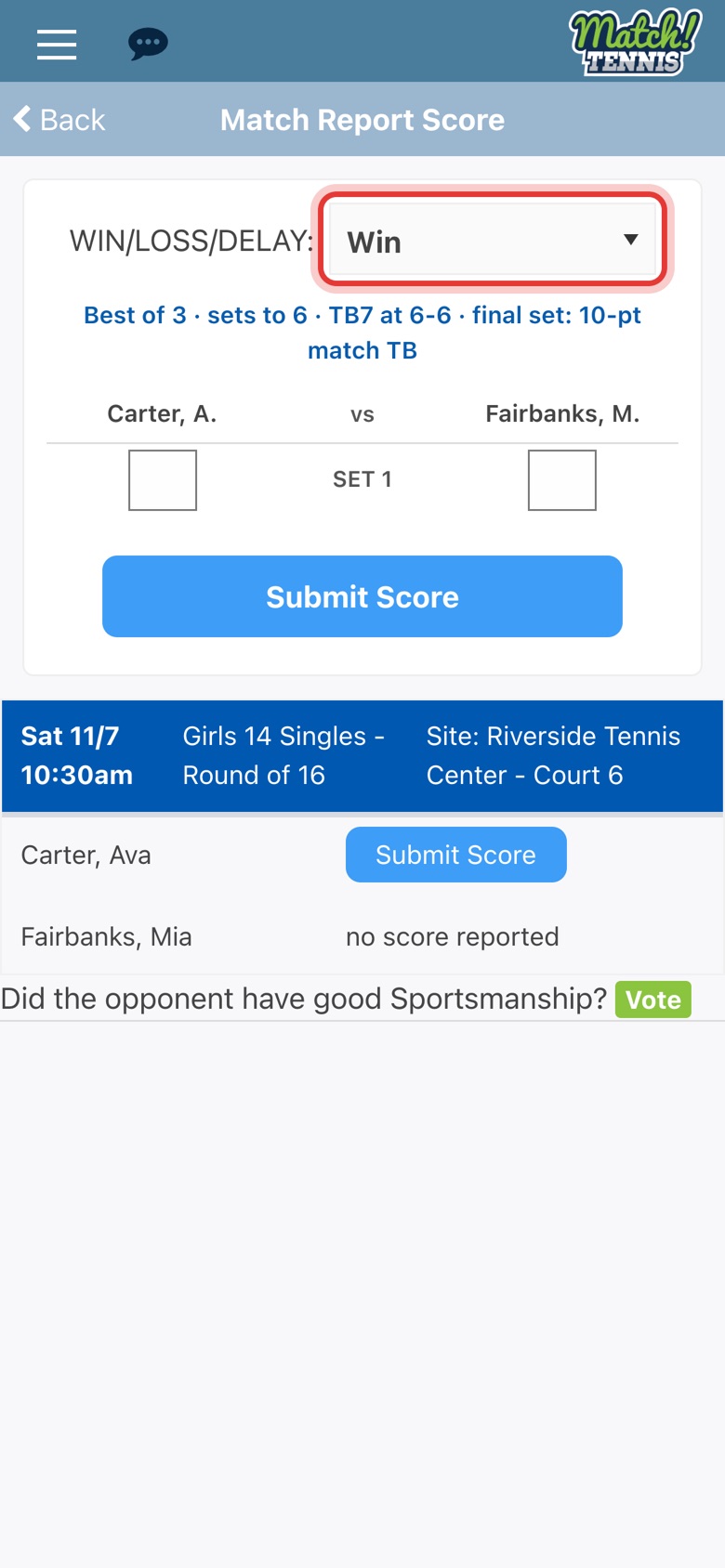
Step 28: Win or loss
Choose Win or Loss. The score boxes follow the match format.
-
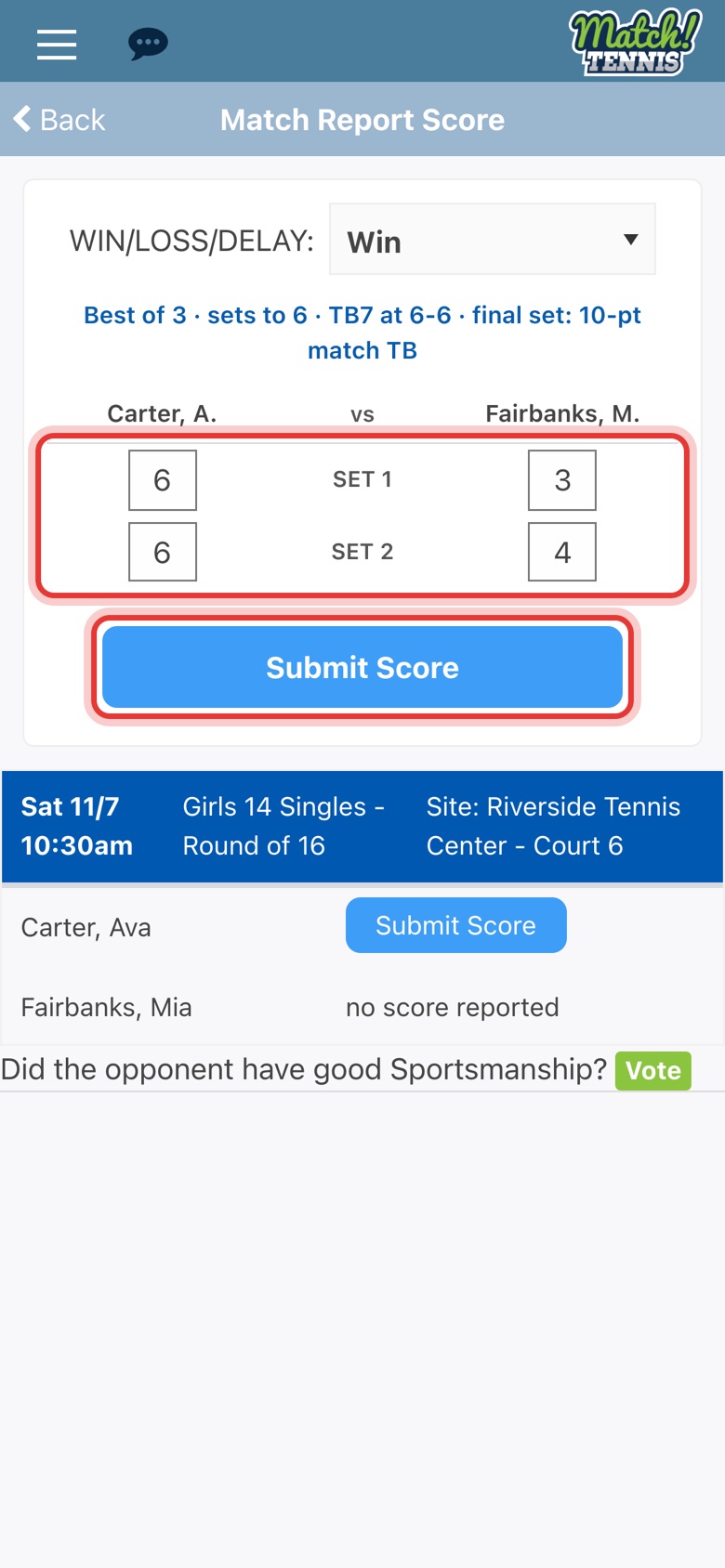
Step 29: Enter the games
Type the games for each set under each player's name, then tap Submit Score.
-
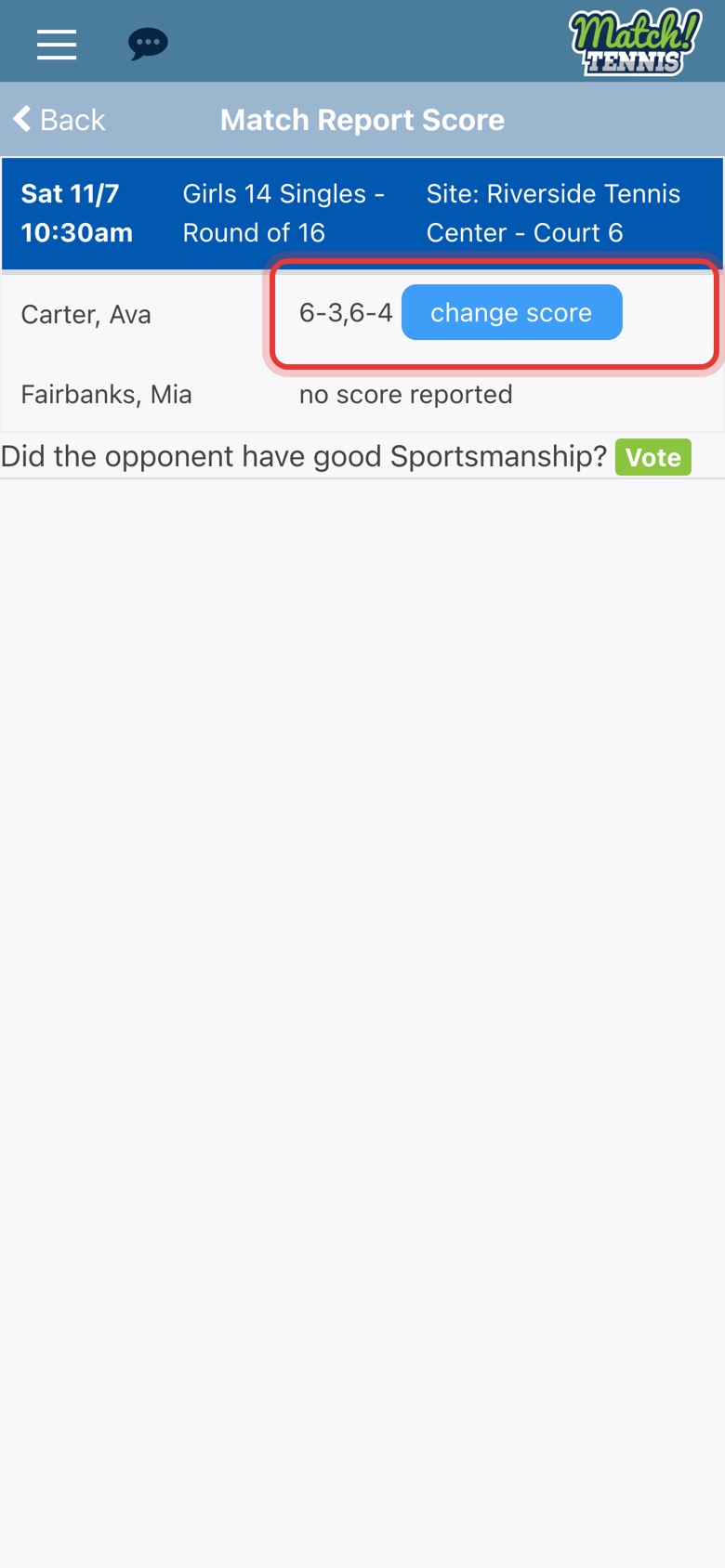
Step 30: Score submitted
The score now shows next to your player. Made a mistake? Tap change score.
Part 7Your player and tournaments
-
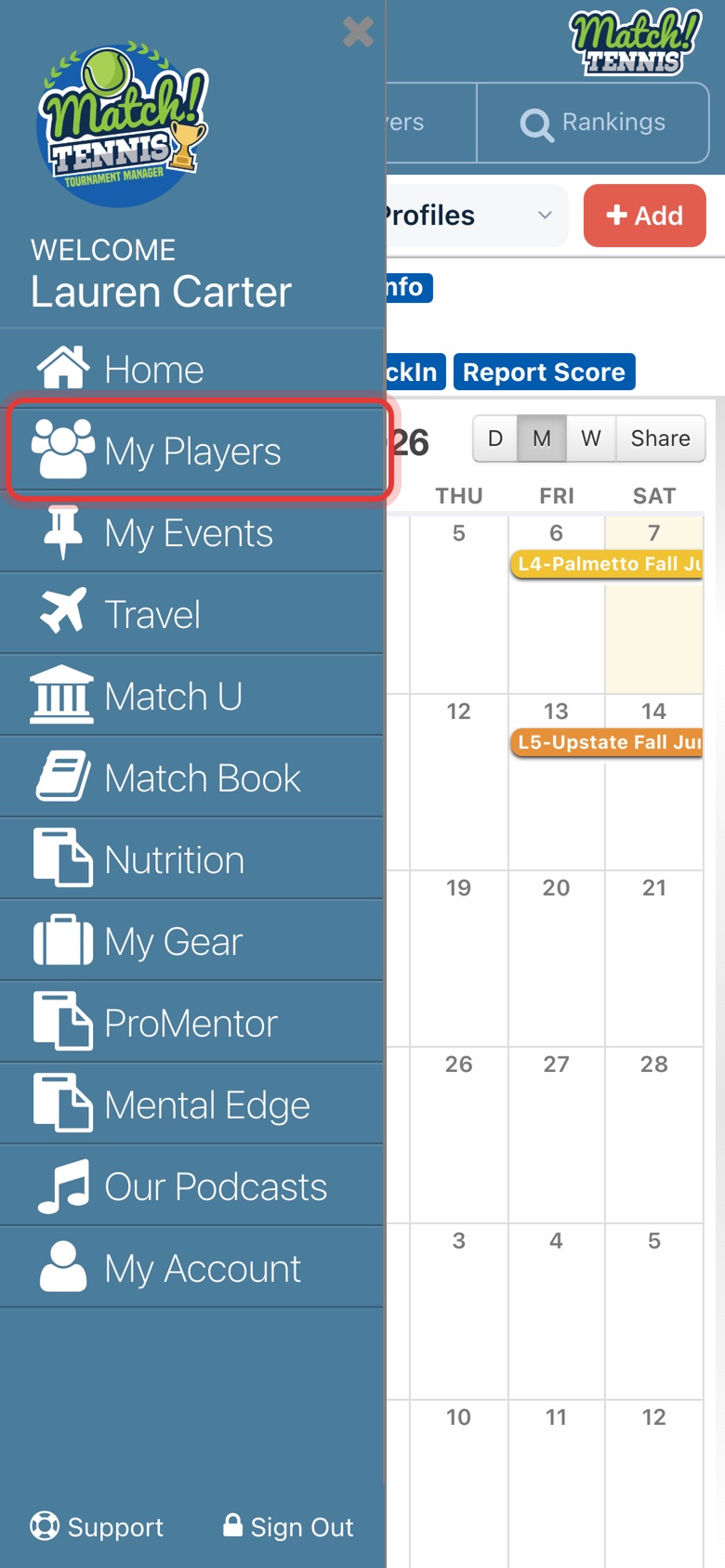
Step 31: Open My Players
Tap the menu at the top left, then tap My Players.
-
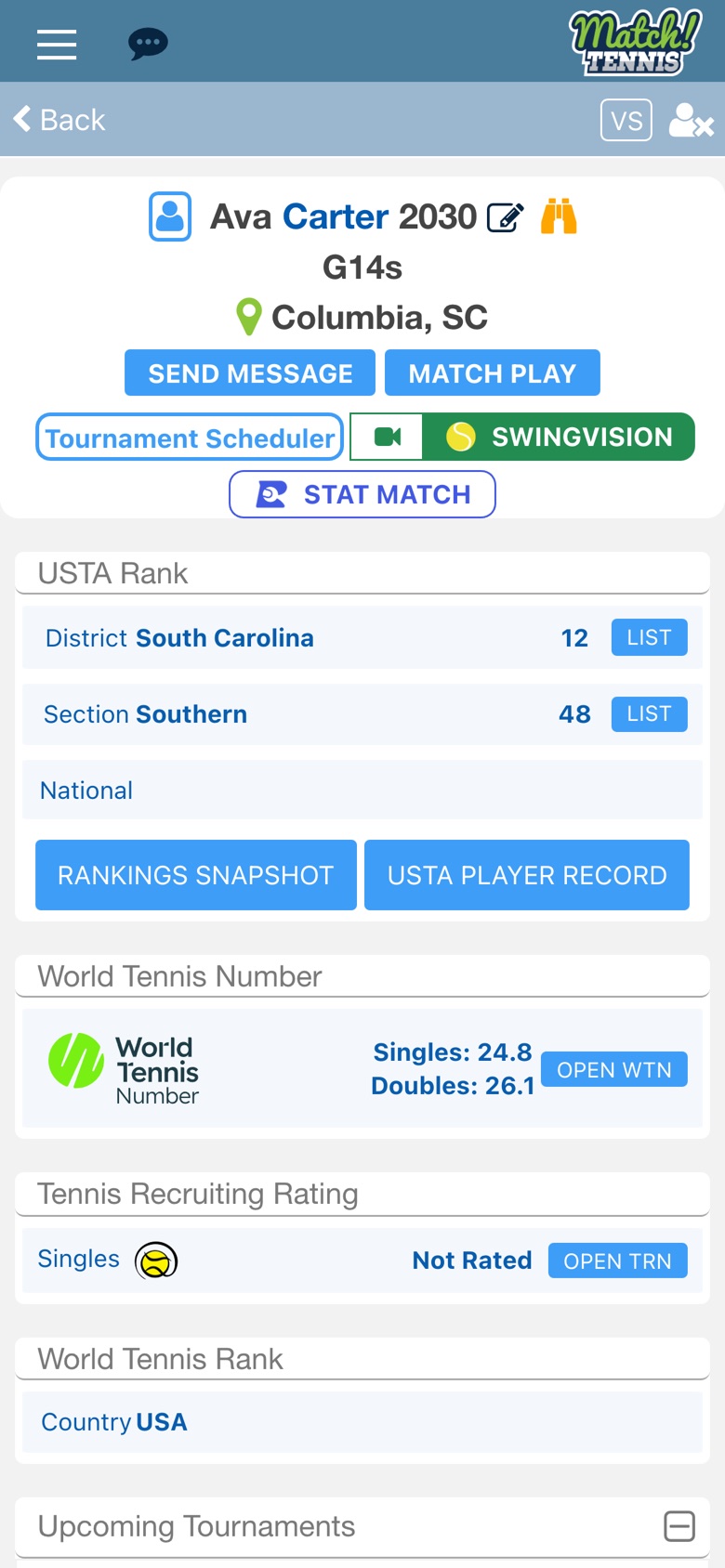
Step 32: Tap your player
The waiver added your player here for you.

-
Step 33: Your player's page
Rankings, WTN and more. Scroll down to Upcoming Tournaments.
-
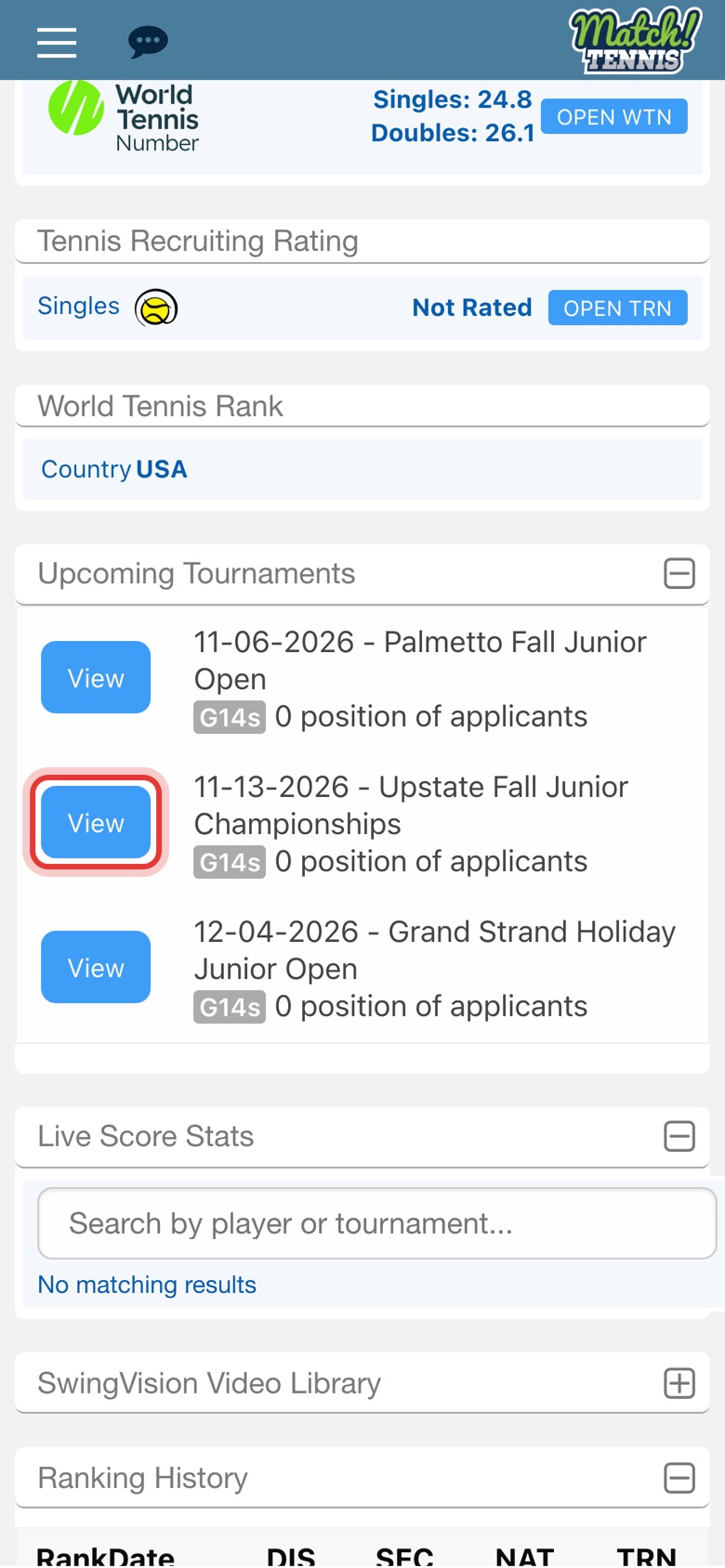
Step 34: Tap View
Upcoming Tournaments lists the tournaments your player has entered, including this one until it ends. Tap View on one to open it.
-
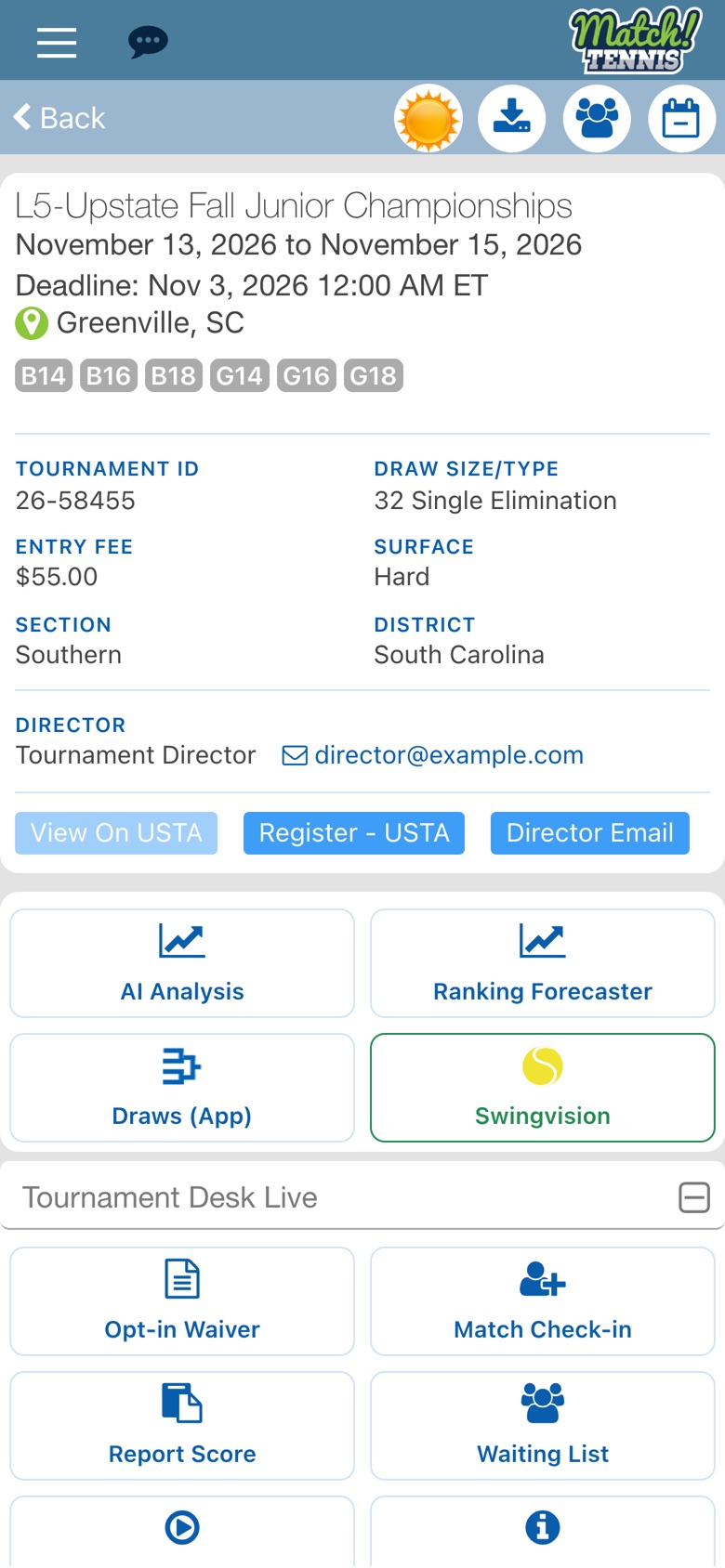
Step 35: Tournament details
Dates, entry deadline, divisions, director contact and USTA links. Tap Back to return.
Tips
- Not every tournament uses it. Only sign a waiver through Match Tennis App when the tournament's USTA Overview page has the Match Tennis App check-in link.
- One account for everything. Use the same account for a brother or sister and for later tournaments: open the tournament's link and tap Enter Login instead of Create Account.
- Already using the app? Open the tournament in the app and tap Opt-in Waiver under Tournament Desk Live to sign the waiver right there. See How to Sign a Tournament Waiver From the App.
- Change a phone number or add a doubles partner. In the app, open the menu, tap My Account, then Completed Waivers. Tap the tournament, make your changes and tap Update. See How to Change a Completed Waiver.
- Where the texts go. The check-in confirmation is texted to the mobile number on the waiver, and to the player's number too if it is different.
- Link from last year? If the check-in page says the link is for an earlier year, ask the tournament director for this year's link.
- More on scores and players. See How to Submit a Score in the App for match tiebreaks and weather delays, how to add a player to My Players and how to find a tournament and add it to your calendar.
- Need help? Ask the tournament director, or email support@matchtennisapp.com.