How to Plan Tournament Travel With My Travel
Travel plannerTournaments Updated November 7, 2026 2 min read
My Travel keeps the hotel, flights and rental car for every out-of-town tournament in one place. It's included on every plan, including Free.
Part 1Open My Travel
-
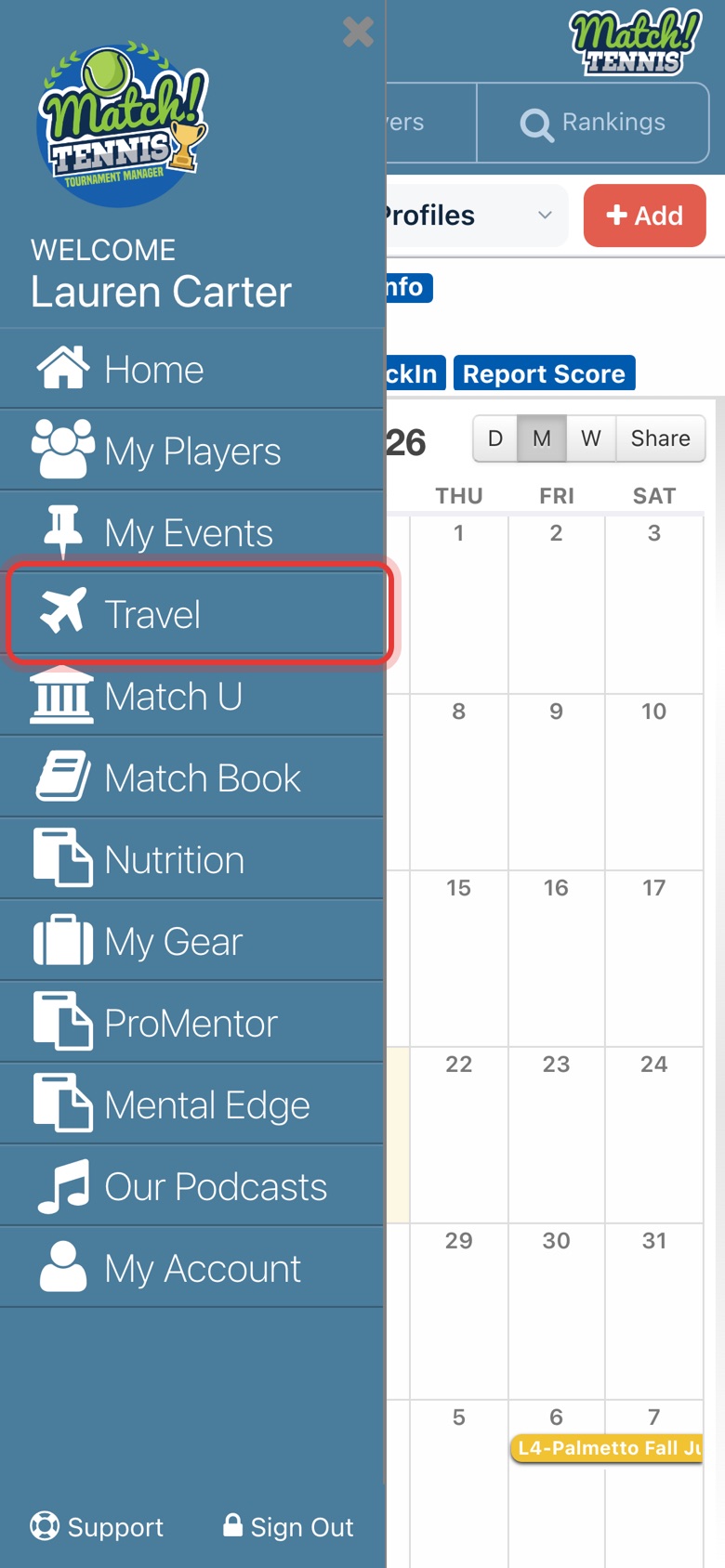
Step 1: Open Travel from the menu
Open the menu and tap Travel.
-
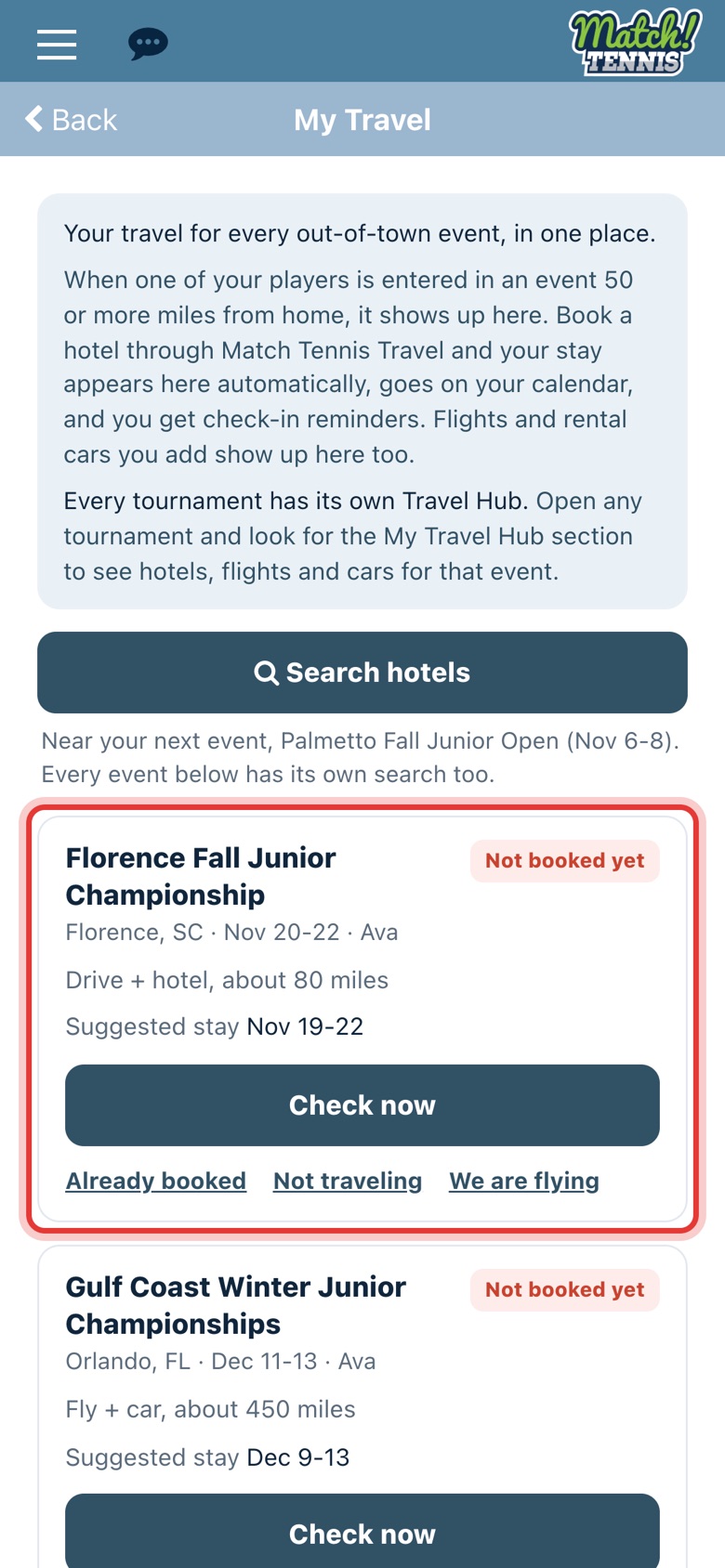
Step 2: See your out-of-town events
My Travel lists every event your players are entered in 50 or more miles from home. Each one shows the distance, how you're likely to get there (Drive + hotel or Fly + car) and a suggested stay. Events close to home are under Other upcoming events.
-
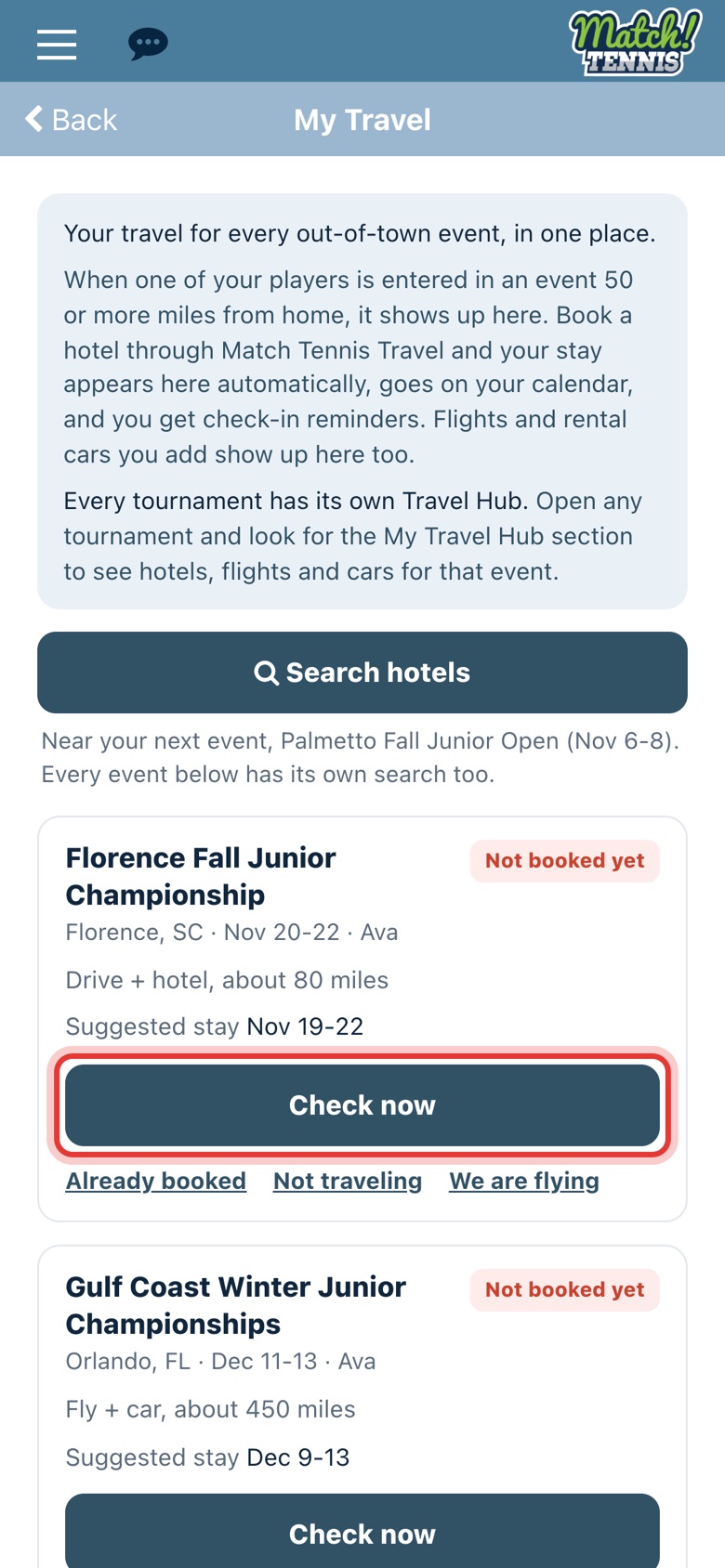
Step 3: Search hotels
Tap Check now to see hotels near the tournament on Match Tennis Travel, with your dates filled in. Book there and your stay shows up in My Travel automatically, goes on your calendar, and you get check-in reminders.
Part 2Add a hotel you booked
-
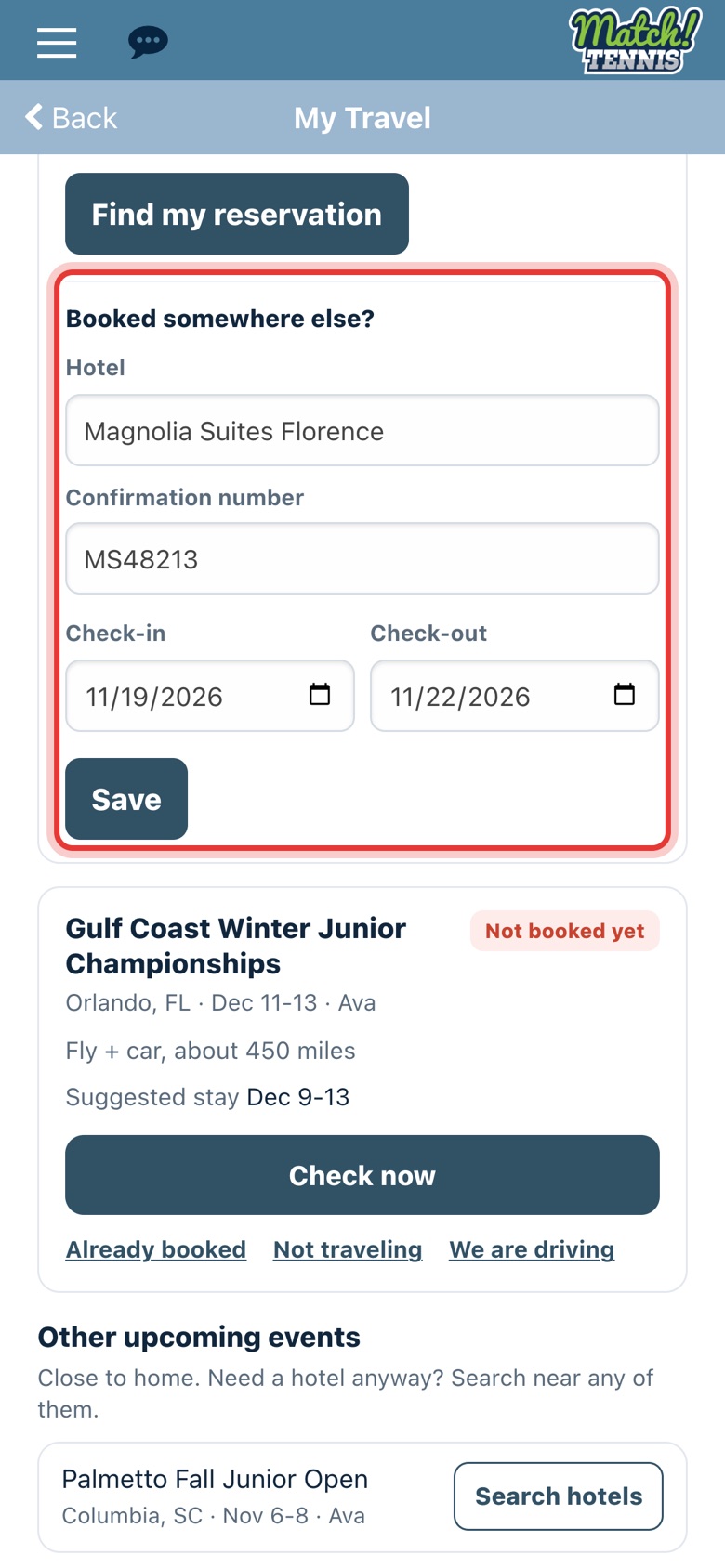
Step 4: Add a hotel you booked somewhere else
Already have a room? Tap Already booked. Under Booked somewhere else?, enter the hotel, the confirmation number and your check-in and check-out dates, then tap Save.
-
Step 5: Your stay is booked
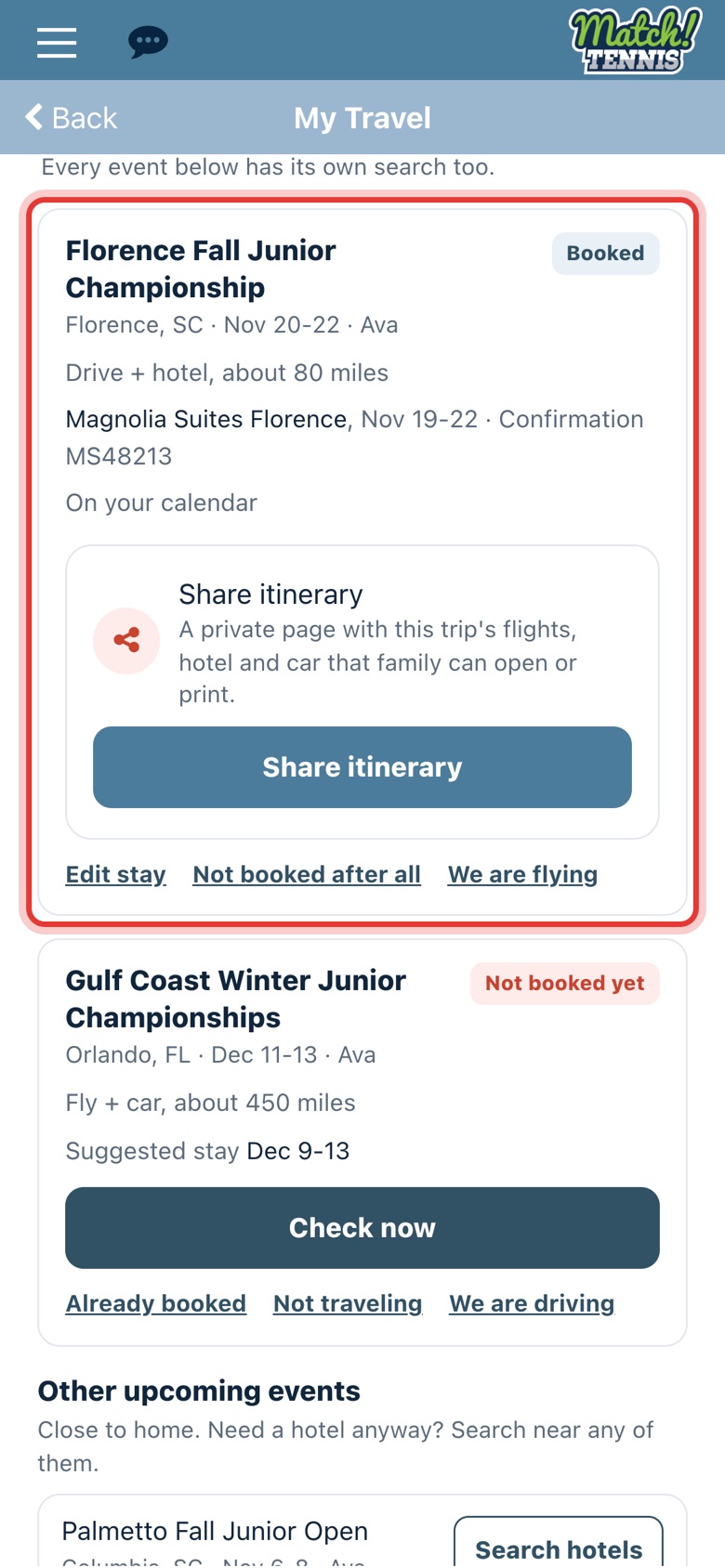
The event now shows Booked, with your hotel and dates, and the stay is on your calendar. Tap Edit stay to change it, or Not booked after all to undo it.
-
Step 6: Share the itinerary
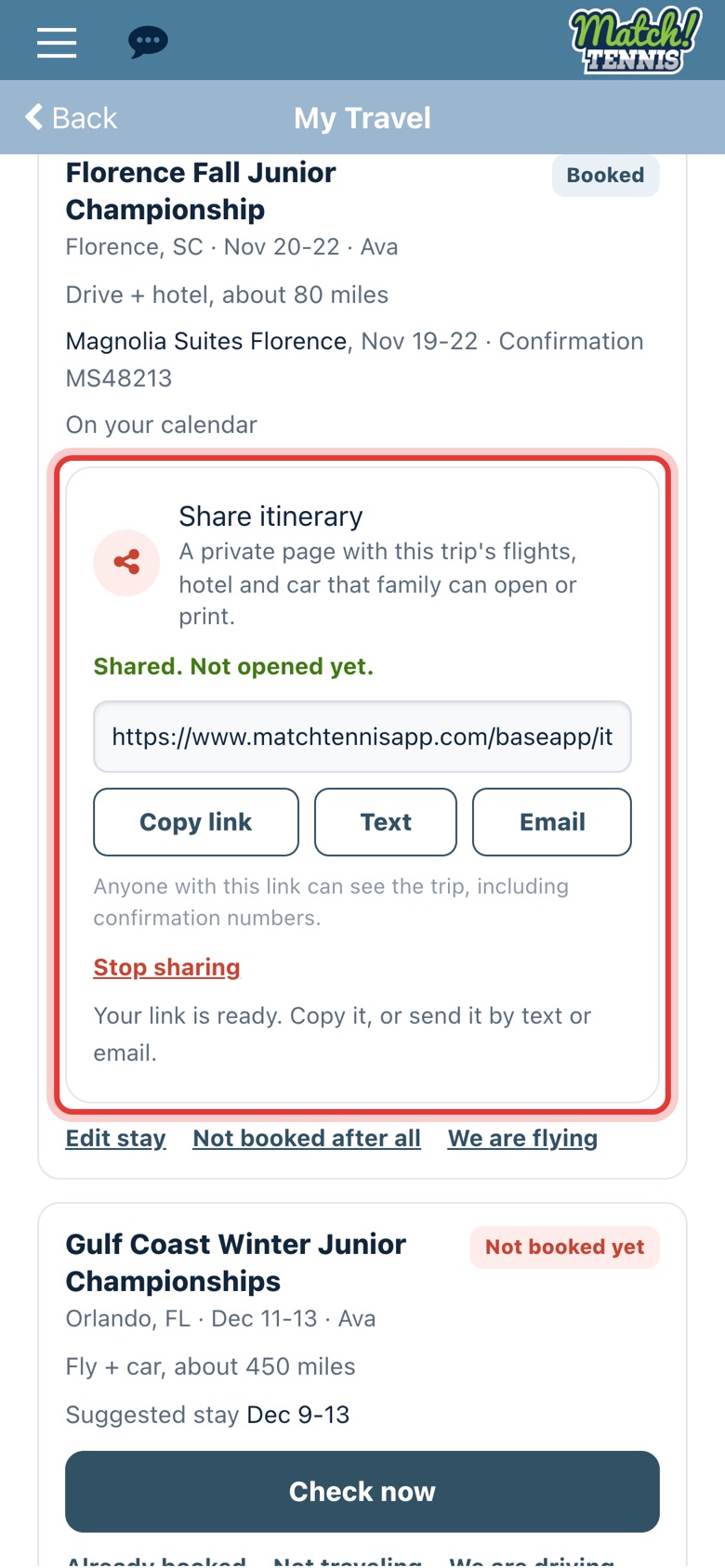
Tap Share itinerary to make a private page with the trip's hotel, flights and car, then send it with Copy link, Text or Email. Anyone with the link can see the trip, including confirmation numbers. Tap Stop sharing to turn the link off.
Part 3Plan travel from the tournament page
-
Step 7: Open the tournament's travel section
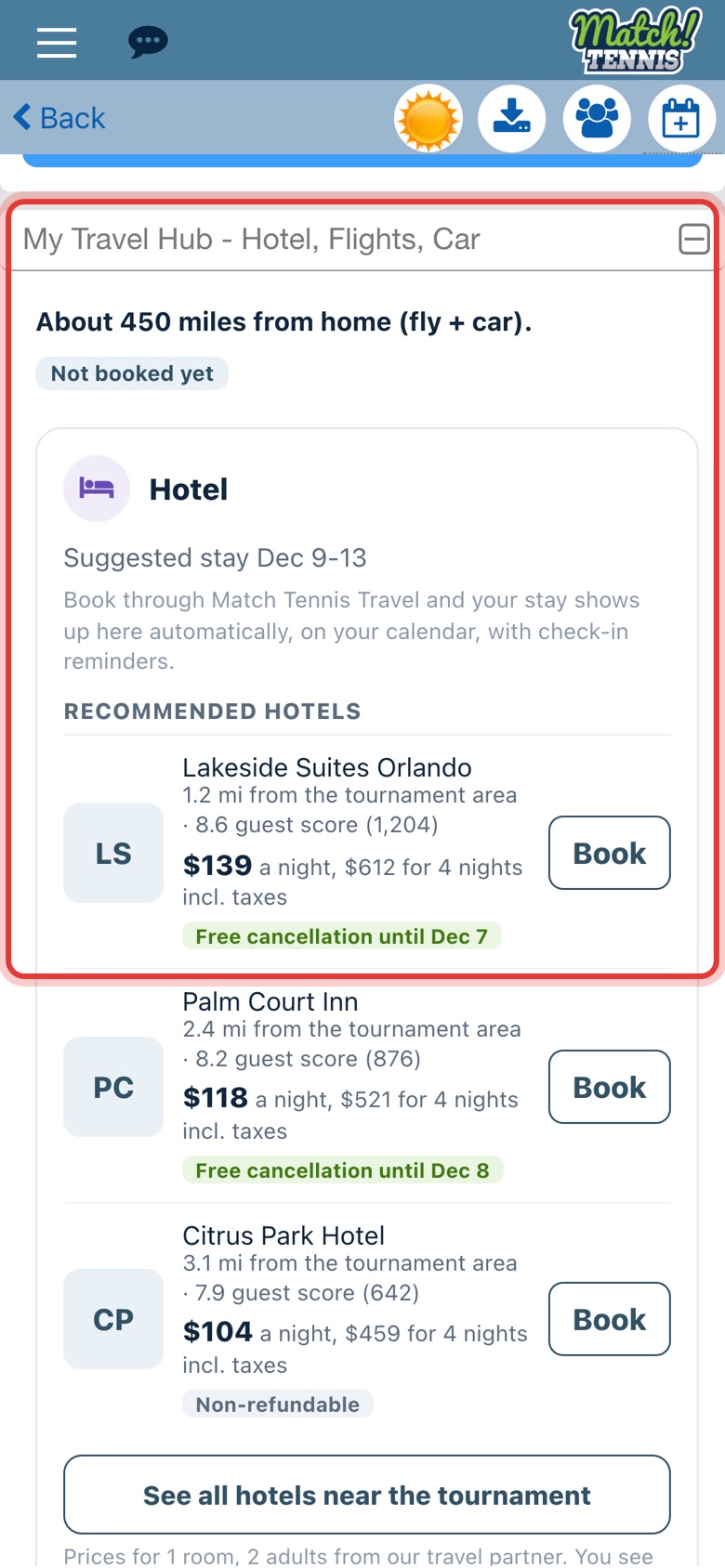
Every tournament page has a My Travel Hub - Hotel, Flights, Car section. It shows how far the event is, the suggested stay and recommended hotels near the tournament. Tap Book to book a hotel through Match Tennis Travel.
-
Step 8: Add your flight
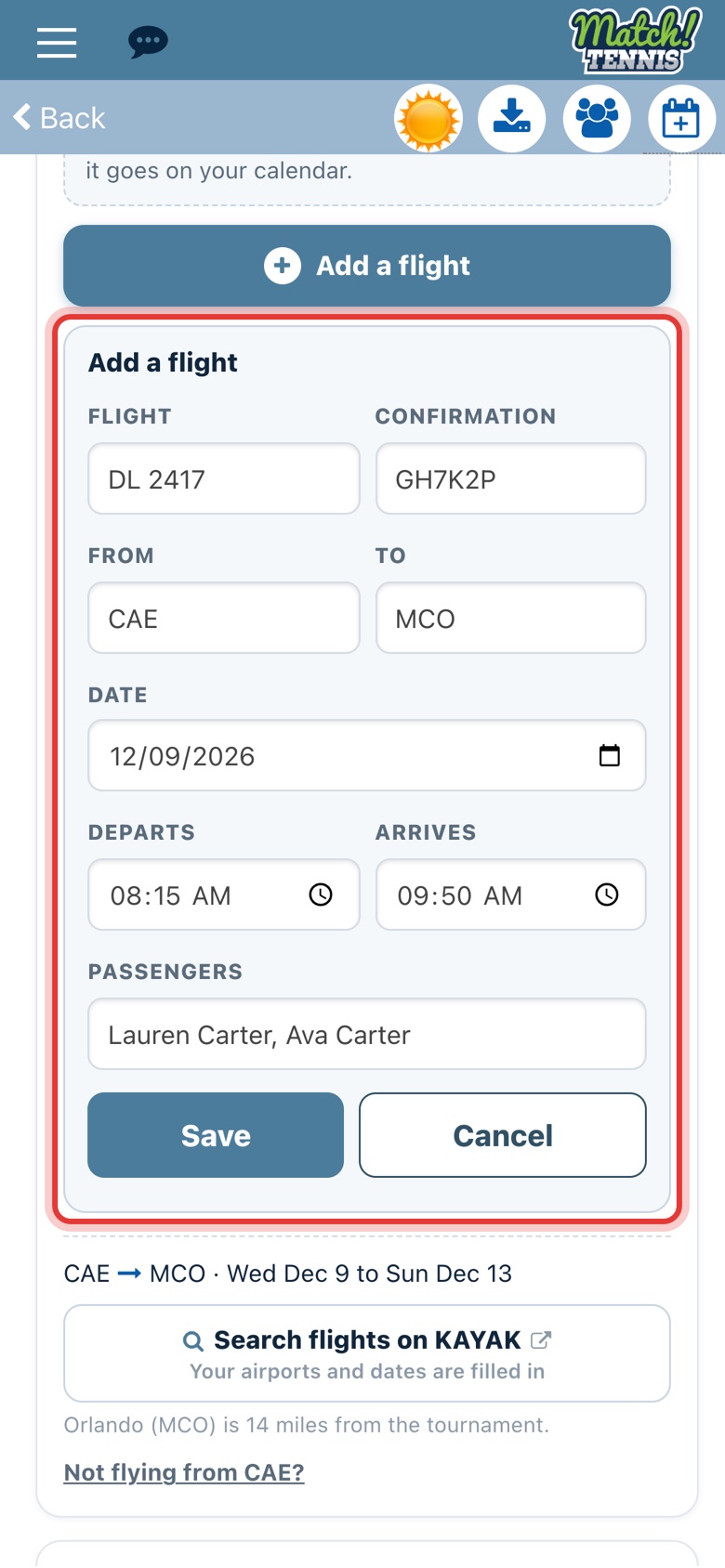
Flying? In the Flights card, tap Add a flight. Your airports and travel date are filled in. Enter the flight number, confirmation, departure and arrival times and passengers, then tap Save.
-
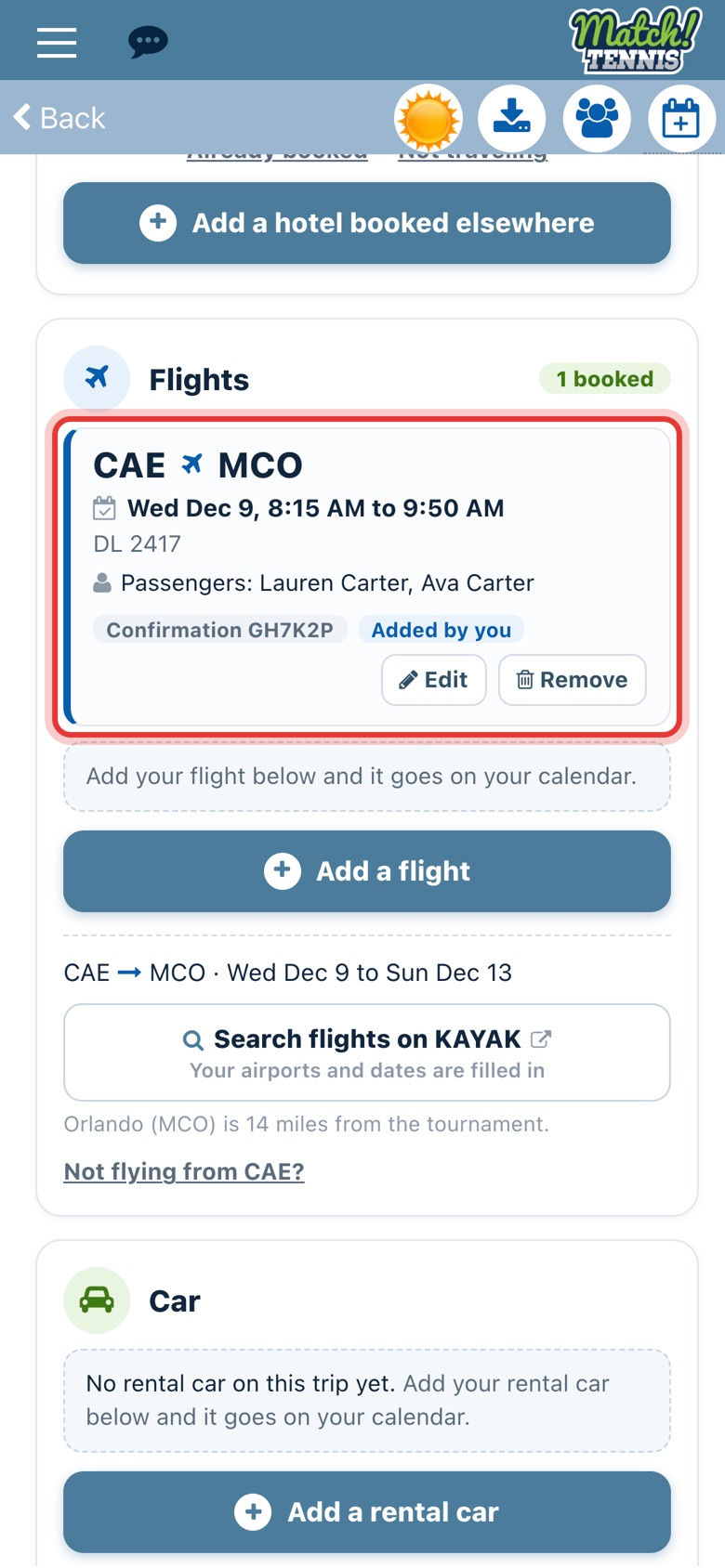
Step 9: Your flight is on the trip
The flight shows in the Flights card and goes on your calendar. Tap Edit or Remove to change it. Add a rental car the same way in the Car card.
Before you start
- Check your home address. Distances are measured from the address in My Account, so make sure it's up to date.
- Enter your players in their tournaments. An event shows up in My Travel once your player is in the field. See how to register for a USTA tournament.
Tips
- Not going? Tap Not traveling on the event to stop its travel reminders. Tap We are traveling after all to bring them back.
- Driving instead of flying? Tap We are driving or We are flying to change how the trip is planned.
- Booked through Match Tennis Travel but don't see it? Tap Refresh reservations at the bottom of My Travel. You can also tap Already booked and enter the itinerary number and email from your confirmation, then tap Find my reservation.
- Choose your reminders. Tap Travel reminder settings at the bottom of My Travel to pick which travel reminders you get.