How to Find a Tournament and Add It to Your Schedule
Getting startedTournaments Updated November 1, 2026 1 min read
Find tournaments near you and put them on your player's calendar. It takes about a minute.
Part 1Find the tournament
-
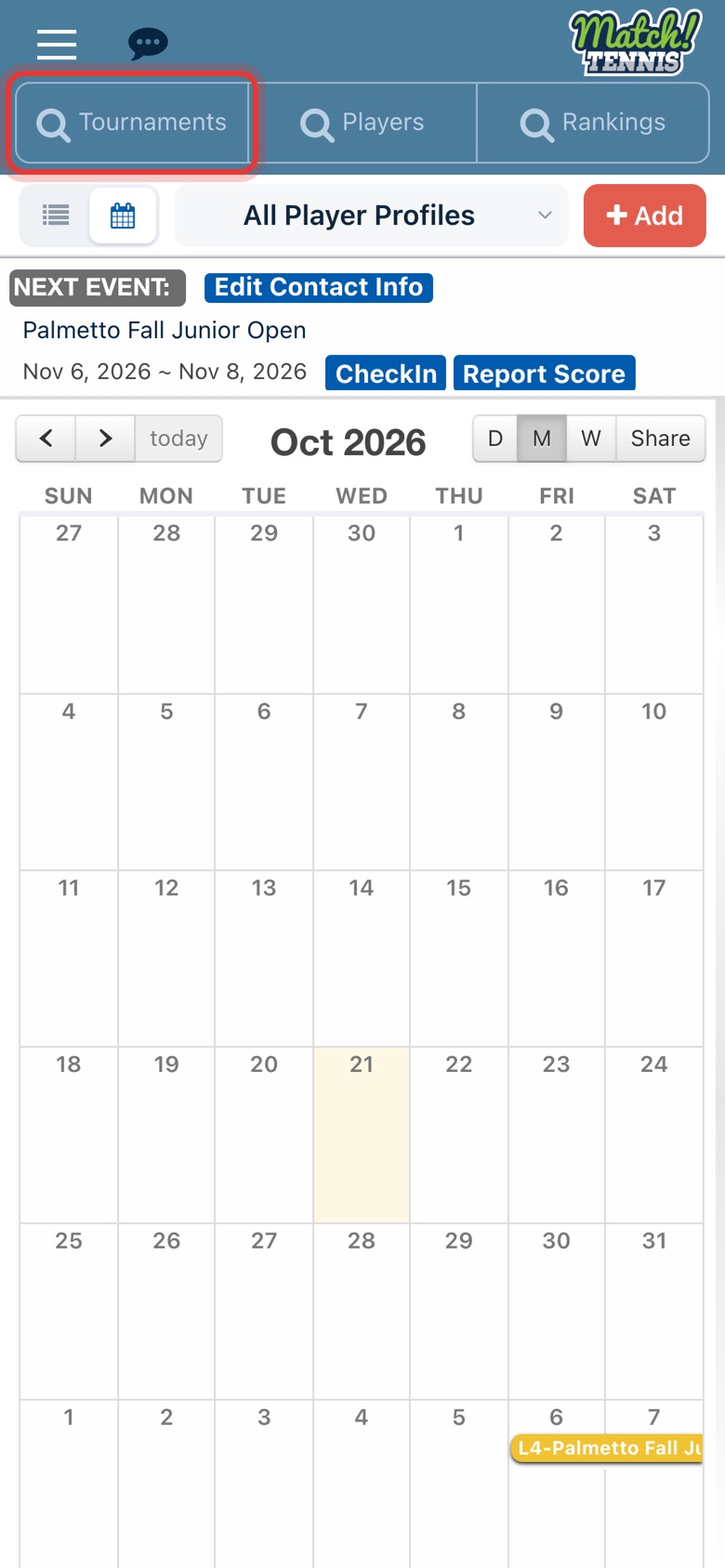
Step 1: Open the Tournaments search
On Home, tap Tournaments at the top of the screen.
-
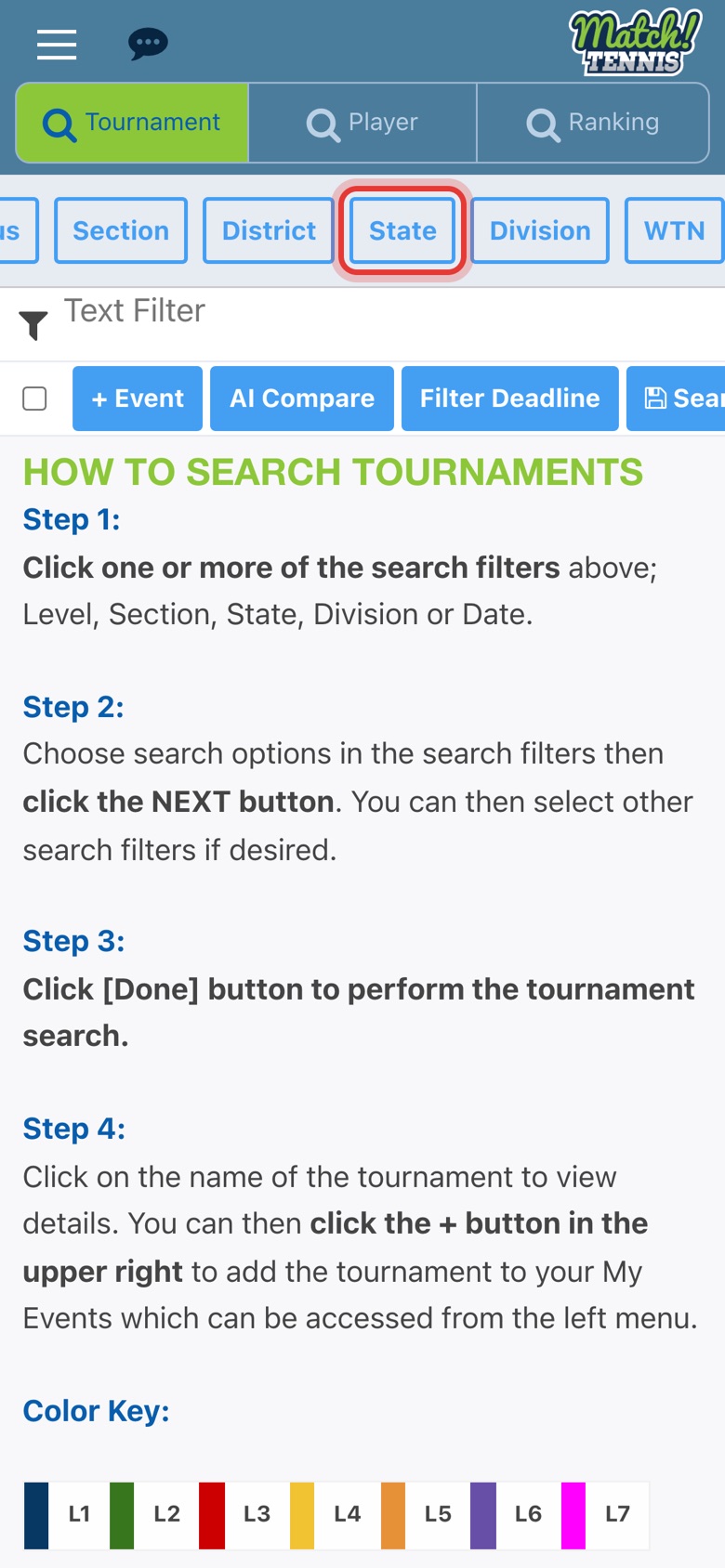
Step 2: Tap State
You can also filter by date, level, section, district or division. Swipe the filter row to see them all.
-
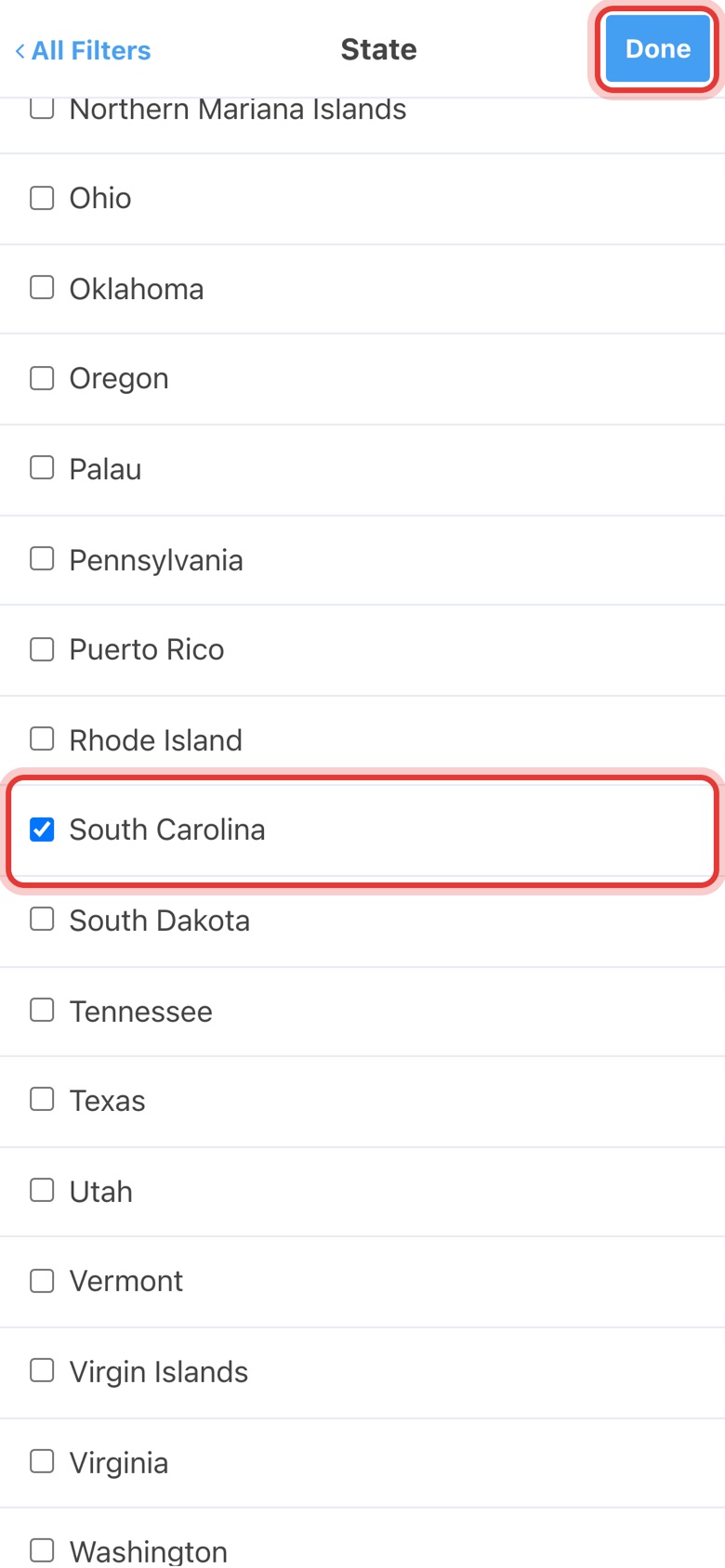
Step 3: Check your state, then tap Done
Check the state you want to play in and tap Done at the top.
-
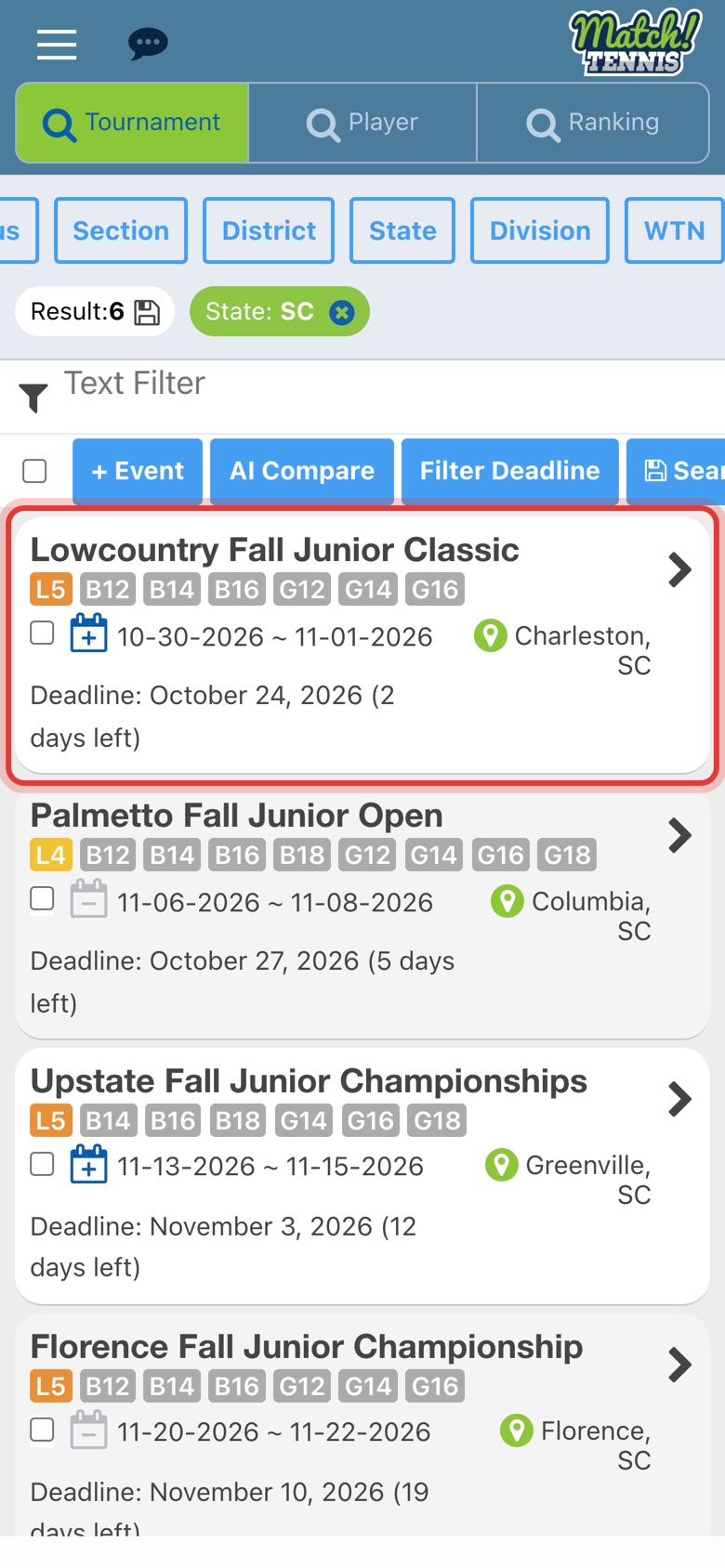
Step 4: Tap a tournament
Each result shows the level, divisions, dates, entry deadline and city. Tap the one you want.
Part 2Add it to your calendar
-
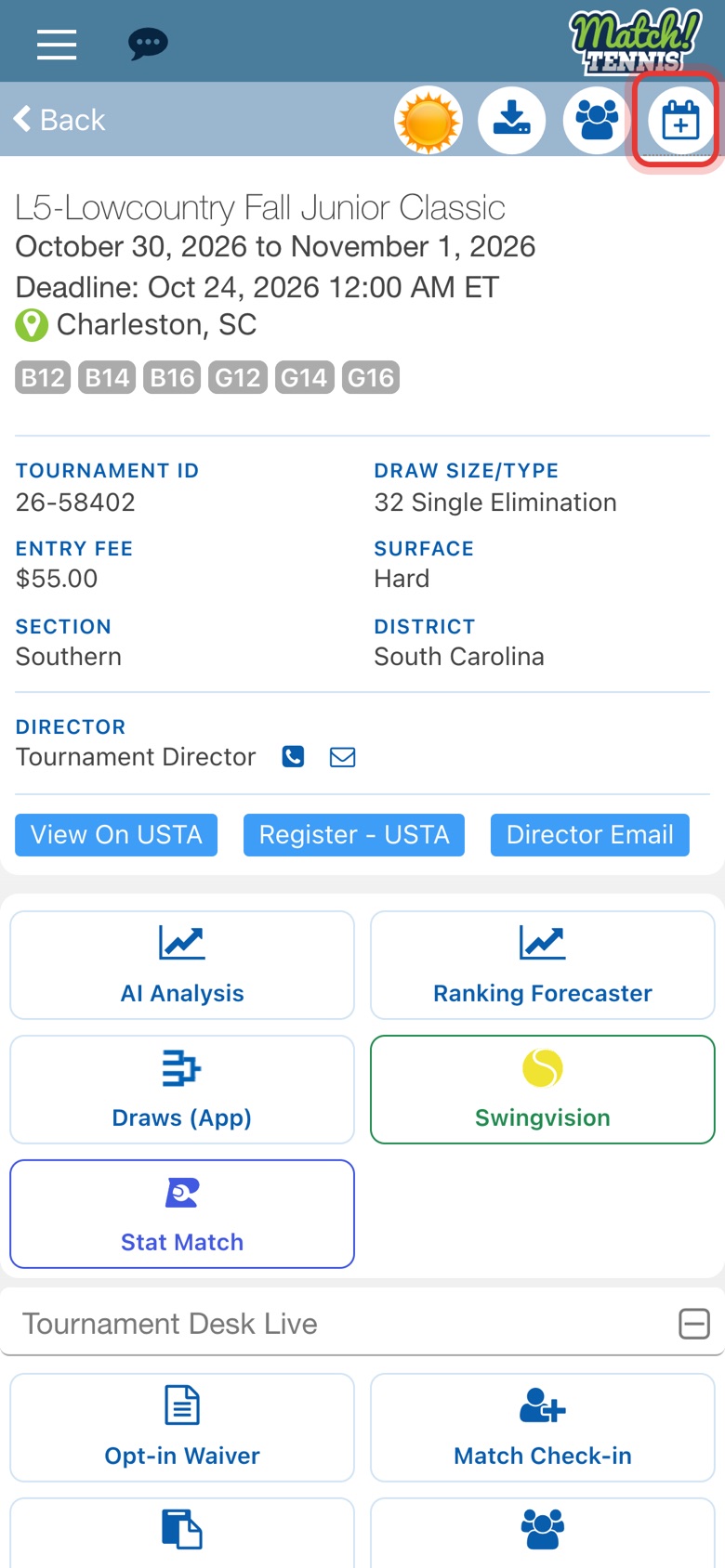
Step 5: Tap the calendar icon
Check the dates, deadline and entry fee, then tap the calendar icon with a plus sign at the top right.
-
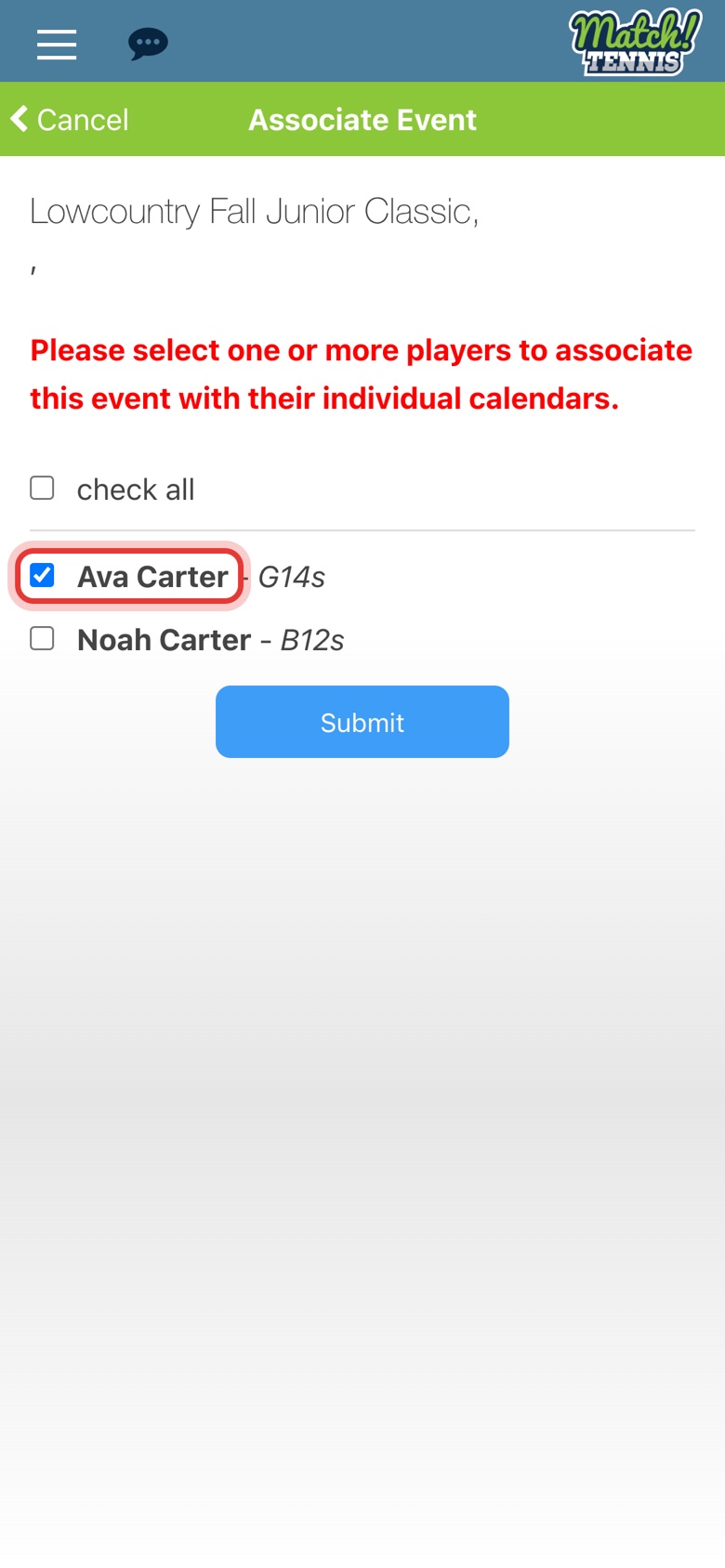
Step 6: Choose the player
Check each player who is playing. You can pick more than one.
-
Step 7: Tap Submit
The tournament is added to each player's calendar.

-
Step 8: The tournament is added
A message confirms it is going on your players' calendars.

Part 3See it on your schedule
-
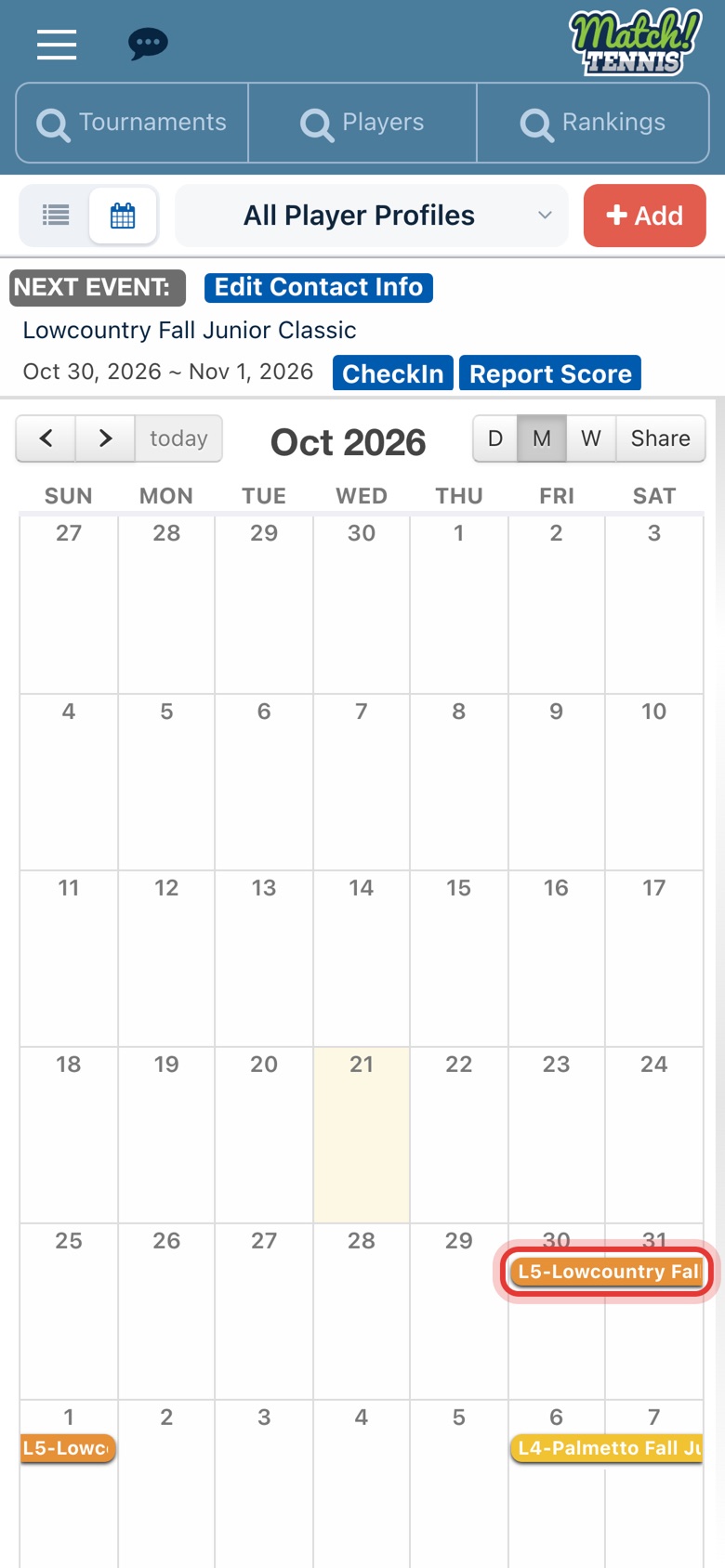
Step 9: It's on your calendar
Back on Home, the tournament shows on the days it runs.
-
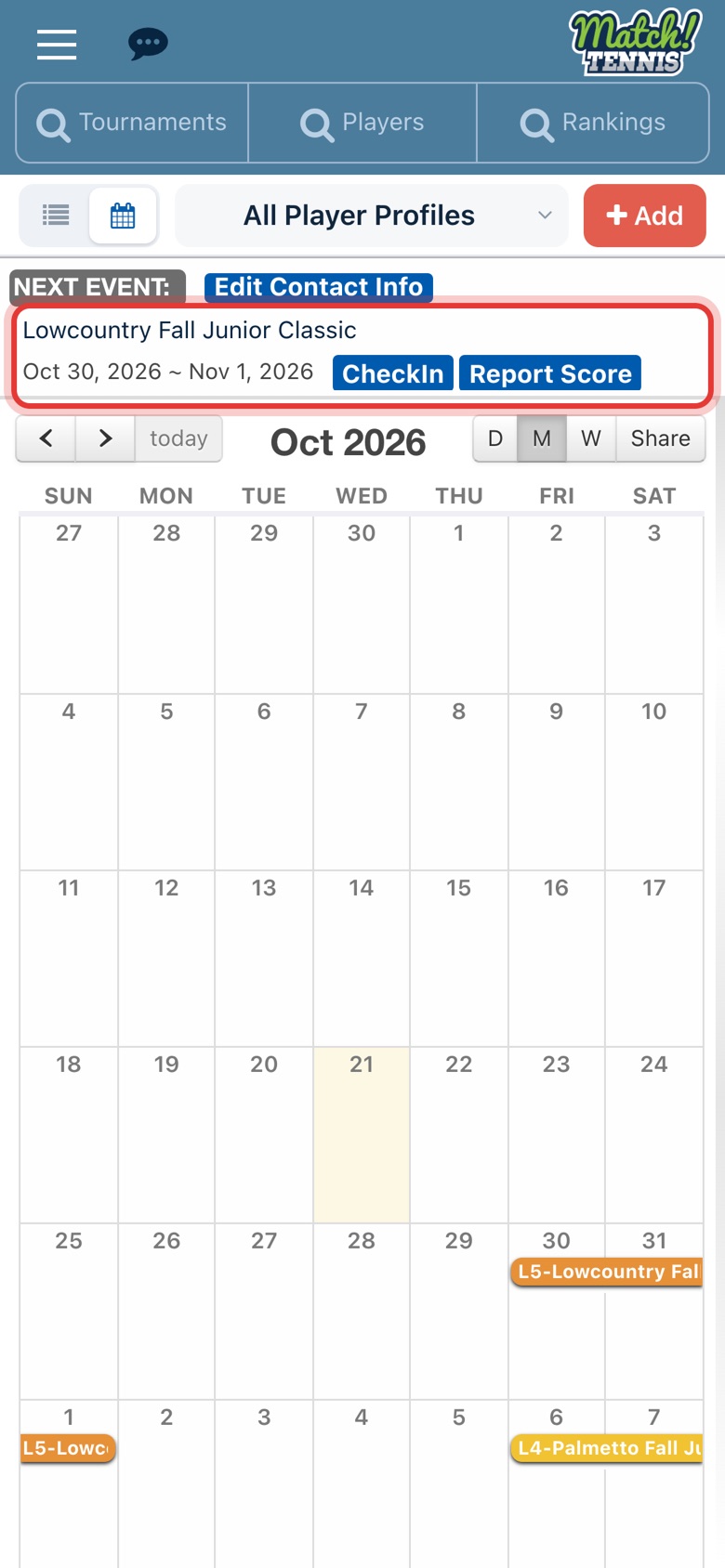
Step 10: It's your Next Event
Your nearest tournament shows at the top of Home, with CheckIn and Report Score ready for match day.
Tips
- Adding is not entering. The calendar is your plan. To enter the tournament, tap Register - USTA on its page.
- Add straight from the results. Tap the calendar icon with a plus sign on a result to add it without opening the tournament.
- Already on your calendar? Results show a calendar icon with a minus sign instead of a plus.
- Remove a tournament. Open it and tap the calendar icon at the top right again.
- Search again later. Tap the save icon next to the result count to keep a search, such as your state and age group. Find it again under Saved.