A Quick Tour of the Match Tennis App
Getting started Updated November 1, 2026 1 min read
A first look around the app. Ten screens, about two minutes.
Part 1Home
-
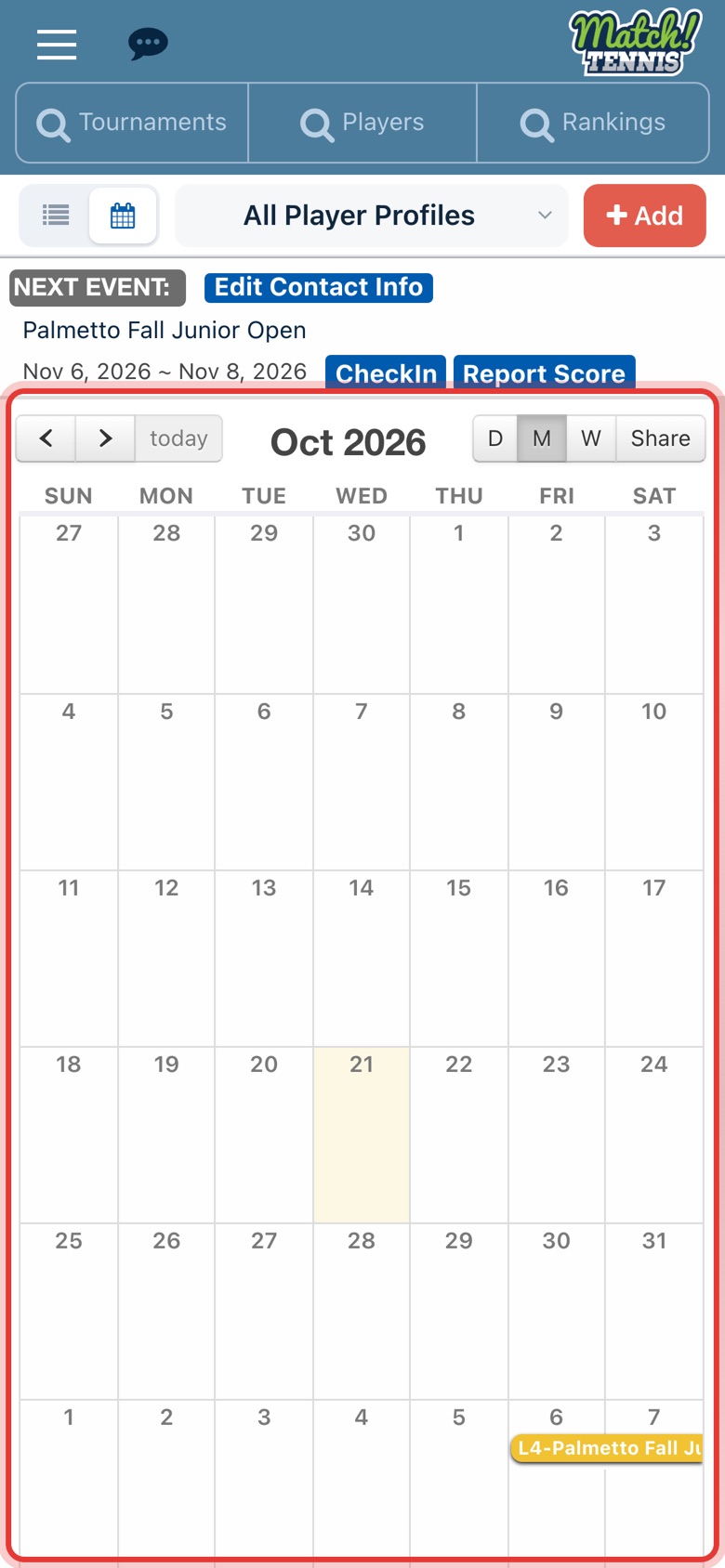
Step 1: Your calendar
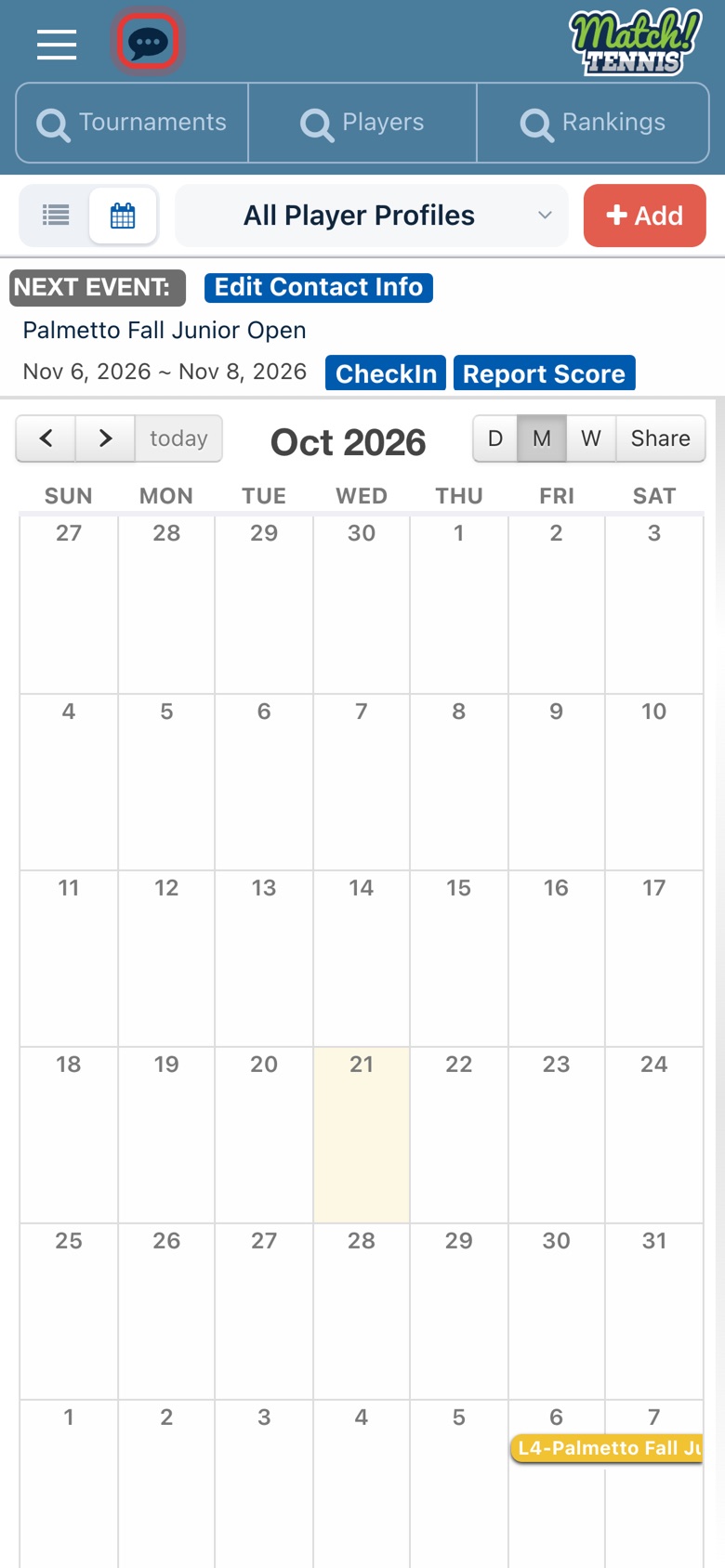
Home opens on your calendar. Every tournament you add shows up on its dates.
-
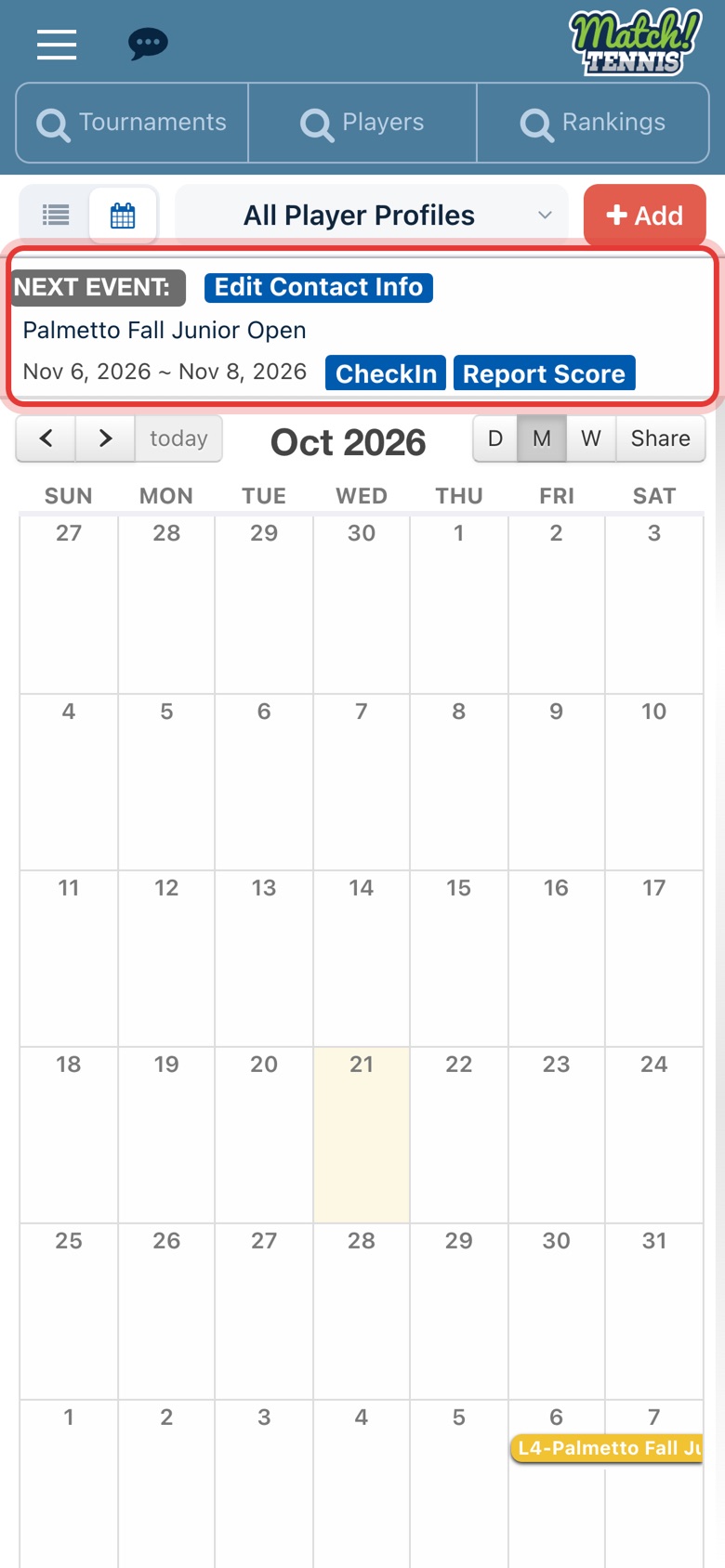
Step 2: Your next event
The Next Event card shows the next tournament on your calendar, with CheckIn and Report Score buttons.
-
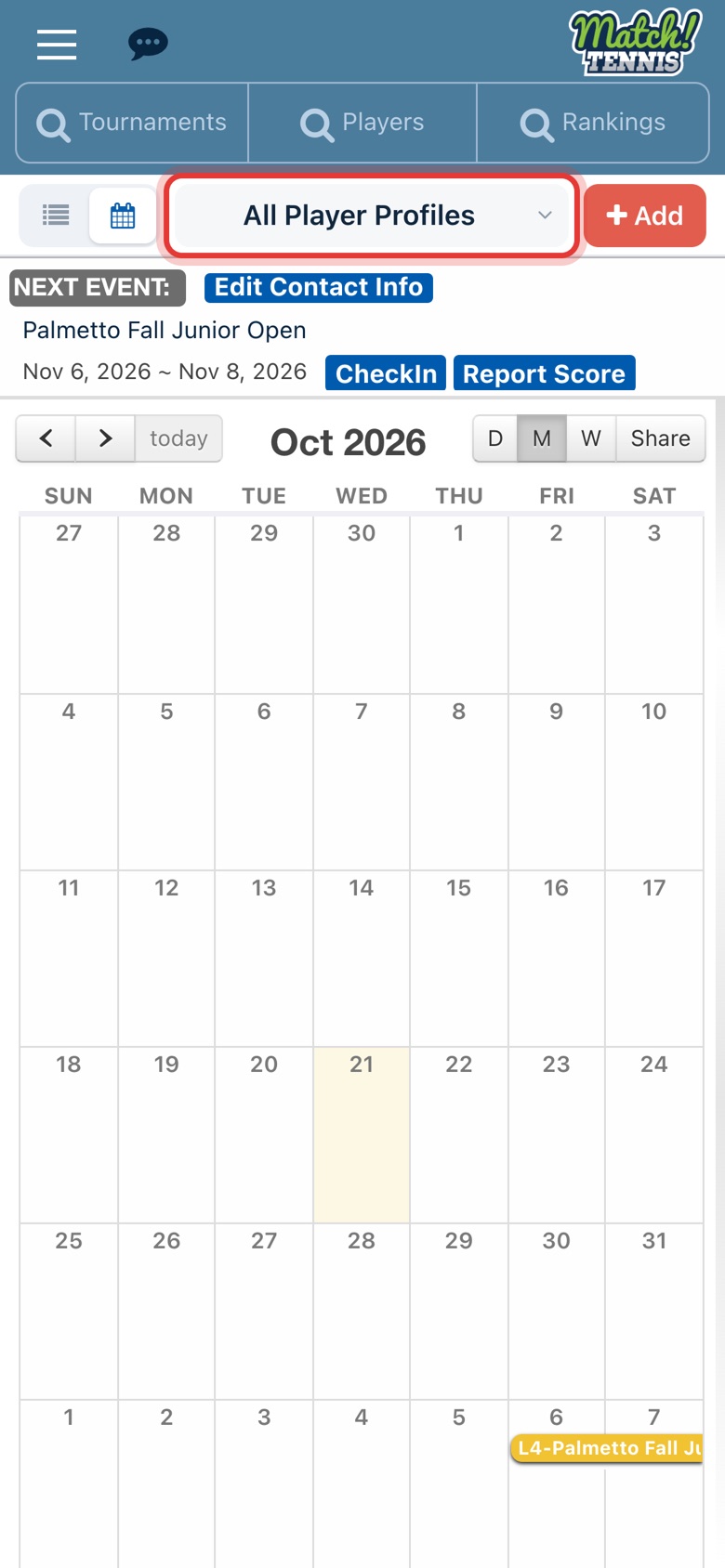
Step 3: Pick a player
Leave All Player Profiles selected, or pick one of your players to see just their events.
-
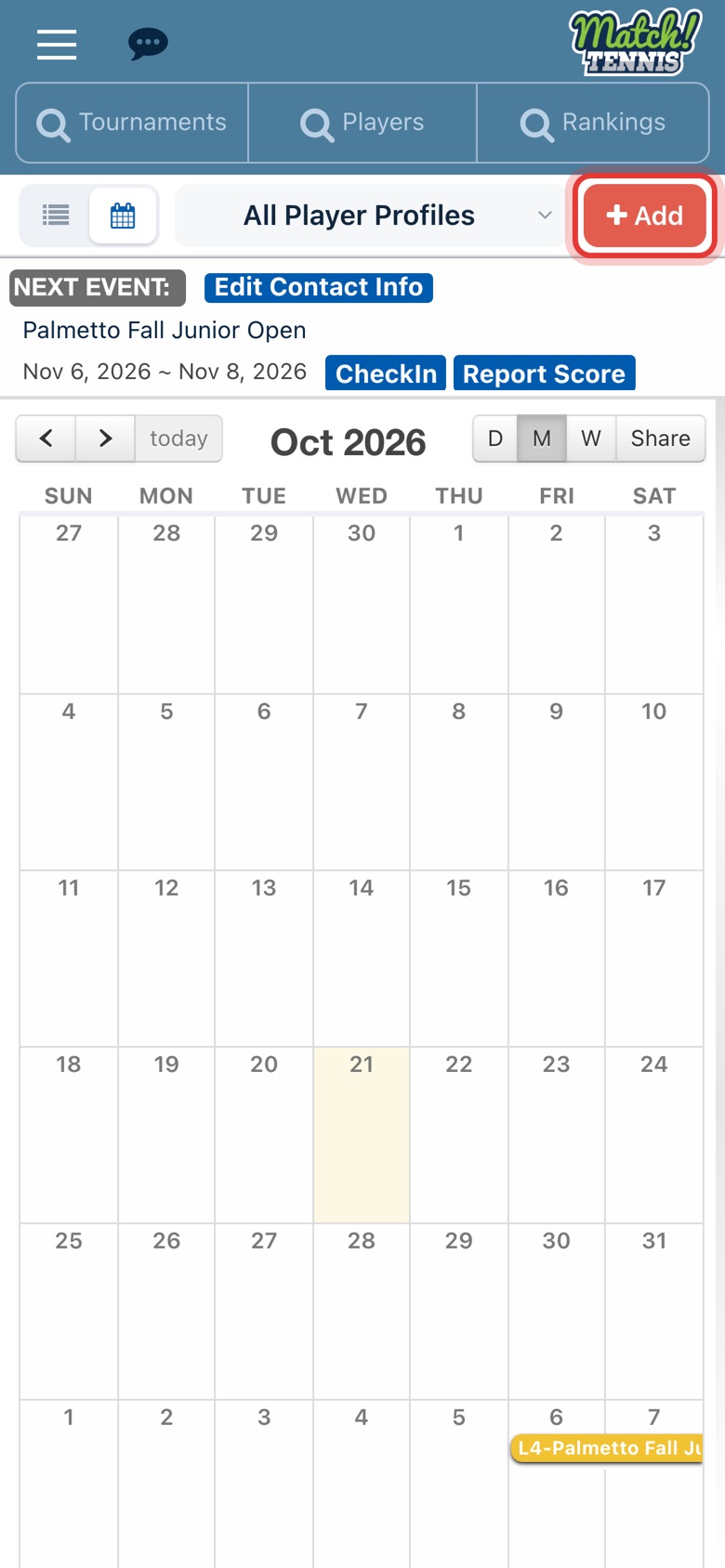
Step 4: Add your own events
Tap Add to put a lesson, clinic or travel day on your calendar. Only you can see these events.
-
Step 5: Check your Inbox
Tap the speech bubble at the top to open your Inbox, where messages from tournament directors arrive.
Part 2Search
-
Step 6: Search tournaments
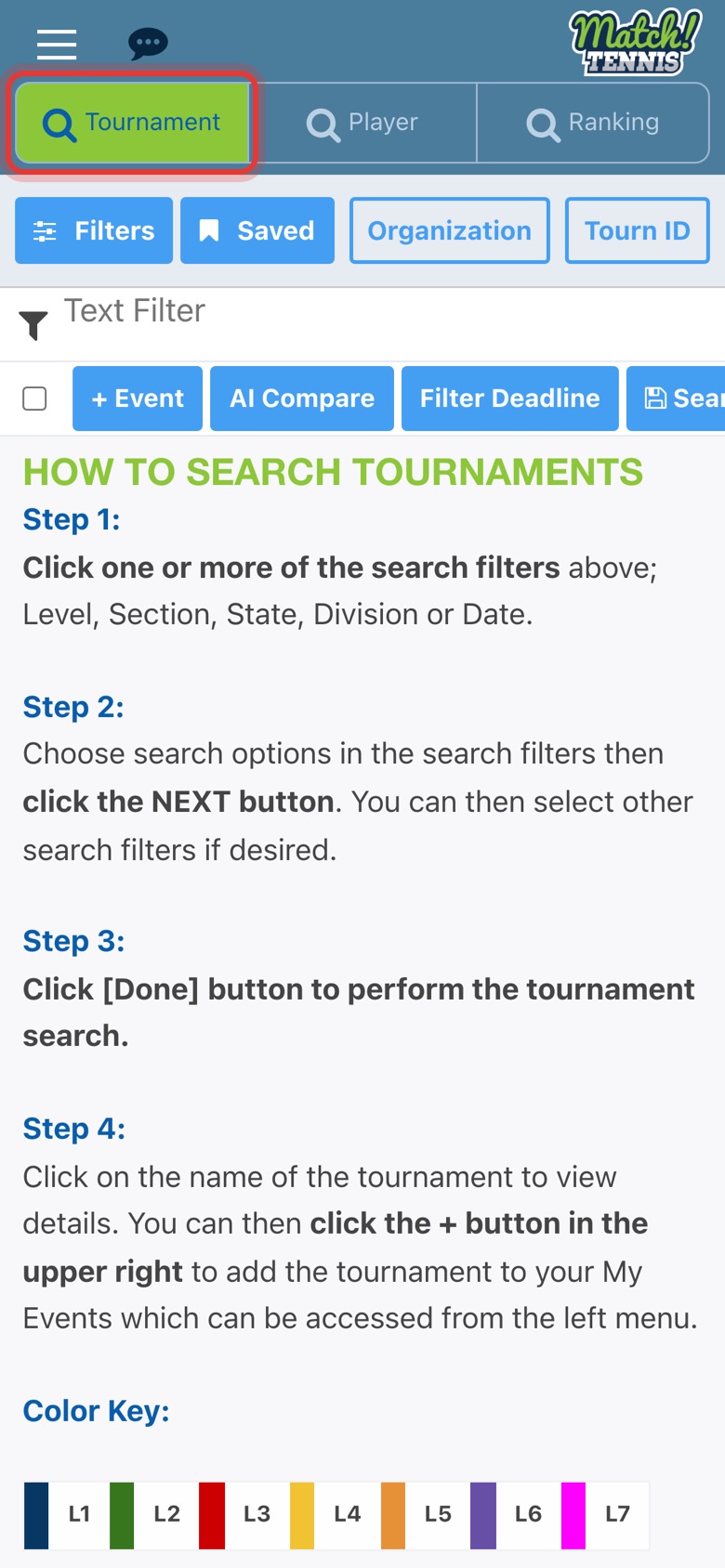
Tap Tournaments to search by date, level, state, division and more.
-
Step 7: Search players
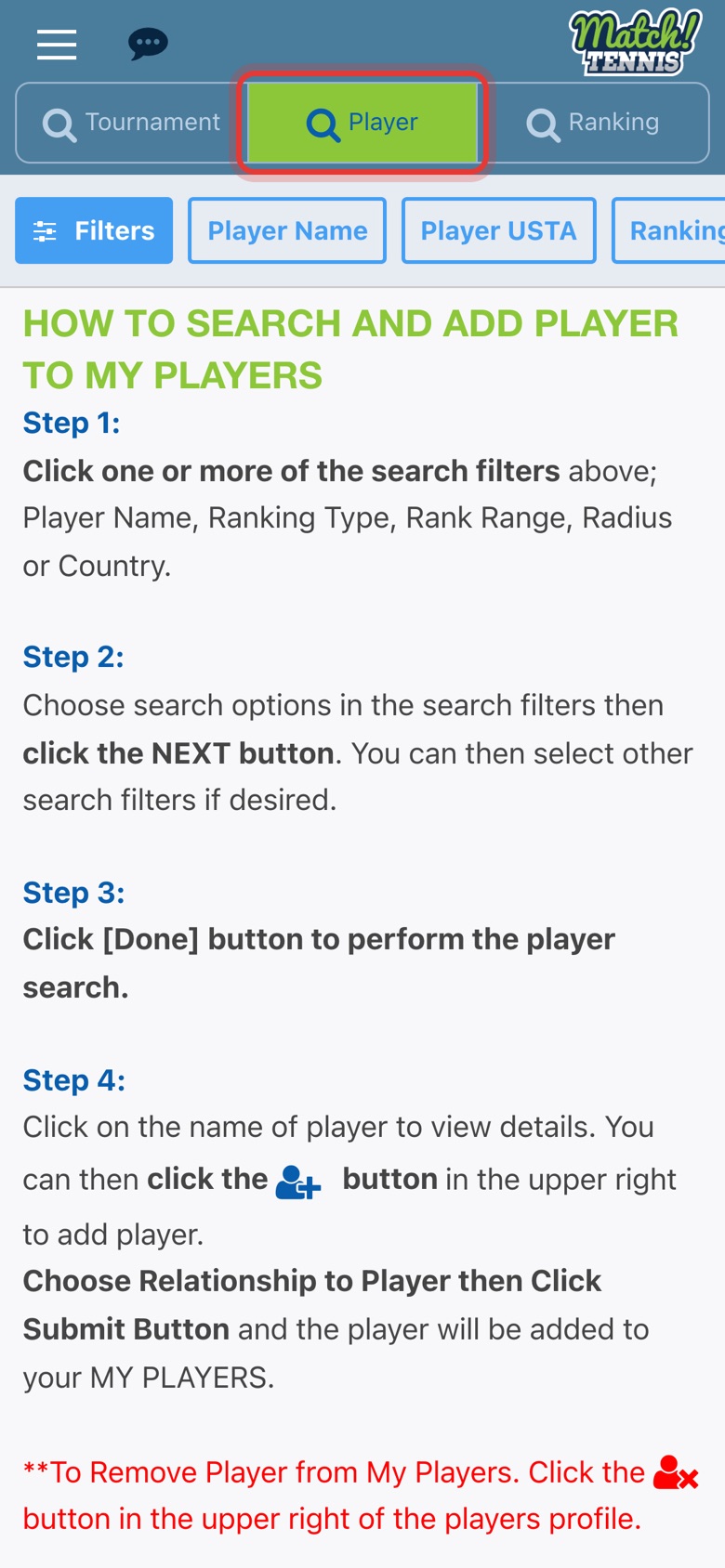
Tap Player to find a player by name, USTA number or ranking.
-
Step 8: Search rankings
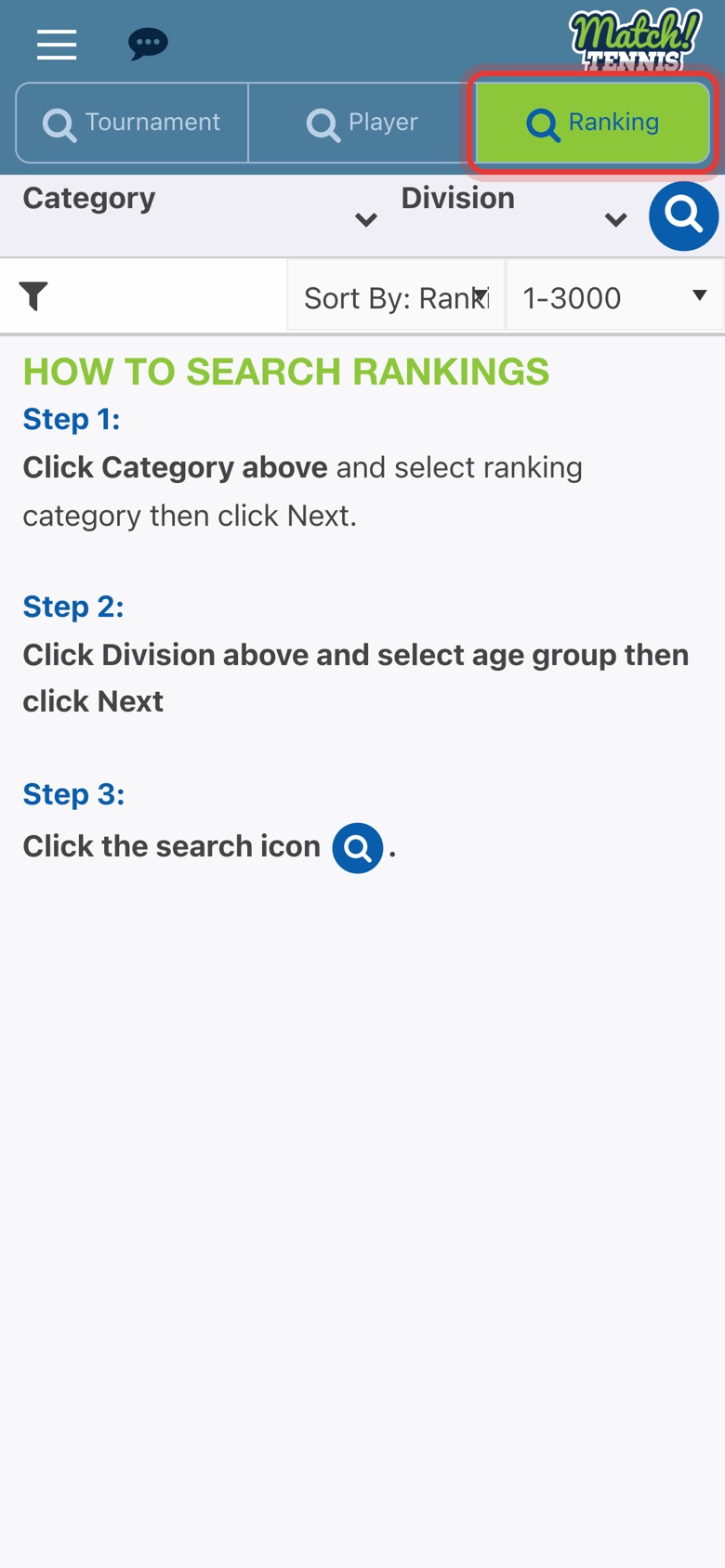
Tap Ranking, choose a Category and a Division, then tap the search icon.
Part 3The menu
-
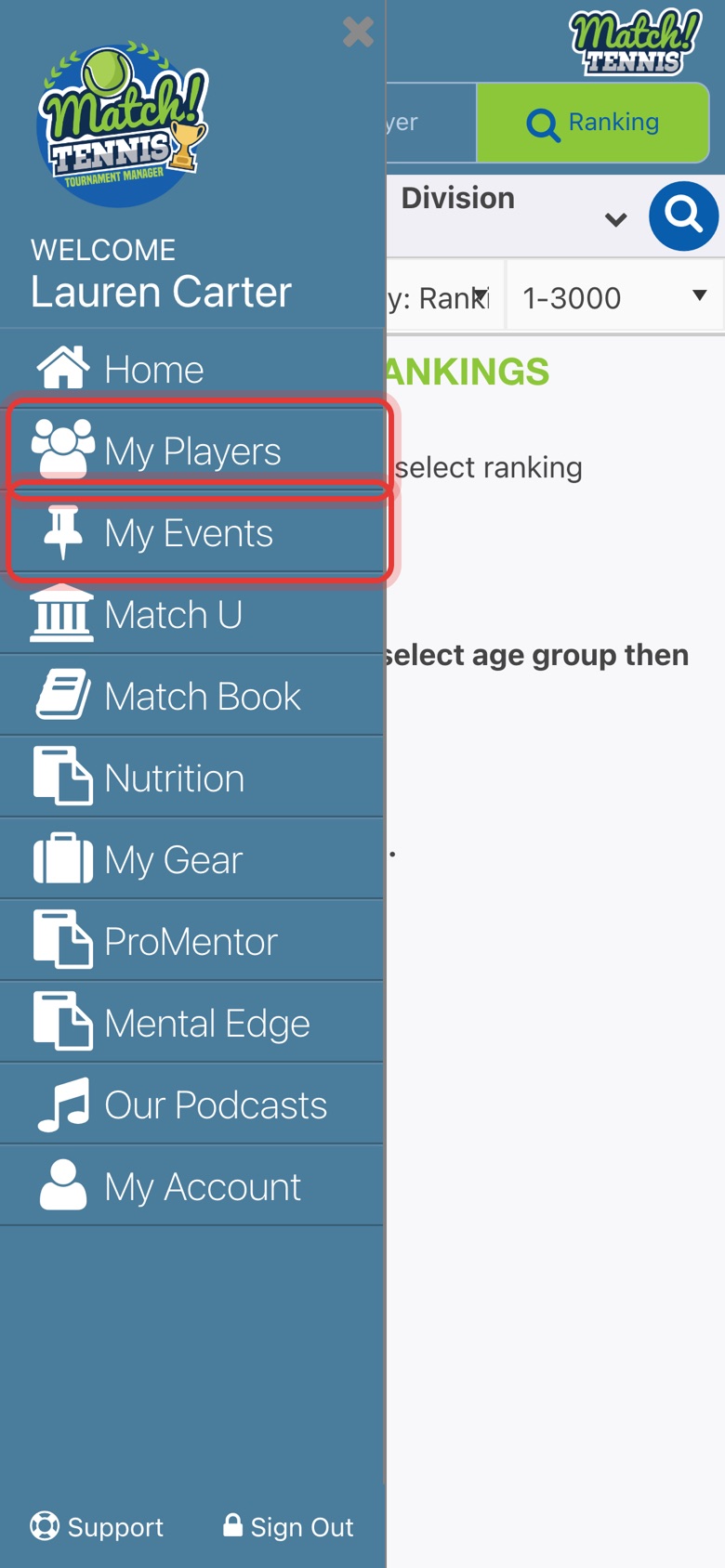
Step 9: My Players and My Events
Tap the menu at the top left. My Players lists the players you follow and My Events lists your tournaments.
-
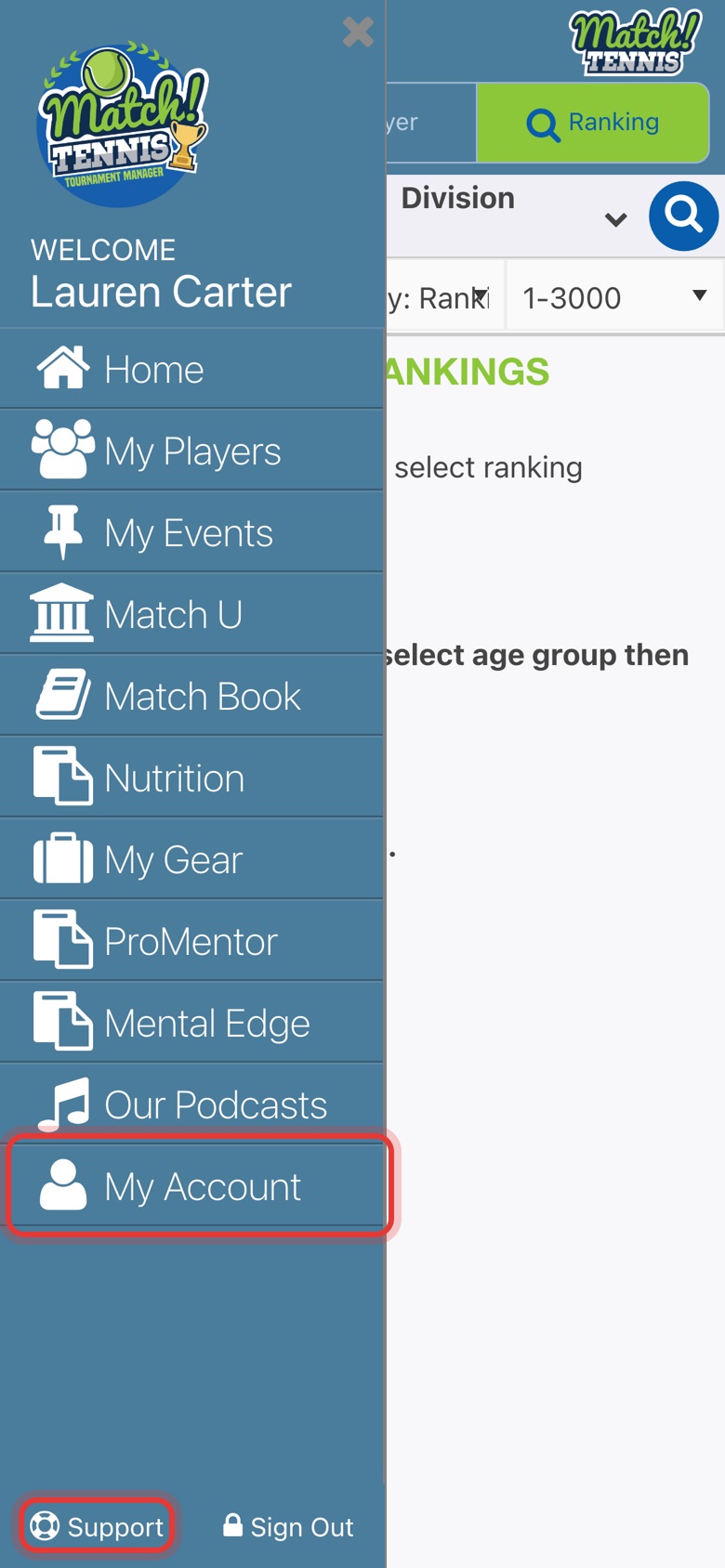
Step 10: My Account and Support
My Account holds your subscription, notifications and password. Support at the bottom opens our help pages.
Tips
- Back to Home. Tap the Match! logo at the top of any screen.
- Next steps. Add your player to My Players, then add a tournament to your calendar.