How to Change a Completed Waiver
Tournaments Updated November 2, 2026 1 min read
Signed the waiver and need to change a phone number or add your doubles partner? You can edit it in the app. It takes about a minute.
Part 1Find the waiver
-
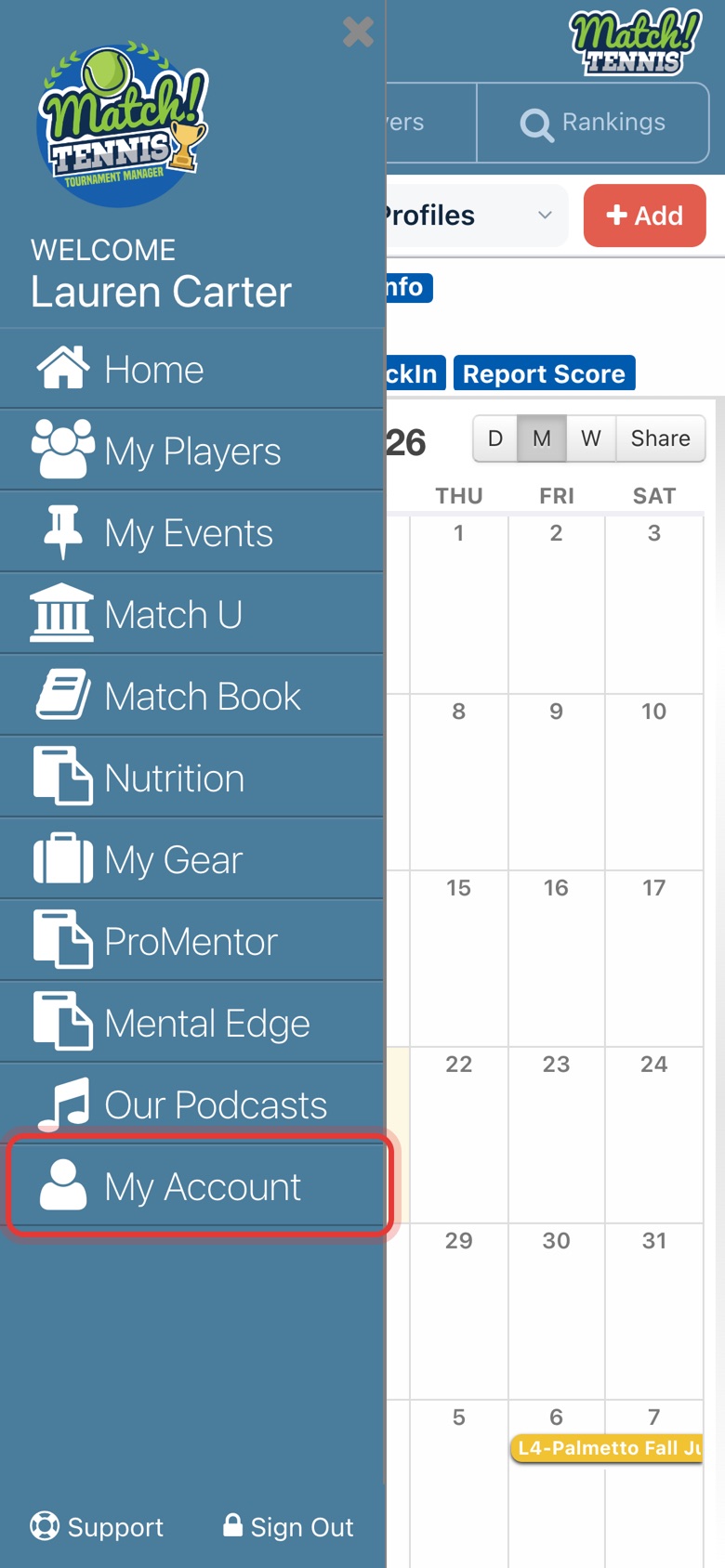
Step 1: Open My Account
Tap the menu at the top left, then tap My Account.
-
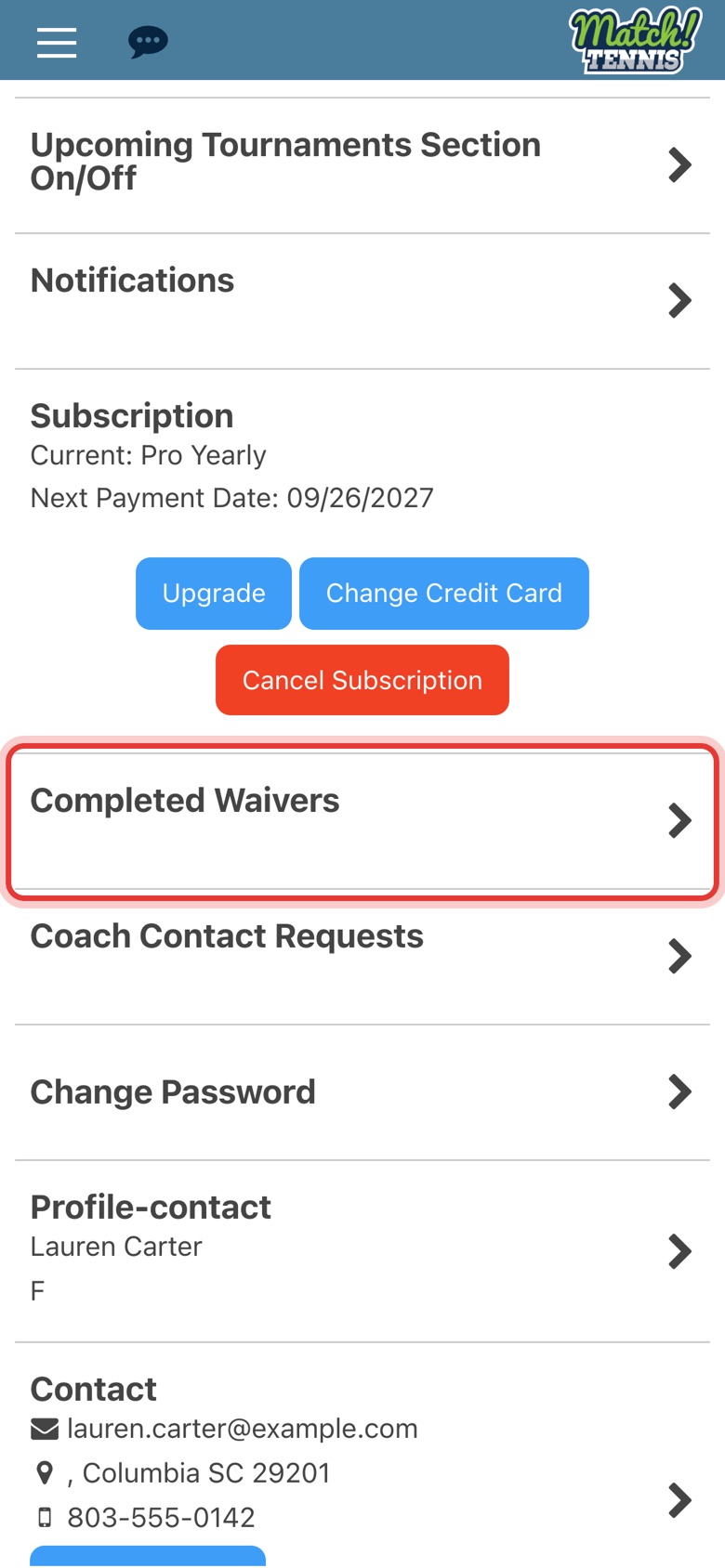
Step 2: Tap Completed Waivers
Scroll down and tap Completed Waivers.
-
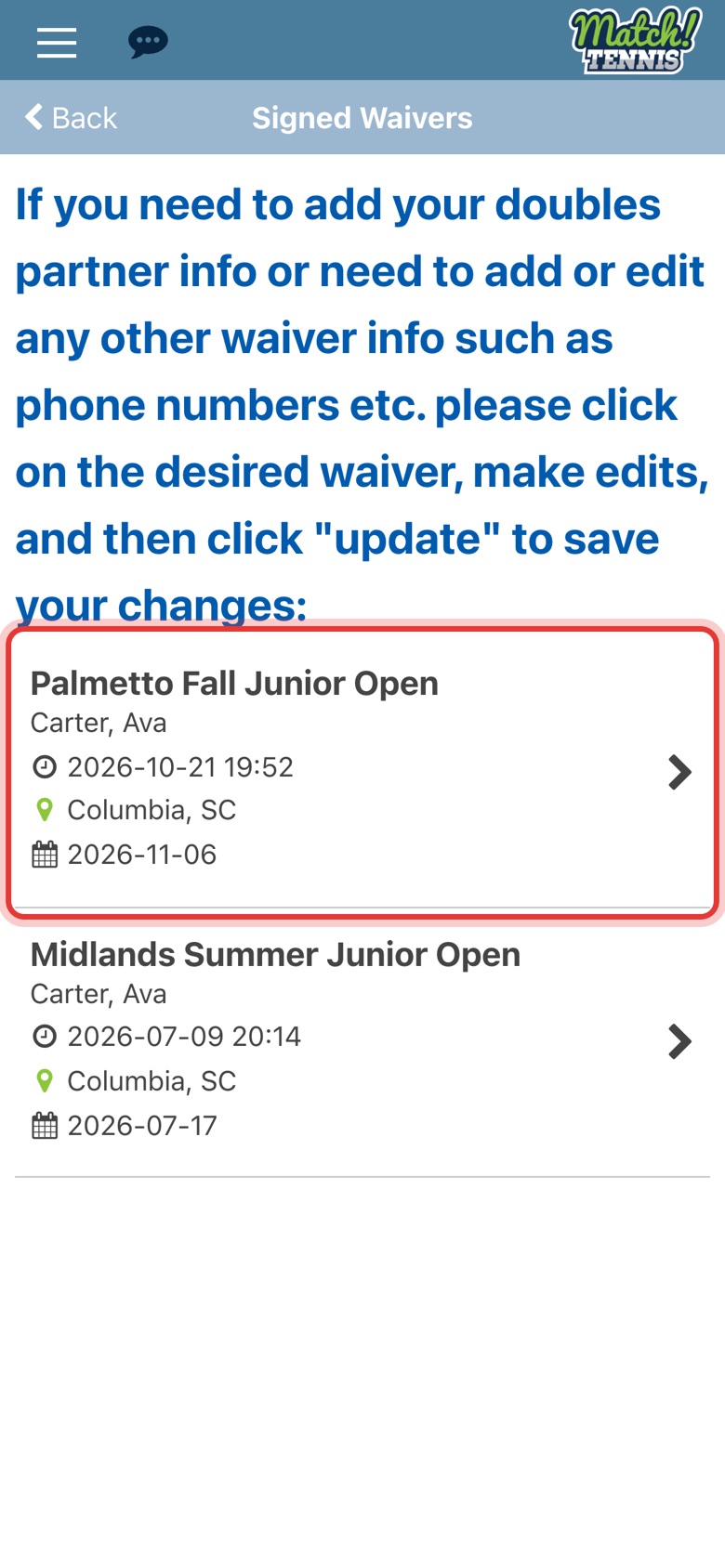
Step 3: Tap the tournament
Signed Waivers lists the waivers signed with your account. Tap the one you want to change.
Part 2Make your changes
-
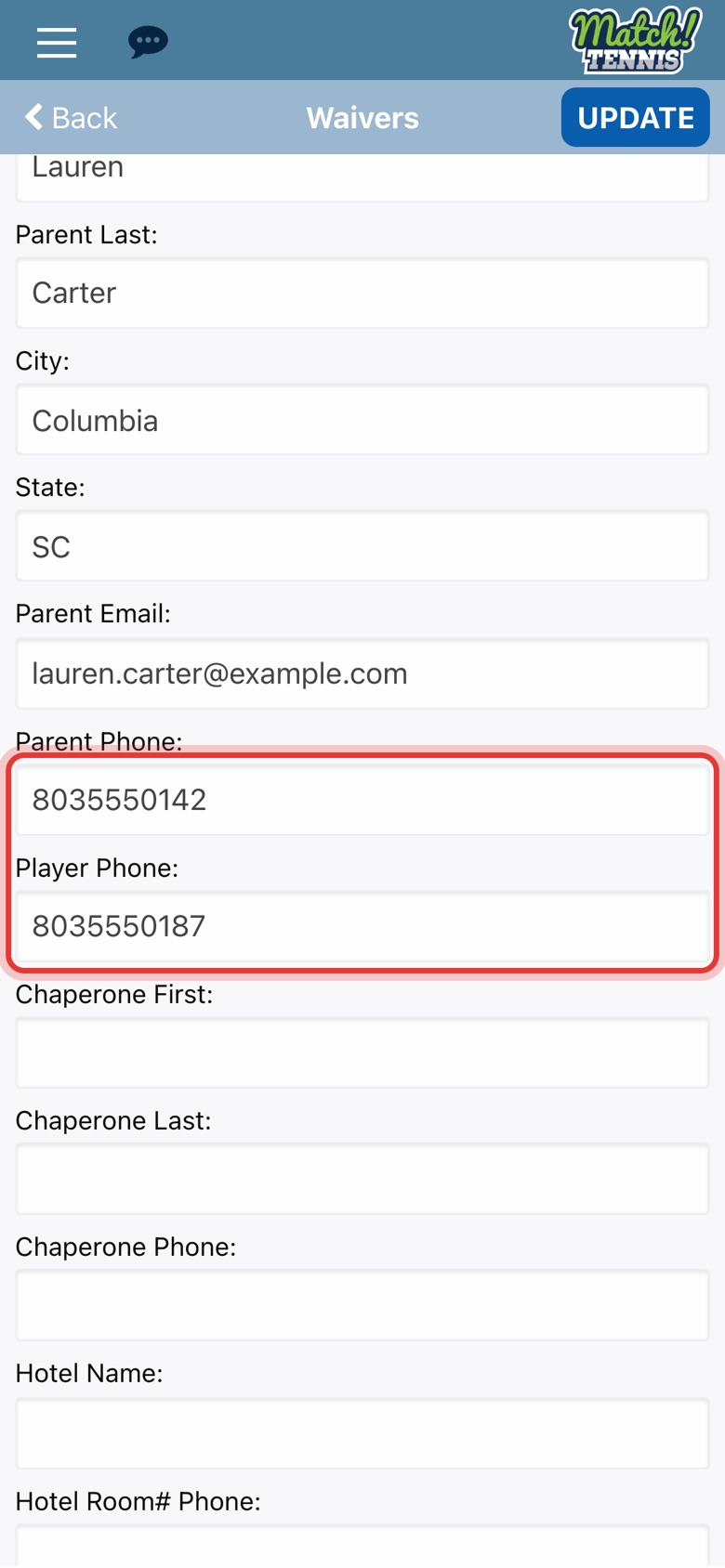
Step 4: Change the phone numbers
Change Parent Phone or Player Phone. Check-in confirmations and court assignment texts go to these numbers.
-
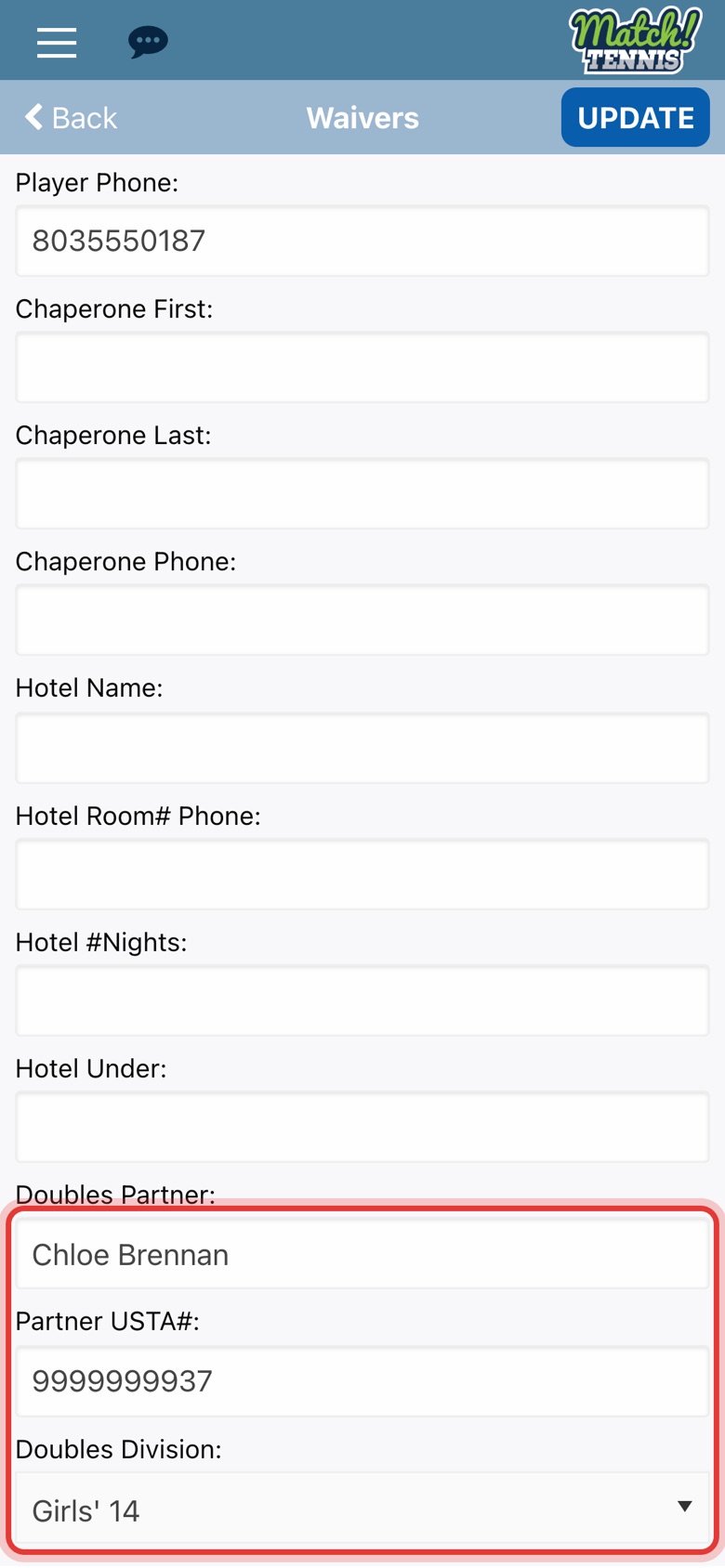
Step 5: Add your doubles partner
Scroll to the bottom. Type your partner's name and USTA number and choose the Doubles Division.
-
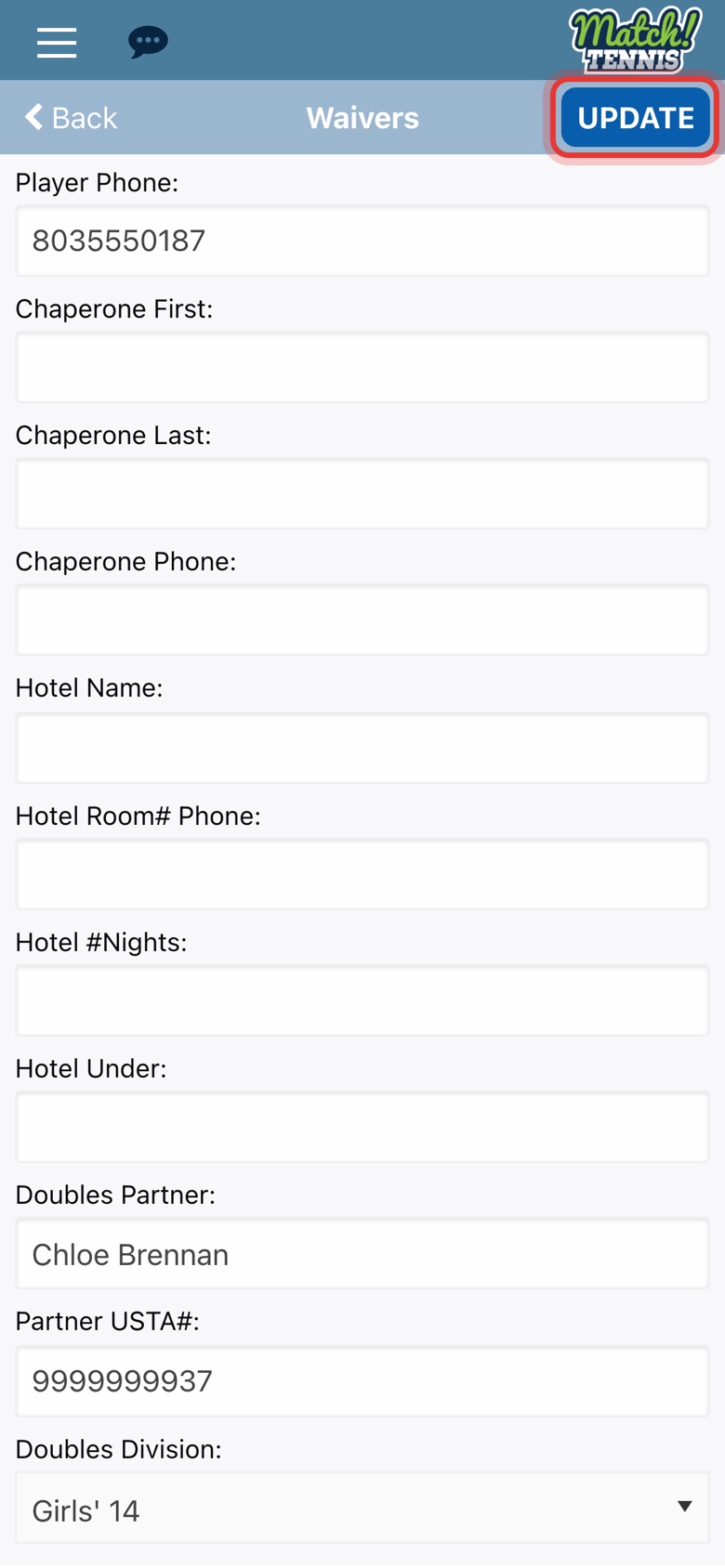
Step 6: Tap UPDATE
Tap UPDATE at the top right.
-
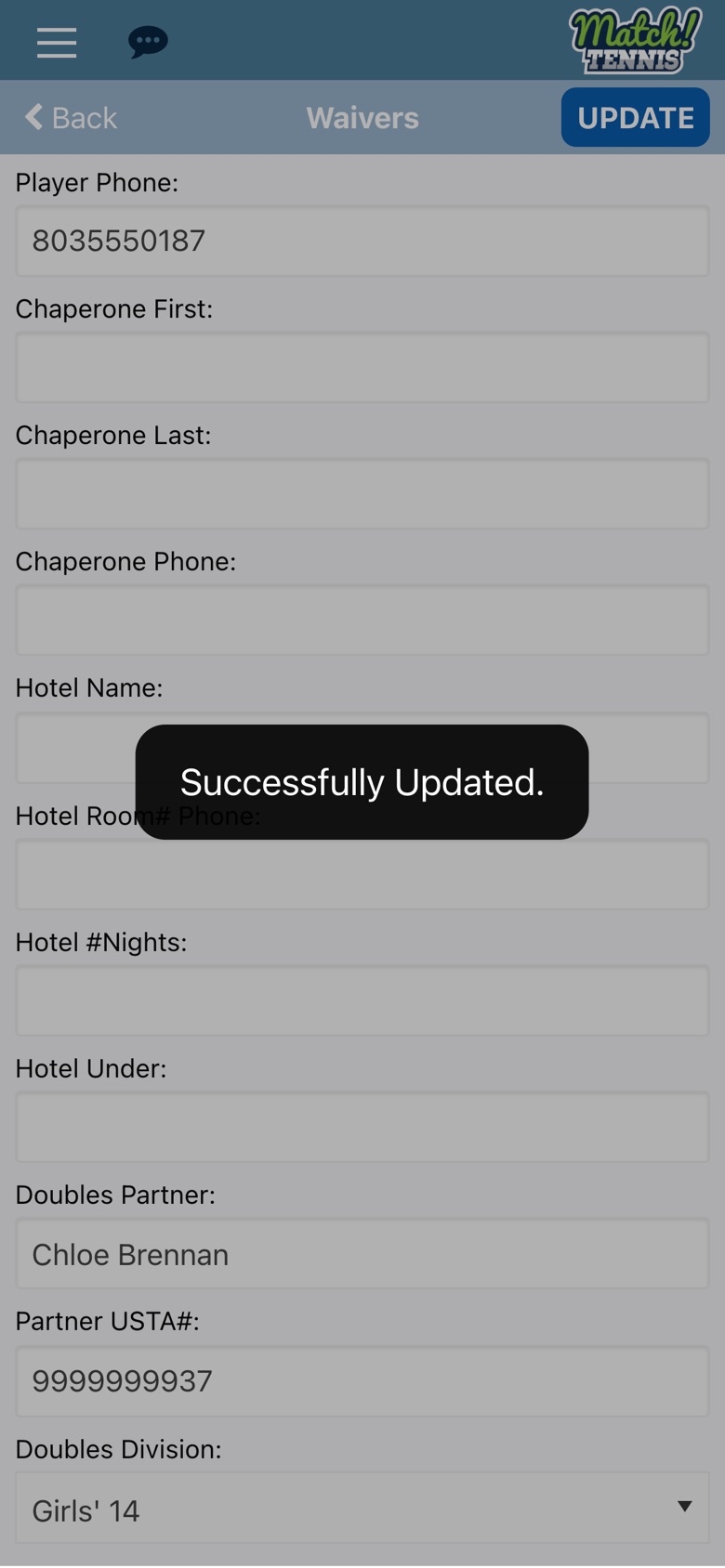
Step 7: Saved
You see Successfully Updated. Your changes are saved.
Tips
- A shortcut from Home. Tap Edit Contact Info next to NEXT EVENT on Home to open the same list of waivers.
- Which numbers get texts. The tournament desk texts the Parent Phone, the Player Phone and the Chaperone Phone on the waiver, such as the check-in confirmation and the court assignment. Keep them up to date before match day.
- Hotel details too. You can also fill in or change the hotel name, room and nights here.
- Don't see the waiver? Only waivers signed with this account are listed. If you signed with a different email, log in with that account.
- Haven't signed yet? See How to Sign a Tournament Waiver From the App or the full Tournament Check-In and Scores: Parent Guide.