How to Sign a Tournament Waiver From the App
Tournaments Updated November 2, 2026 1 min read
If you already use the app, you can sign the waiver for a tournament that uses Match Tennis App without going back to the USTA page. It takes about two minutes.
Part 1Open the waiver
-
Step 1: Open the tournament
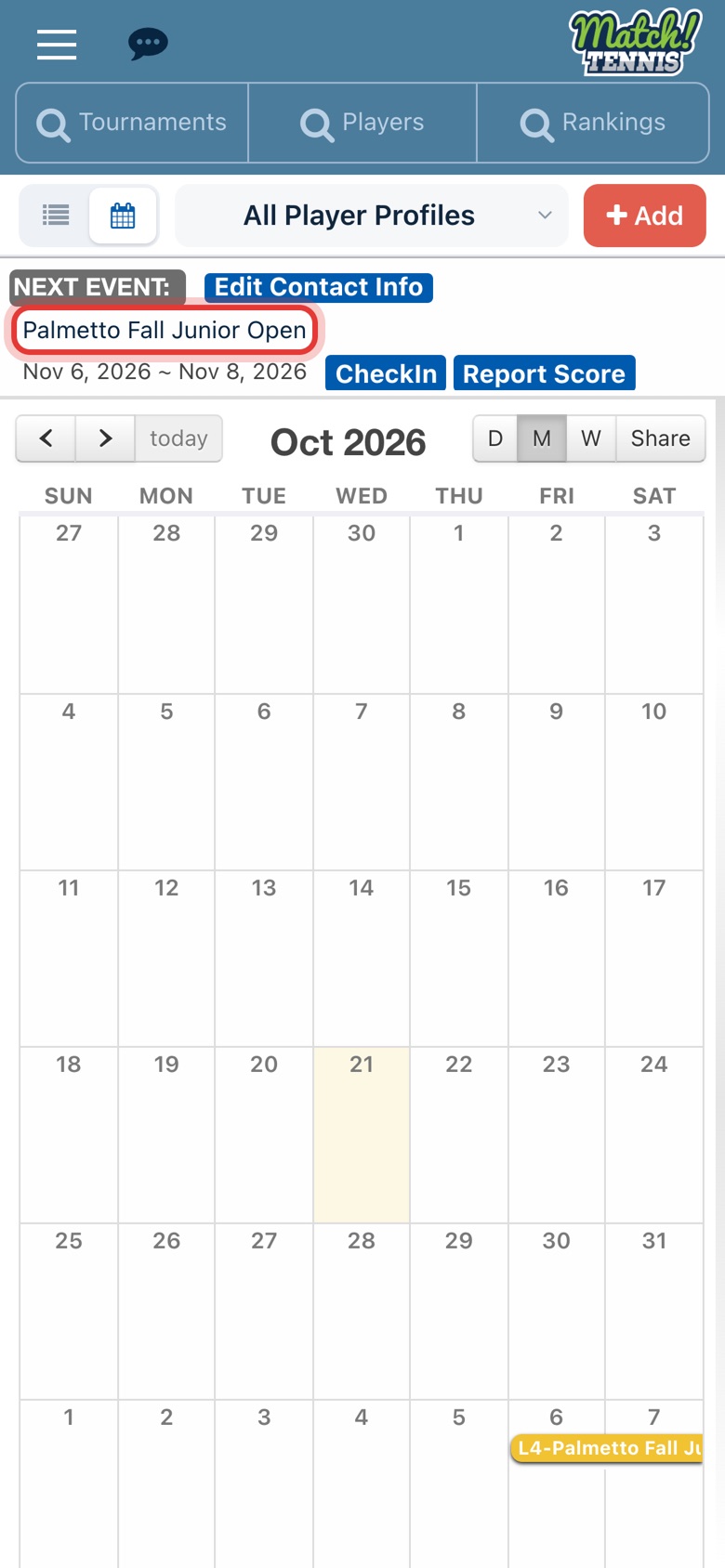
On Home, tap the tournament's name on the Next Event card. You can also tap it on your calendar.
-
Step 2: Tap Opt-in Waiver
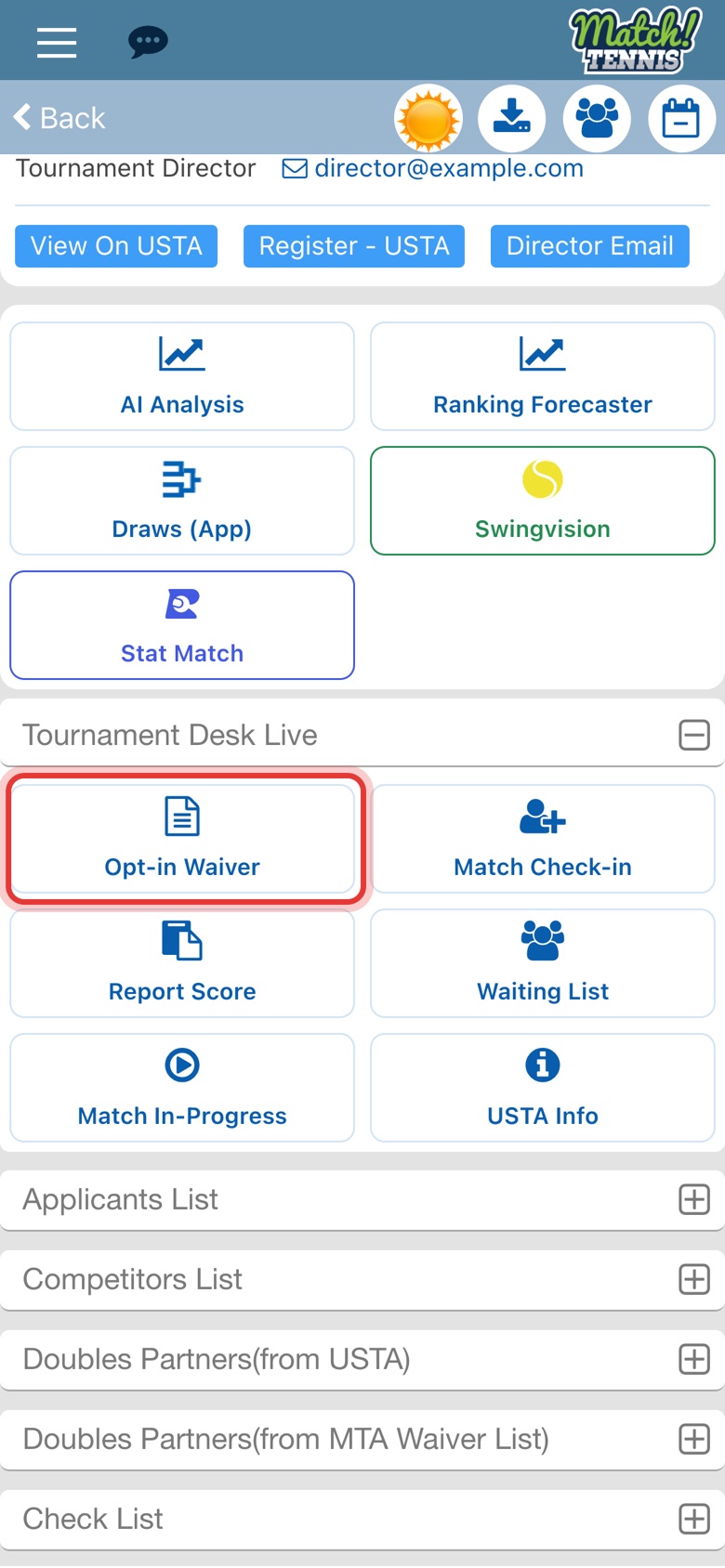
Scroll down to Tournament Desk Live and tap Opt-in Waiver.
Part 2Fill in and sign
Your details come from your account, so most of the form is already filled in.
-
Step 3: Choose your player
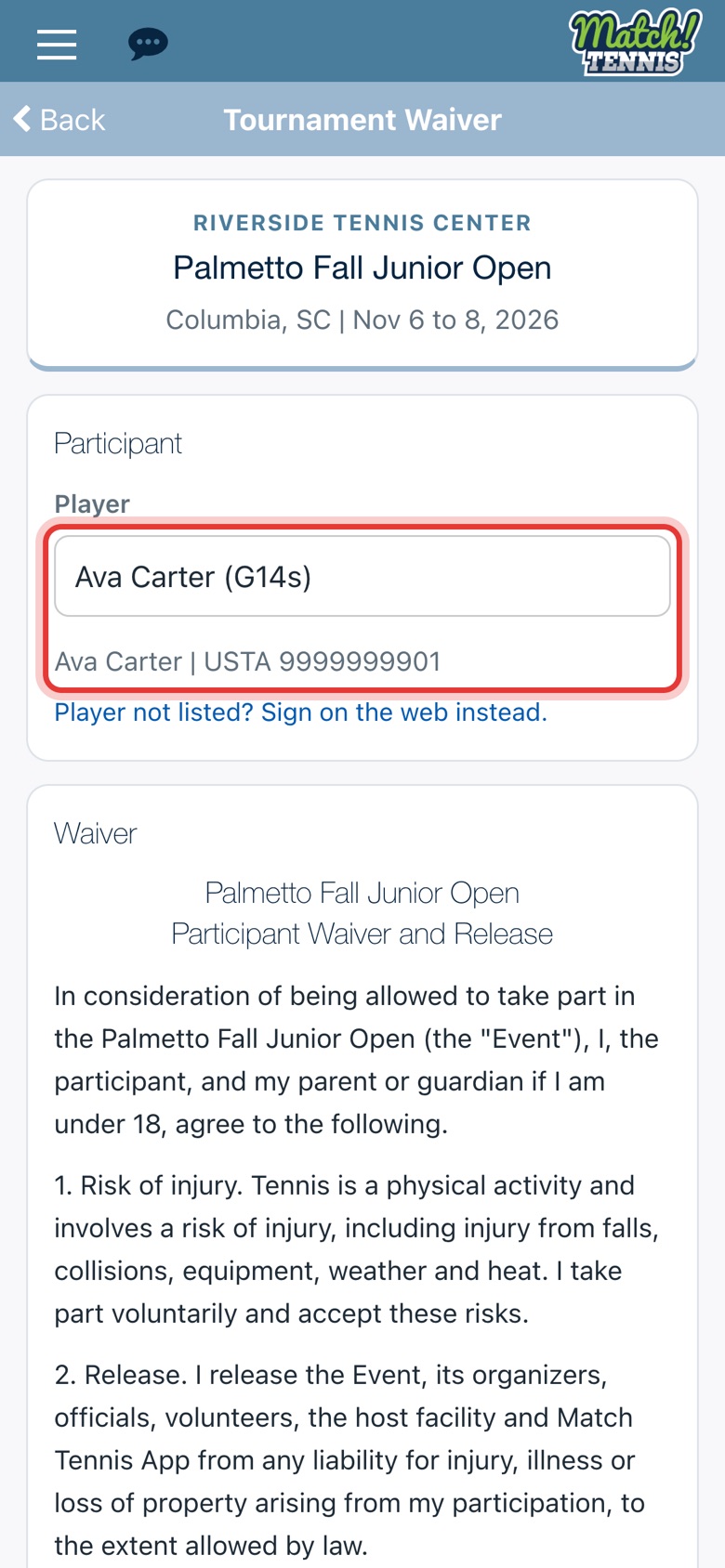
Choose the player you are signing for. Their USTA number shows underneath. Player not listed? Tap Sign on the web instead.
-
Step 4: Read the waiver
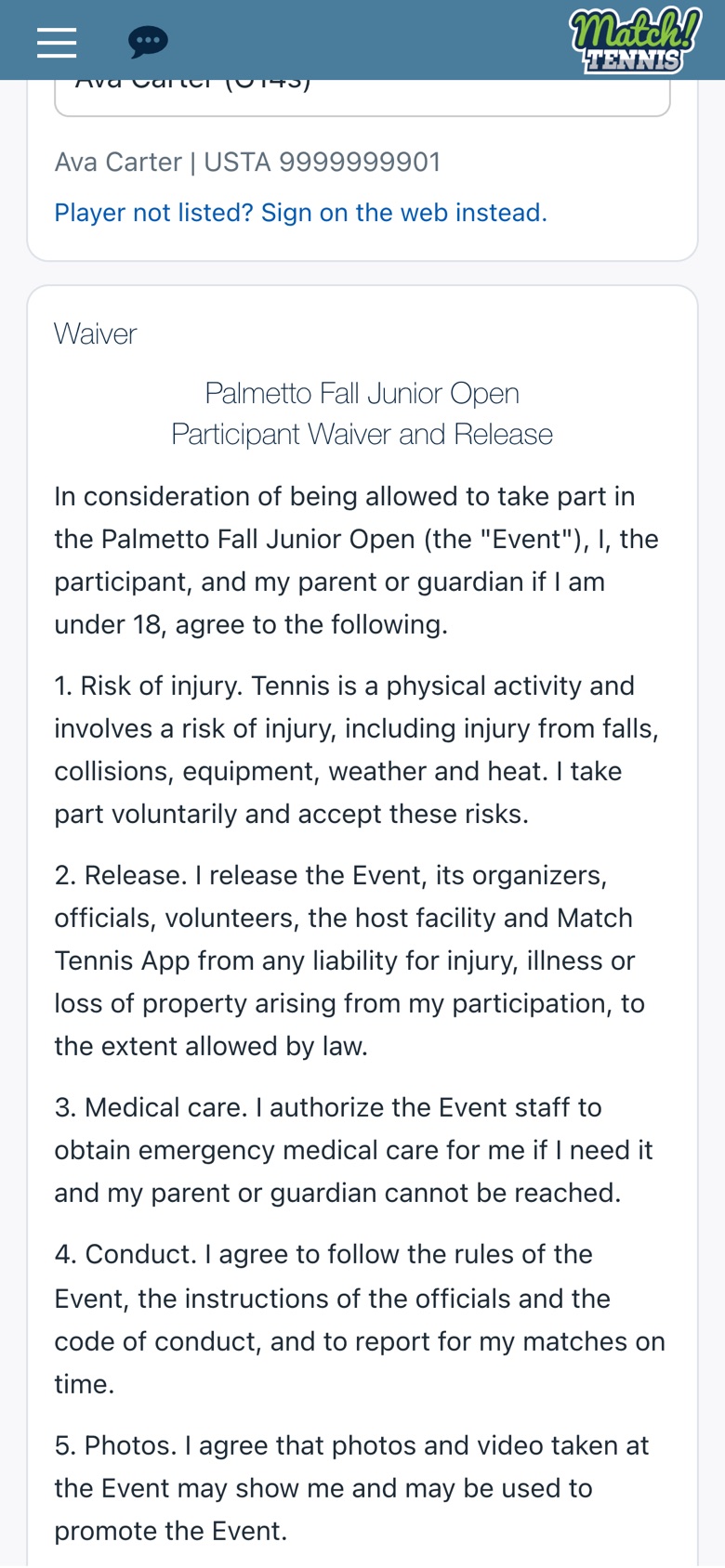
This is the tournament's own waiver. Take a moment to read it.
-
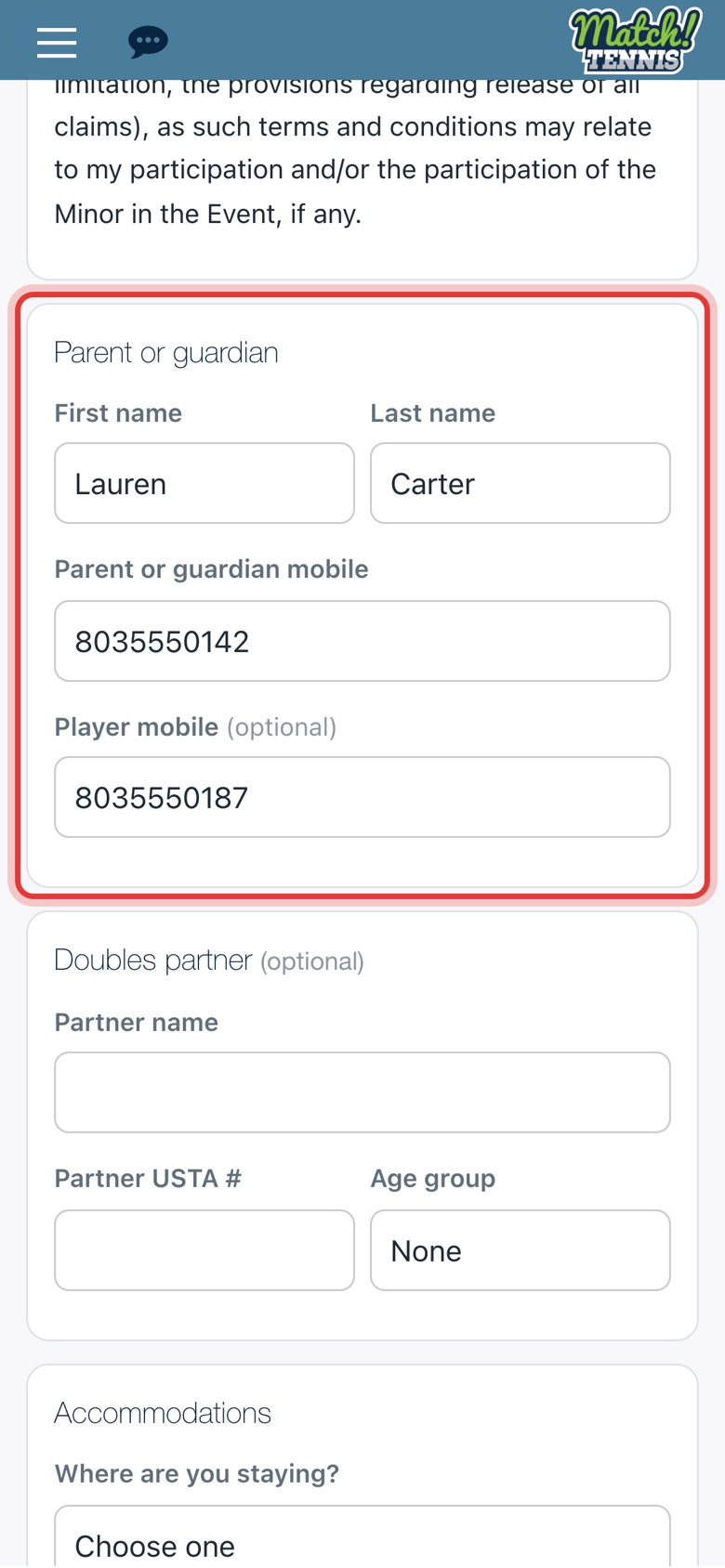
Step 5: Check your name and mobile
Your name and mobile number come from your account. Check them, and add the player's mobile if they have one.
-
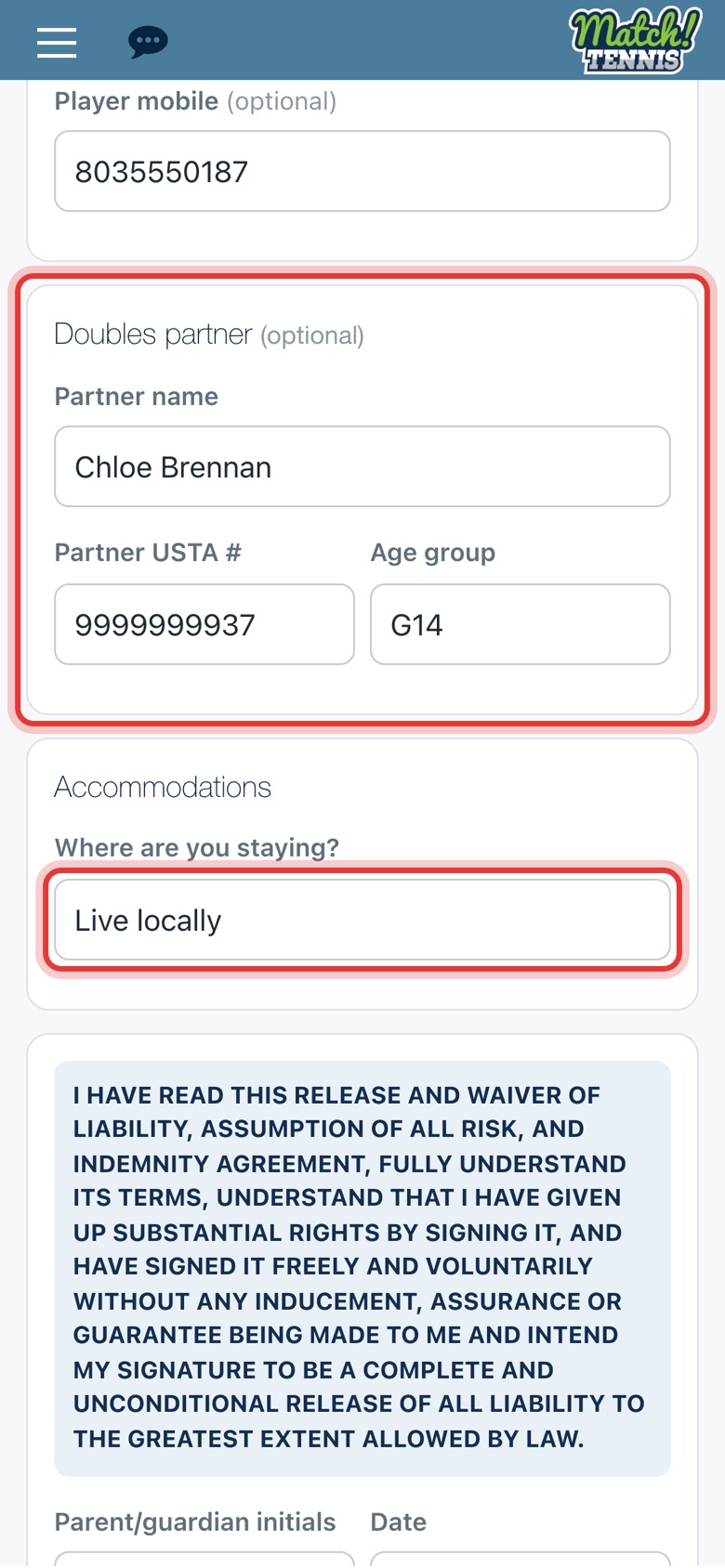
Step 6: Doubles partner and where you're staying
Playing doubles? Add your partner's name, USTA number and age group. Then choose where you are staying.
-
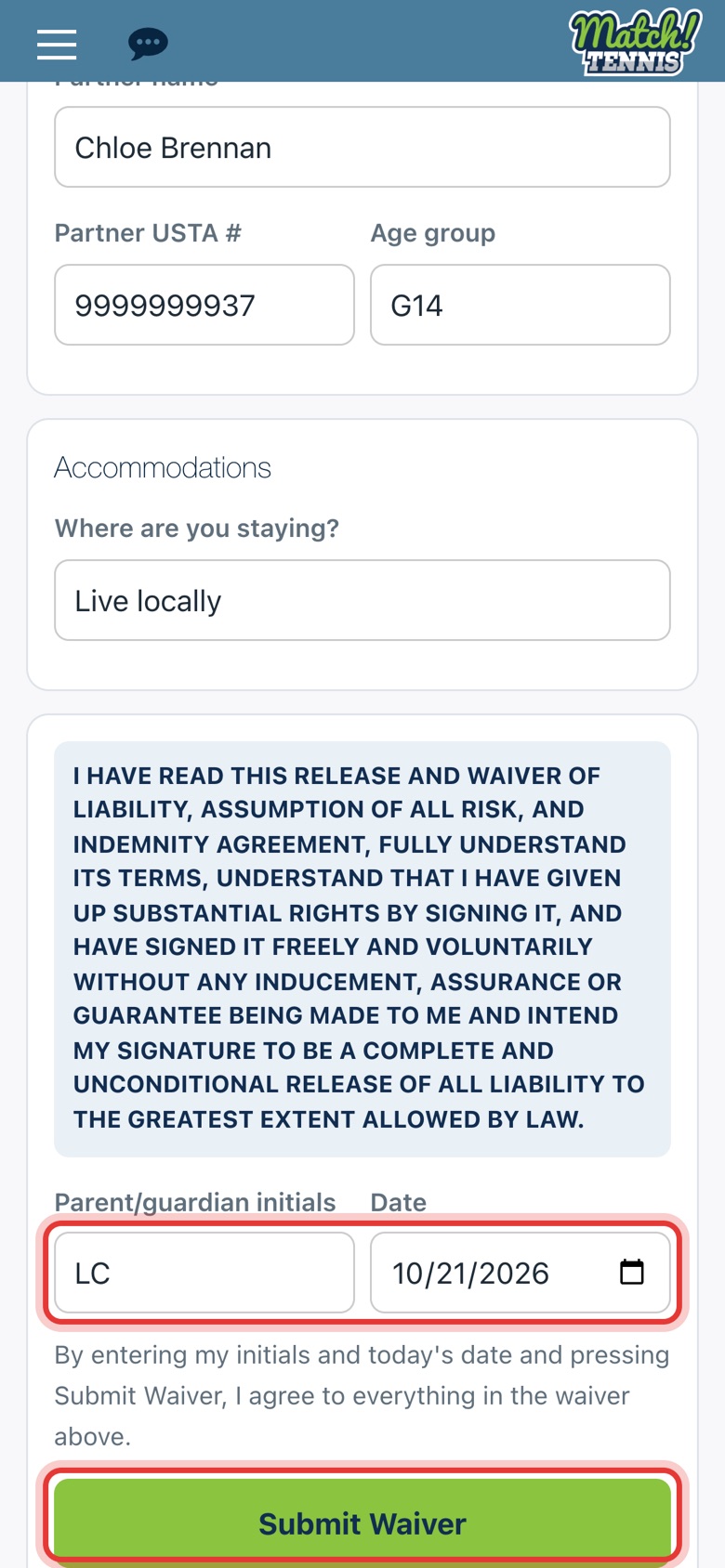
Step 7: Initial and submit
Type your initials. Today's date is filled in. Tap Submit Waiver.
-
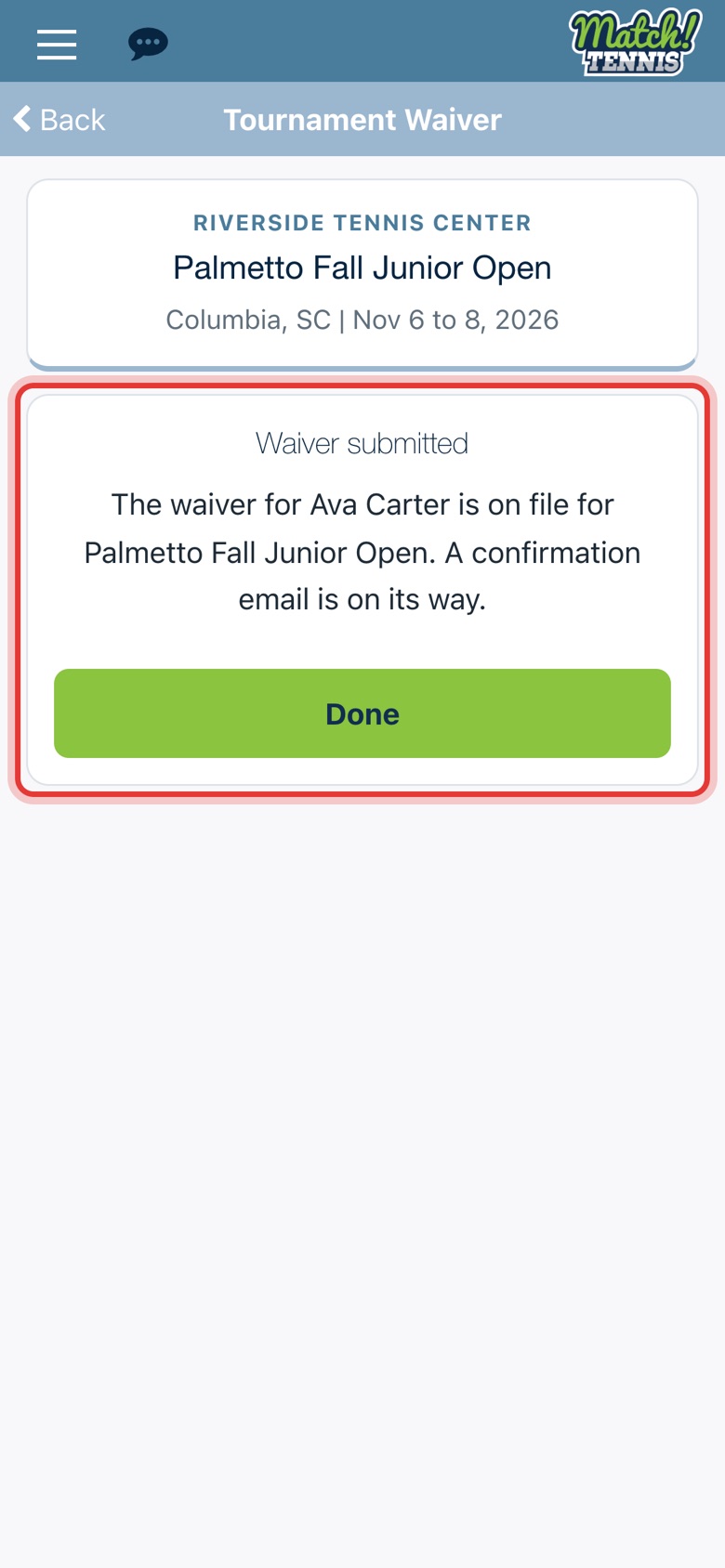
Step 8: Waiver submitted
The waiver is on file and a confirmation email is on its way. Tap Done.
Tips
- Only for tournaments using the desk. If the tournament doesn't use Tournament Desk Live, the app says so when you tap Opt-in Waiver. Check the tournament's USTA page instead.
- Your player must be on your account. The list shows players you added as Me, Parent or Player. If none are, the app opens the web check-in page instead. See Tournament Check-In and Scores: Parent Guide for that route.
- Already signed? If a waiver is already on file for the player, the form says so and Submit Waiver stays grey.
- Staying at a hotel? Choosing Hotel asks for the hotel name and room number.
- Afterwards. The tournament is added to your calendar and a confirmation goes to your account's email.
- Need to change something? Phone numbers and the doubles partner can be changed later. See How to Change a Completed Waiver.