How to See the WTN and Ranking Range of a Tournament's Applicants
Tournaments Updated November 2, 2026 1 min read
Size up a tournament's field in seconds: the Applicants List shows the WTN and national ranking range of everyone who has applied.
Part 1Open the Applicants List
-
Step 1: Open the tournament
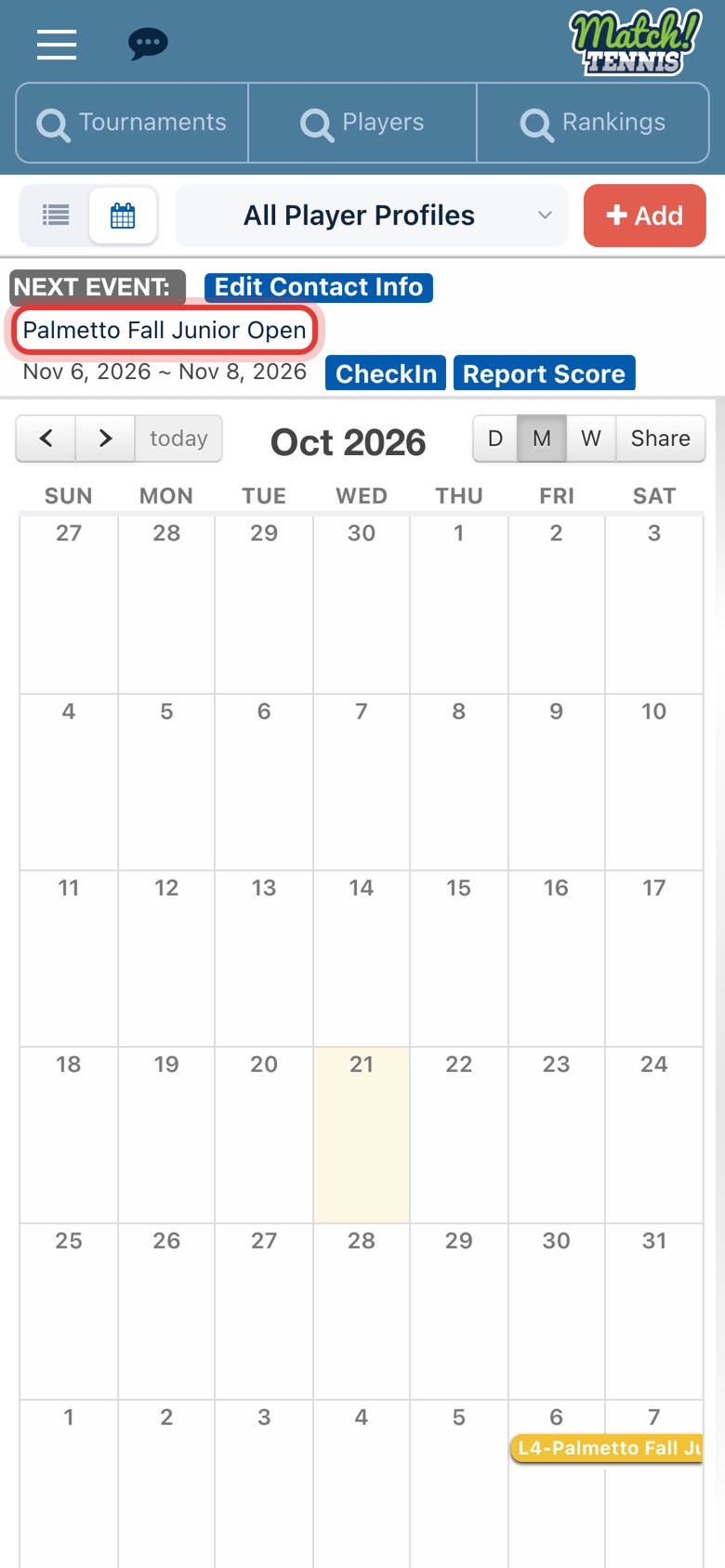
On Home, tap the tournament name in your Next Event card. You can also open any tournament from the Tournaments search.
-
Step 2: Open the Applicants List
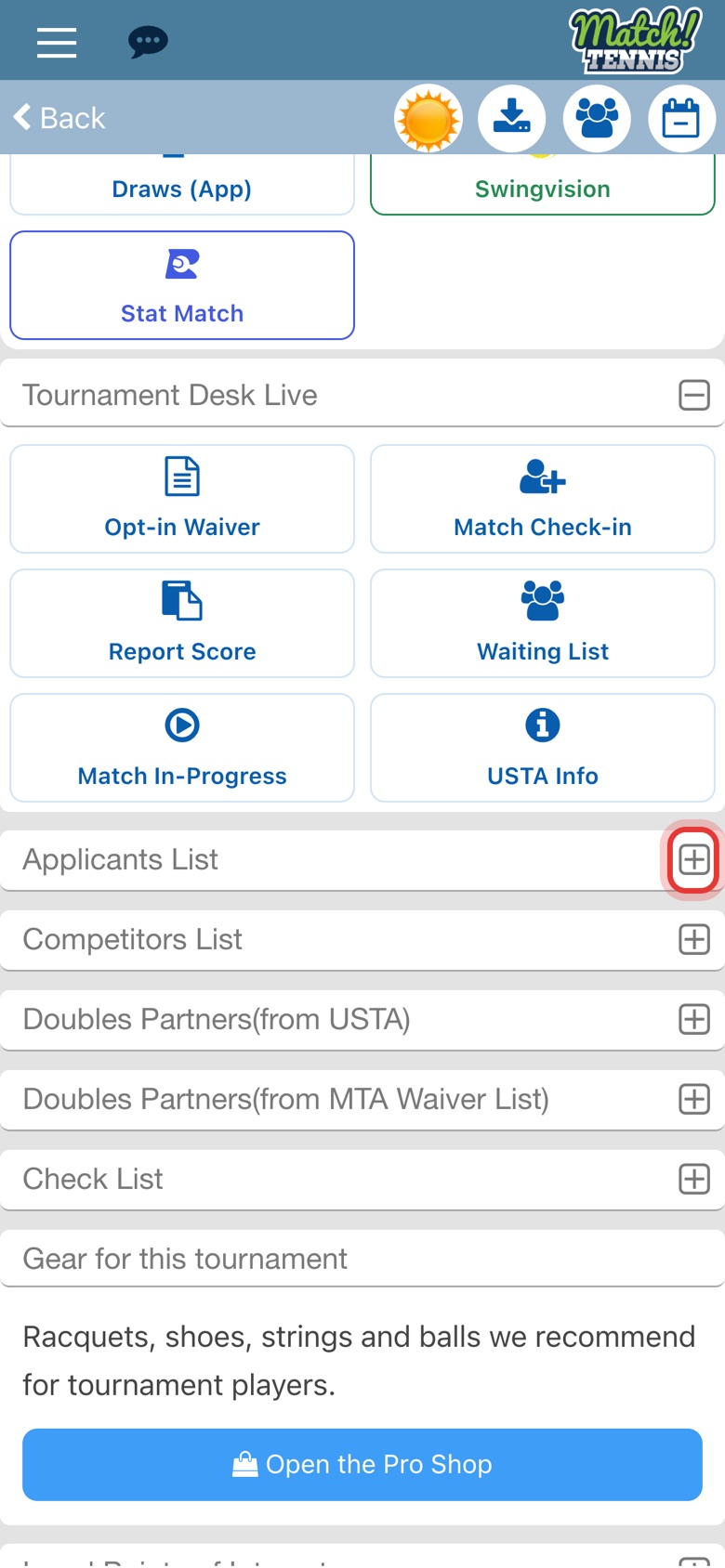
Scroll down the tournament page and tap the plus sign next to Applicants List.
Part 2Read the ranges
-
Step 3: Read the ranges
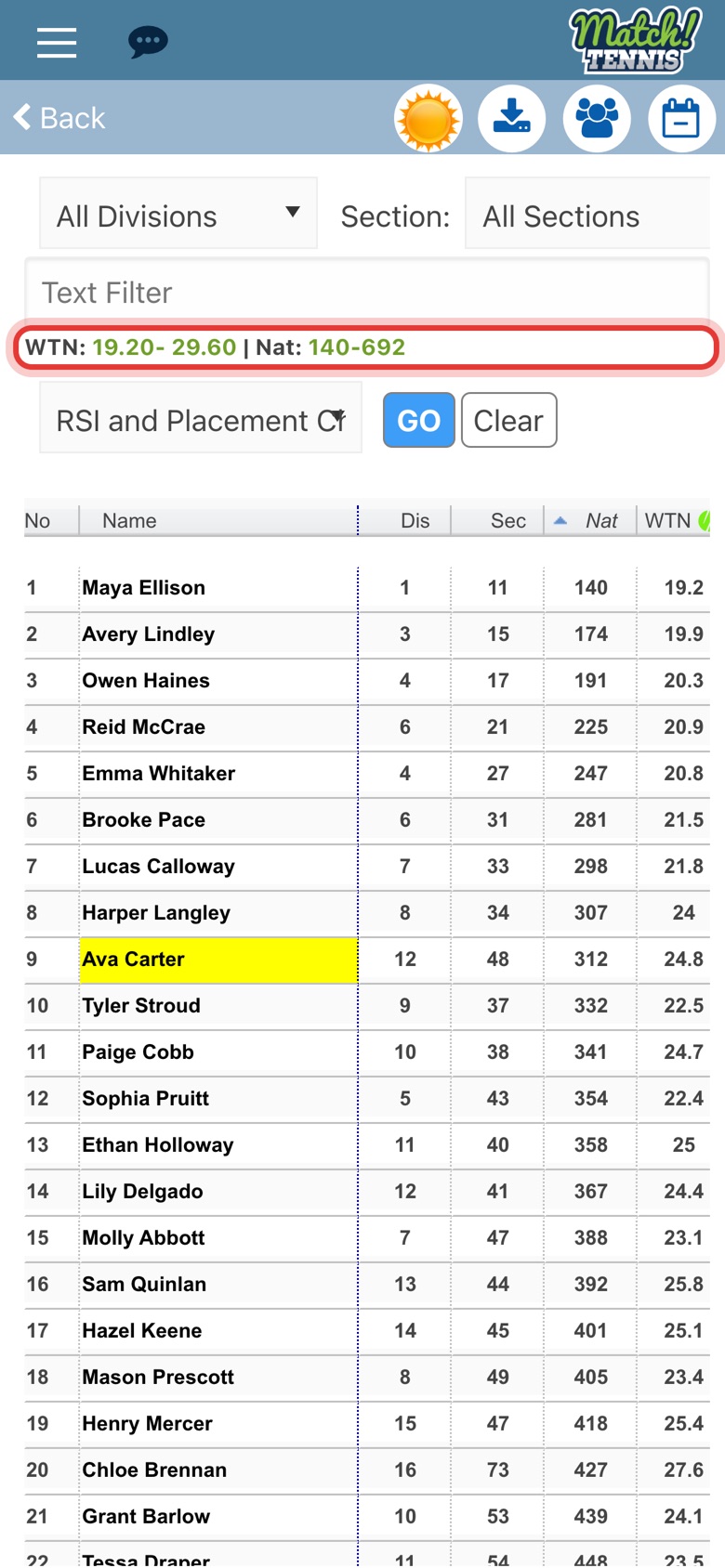
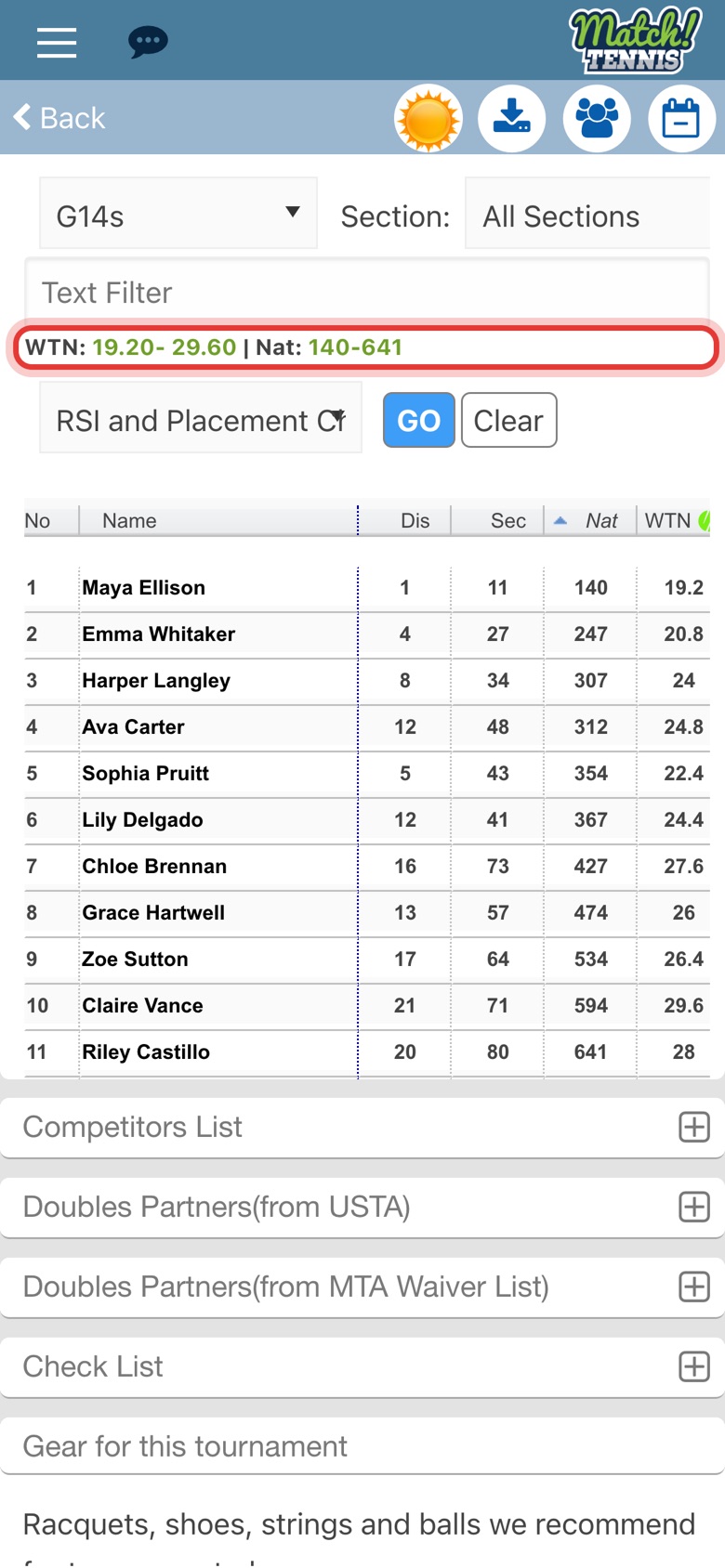
The green line above the table shows the WTN range and the national ranking (Nat) range of everyone who has applied. Players without a WTN or a national ranking are left out.
-
Step 4: Pick a division
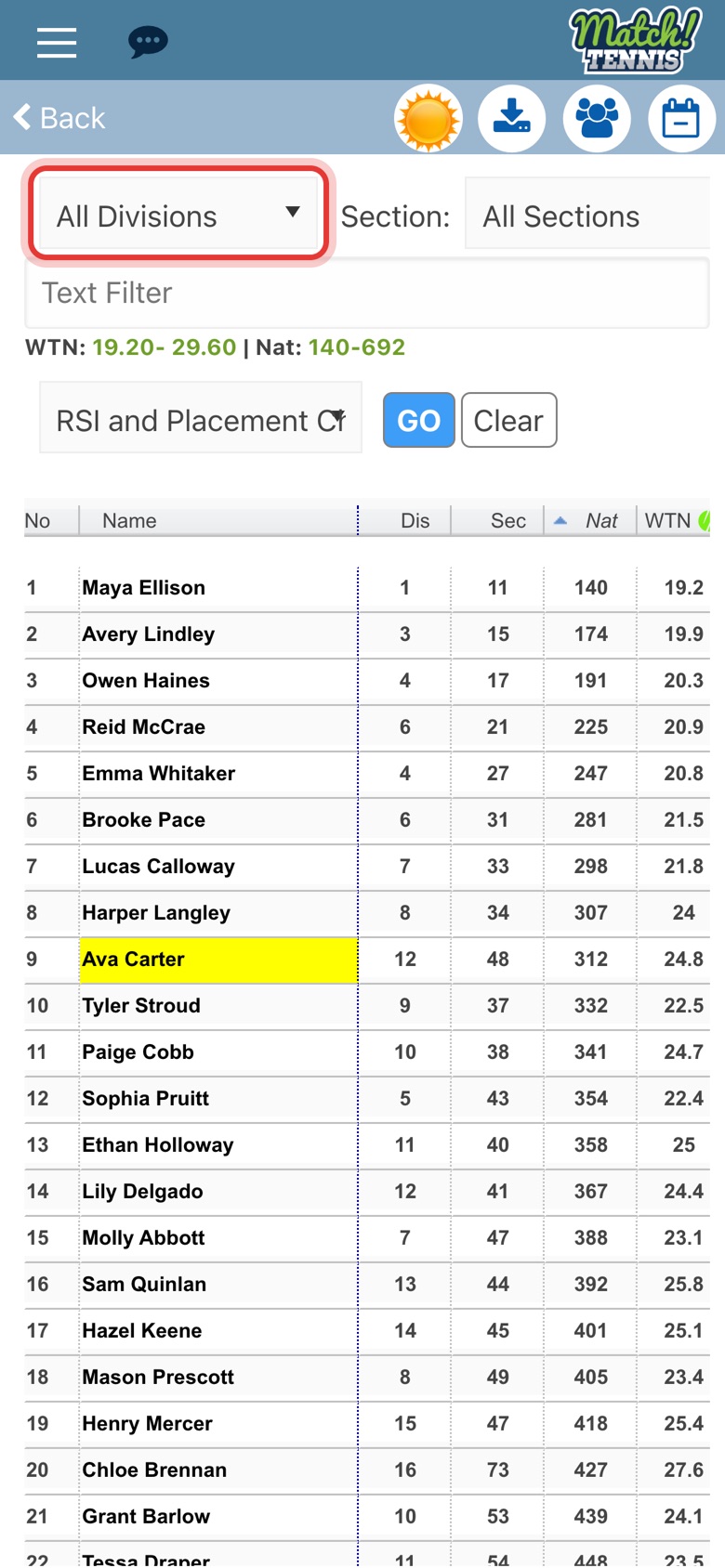
Tap All Divisions and pick your player's division, for example G14s.
-
Step 5: See the division's ranges
The line updates for that division. Compare it with your player's WTN and ranking to see where they fit in the field.
Tips
- Reading WTN: a lower WTN means a stronger player, so the first number in the WTN range is the strongest player in the field.
- The field can change. The ranges only cover players who have applied so far. More players can apply until the entry deadline, and players can withdraw, so check again before the tournament.
- Want the full list? Sort by ranking or WTN and open any player's profile. See How to View the Applicants List for an Upcoming Tournament.
- Looking for tournaments at your level? Search tournaments by the players' ratings. See Tournament Search by Player Ratings and Placement Check for Tournaments.