How to Use the In-App Draw Viewer
Tournaments Updated November 1, 2026 1 min read
Follow the draw without leaving the app. It takes about a minute.
Part 1Open the draw
-
Step 1: Open the tournament
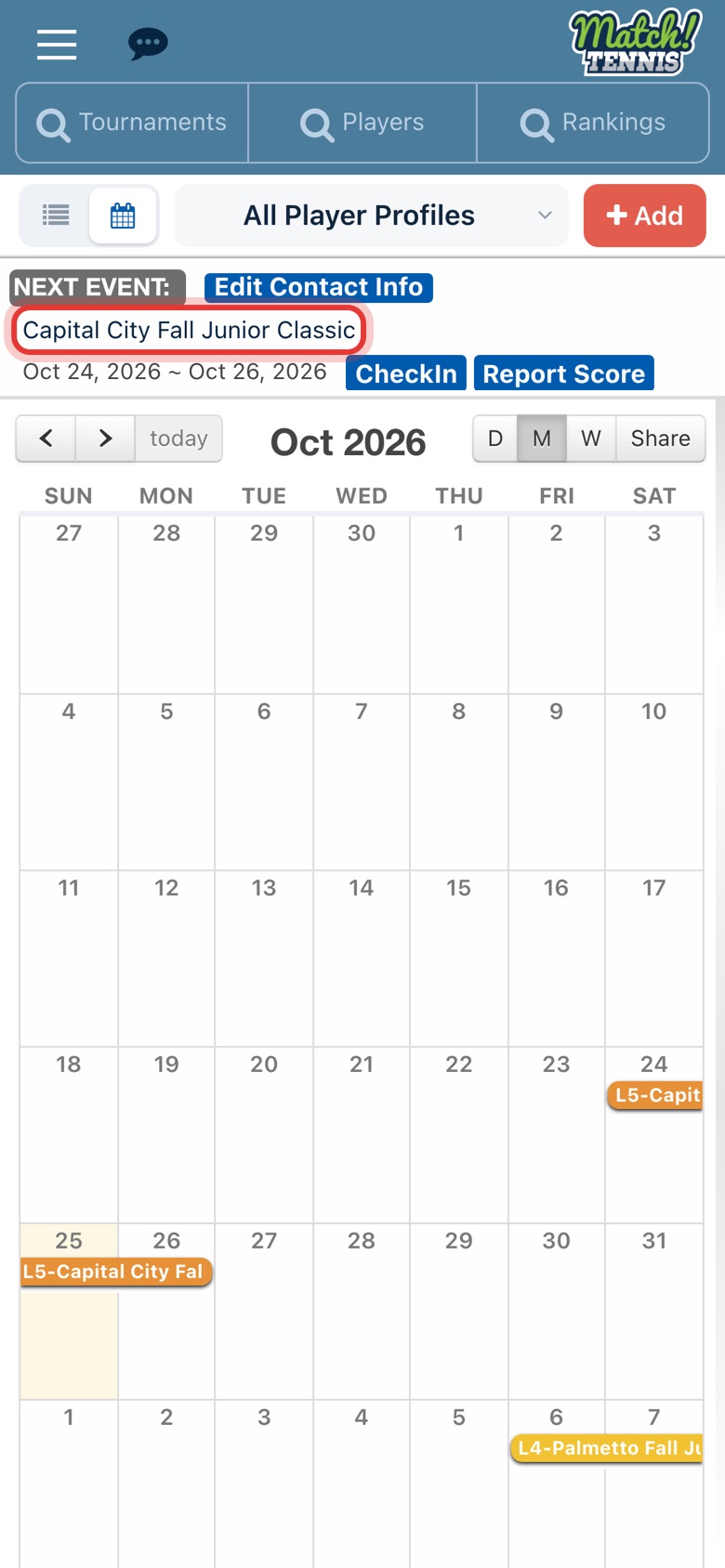
On Home, tap the tournament name in your Next Event card, or tap it on your calendar.
-
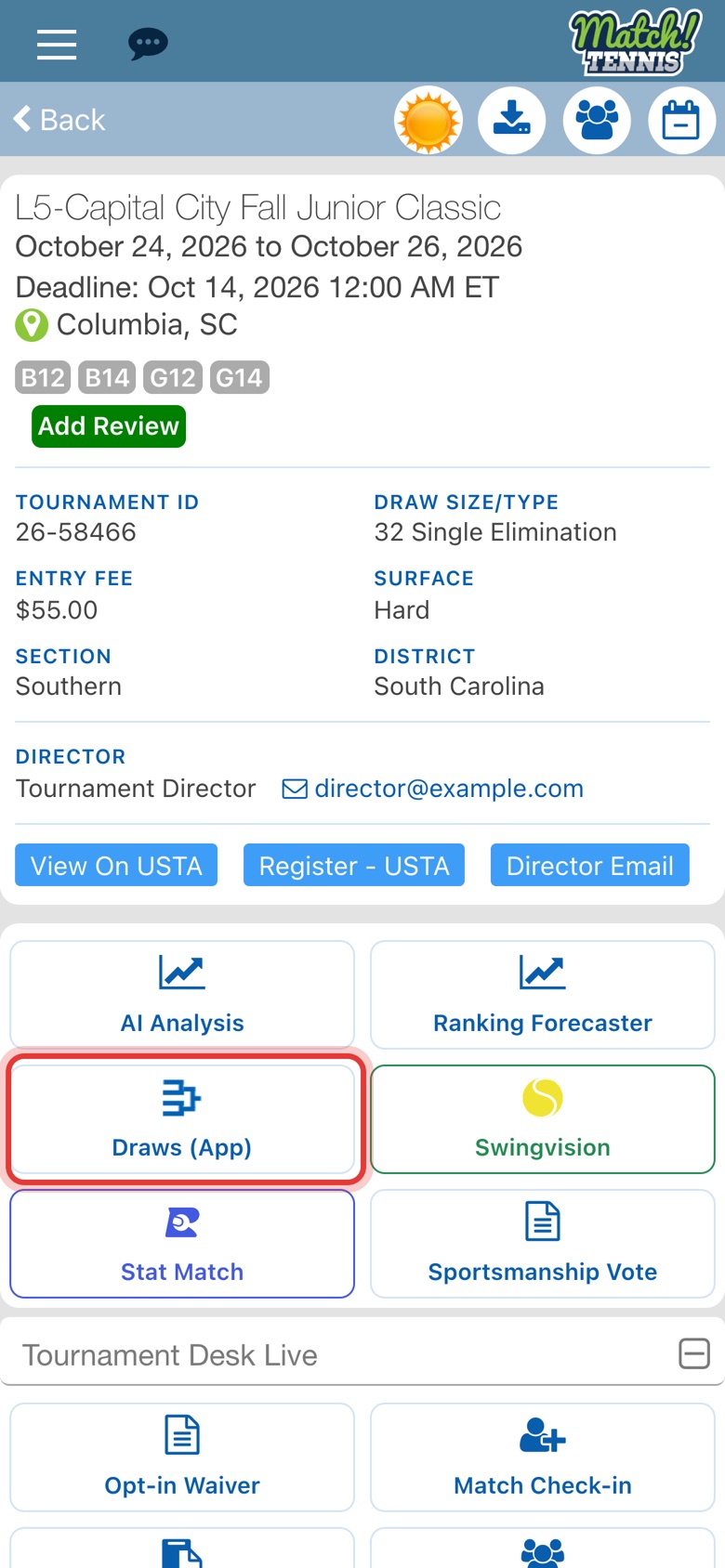
Step 2: Tap Draws (App)
On the tournament page, tap Draws (App).
Part 2Read the draw
-
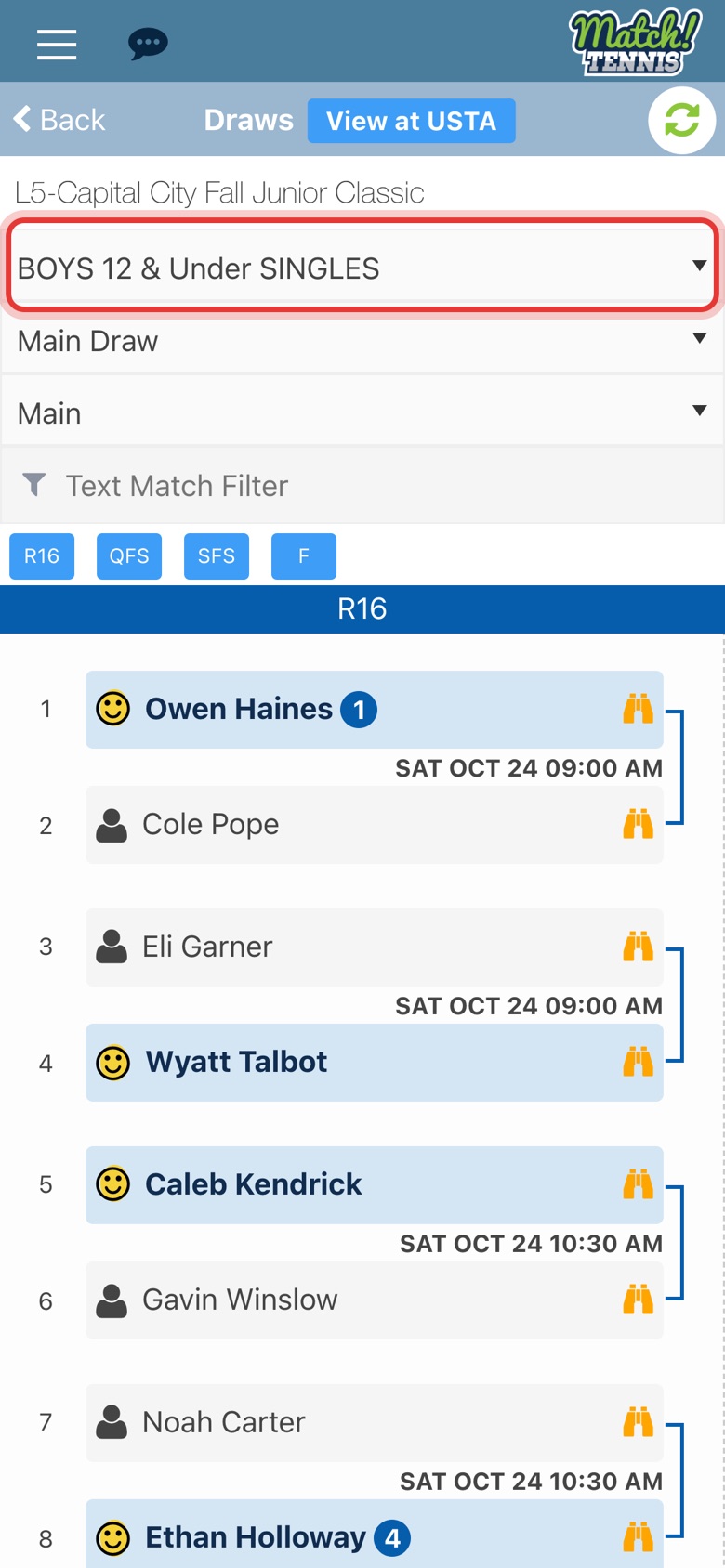
Step 3: Pick the event
The first event in the list opens. Tap the Event box to pick your player's division.
-
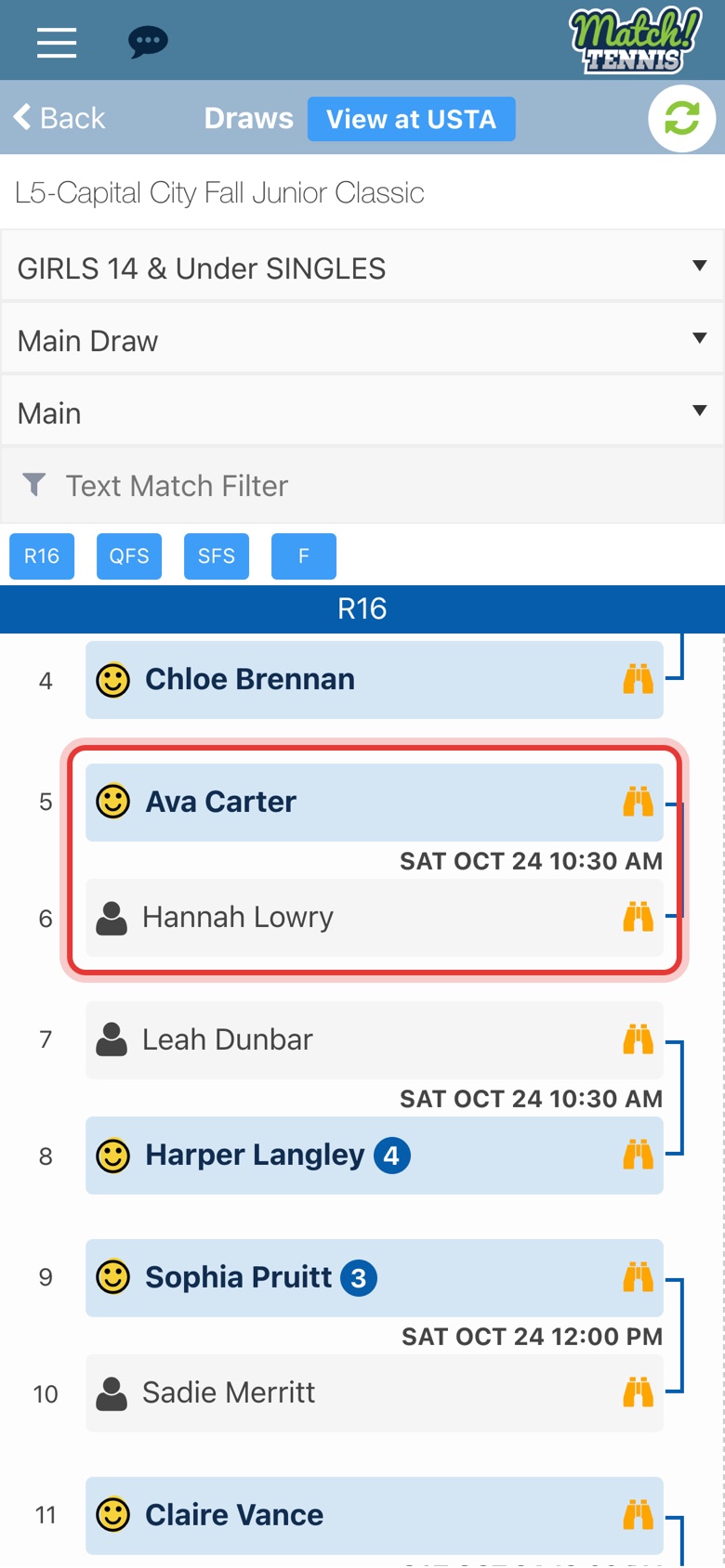
Step 4: Read the matches
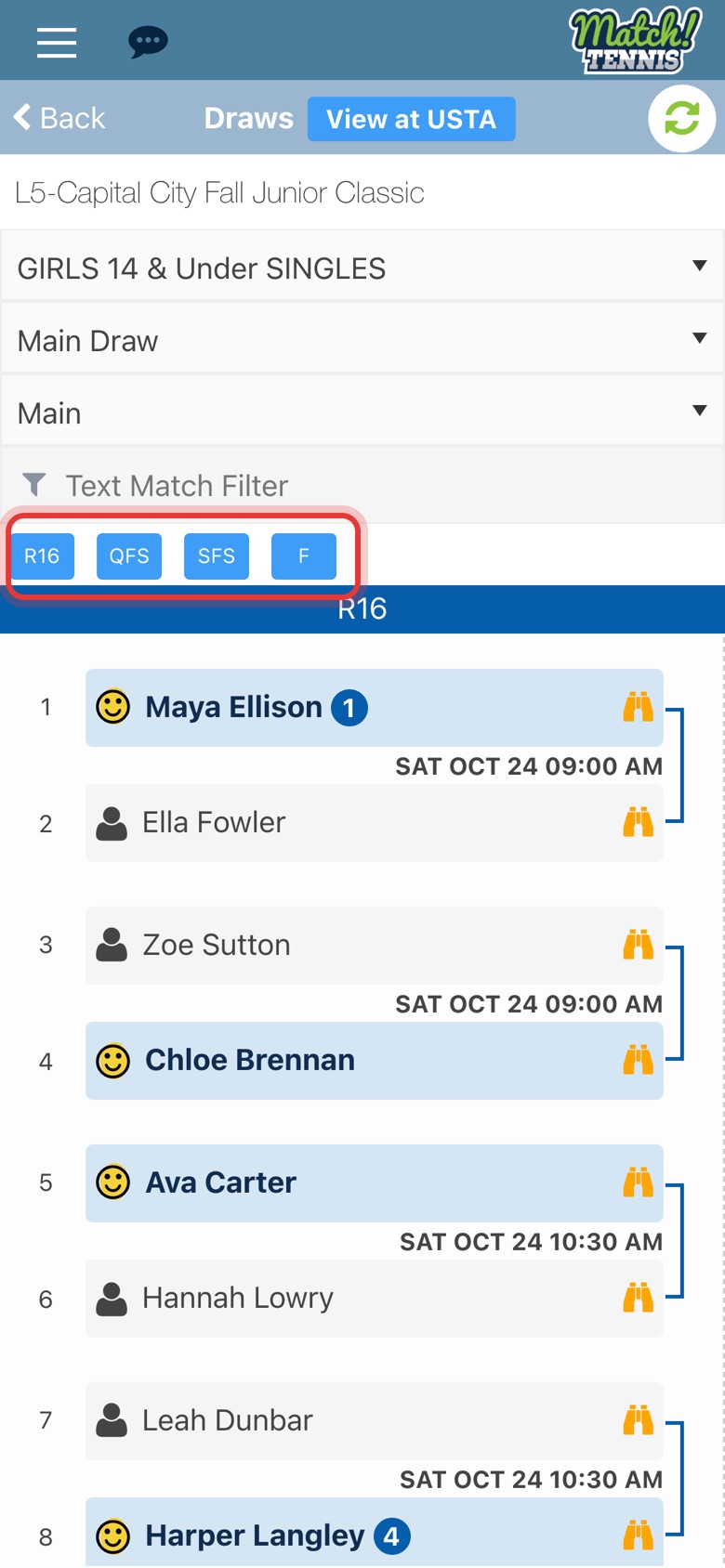
A smiley face marks the winner. Each match shows its day and time between the two players.
-
Step 5: Move between rounds
Tap a round button, such as QFS for the quarterfinals. You can also swipe left or right.
-
Step 6: See the next round
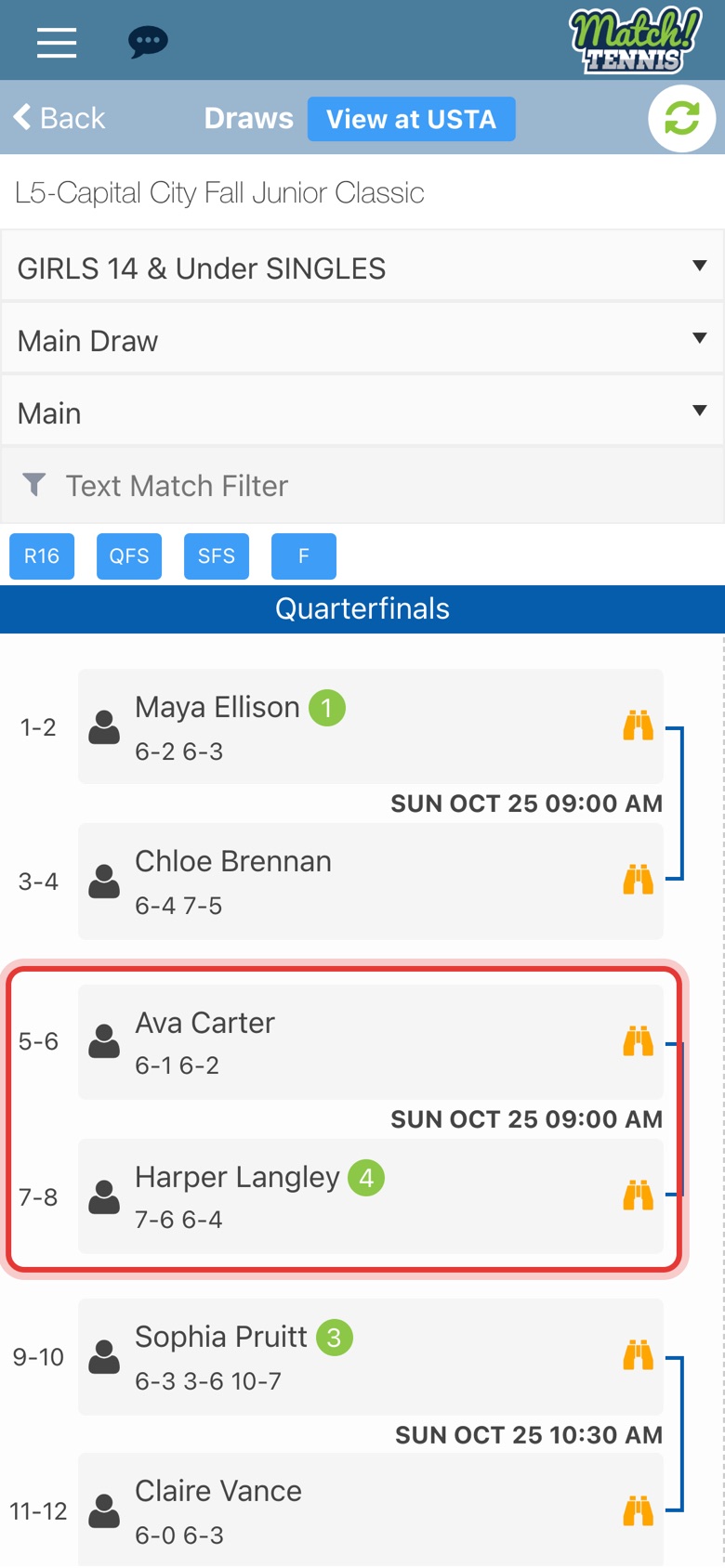
Under each name is the score of the match they won. Matches still to play show their start time.
Part 3Find matches fast
-
Step 7: Show only your player
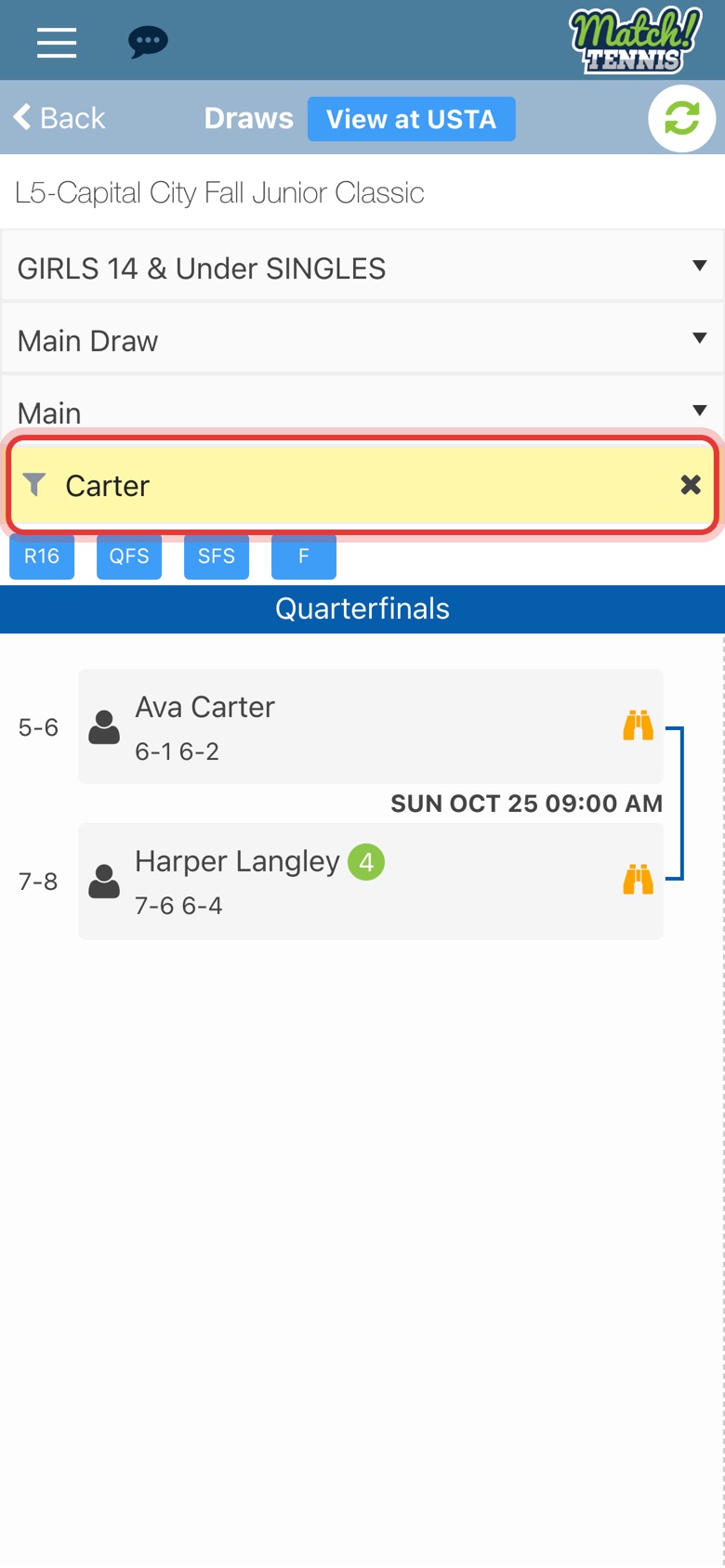
Type a name in Text Match Filter to see only those matches. Tap the x to clear it.
-
Step 8: Open the consolation draw
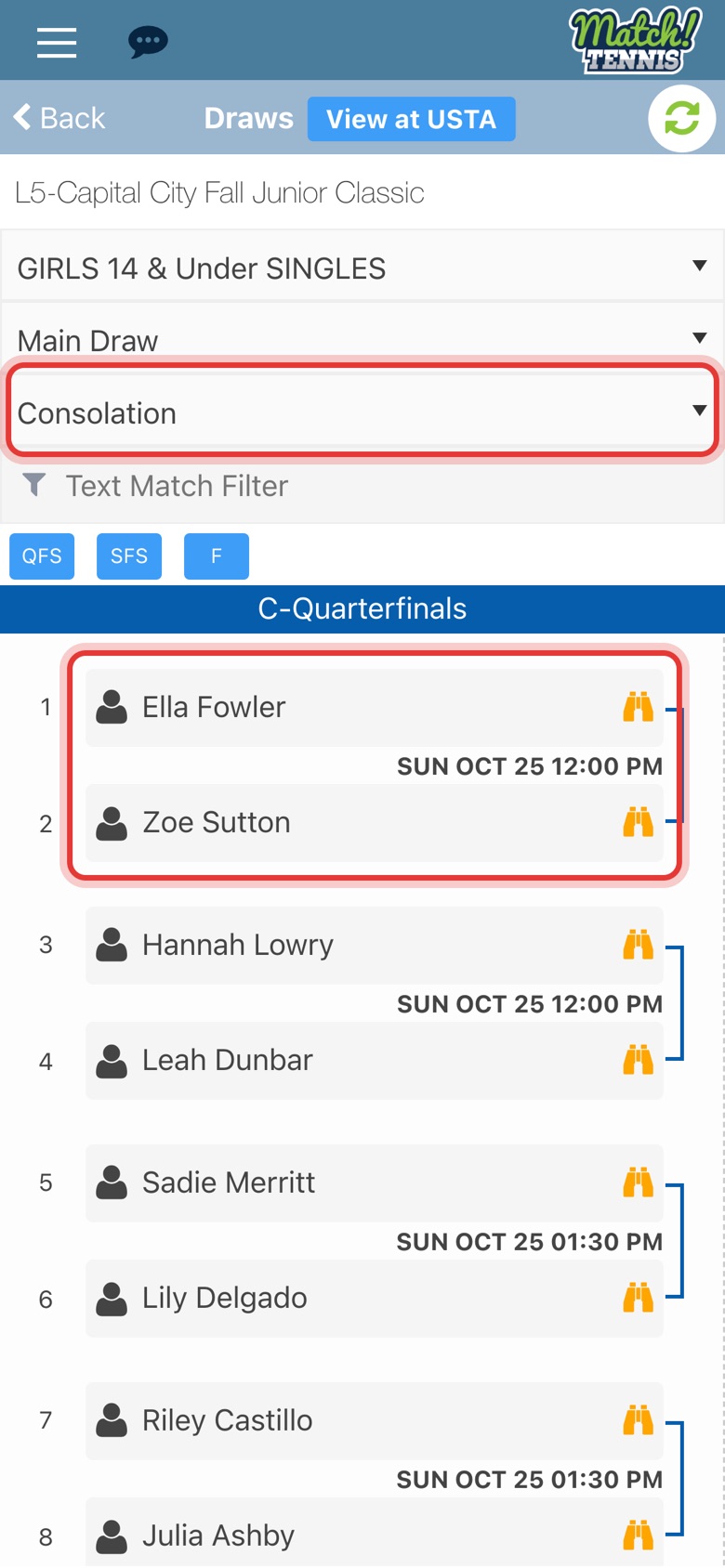
Pick Consolation in the Stage box to see the back draw. The Draw box switches between flights when a division has more than one.
Tips
- Get the latest results. Tap the green refresh icon at the top right to reload the draw.
- Times can change. Tap View at USTA to check the official draw before you head to the courts.
- Scout an opponent. Tap any name in the draw to open that player's profile. See How to Quickly Find and Evaluate Your Opponent.
- No draw yet? The draw shows in the app once the tournament posts it.