How to Quickly Find and Evaluate Your Opponent
Players & scouting Updated November 1, 2026 1 min read
Know who is across the net before the match. It takes about a minute.
Part 1Open the draw
-
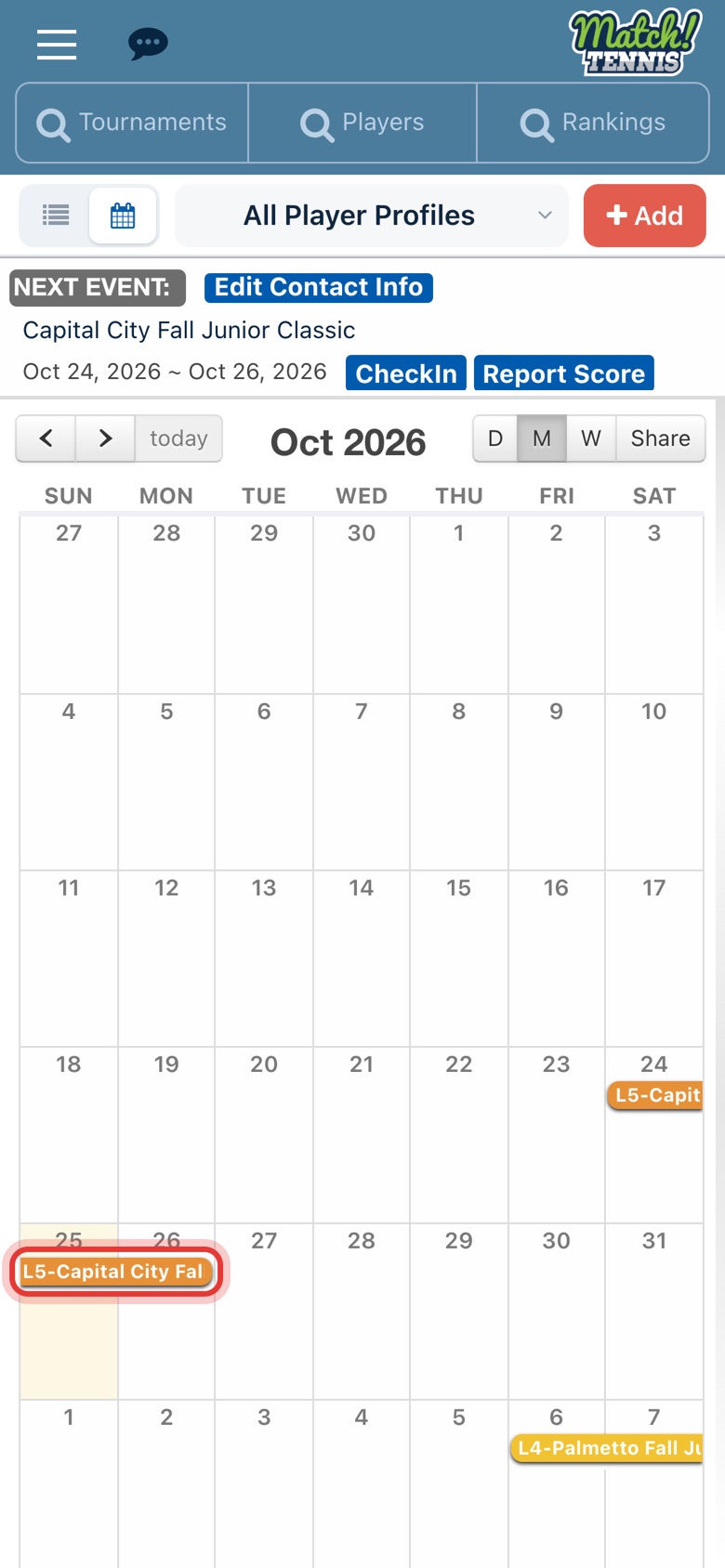
Step 1: Open the tournament
On Home, tap the tournament on your calendar.
-
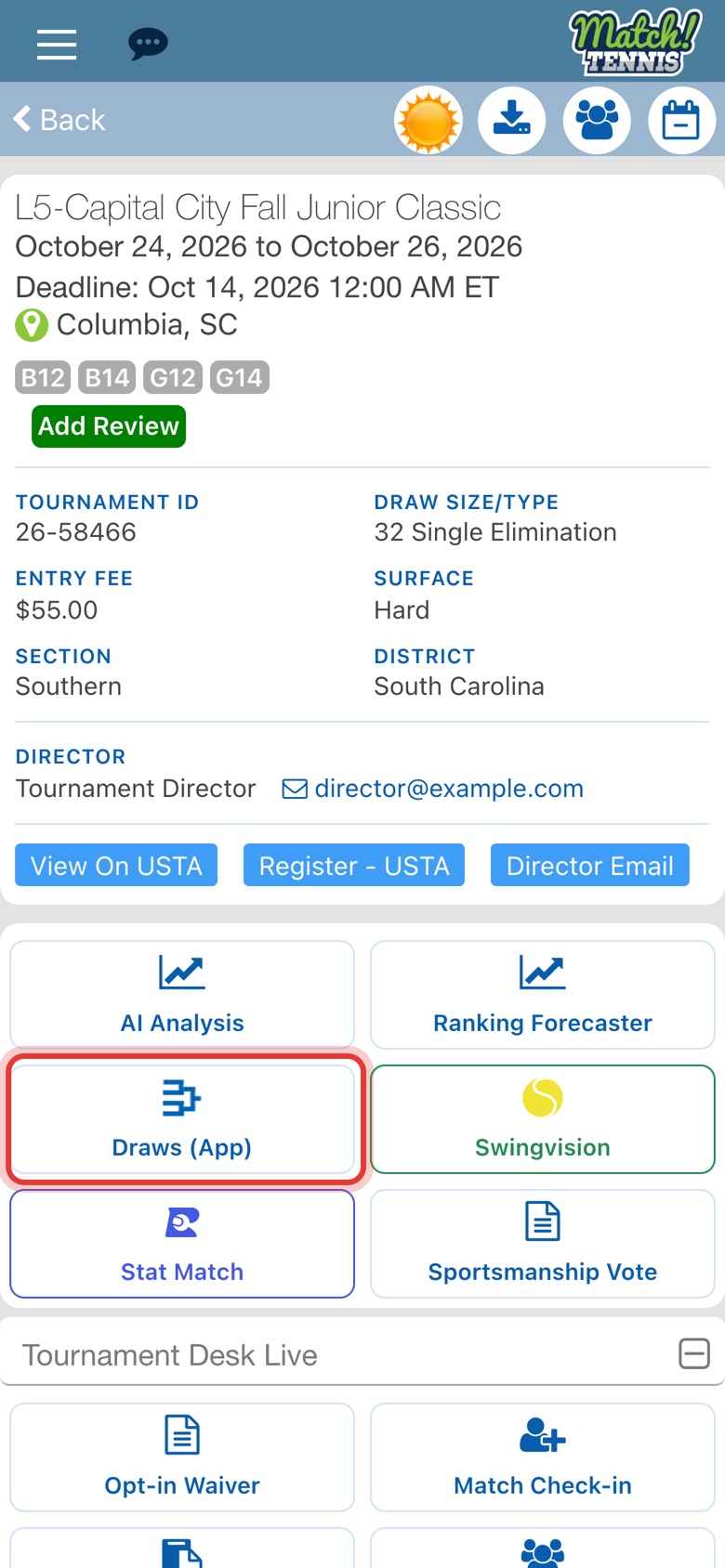
Step 2: Tap Draws (App)
On the tournament page, tap Draws (App).
-
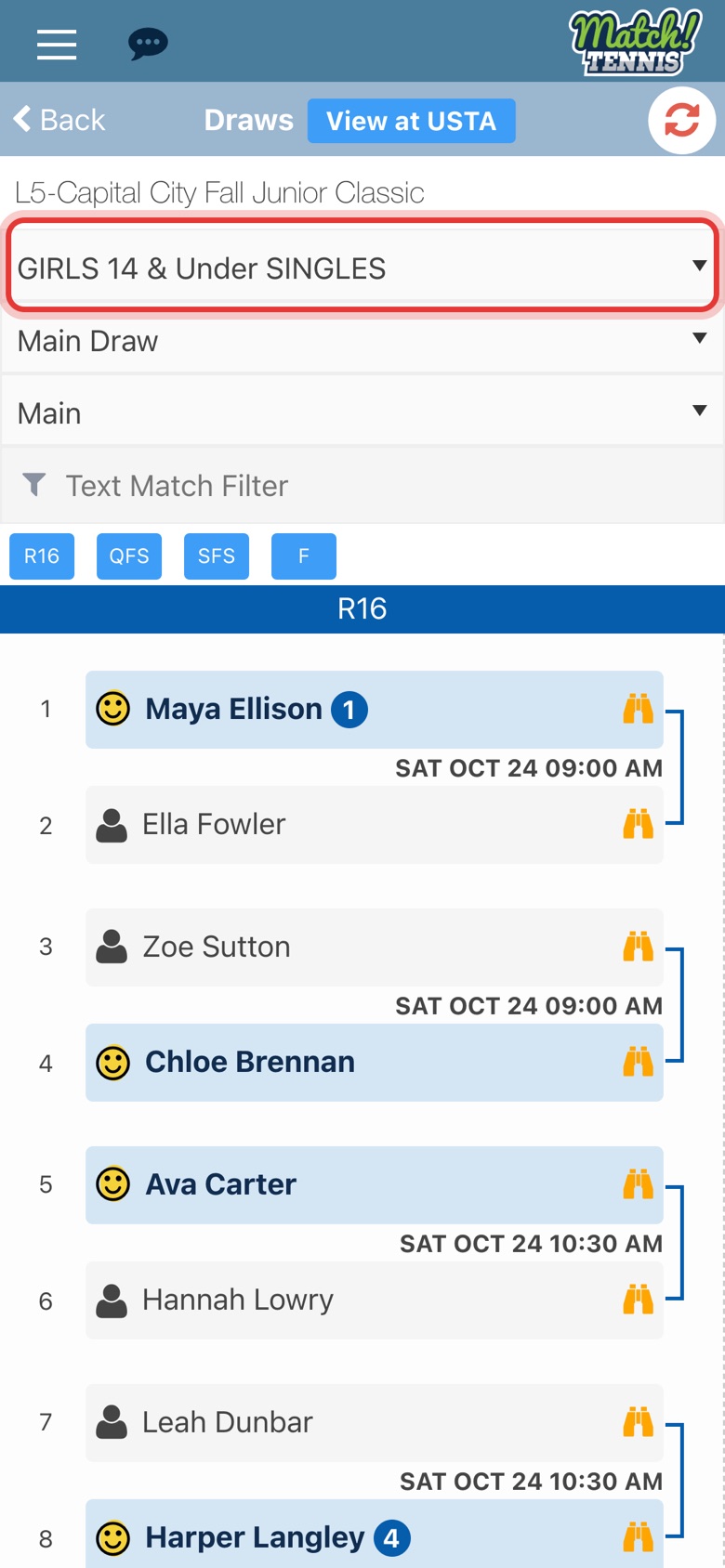
Step 3: Pick the division
Tap the Event box and choose your player's division.
Part 2Find the match
-
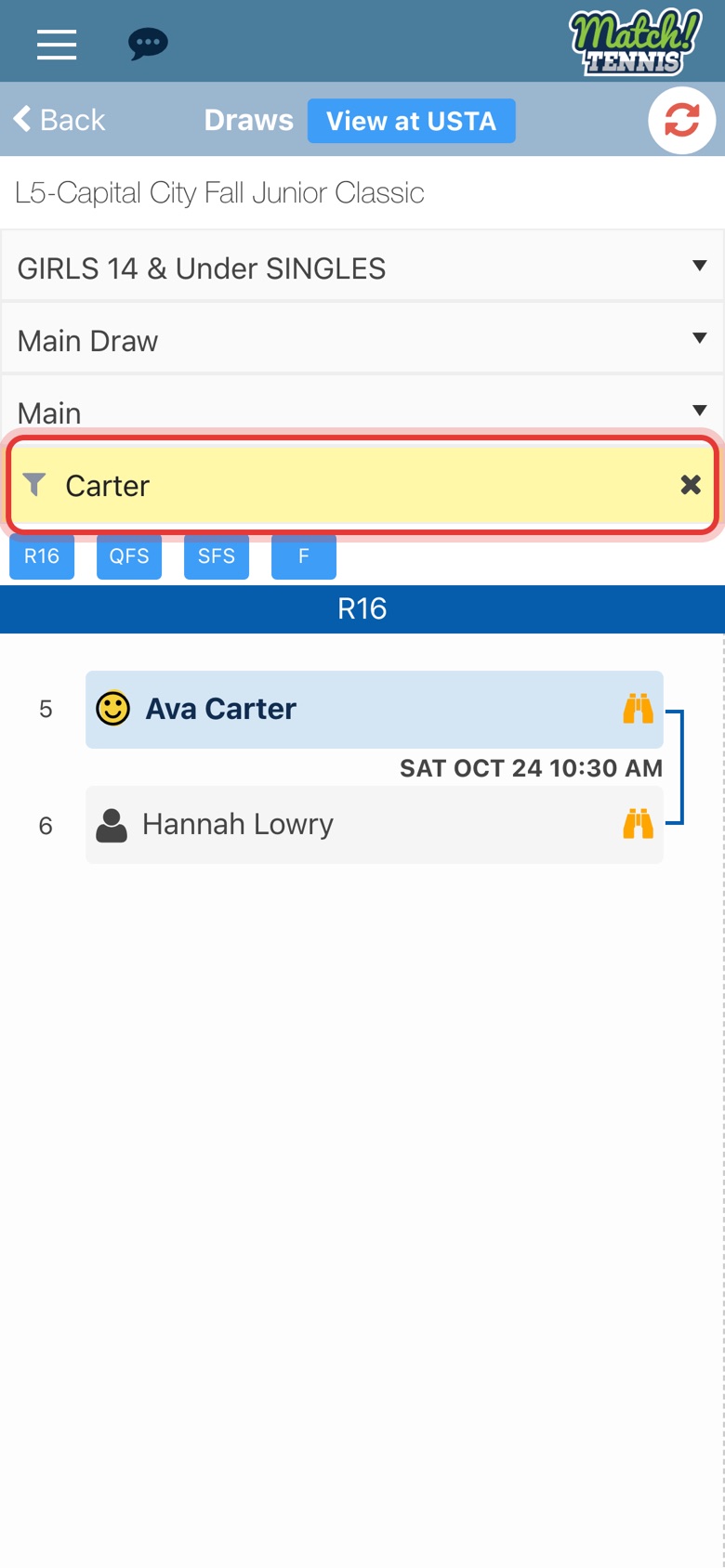
Step 4: Type your player's name
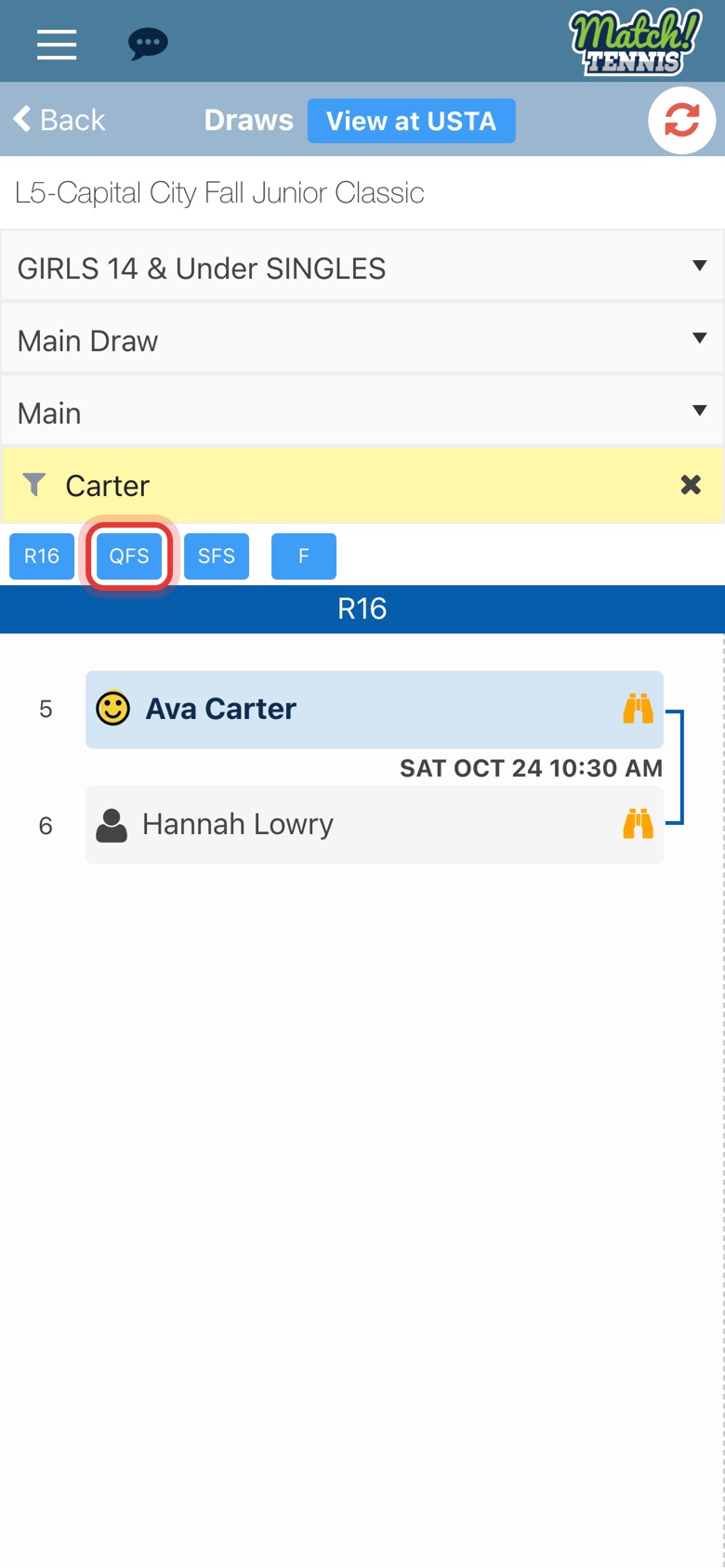
Type your player's last name in Text Match Filter. Only their matches show.
-
Step 5: Go to the next round
Their first match shows. Tap the next round, here QFS for the quarterfinals.
-
Step 6: Tap the opponent's name
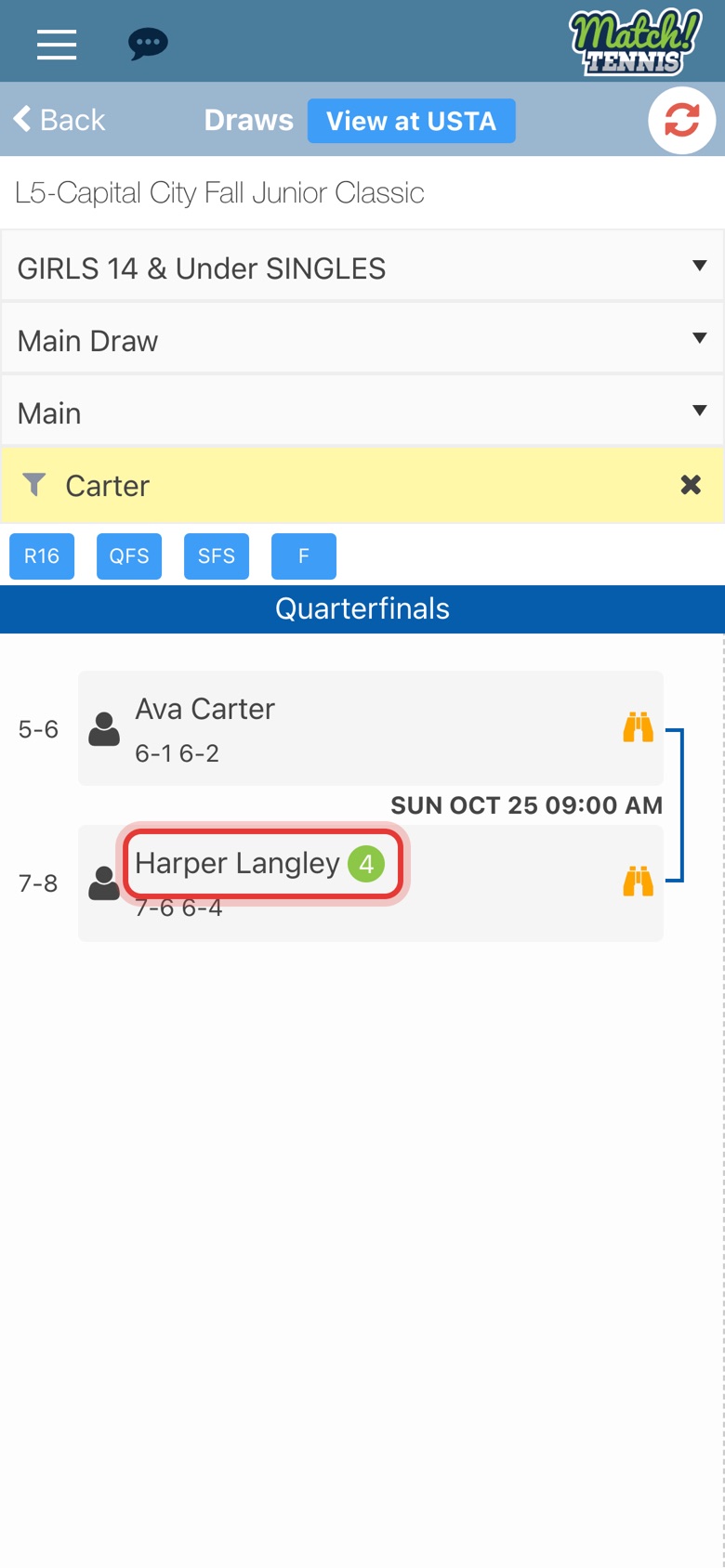
The match shows the start time and the opponent. Tap the opponent's name to open their profile.
Part 3Check the opponent
-
Step 7: Check their rankings
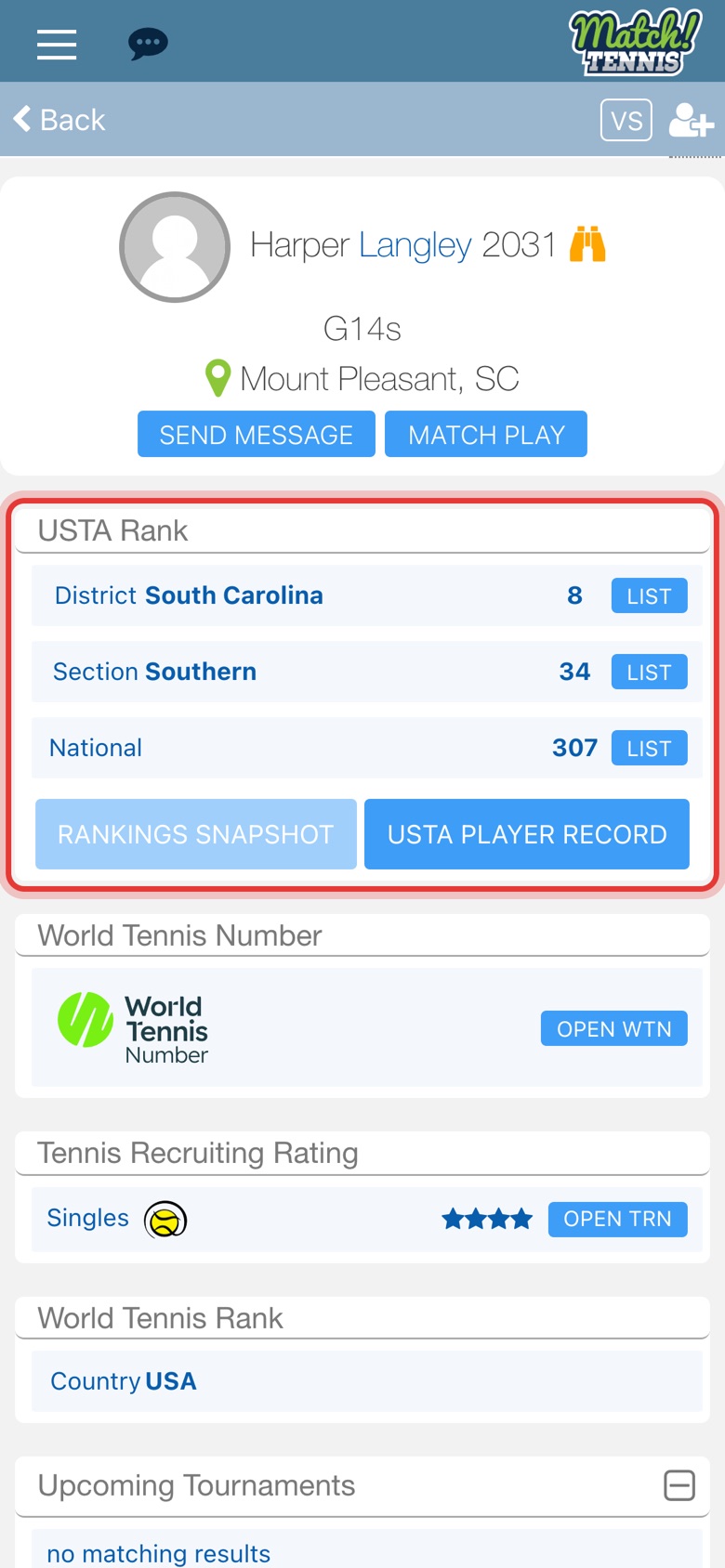
See the opponent's district, section and national rankings.
-
Step 8: Check their recruiting stars
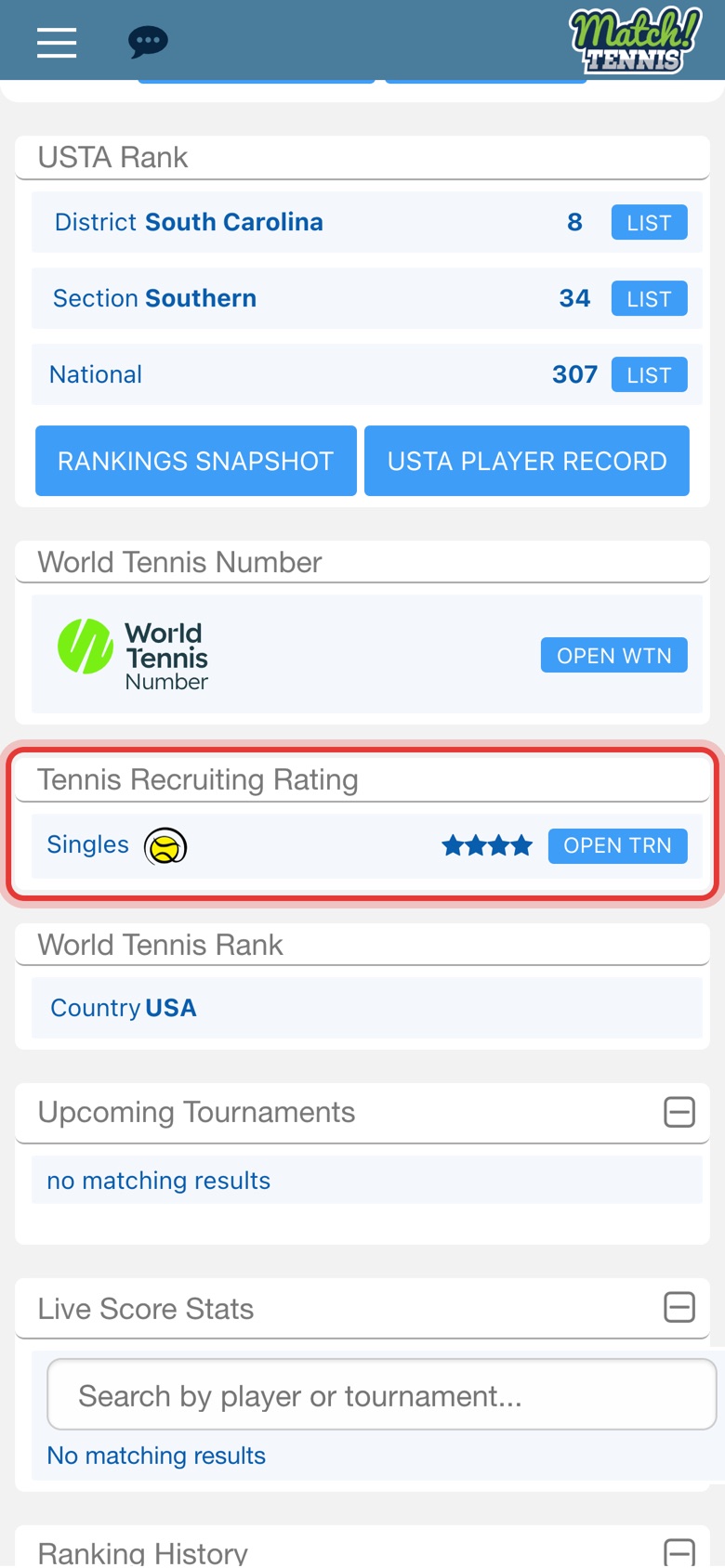
Tennis Recruiting Rating shows their star rating.
-
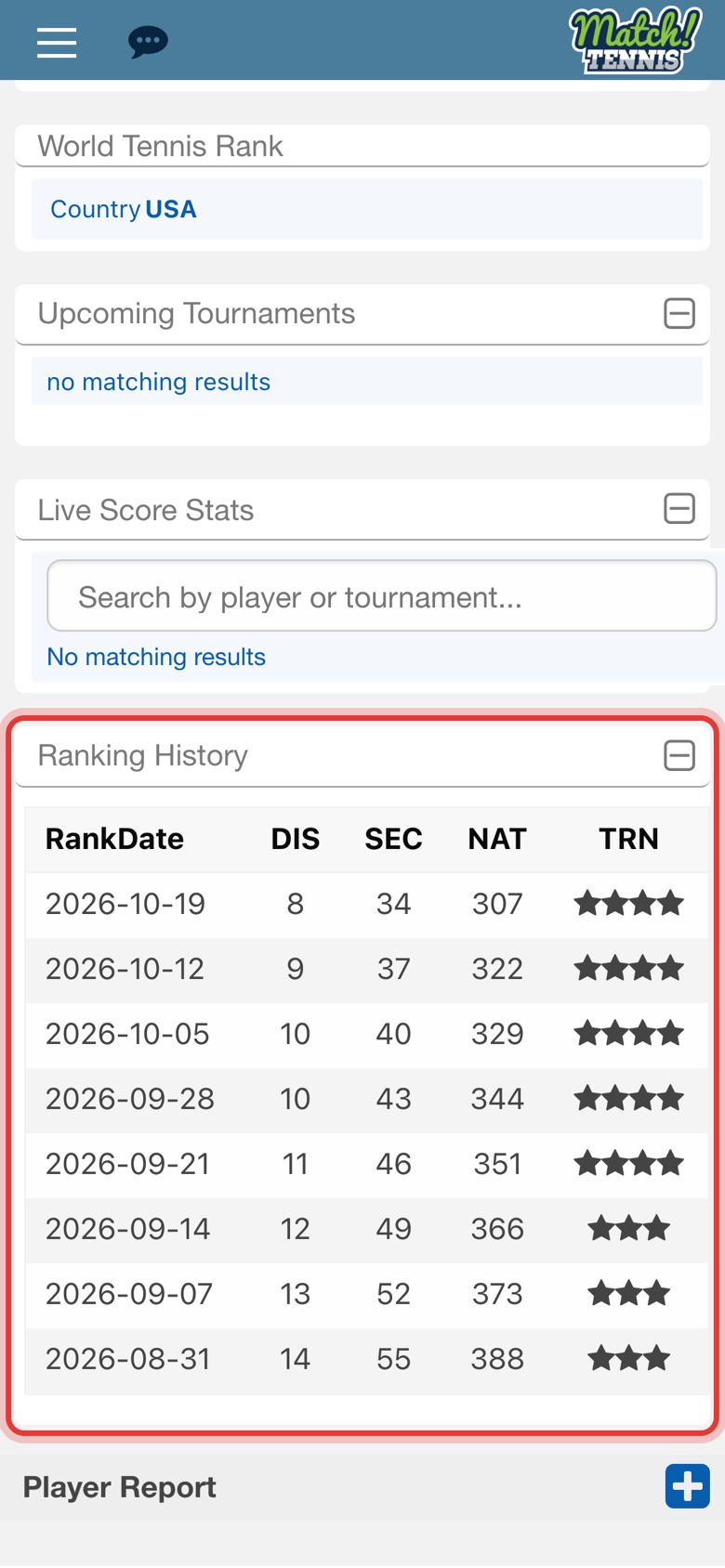
Step 9: See their ranking history
Ranking History lists their rankings week by week, so you can see if they are moving up or down.
Tips
- Seeds. A number in a circle next to a name is that player's seed.
- Scores in the draw. The score under each name is from the match they won in the round before.
- Want their WTN? Find the player under Players, or tap their name on the tournament's Applicants List. That profile shows WTN singles and doubles.