How to Track Your Player's Tennis Gear (My Gear)
Gear trackerPlayers & scouting Updated November 7, 2026 2 min read
My Gear keeps track of each player's racquet, strings, shoes, overgrips and balls, and tells you when it's time to replace them. It counts the tournaments your player actually plays, not just the calendar. My Gear is free on every plan.
Part 1Set up your player's bag
-
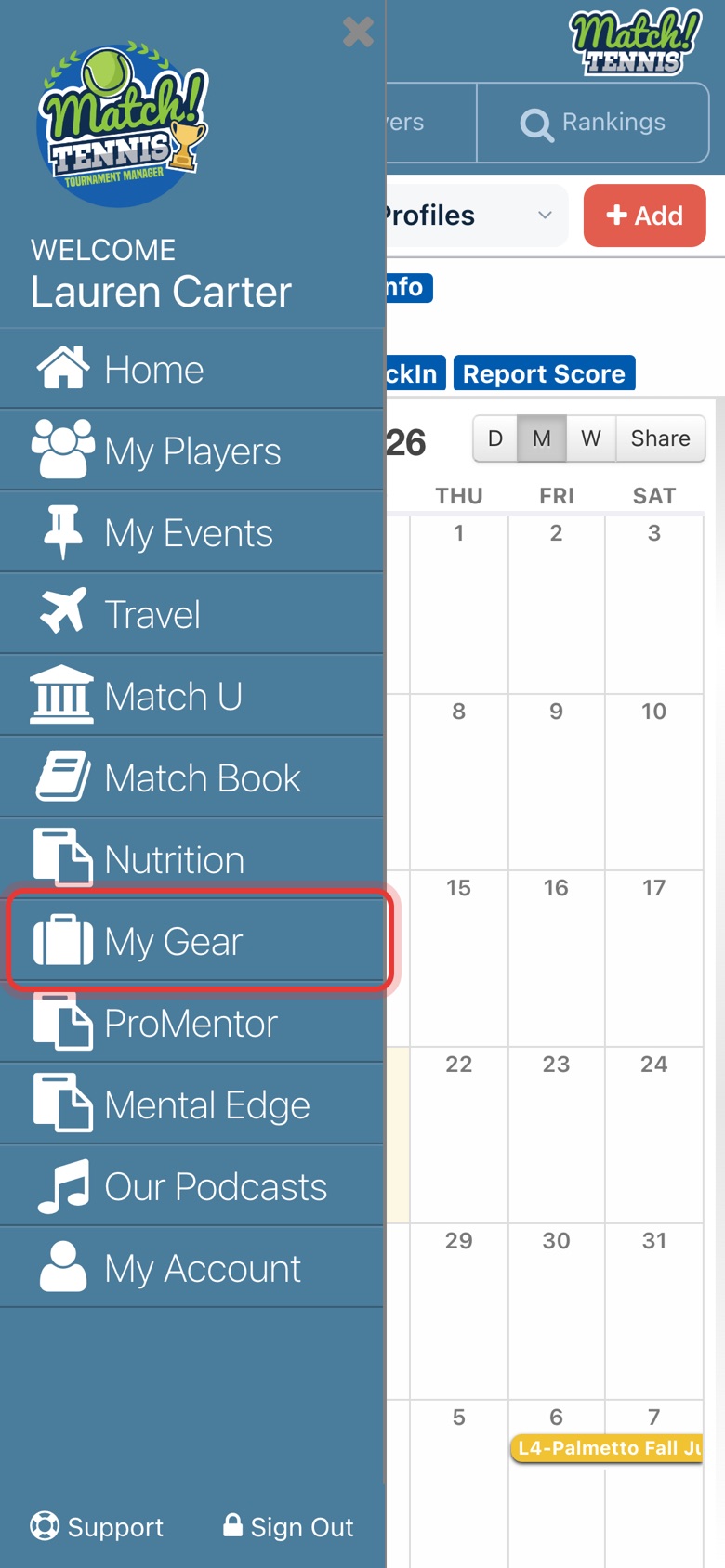
Step 1: Open My Gear
Tap the menu icon at the top left, then tap My Gear.
-
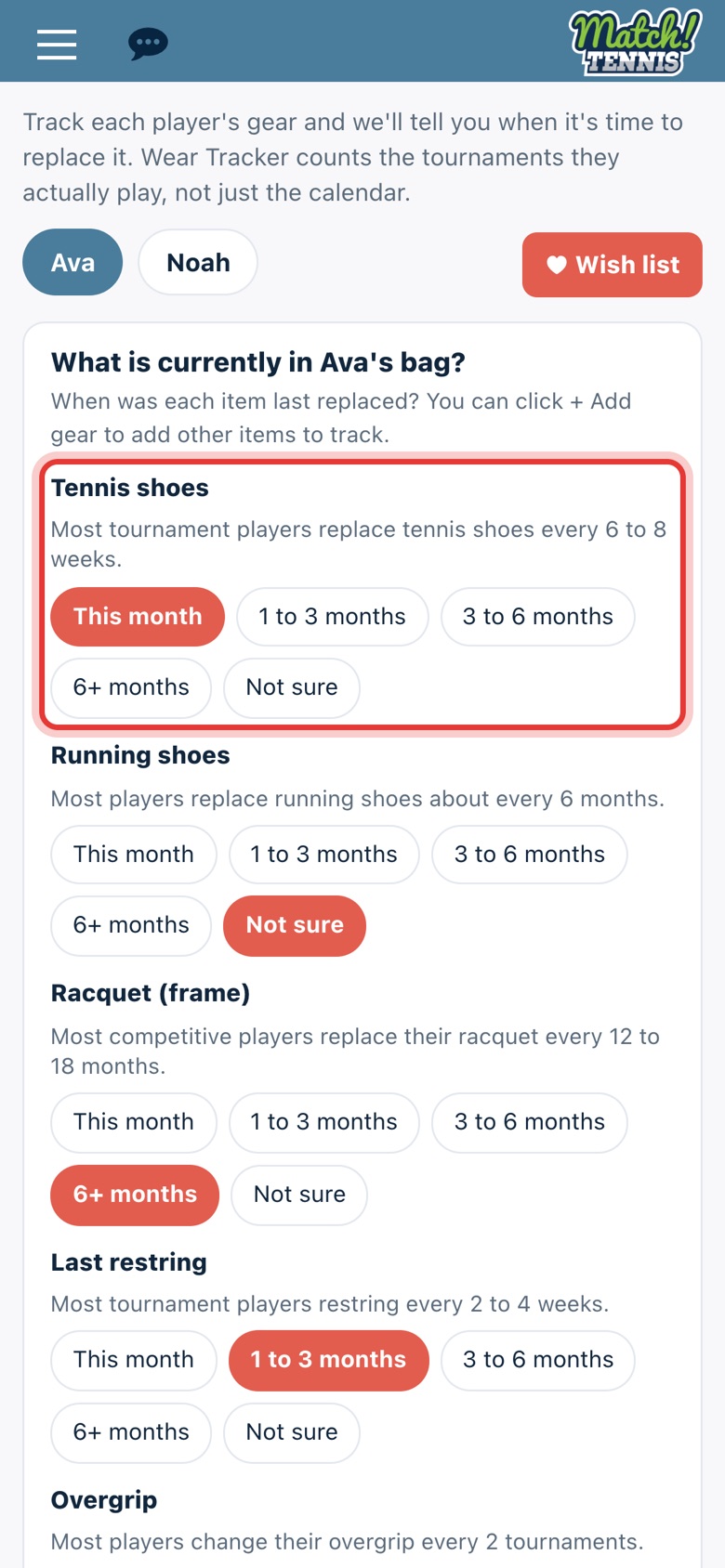
Step 2: Tell us what's in the bag
Pick your player's tab at the top. Under What is currently in your player's bag?, choose when each item was last replaced: This month, 1 to 3 months, 3 to 6 months or 6+ months. Choose Not sure to skip an item.
-
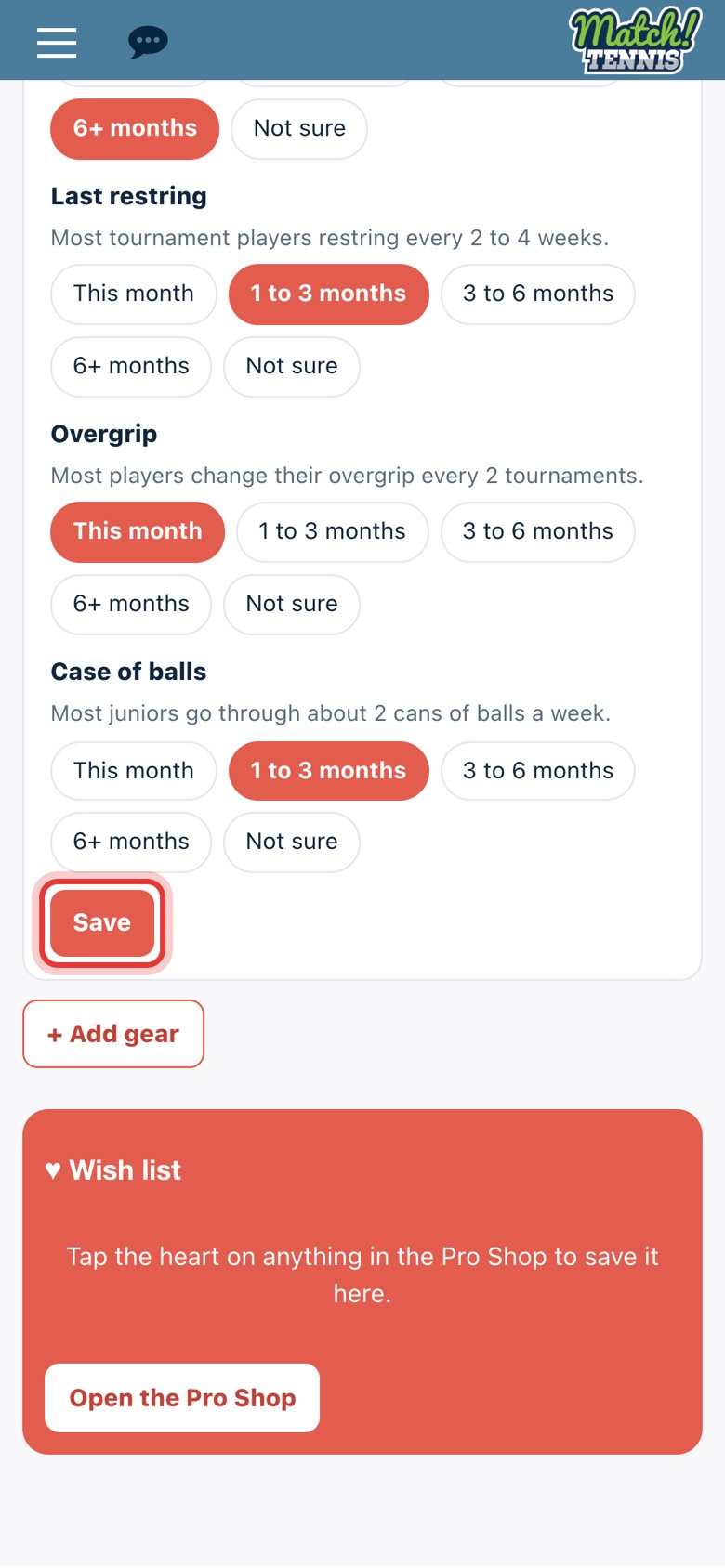
Step 3: Tap Save
Scroll down and tap Save. Every item you answered is added to your player's gear.
-
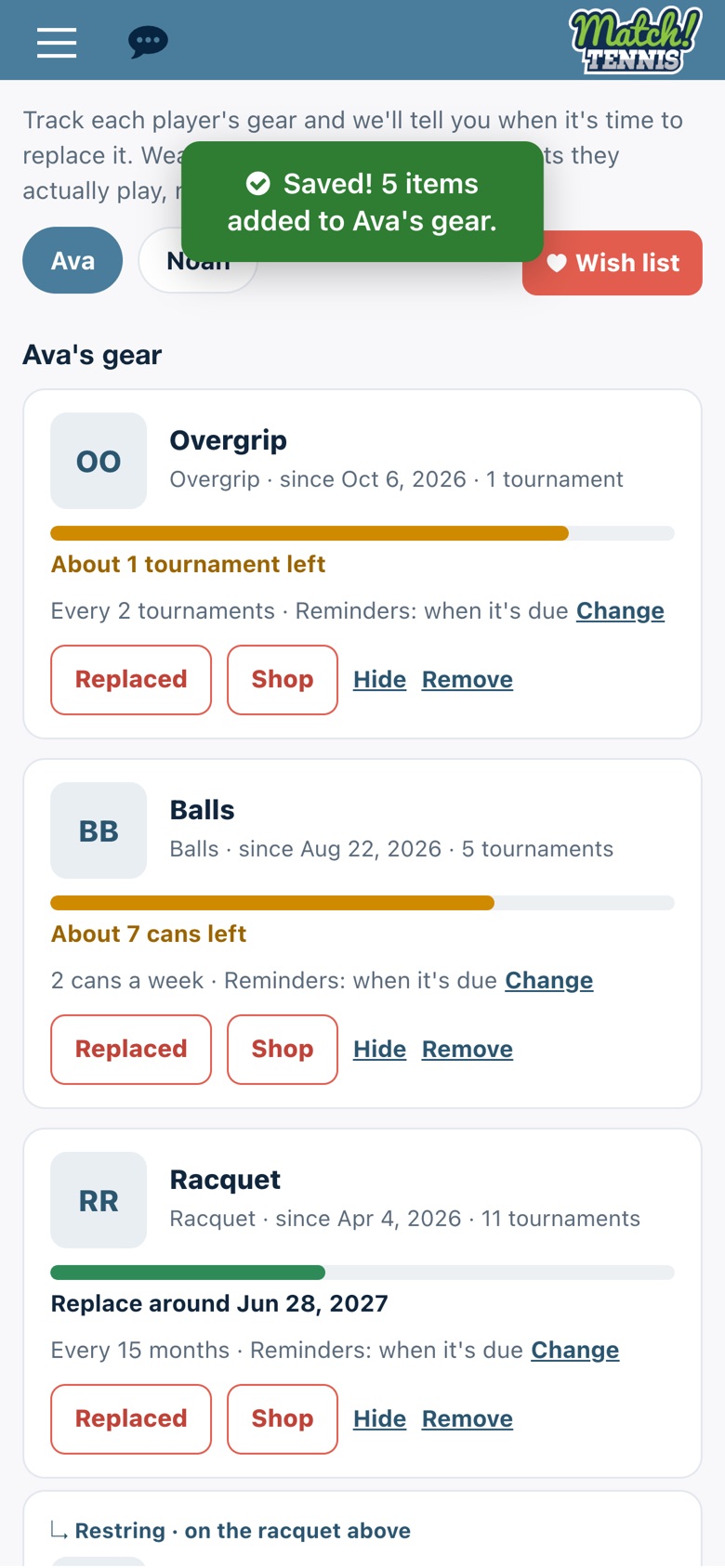
Step 4: Check the wear bars
Each item gets a bar that fills up as it wears out: green, then orange when it's getting close, then red when it's due. The line under the bar tells you when to replace it or how many tournaments or cans are left.
Part 2Keep it up to date
-
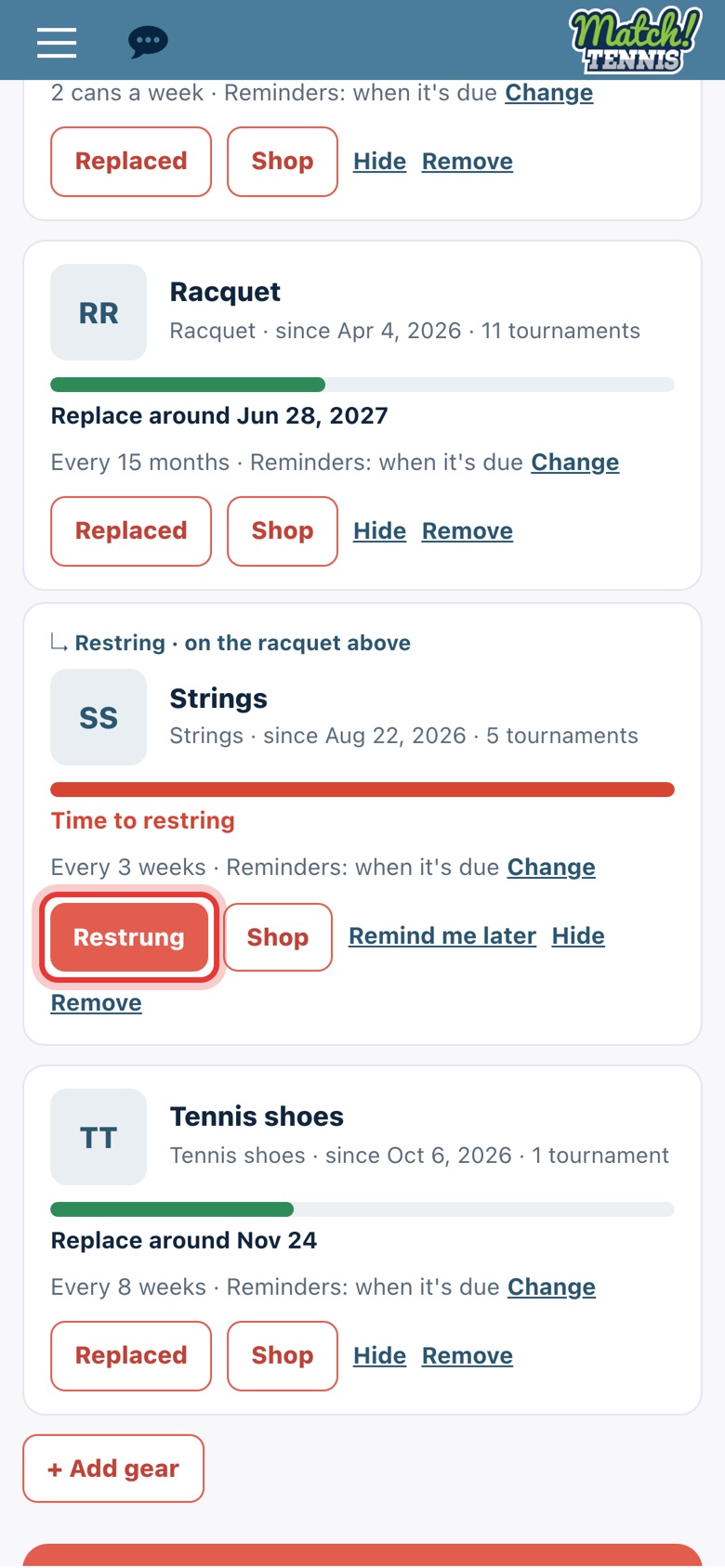
Step 5: Restring or replace when it's due
When an item turns red, tap Restrung (for strings) or Replaced once you've done it. Not ready yet? Tap Remind me later. Tap Hide to stop reminders for that item.
-
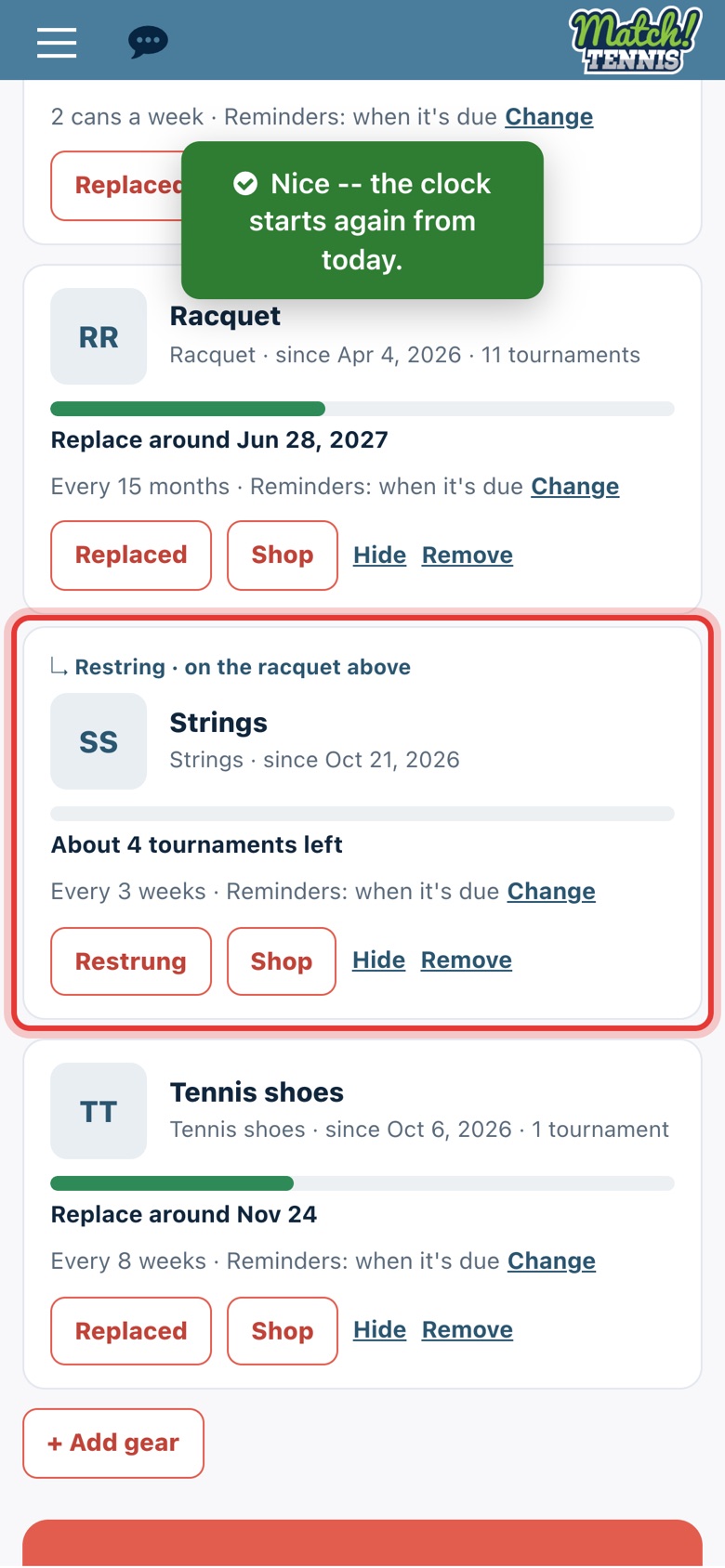
Step 6: The clock starts again
The bar empties and starts counting again from today. Strings stay listed under the racquet they're on.
-
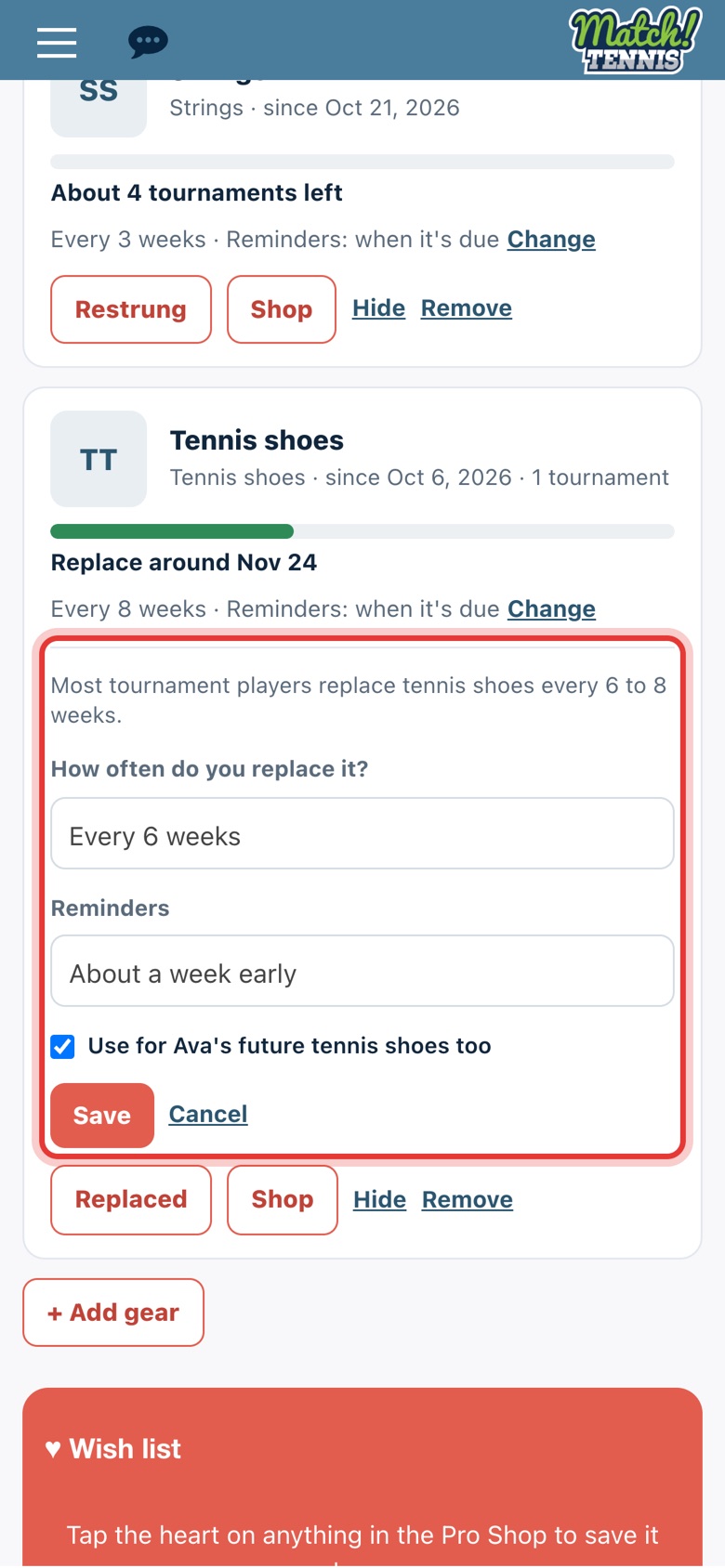
Step 7: Change how often you replace it
Tap Change on any item. Pick How often do you replace it? and when you want Reminders, then tap Save. Leave Use for your player's future items too checked to keep the same setting next time.
-
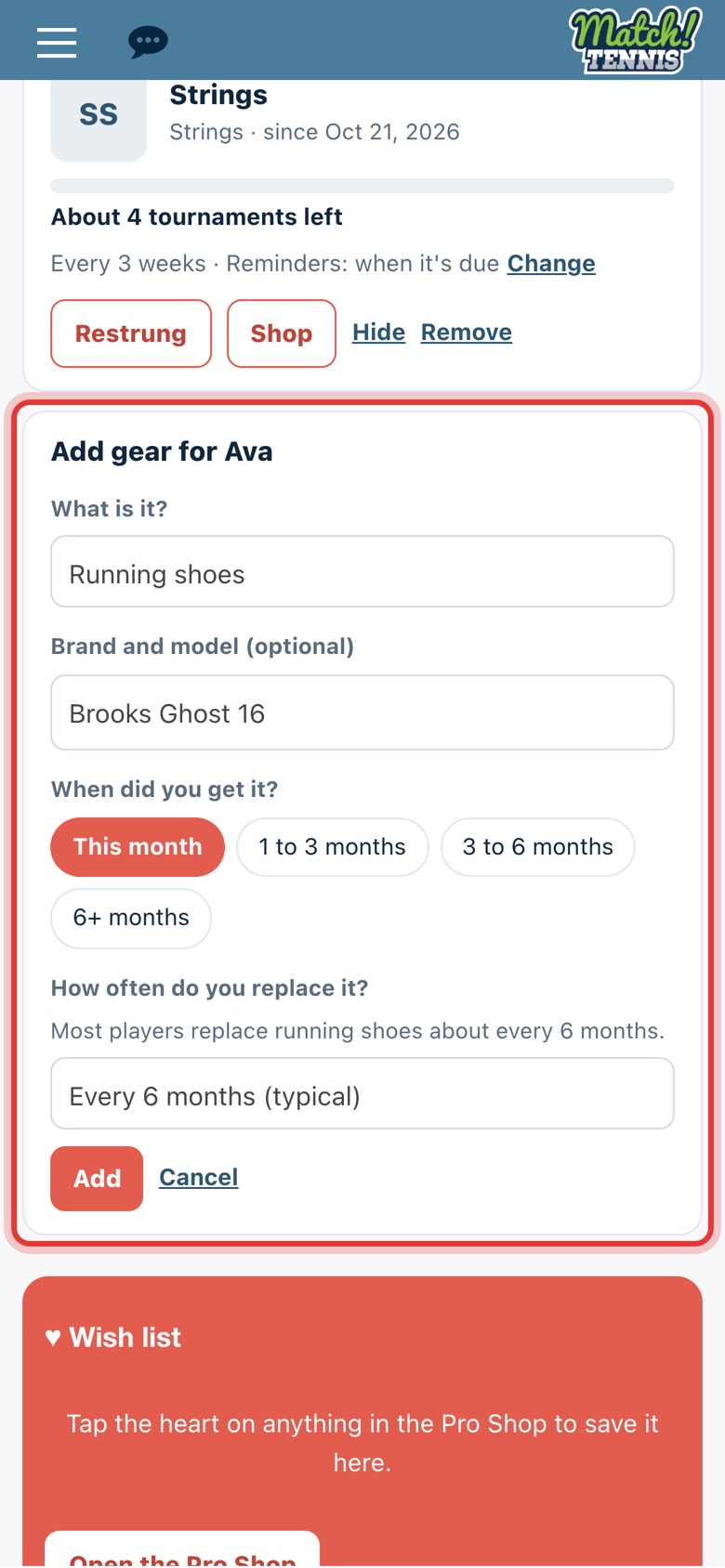
Step 8: Add more gear
Tap + Add gear. Choose What is it?, type the brand and model if you like, and choose When did you get it?. Then tap Add.
-
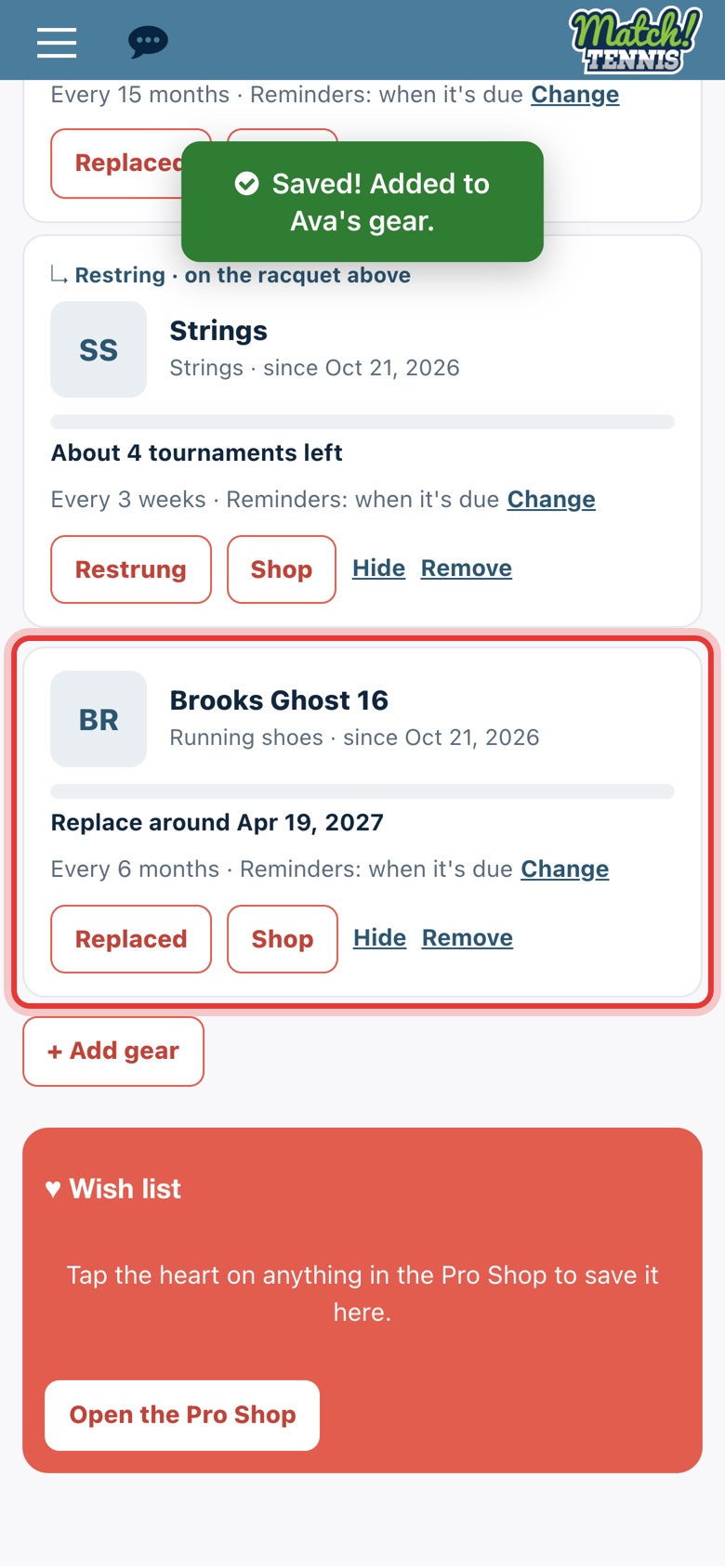
Step 9: It's in your player's gear
The new item shows in your player's gear with its own wear bar. We'll remind you when it's time to replace it.
Before you start
- Add your player to My Players. My Gear tracks gear for each player saved with the relationship Parent, or Me if you are the player. See how to search and add a player.
- Each player has their own tab. Wear is counted per player, so a younger sibling's shoes aren't marked worn out because an older sibling played more tournaments.
What My Gear tracks
- Tennis shoes: most tournament players replace them every 6 to 8 weeks.
- Running shoes: about every 6 months.
- Racquet: every 12 to 18 months for most competitive players.
- Strings: most tournament players restring every 2 to 4 weeks.
- Overgrip: about every 2 tournaments.
- Balls: most juniors go through about 2 cans a week.
Tips
- Tournaments speed things up. Gear wears out with time and with every tournament your player plays, so a busy month brings the replacement date closer.
- New items don't nag right away. Reminders wait a week after you add an item, so you have time to set your own replacement times.
- Changed your mind about Hide? Hidden items stay in My Gear. Tap Start reminding again to turn reminders back on.