How to Use the Tournament Scheduler
Tournaments Updated November 1, 2026 1 min read
Turn a ranking goal into a tournament plan. It takes about two minutes.
Part 1Open the scheduler
-
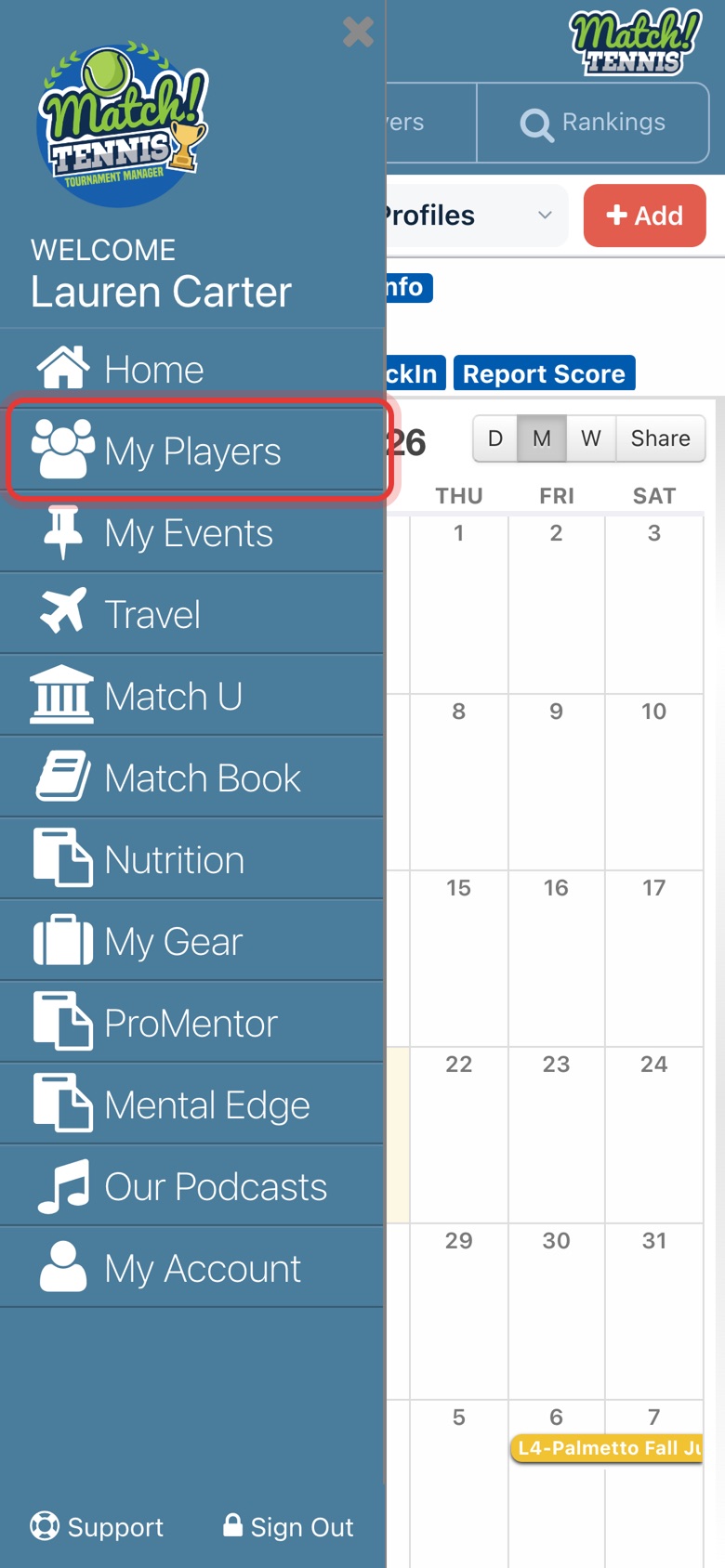
Step 1: Open My Players
Tap the menu at the top left, then tap My Players.
-
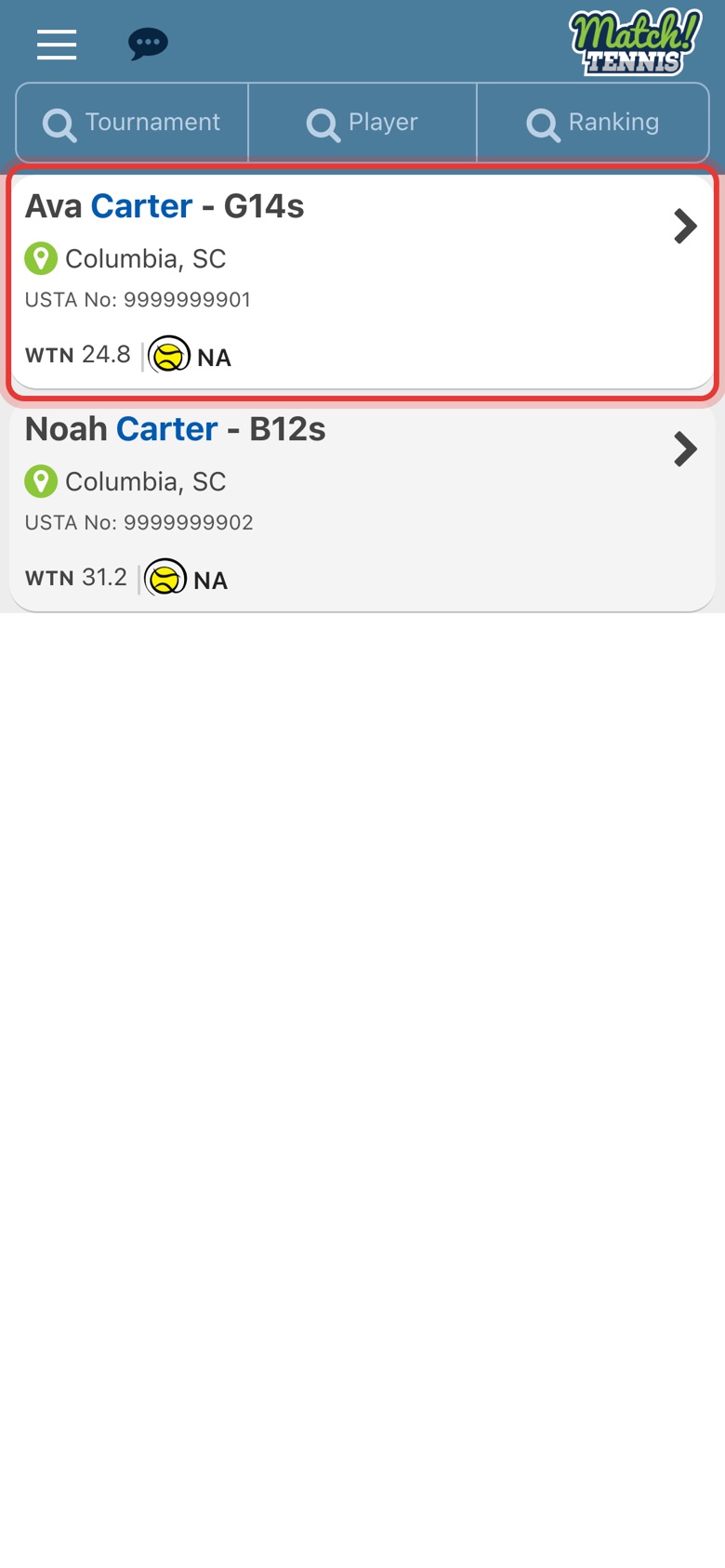
Step 2: Tap your player
Tap the player you want to plan for to open their profile.
-
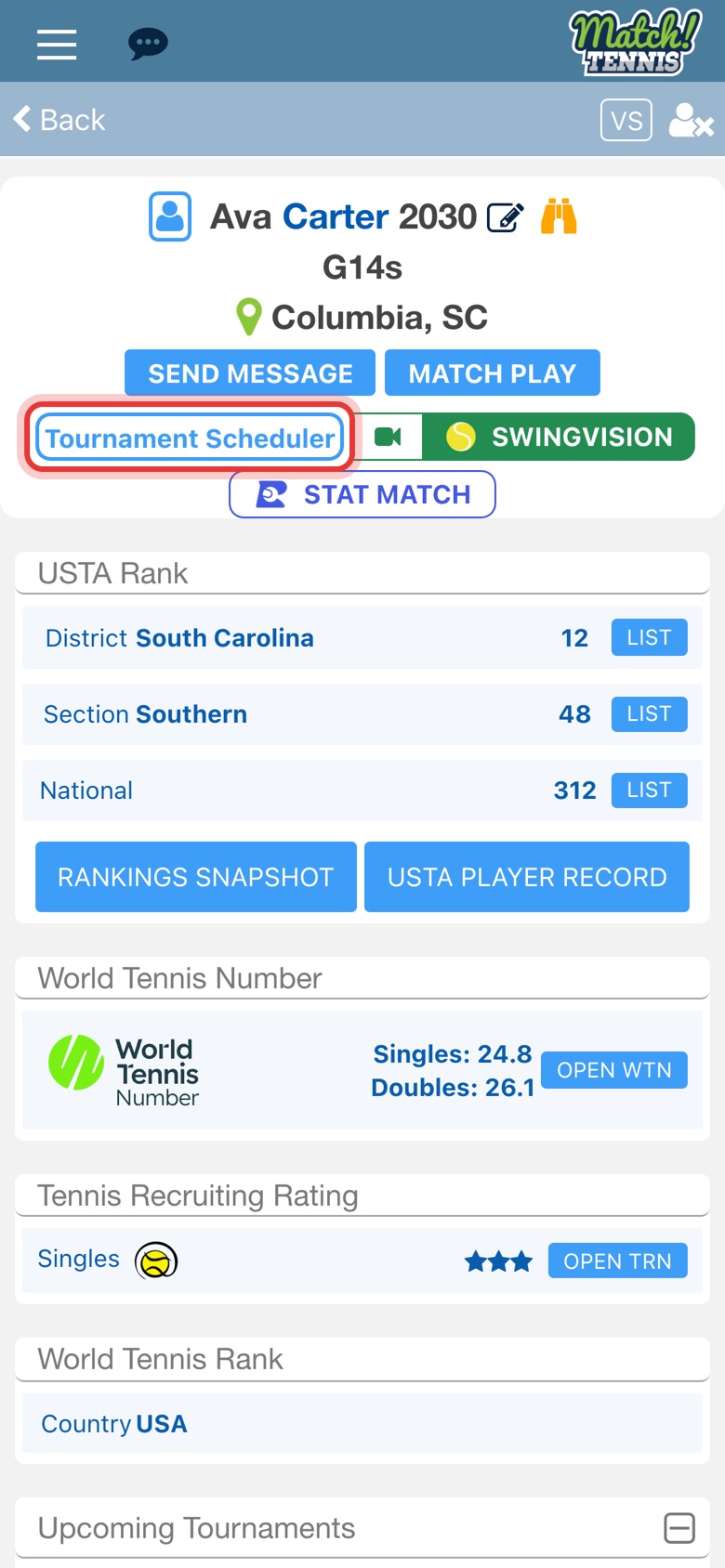
Step 3: Tap Tournament Scheduler
The button is under the player's name, next to SwingVision.
Part 2Set the goal
-
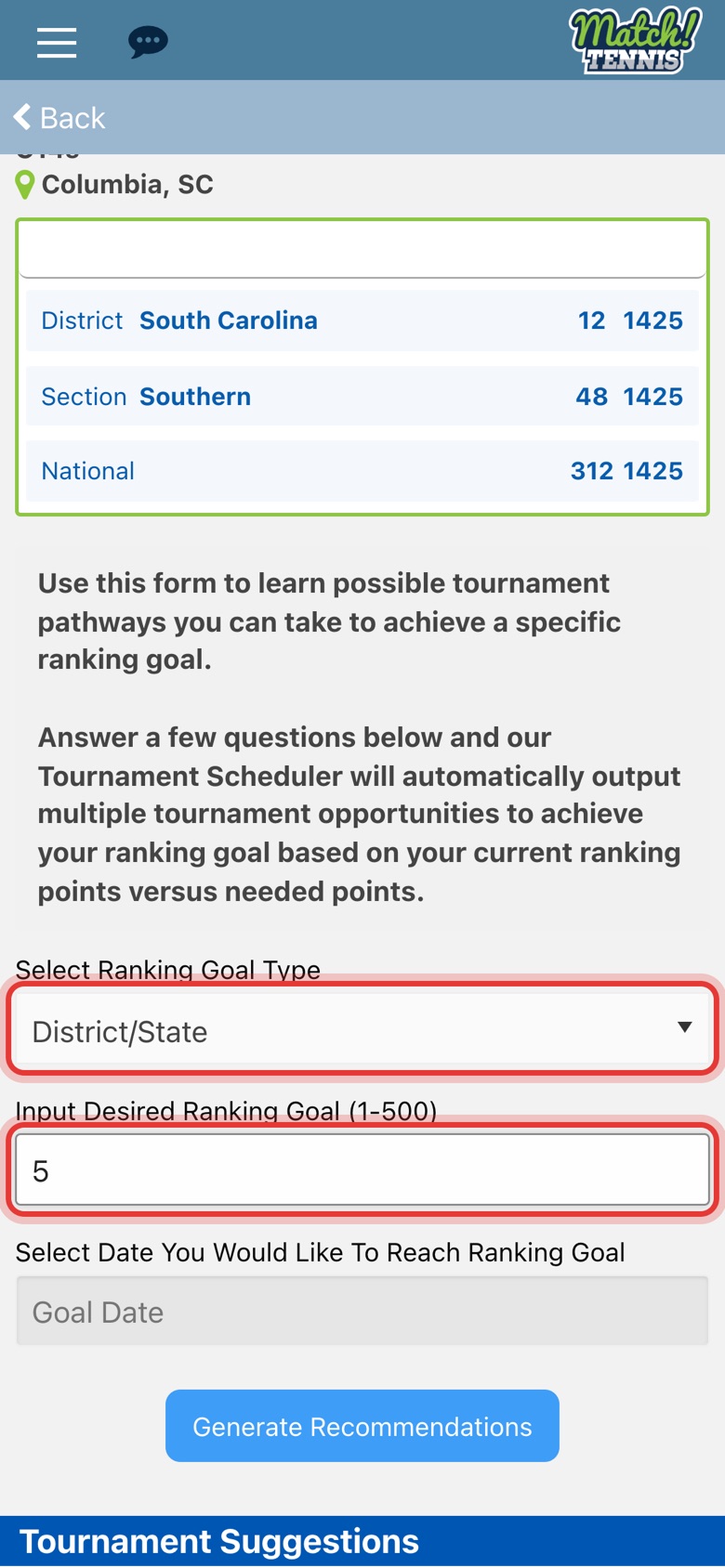
Step 4: Choose the goal type and rank
Pick National, Sectional or District/State, then type the ranking you want to reach.
-
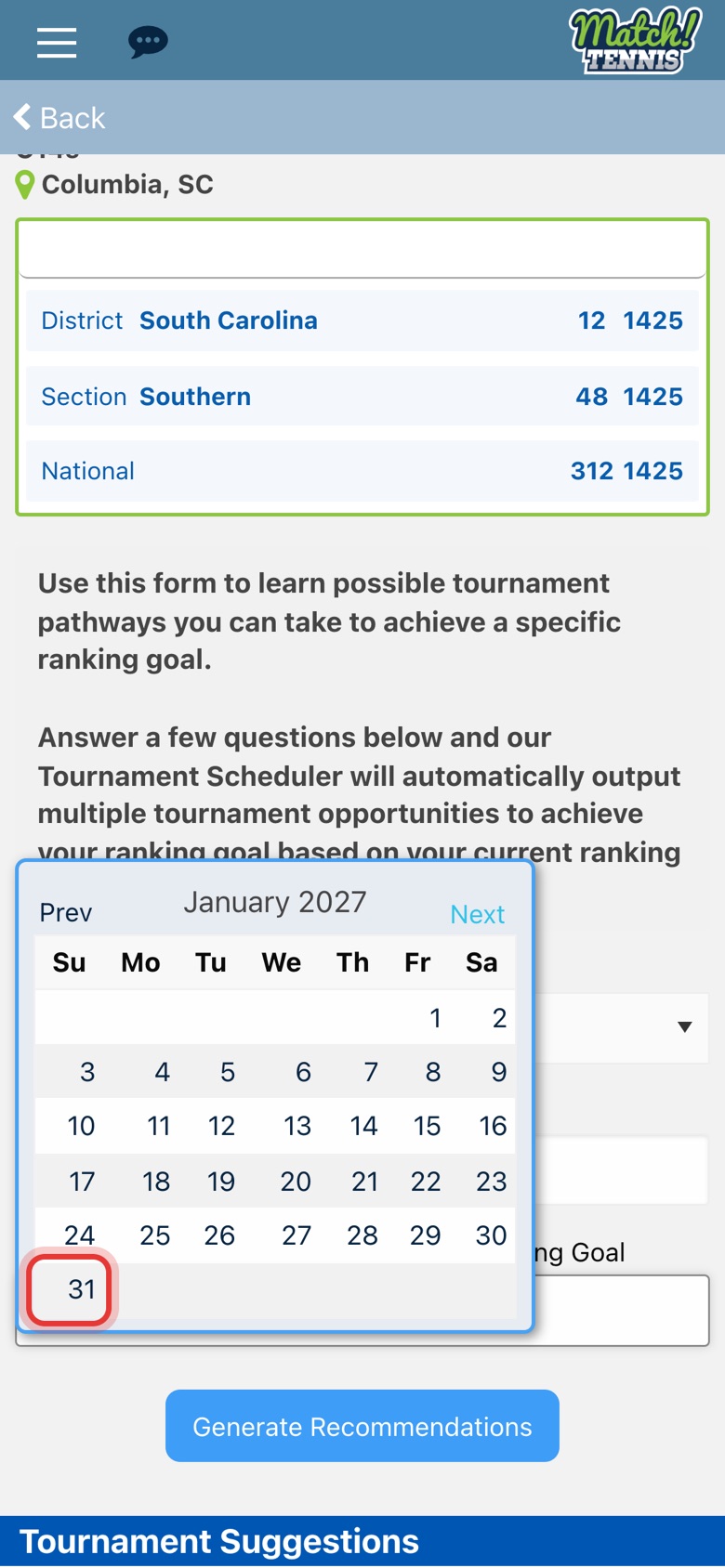
Step 5: Pick the goal date
Tap Goal Date, use Next to move to the right month, then tap the day.
-
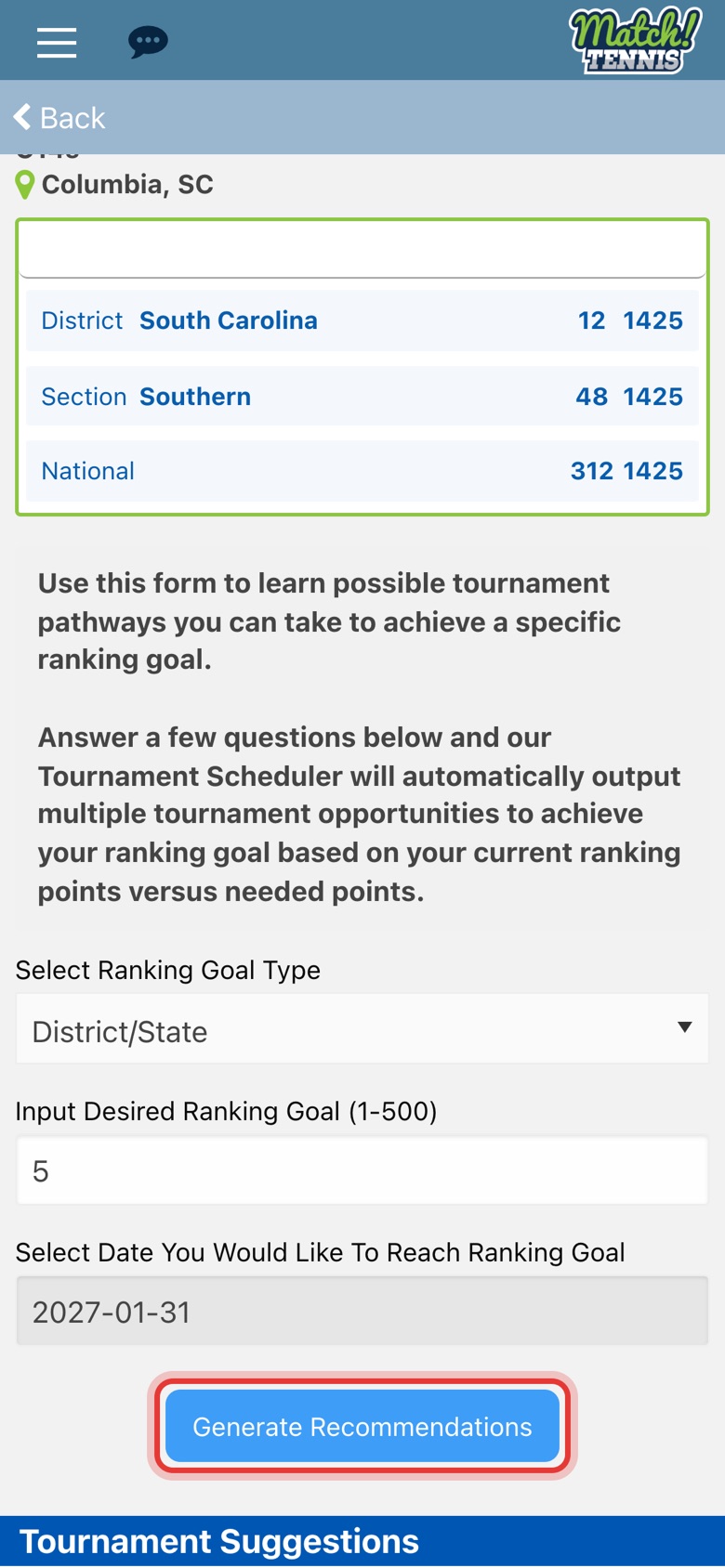
Step 6: Tap Generate Recommendations
Check the goal type, rank and date, then tap Generate Recommendations.
Part 3Pick your tournaments
-
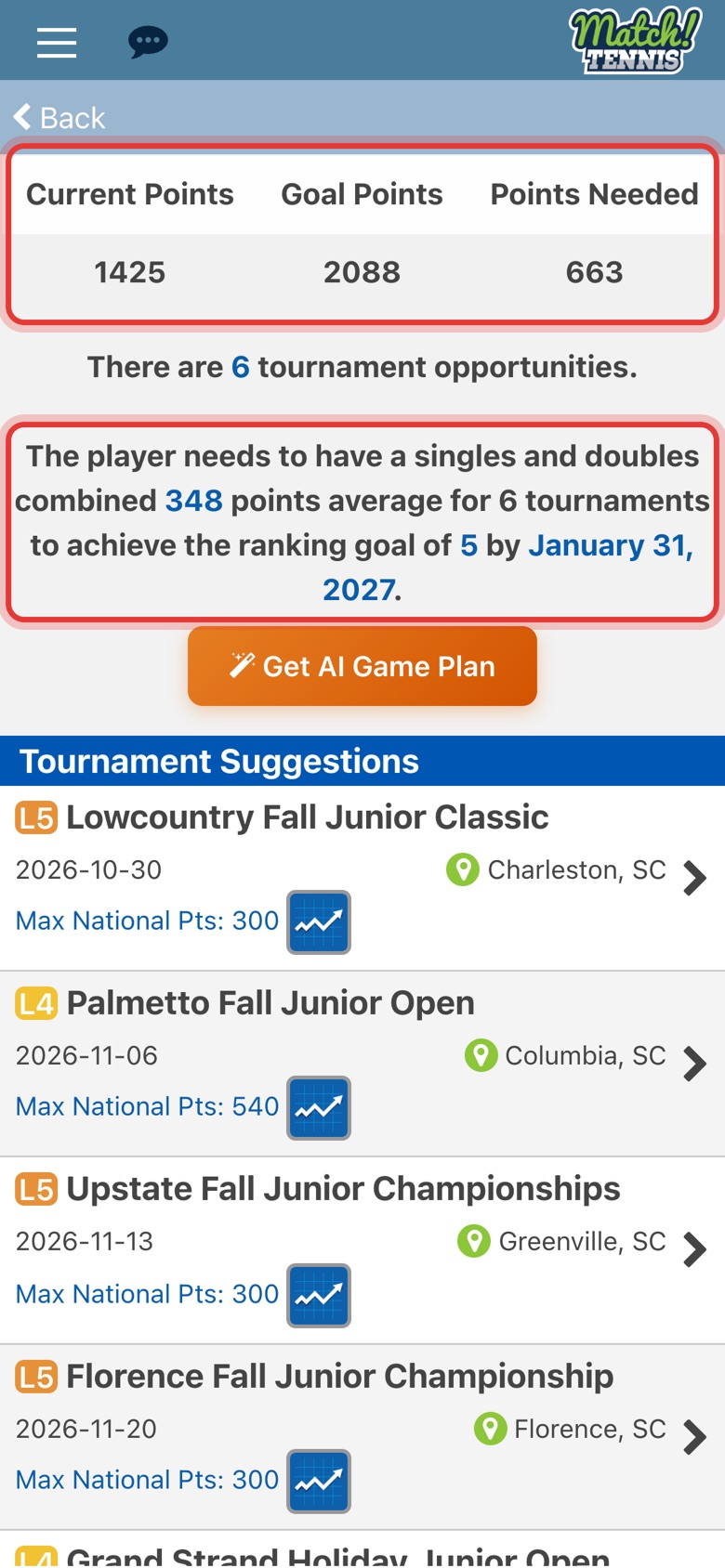
Step 7: See the points needed
The table shows current points, goal points and points needed. Below it is the average your player needs per tournament to reach the goal by the date.
-
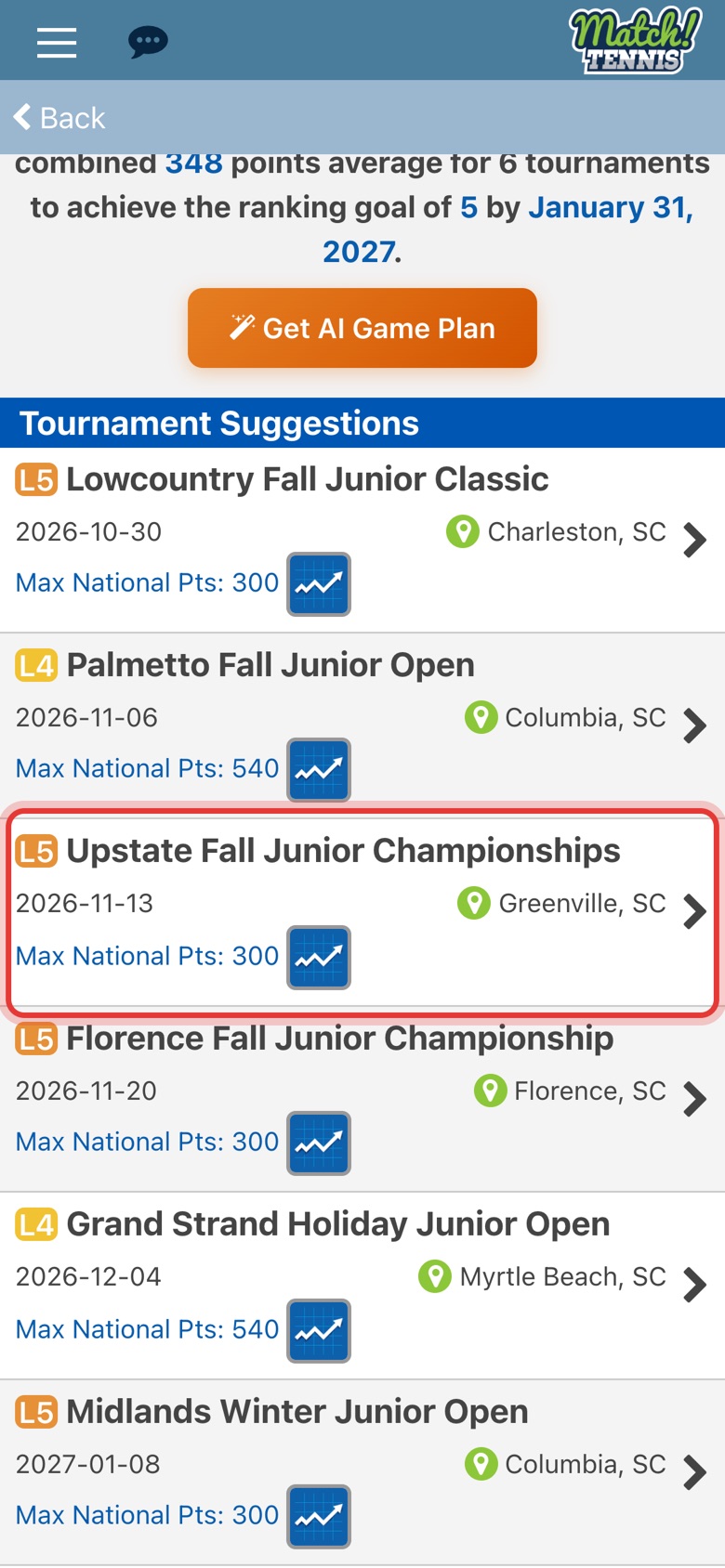
Step 8: Tap a suggested tournament
Each suggestion shows the level, start date, city and most national points on offer. Tap one to open it.
-
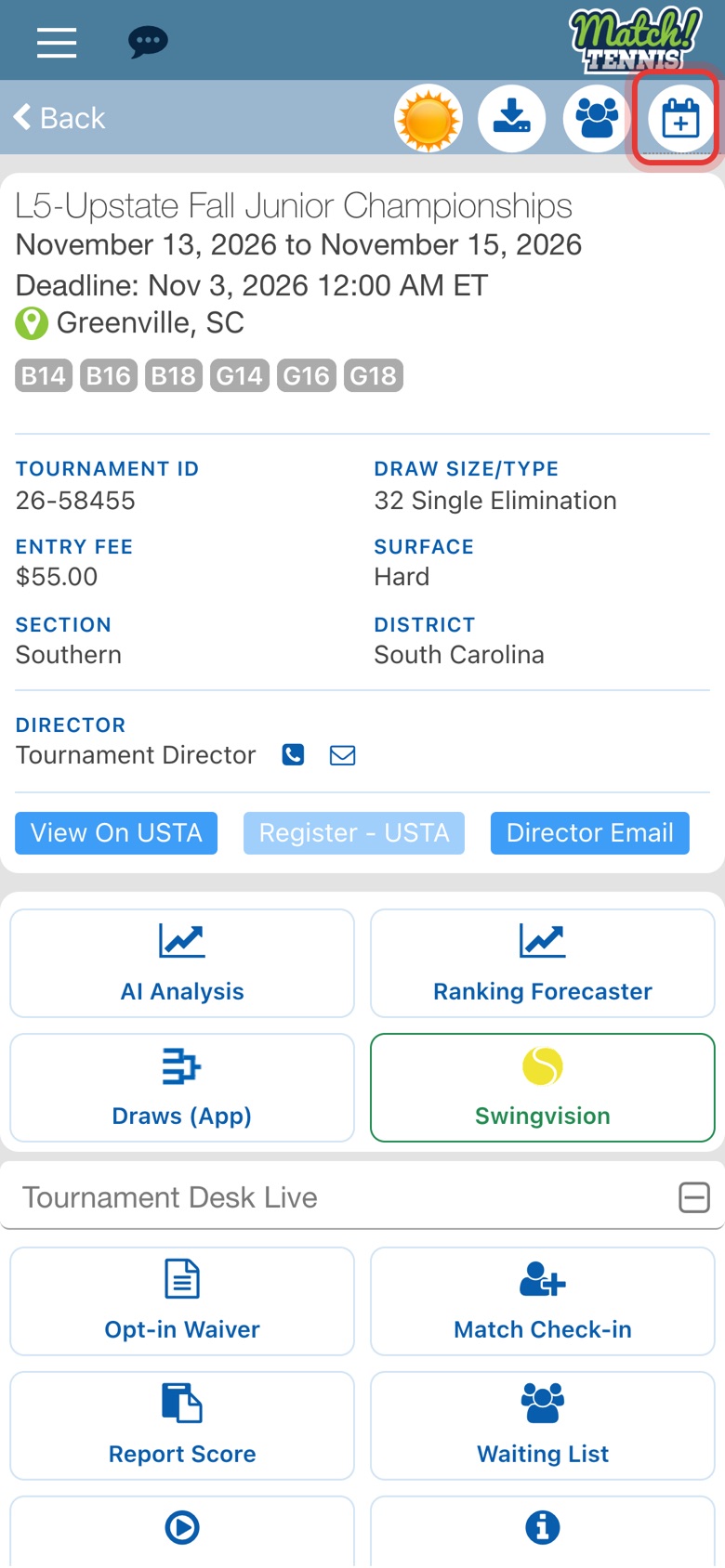
Step 9: Tap the calendar icon
Check the dates and deadline, then tap the calendar icon with a plus sign at the top right.
-
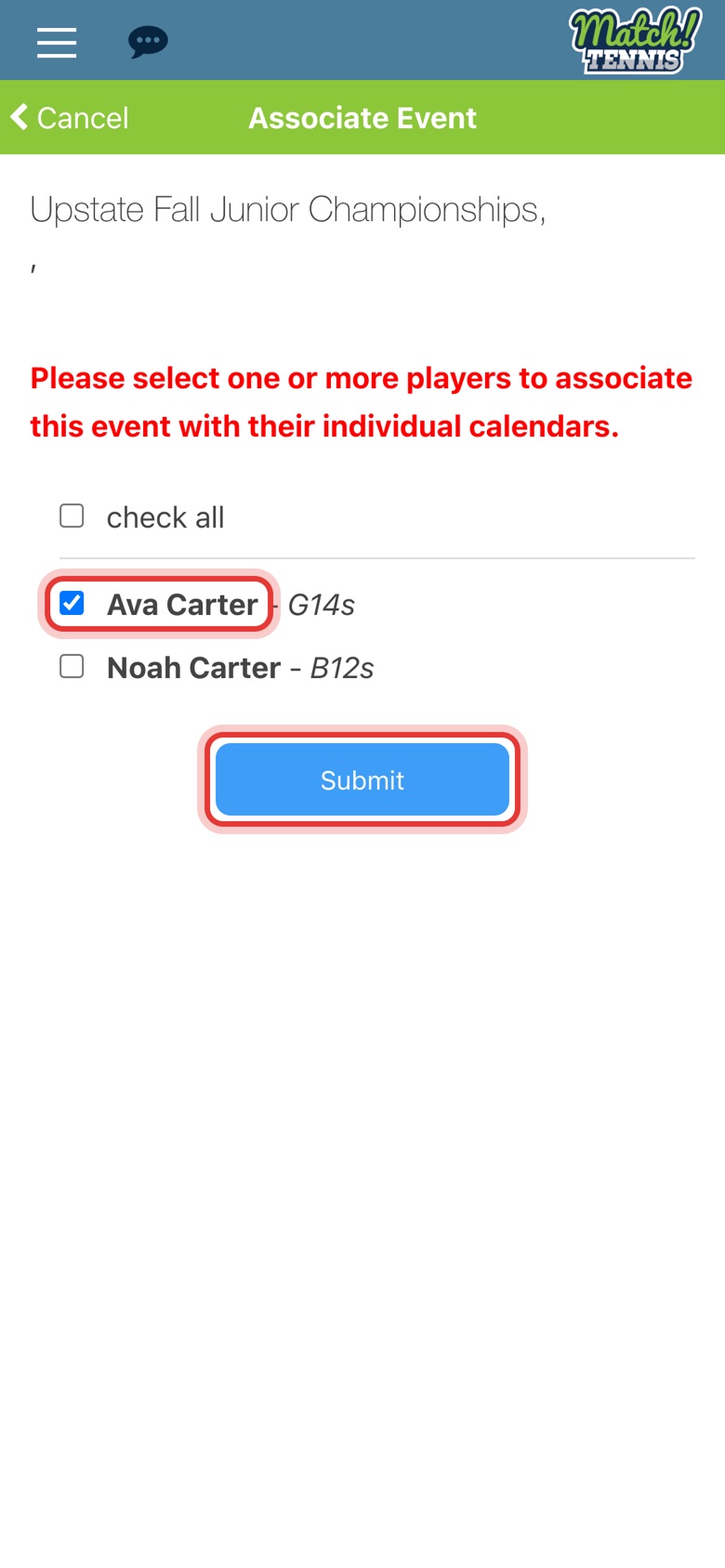
Step 10: Choose the player and tap Submit
The tournament goes on your player's calendar, so you can follow it and enter when you are ready.
Tips
- Forecast a suggestion. Tap the chart icon on a suggested tournament to open the Ranking Forecaster for it.
- One goal at a time. National, sectional and district goals need separate searches. Change the goal type and tap Generate Recommendations again.
- Adding is not entering. The calendar is your plan. To enter, tap Register - USTA on the tournament page.