How to Cancel Your Subscription
Getting started Updated November 1, 2026 1 min read
Six short steps in My Account.
-
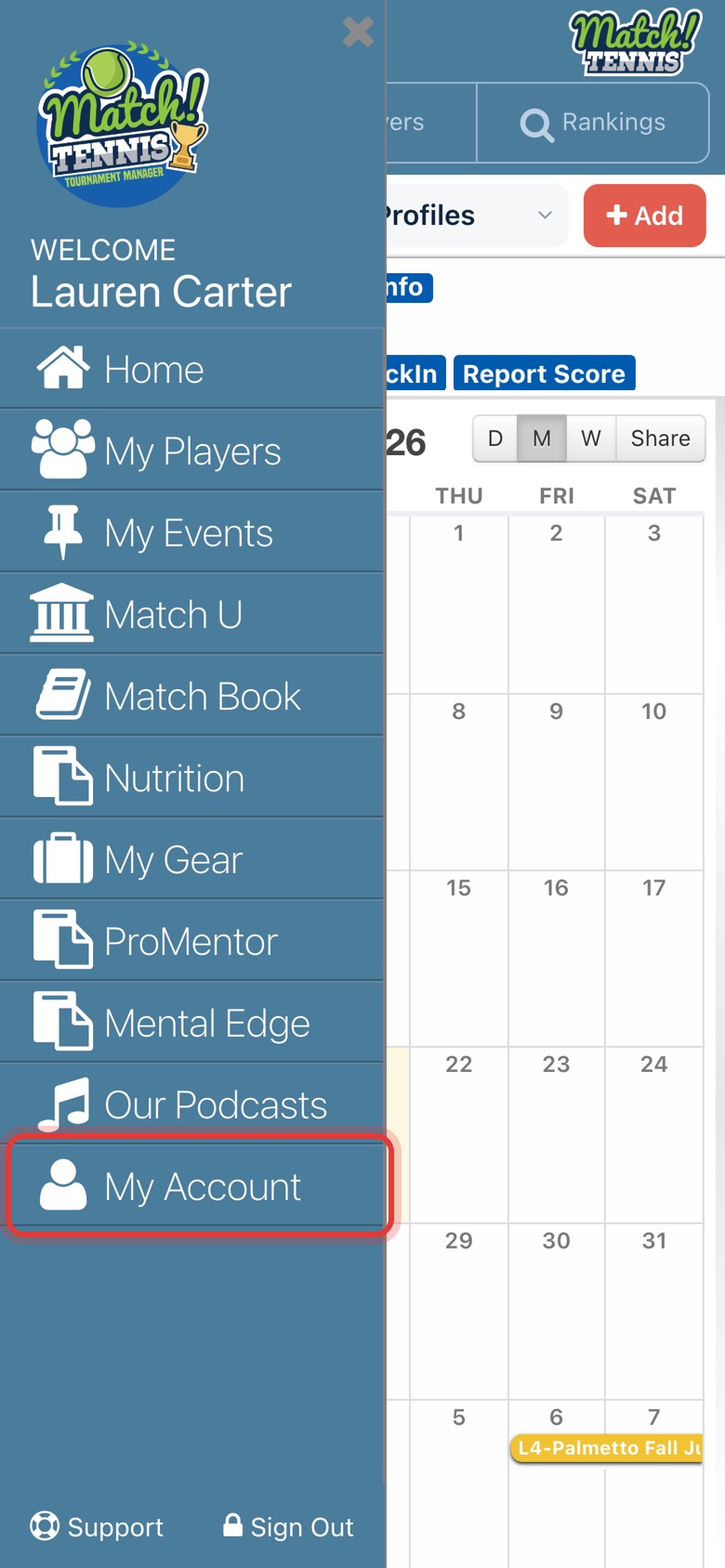
Step 1: Open My Account
Tap the menu at the top left, then tap My Account.
-
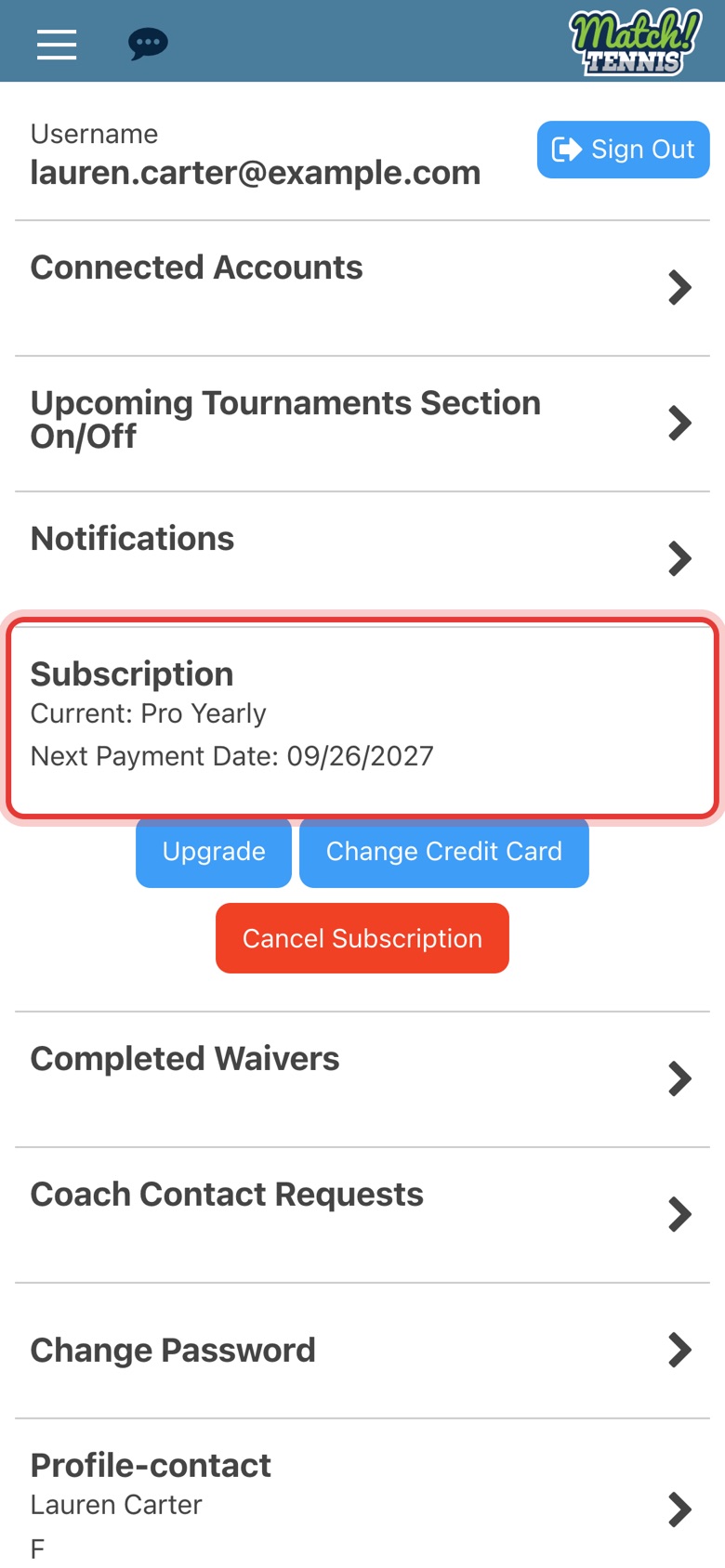
Step 2: Find Subscription
Your current plan and next payment date are shown here.
-
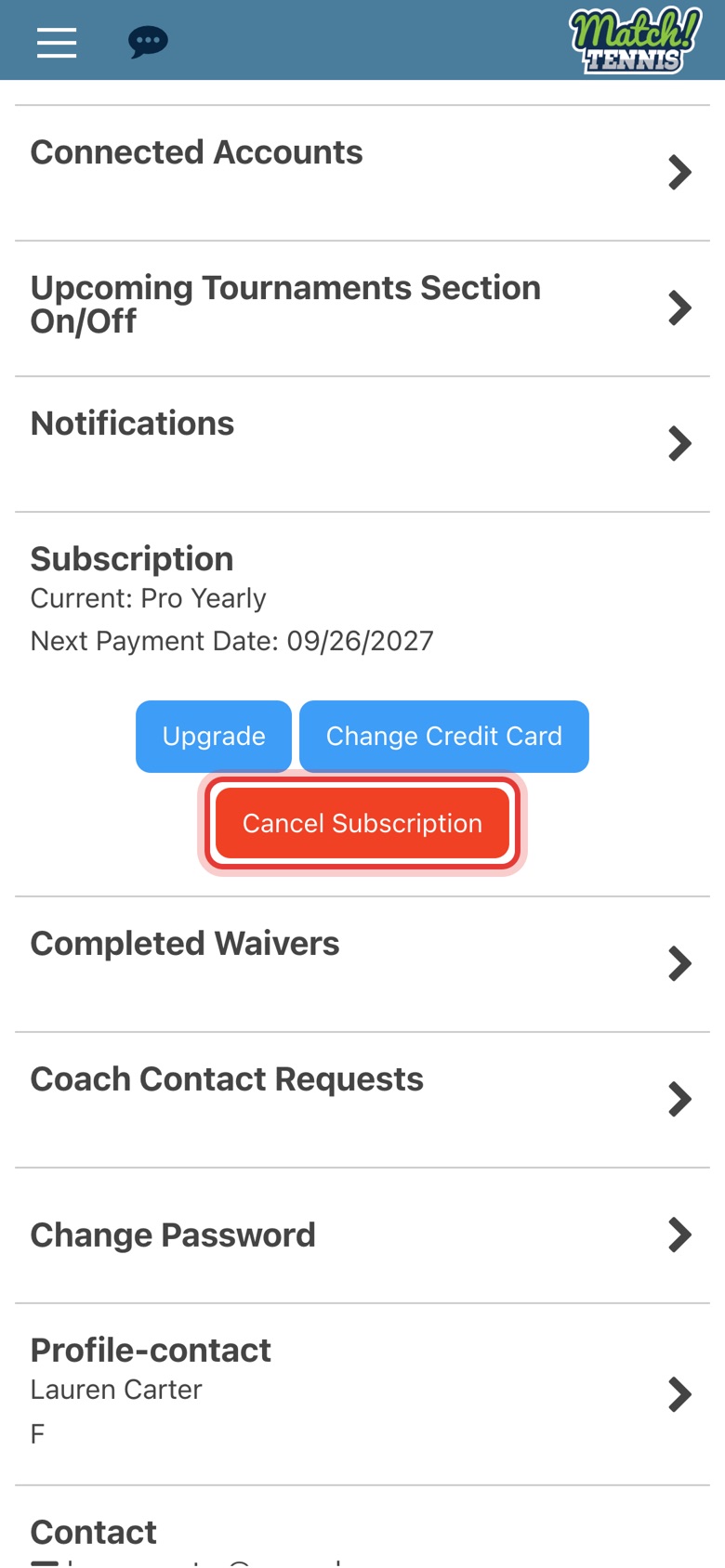
Step 3: Tap Cancel Subscription
The red button is under your plan.
-
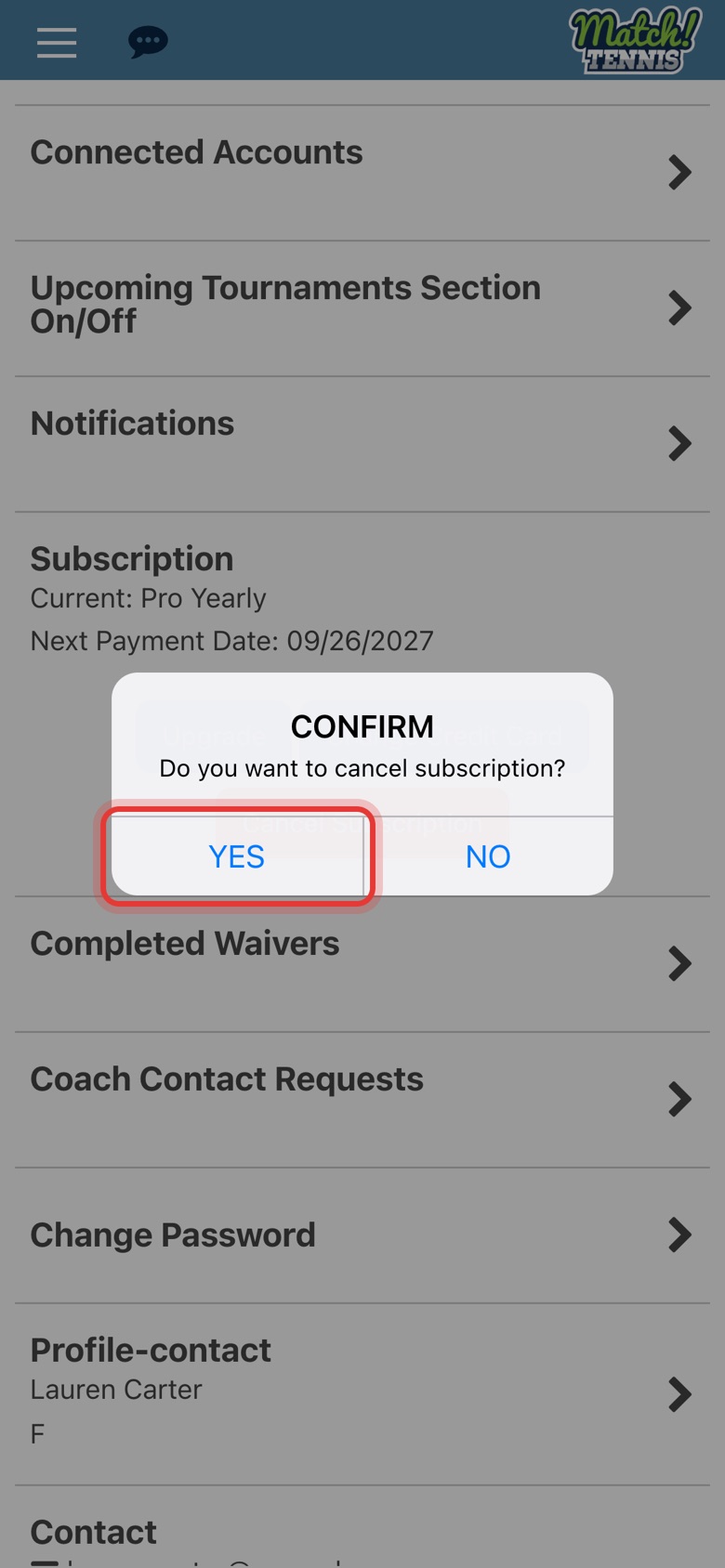
Step 4: Tap YES to confirm
The app asks if you want to cancel. Tap YES, or OK in a web browser.
-
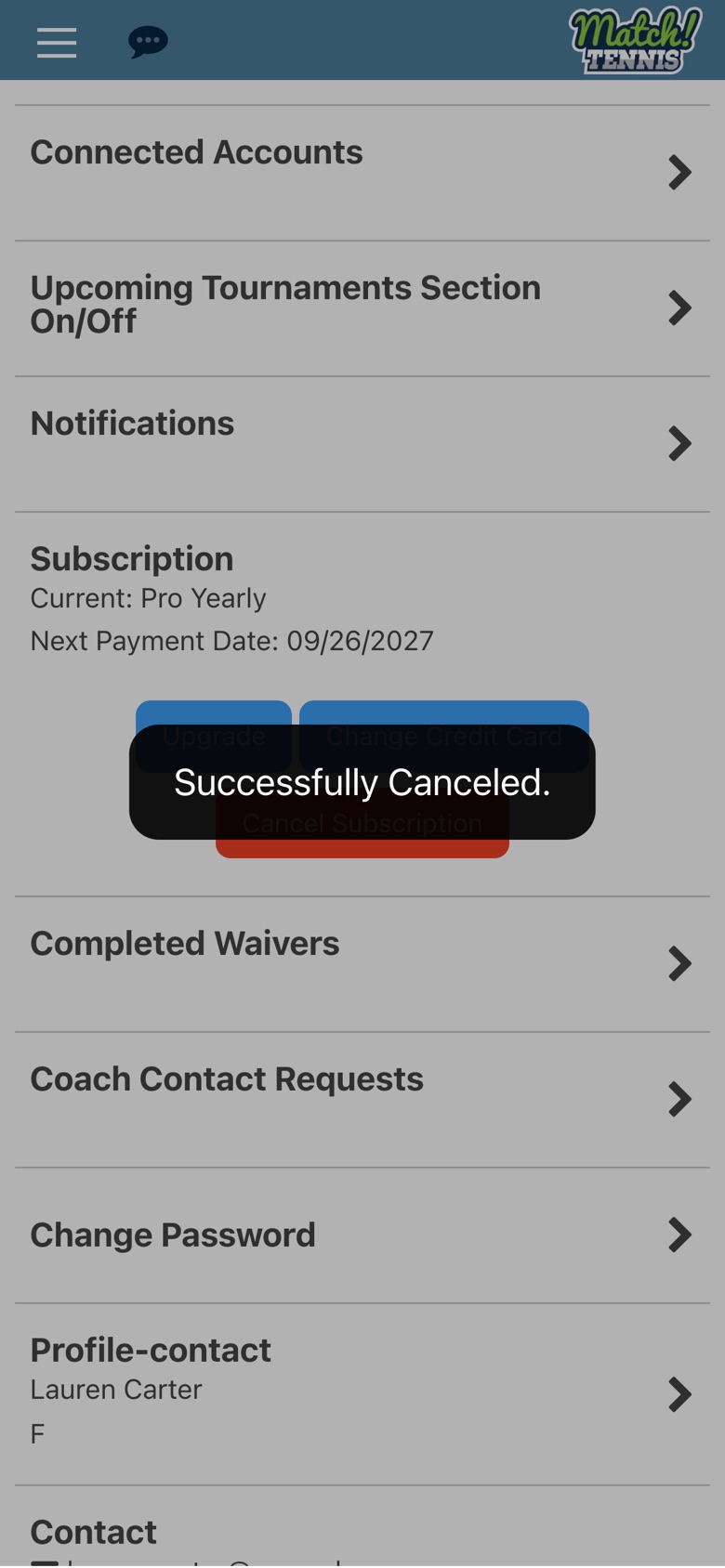
Step 5: Your subscription is canceled
A Successfully Canceled message appears.
-
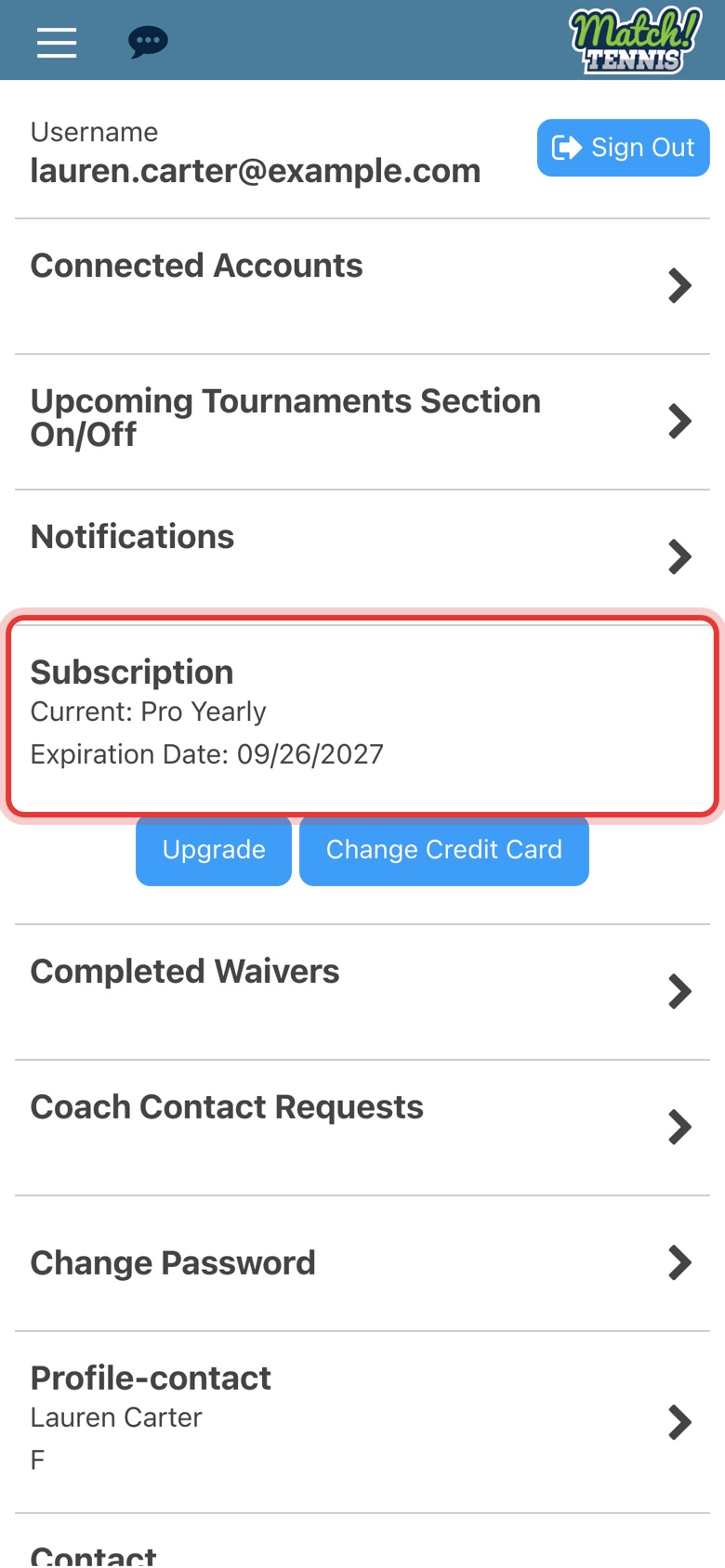
Step 6: Check the expiration date
My Account now shows an Expiration Date instead of a payment date. Premium features stay on until then.
Tips
- No Cancel Subscription button? It only shows for an active paid plan, so it is gone once you have canceled or if you are on the free Basic plan.
- Questions about a charge? Tap Support at the bottom of the menu to reach us.